SAFY Dashcams Installation Guide, With its built-in GPS, SAFY9 logs every trip with precise time, speed, and location data. Each video is automatically geotagged, making it easy to review your routes through the SAFY app and providing stronger evidence for insurance claims or disputes.
How to view driving location and route (GPS Tracking)
With its built-in GPS, SAFY9 logs every trip with precise time, speed, and location data. Each video is automatically geotagged, making it easy to review your routes through the SAFY app and providing stronger evidence for insurance claims or disputes.
To check the location and route, the video recording should be downloaded first.
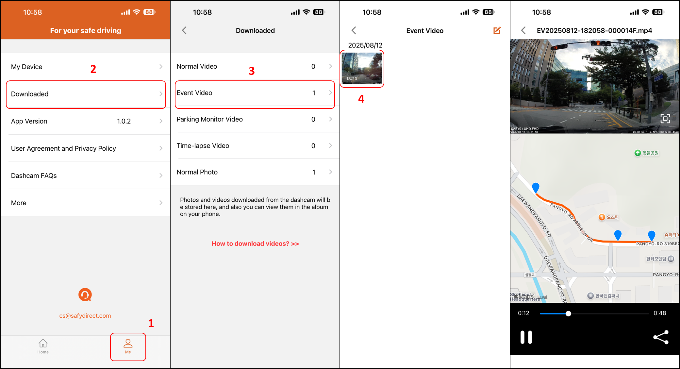
You can see on the screen the actual footage on the upper half section and the route/location of the car on the lower half section.
SAFY Dashcams Installation Guide
How to adjust SAFY 9 dashcam settings in the app
Here is the compilation of SAFY 9 dashcam settings with options and default values. You can adjust the settings according to your recording needs.
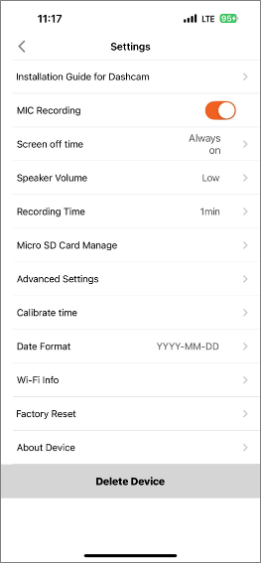
1.Installation Guide for Dashcam
How to delete the SAFY dashcam
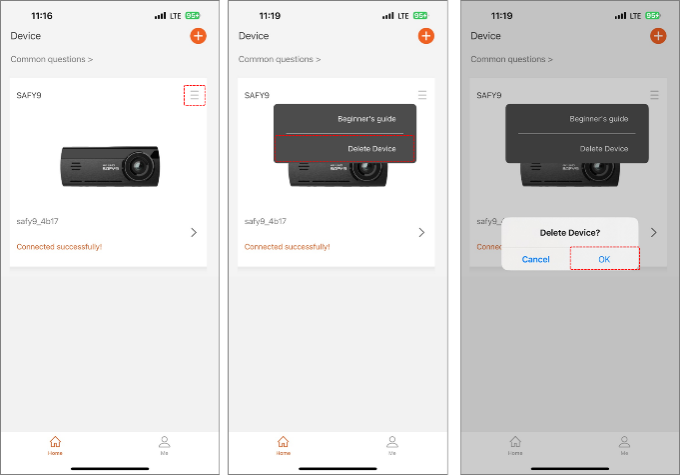
There are two options to delete a SAFY dashcam from the SAFY Direct app.
Option 1
Option 2
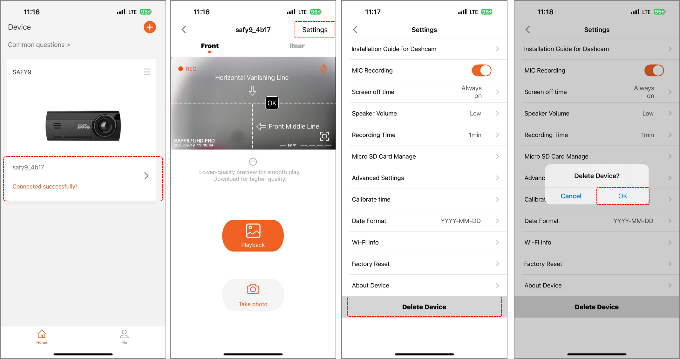
NOTE: Deleting the camera from the list will not delete the recordings saved in the SD card.
How to manage my SAFY dashcam (Firmware Update and Renaming the Device)
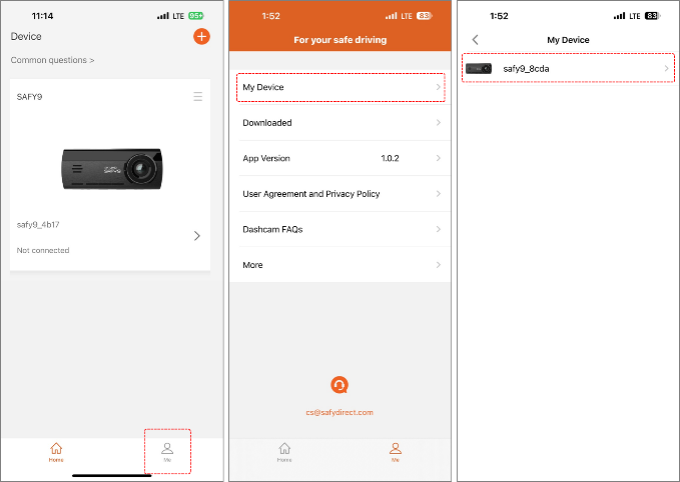
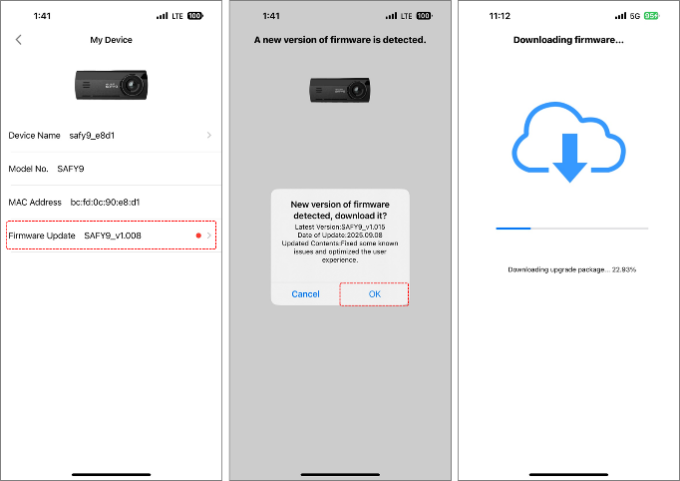
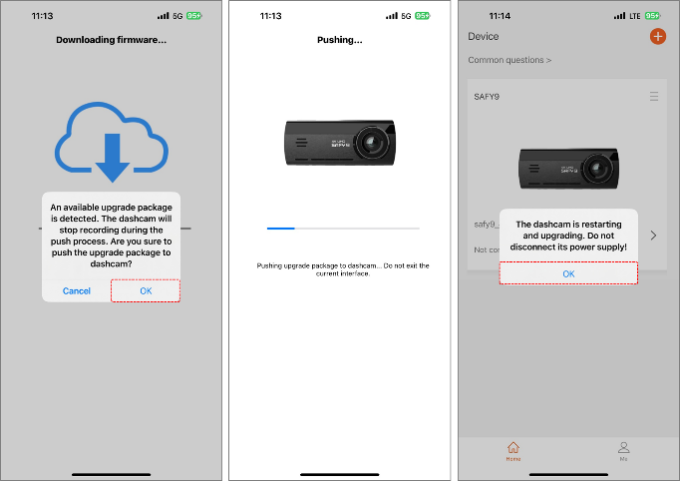
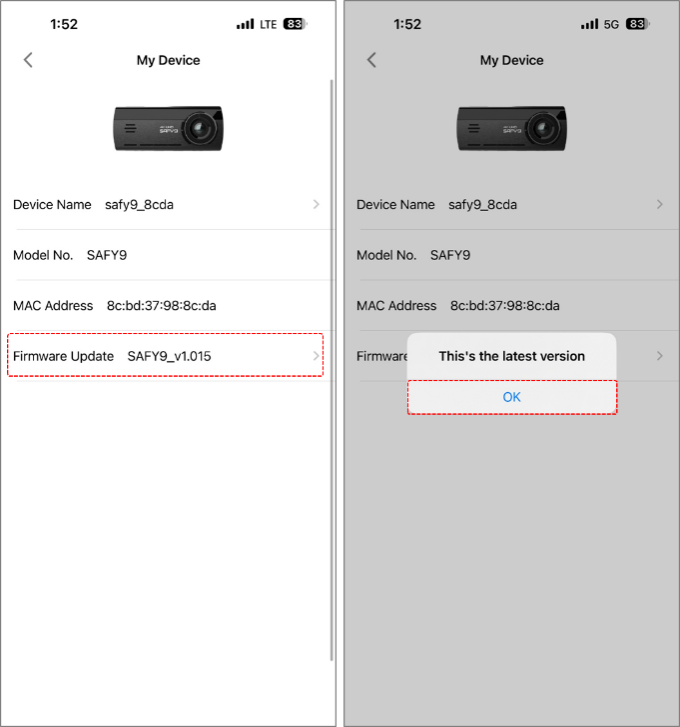
To maintain the excellent performance of the dashcam, firmware updates are necessary to address dashcam issues and application bugs. SAFY dashcam’s firmware can be updated by following the steps below.
Updating the Firmware
Renaming the SAFY Dashcam
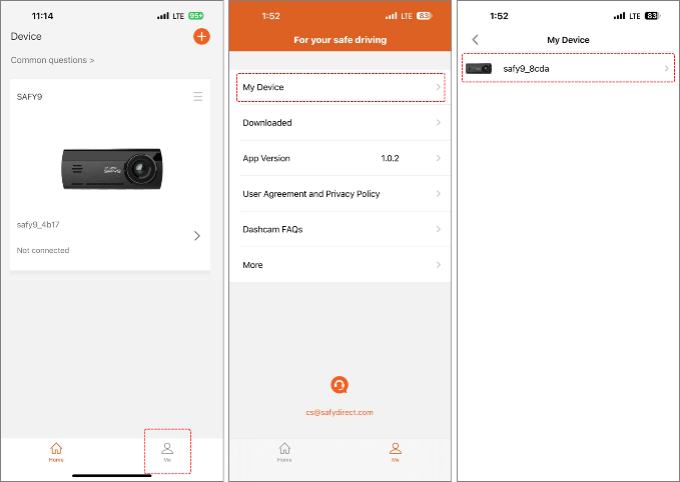
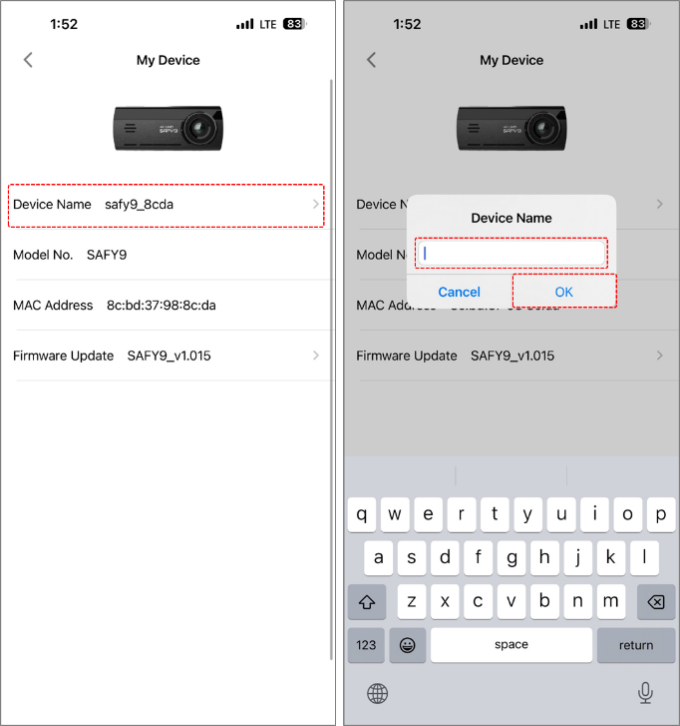
It is recommended to rename your SAFY dashcam especially when you own multiple units for easy browsing and management.
How to change the WiFi password of the SAFY camera in the SAFY Direct app
SAFY dashcam has the default password of 12345678. To prevent others from connecting to your camera and access recording files, you can change the password by following the steps below.
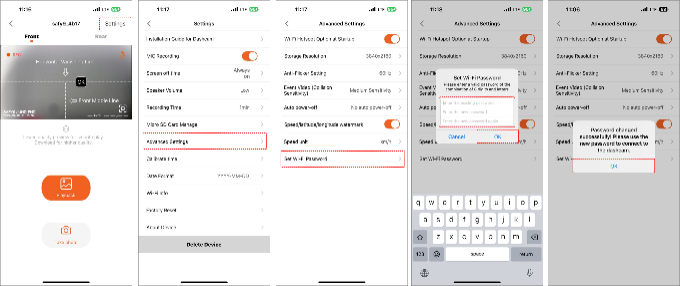
There are two options to confirm the new password.
OPTION 1: After saving the new password, you can tap the Wi-Fi Info option under Settings to see the new password.
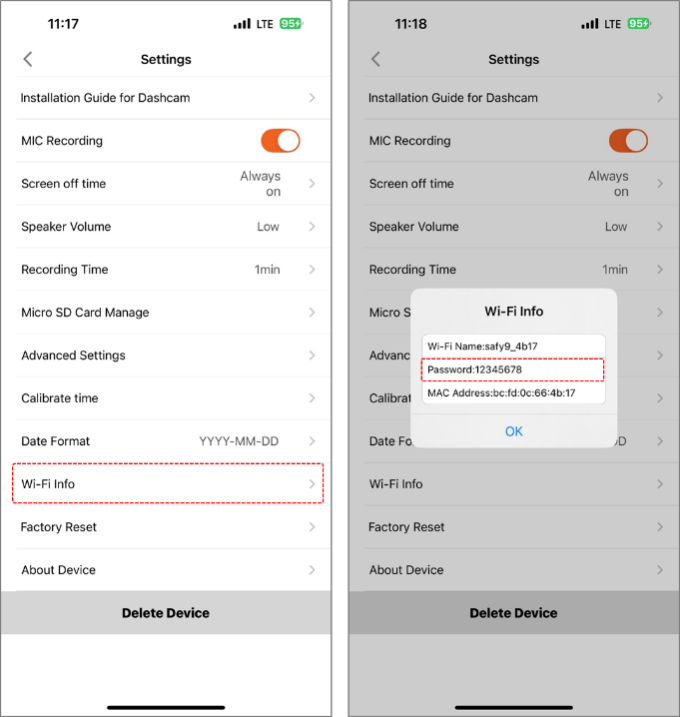
OPTION 2: You can check it from the dashcam. Press the right-most button to display the menu. Go to Systems Settings > Wi-Fi hotspot to see the new password.
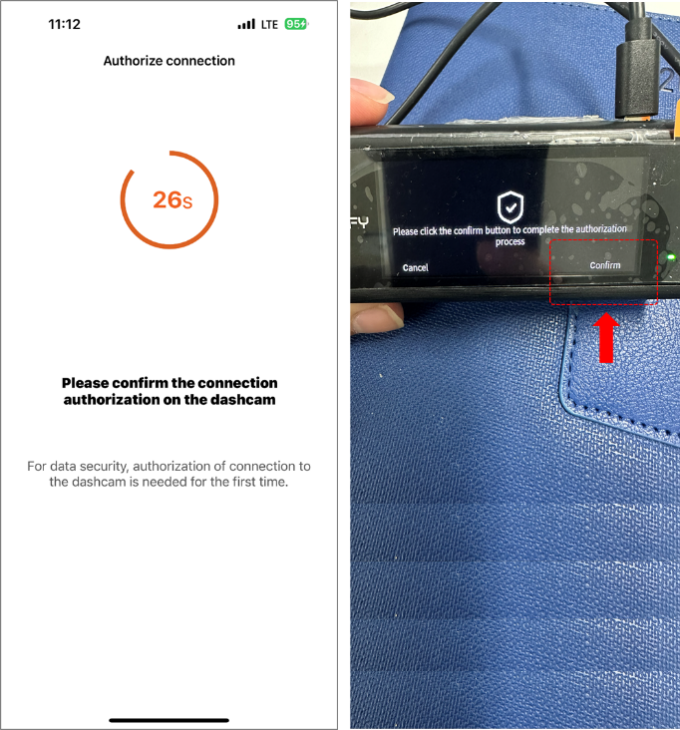
NOTE: Changing the password will require re-authorization to the camera when connecting to it again for the first after Wi-Fi password change.
The left screen will appear on the app and you have to press the right-most button of the dashcam to confirm the re-authorization. The app will then connect to the camera and display the live view screen.
How to add SAFY camera in the SAFY Direct app
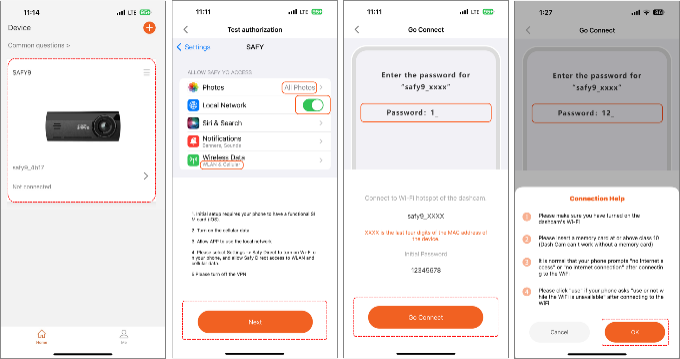
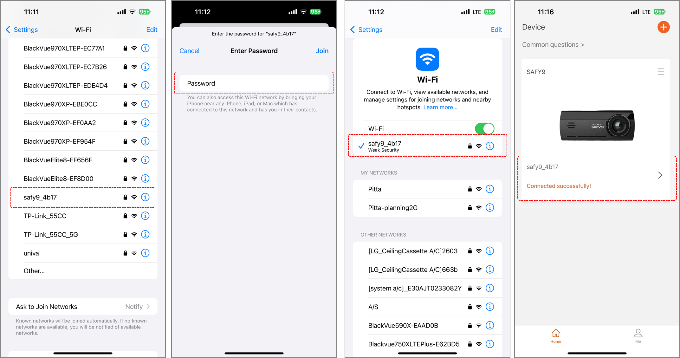
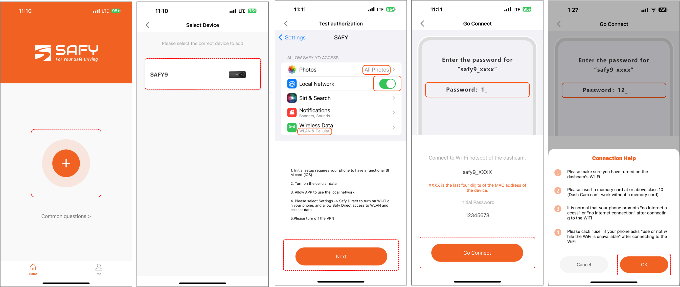
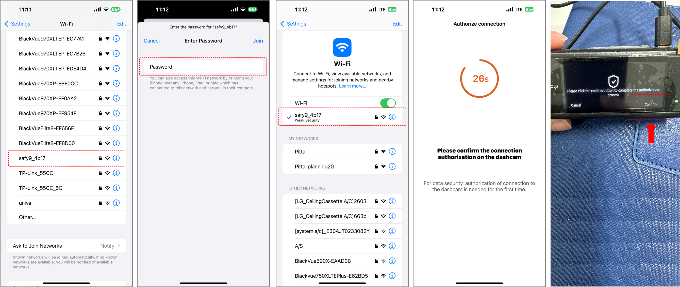
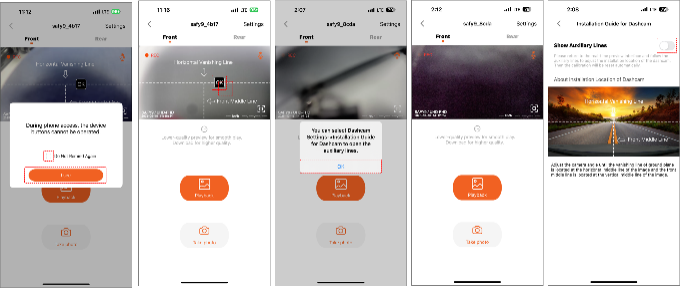
Follow the steps below on how to add/link your SAFY camera to the SAFY Direct app.
Installation & Setup
How do I install the microSD card properly?
Insert the microSD card into the slot until you hear a click sound. Ensure the card is fully seated before powering on the dashcam. The SAFY9 supports microSD cards up to 256GB (64GB and 256GB recommended). Never remove the microSD card while it’s saving or reading data to prevent corruption.
What’s the correct way to mount the front camera?
Follow these steps:
How do I properly install the rear camera?
Power & Connectivity
What are my power connection options?
You have two main options:
How do I wire the hardwire kit correctly?
Connect three wires:
Never connect both ACC and VCC wires to the same fuse tap.
How do I identify ACC and VCC fuse slots?
Use a multimeter or test light:
App & Wi-Fi
How do I download and set up the SAFY Direct app?
How do I connect my phone to the dashcam’s Wi-Fi?
What can I do with the SAFY Direct app?
The app allows you to:
Why can’t I connect to the dashcam’s Wi-Fi?
Check these common issues:
Recording & Features
What recording modes are available?
The SAFY9 offers several recording modes:
What are the recording specifications?
Troubleshooting
What do the LED indicator colors mean?
LED indicators show different statuses:
Why isn’t my dashcam recording?
Check these potential issues:
Why is my video quality poor at certain times?
Video quality may deteriorate in these situations:
What should I do if parking mode isn’t working?