How to Reset DVR and NVR Passwords: Complete Modern & Legacy Guide, Securing physical video surveillance infrastructure requires robust credential management; however, forgotten administrative credentials represent one of the most persistent bottlenecks in security operations. dvr password, Whether dealing with obsolete H.264 analog units or enterprise-grade Network Video Recorders (NVRs), executing a safe, deterministic DVR password reset requires understanding the architectural divide between legacy hardcoded firmware and modern public-key cryptographic authentication frameworks.
- The Evolution of DVR & NVR Credential Architectures
- Comparative Analysis: Password Reset Frameworks Across Generations
- Platform-Specific Reset Methodologies
- 1. Hikvision and Associated OEM Ecosystems (SADP Protocol)
- 2. Dahua Technology and OEM Architectures (ConfigTool & Hardware Loops)
- 3. Xiongmai (XM) and Generic H.264 / H.265 White-Label Boards
- Hardware-Level Forensics: UART Console and Flash Recovery
- UART Terminal Execution Steps
- The Downstream Dilemma: NVR vs. IP Camera Authentication Decoupling
- Post-Recovery Architecture: Hardening and Zero-Trust Integration
- Mandatory Enterprise Hardening Checklist:
- Comprehensive Technician Field Workflow
- ❓ Frequently Asked Questions
📌 Key Takeaways & Highlights
- Architectural Shift: Systems manufactured prior to 2016 rely predominantly on mathematical clock-based super-passwords or hardcoded backdoors, while modern devices enforce asymmetric cryptographic challenge-response validation (XML/QR key exchanges) or dedicated hardware reset loops.
- Hardware Pin Jumper Resets: Enterprise and generic embedded DVRs frequently feature board-level solder pads (J1, JP1, or physical tactile microswitches) that drain CMOS memory or short the internal flash bus to invoke factory initialization.
- Decoupled Network Authentication: Resetting a host NVR password does not automatically reset synchronized IP camera passwords; downstream ONVIF/RTSP handshake protocols must be independently re-authenticated to prevent camera lockouts.
- Zero-Trust Hardening: Every post-reset workflow must culminate in physical port termination, disabling automated Universal Plug and Play (UPnP), and isolating the recorder within a dedicated surveillance VLAN.
The Evolution of DVR & NVR Credential Architectures
Surveillance devices are purpose-built embedded Linux appliances. To understand how to execute a successful password reset across diverse hardware revisions, system administrators must understand the timeline of embedded security standards. The surveillance industry underwent a fundamental paradigm shift following the widespread weaponization of the Mirai botnet in late 2016, which systematically exploited default, hardcoded Telnet passwords on embedded Xiongmai (XM) and allied white-label DVR boards.
Consequently, recovery methodologies split cleanly into two distinct generations:
- Legacy Architectures (Pre-2016 / Unpatched Hardware): These platforms store user databases in non-volatile flash memory with minimal salting or utilize hardcoded fallback algorithms. Technicians can calculate “super passwords” deterministically based on the device’s internal Real-Time Clock (RTC) date stamp, or force the clock to an epoch state (e.g., 2000-01-01) by removing the onboard CR2032 coin cell battery.
- Modern Architectures (Post-2017 NDAA / Modern Cybersecurity Standards): Modern tier-1 manufacturers (Hikvision, Dahua, Axis, Hanwha Vision, and their vast OEM ecosystems) have completely eliminated default credentials (`admin`/`123456` or `admin`/`admin`). Modern platforms require active provisioning upon first boot. Password recovery relies on asymmetric key cryptography—where the machine exports a digitally signed challenge token (XML file or base64-encoded QR string) that must be verified against the manufacturer’s licensing server or decrypted using a private key tied to an authenticated installer account.
Comparative Analysis: Password Reset Frameworks Across Generations
Deploying the correct technique depends on the target device’s manufacturer, system age, and network access status. The table below delineates the most prevalent reset mechanisms across modern and legacy surveillance environments.
| Recovery Vector | Compatible System Generations | Key Advantages | Operational Requirements & Dependencies |
|---|---|---|---|
| Cryptographic XML / QR Challenge | Modern (Post-2017 Hikvision, Dahua, Uniview, OEMs) | Zero hardware disassembly; eliminates bricking risks; maintains audit logs. | Layer-2 local network visibility, vendor utility tools (SADP, ConfigTool), external email or dealer portal access. |
| Motherboard Micro-Switch / Jumper Short | Universal (Mid-to-Modern enterprise chassis) | Completely offline; bypasses bricked network configurations and lost emails. | Physical chassis access; ESD-safe workspace; specific sequence timing during boot cycle. |
| Temporal Super Password (Seed Algorithmic) | Legacy (Generic H.264, Xiongmai, Early Dahua/Hikvision) | Instant field access without waiting for remote vendor support authorization. | Direct HDMI/VGA monitor attached; accurate visual confirmation of the DVR’s internal date/time. |
| RTC Battery Discharge (Epoch Reset) | Legacy Embedded Platforms | Forces clock divergence to known default states where master keys are universal. | Removal of CR2032 battery; 15-minute capacitor bleed-off; physical chassis intrusion. |
| Serial Console / TTL UART Intercept | All Linux-based DVRs / Bricked Hardware | Absolute low-level recovery; exposes U-Boot bootloader to wipe the /mnt/mtd overlay. |
USB-to-TTL UART adapter; terminal emulator (PuTTY/Minicom); direct RX/TX pin soldering or headers. |
Platform-Specific Reset Methodologies
1. Hikvision and Associated OEM Ecosystems (SADP Protocol)
Modern Hikvision DVRs, NVRs, and independent IP cameras do not feature default factory credentials. The device initializes in an “Inactive” state. When a modern Hikvision password is lost, the recovery workflow is managed via the Search Active Devices Protocol (SADP) utility operating over UDP port 37020.
- Network Isolation and Discovery: Connect a workstation directly to the same Layer-2 network switch as the DVR. Launch the Hikvision SADP utility. Highlight the locked device in the device list.
- Challenge File Extraction: Click Forgot Password located in the lower-right parameter quadrant. Select the Export Key option. SADP prompts you to save an XML challenge file (frequently formatted as
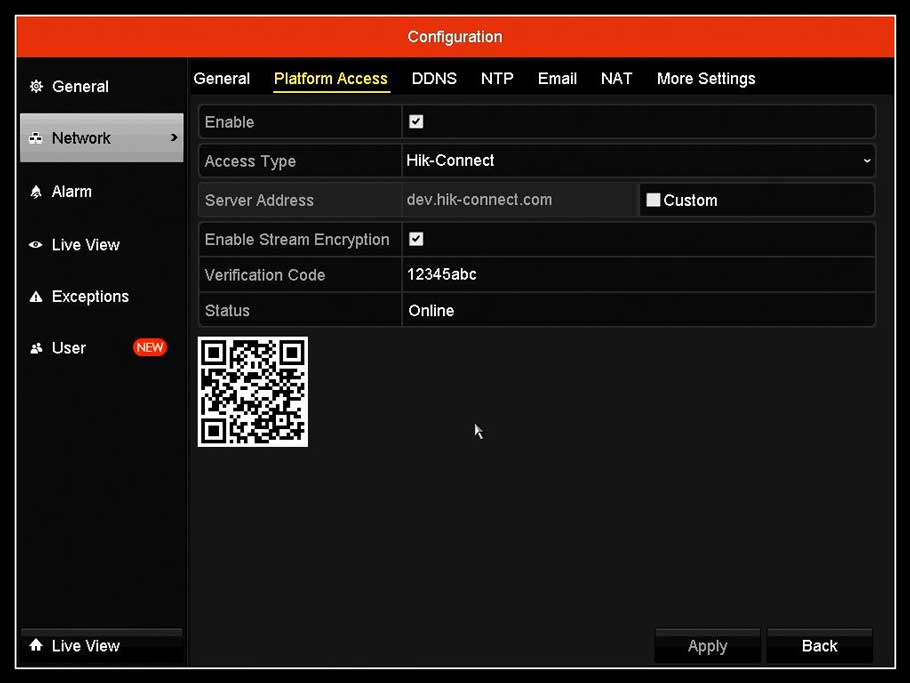
DeviceKey.xml) to your local disk. Crucial operational caveat: Do not power cycle, reboot, or disconnect the DVR after exporting this file; doing so regenerates the device’s internal session nonce and invalidates the cryptographic handshake. - Certificate Processing: Submit the generated XML file through your certified distribution channel, Hikvision technical support portal, or process it via the pre-bound Hik-Connect mobile platform utilizing the recovery QR code presented within the device’s local HDMI/VGA GUI.
- Cryptographic Injection: Receive the corresponding response file (
Encrypt.xml) or alphanumeric decryption key. In SADP, select Import File, point to the response payload, define a compliant new password (minimum eight characters containing uppercase, lowercase, numbers, and special symbols), and select Confirm.
2. Dahua Technology and OEM Architectures (ConfigTool & Hardware Loops)
Dahua Technology and its white-label variants (Amcrest, Lorex, IC Realtime, Dahua-produced Q-See units) provide a dual-track recovery ecosystem: automated cloud challenge tokens via the Dahua ConfigTool and physical mainboard hardware reset buttons.
Method A: ConfigTool Cloud / XML Exchange
Open Dahua ConfigTool on the local subnet. Navigate to the Password Reset interface. The tool allows extraction of an encrypted export payload or directly generates an on-screen QR code. Scanning this QR code using the registered system owner’s mobile application (DMSS/DoLynk Care) transmits a dynamic 8-character security string back to the registered security email. Entering this security key into the GUI unlocks the prompt to redefine the root administrative account.
Method B: The Motherboard Microswitch / Jumper Override
For scenarios where the registered recovery email is obsolete, inaccessible, or the unit operates within a closed air-gapped system, Dahua boards feature physical hardware reset vectors:
- Physical Tactile Microswitch: Unplug the main DC power terminal. Locate the small micro-button mounted directly on the peripheral edge of the motherboard (often marked RESET). Depress and hold the switch. Apply power to the DVR while maintaining continuous physical pressure on the button for 20 to 30 seconds. Release the switch upon hearing the system buzzer initialize; the unit will boot into its factory out-of-the-box wizard.
- Two-Pin Jumper Pads (J1 / J2 / JP1): Older enterprise Dahua boards lack a tactile switch and feature two through-hole solder pads labeled J1 or JP1 positioned immediately adjacent to the primary System-on-Chip (SoC) or SPI flash module. Bridge these two contacts using an anti-static metallic screwdriver or copper wire, apply power, hold the bridge for 15 seconds, and remove the bridge. The system clears the NVRAM user configuration blocks.
3. Xiongmai (XM) and Generic H.264 / H.265 White-Label Boards
A staggering percentage of unbranded, low-cost commercial DVRs utilize Xiongmai embedded hardware running a minimal Linux distribution. These systems are characterized by simple local graphical interfaces with yellow, blue, or grey drop-down menus and generic model labels like “H.264 Network Digital Video Recorder.”
Because these legacy motherboards do not maintain certificates, administrators have several deterministic avenues to reset them:
A. The Clock-Synchronized Master Super Password
The device computes its recovery password daily by passing the system clock value through a proprietary hashing algorithm. Common public default seeds convert the date shown on the local display. For instance, if the device clock shows 2023-11-14, the internal lookup table maps specific static combinations:
014361/668812/888888/111111- Mathematical algorithm variant: Some Xiongmai boards map the month and day multiplied by dynamic constants. For modern installations, specialized technician software utilities run this algorithm locally to output the 6-to-8 character code corresponding to the visual clock date.
B. The Telnet Diagnostic Interrupt
If local network ports are accessible and Telnet (Port 23) has not been shut down by policy, open a terminal:
telnet 192.168.1.10
# Common default shell credentials:
# User: root | Pass: xc3511, vizpassword, or xmhdipc
cd /mnt/mtd/Config
rm -rf Account*
reboot
Deleting the dynamic configuration storage blocks (Account*) removes the salted credential table. Upon rebooting, the Linux initialization scripts fall back to the default account schema, instantly restoring the admin username with a blank password.
Hardware-Level Forensics: UART Console and Flash Recovery
When firmware corruption locks an enterprise NVR into an infinite boot loop or network/software vectors are completely blocked, field engineers must leverage the device’s hardware interfaces. Every modern surveillance platform exposes low-level Transistor-Transistor Logic (TTL) serial signaling via universal asynchronous receiver-transmitter (UART) pin headers directly on the board.
UART Terminal Execution Steps
- Identify the Pinout: Locate the four inline unpopulated through-hole headers on the mainboard. Using a digital multimeter, identify GND (continuity to chassis ground), VCC (measures 3.3V static; leave unconnected), TX, and RX.
- Hardware Interfacing: Connect your USB-to-TTL adapter’s Ground to Board Ground, Adapter RX to Board TX, and Adapter TX to Board RX. Plug the adapter into your workstation.
- Establishing the Session: Launch PuTTY or Minicom. Bind to the correct virtual serial port (e.g.,
COM3or/dev/ttyUSB0). Configure the baud rate: modern surveillance boards almost universally run at 115200 bps (8 data bits, 1 stop bit, no parity, no flow control). - Bootloader Interruption: Power on the DVR. Immediately strike the keyboard spacebar,
Ctrl+C, orEnterrepeatedly within the first two seconds of the bootloader cycle to break into the U-Boot interactive shell. - Environment Flash Cleansing: Execute the clean-boot memory wipe commands:
# Query the current flash partition map
printenv
# Erase the non-volatile user configuration sector (adjust offset per board architecture)
sf probe 0
sf erase 0x3c0000 0x40000
# Alternative universal reset variable invocation:
setenv bootargs console=ttyAMA0,115200n8 root=/dev/mtdblock2 rootfstype=squashfs init=/bin/sh
reset
This forces the kernel to drop into an unauthenticated root maintenance shell, allowing direct editing of
/etc/shadowor wiping the configuration database partition before completing standard boot.
The Downstream Dilemma: NVR vs. IP Camera Authentication Decoupling
A frequent error made by security technicians is assuming that executing a factory password reset on a host Network Video Recorder automatically propagates to every downstream connected IP camera. This assumption frequently breaks security installations.
In modern Plug-and-Play PoE NVR configurations:
- The NVR integrates an internal managed switch with an isolated network subnet (commonly
10.1.1.0/24or192.168.254.0/24). - When cameras are plugged into the integrated PoE ports, the NVR acts as a provisioning server, automatically injecting its current administrative password into the cameras via proprietary discovery or ONVIF backchannels.
- The Failure Mode: If you reset the primary NVR password to default, the NVR attempts to reconnect to the edge IP cameras using the new credentials. However, the cameras are still operating on the old, forgotten password. After multiple failed connection handshakes, the cameras’ internal defense engines lock their IP addresses via dynamic anti-brute-force policies, leading to total video loss across all channels.
To resolve this decoupled state:
- Access the NVR’s internal network routing table by enabling “Virtual Host” mode in the web settings, which allows direct Layer-3 browser routing from your PC through the NVR to the individual camera IP addresses.
- Independently reset each IP camera’s credentials. For Hikvision cameras, use the physical micro-reset button mounted beside the micro-SD card slot on the camera body (depress for 10 seconds while cycling power). For Dahua/third-party cameras, use their vendor-specific management tools routed across the virtual host subnet.
- Only re-link the cameras to the NVR once both endpoints share identical authentication parameters.
Post-Recovery Architecture: Hardening and Zero-Trust Integration
Completing a password reset is an immediate tactical operational fix; integrating professional access governance is the long-term strategic imperative. Restoring access to a physical surveillance recorder without fixing the systemic issues that led to the lockout exposes your network to severe operational and compliance risks.
Mandatory Enterprise Hardening Checklist:
- Eradicate Universal Default Accounts: Create dedicated, non-administrative user roles for day-to-day operations. Reserve the primary
adminorrootaccount solely for system configurations and store its complex, randomly generated 20+ character passphrase inside an enterprise password manager (e.g., Bitwarden, 1Password, or CyberArk). - Terminating Remote Gateway Services: Disable UPnP (Universal Plug and Play) immediately within the DVR’s network configuration menu. UPnP permits insecure network appliances to silently punch arbitrary inbound port forwarding tunnels straight through your perimeter firewall.
- Network Segmentation (Surveillance VLAN): Isolate every surveillance recorder, IP camera, and access-control peripheral into an explicit, private VLAN with zero direct public internet egress. If remote viewing is an operational mandate, access must be secured through an encrypted, identity-aware gateway, such as WireGuard, OpenVPN, or an enterprise Zero Trust Network Access (ZTNA) connector.
- Hardware Tamper Detection: Physical password reset avenues (jumpers, UART terminals, CMOS battery manipulation) mean anyone with physical access can compromise your security. Ensure your DVR chassis is locked within a dedicated, climate-controlled EIA-standard server rack or secure lockbox equipped with active tamper-switch monitoring linked back to your alarm infrastructure.
Comprehensive Technician Field Workflow
Follow this standardized, non-destructive sequence when tasked with recovering access to an unmanaged or inherited physical video recorder on-site:
- Document Visual & Environmental State: Record the make, serial number, regulatory FCC ID, and the exact date and time displayed on the local monitor display before executing any power interventions.
- Analyze Local Network Traffic: Connect a field laptop running Wireshark to the local surveillance switch. Filter by ARP and broadcast frames (e.g.,
arp or bootp or udp.port==37020 or udp.port==37777) to determine the unit’s active IP address, operating subnet, and potential vendor identity. - Execute Safe Software-Layer Probing: Run the appropriate discovery utility (SADP for Hikvision, ConfigTool for Dahua, DeviceManage for Xiongmai) to determine whether the device accepts standard dynamic challenge-response tokens or cryptographic XML extraction.
- Attempt Algorithmic Temporal Super-Passcodes: If the unit is identified as an unmanaged legacy embedded system, calculate the date-dependent super-password matching the on-screen clock. Test the key using local mouse/front-panel controls.
- Transition to Non-Destructive Hardware Resets: Disconnect all incoming storage drives (SATA hard drives) to protect surveillance evidence from accidental formatting. Open the chassis, identify the board-level tactile reset switch, and complete the manufacturer-designated power-up loop.
- Implement Low-Level Serial Intervention: If hardware switches are absent and software verification channels are dead, patch a 3.3V USB-to-TTL cable into the UART pins to interrupt U-Boot and flush the corrupted user authentication blocks cleanly.
- Re-provision, Update Firmware, and Document: Once unlocked, flash the recorder with the latest vendor-certified firmware to patch underlying vulnerabilities. Establish a recovery email address owned by the institution’s IT department (rather than a personal technician account), document all updated credentials in the corporate password vault, and re-lock the hardware enclosure.
❓ Frequently Asked Questions
Will resetting my DVR or NVR password delete my recorded security video footage?
No. A standard administrative password reset clears user credential databases, network profiles, and local system settings residing in the motherboard’s onboard non-volatile NVRAM or flash memory partitions. Your recorded video footage is written to the independent SATA hard disk drives (HDDs) mounted inside the chassis. Unless you explicitly select the “Format Hard Drive” or “Initialize Disk” prompts during the initial post-reset setup wizard, your historical security video archives remain completely intact.
Can I reset an older DVR simply by pulling out the round silver coin cell battery?
Removing the CR2032 coin cell battery does not directly erase the password on most digital video recorders. Instead, it resets the internal Real-Time Clock (RTC) chip to its manufacturing epoch date (typically 2000-01-01 or 1970-01-01) by cutting auxiliary power to the CMOS register. Once the clock resets to this known historical date, you can use legacy master super-passwords that match that default date. On modern NDAA-compliant systems, removing the battery will simply throw a clock synchronization error and will not bypass the cryptographic login requirements.
Why does my SADP or ConfigTool utility fail to discover my locked DVR on the network?
Discovery utilities rely on raw Layer-2 network broadcasts (such as UDP multicasting). If your field laptop and the locked DVR are connected across different Layer-3 subnets, through managed enterprise switches that drop broadcast traffic, or if your laptop’s personal software firewall (such as Windows Defender Firewall) blocks the tool’s inbound port permissions (e.g., UDP 37020 for SADP or UDP 37777/37778 for ConfigTool), the device will not appear. Always connect your diagnostic laptop directly to the same unmanaged physical network switch as the DVR, set your Ethernet adapter to dynamically obtain an IP, and temporarily disable host firewalls during the initial discovery phase.
How do I recover a camera password that is locked out after an NVR reset?
When an NVR’s password is reset, it fails to connect to its downstream cameras because the cameras still hold the old credentials. If your NVR features built-in PoE ports, navigate to the network menu and activate the “Virtual Host” setting. This routes web traffic directly from your laptop through the NVR to the cameras’ private internal IP addresses. From there, you can log into each camera’s individual web interface to update its password. If the camera password is unknown, you must manually trigger the hardware reset switch located directly on the camera’s body (often found behind a weatherproof door near the MicroSD slot) by holding it down for 10-15 seconds while the unit is powered on.