Speco Access Control Systems Guide, Speco Technologies is committed to improving surveillance, access control, and audio technology through innovation, exceptional customer service, and high-quality products. Our mission is to contribute to a safer and more secure world by surpassing expectations and setting new standards in the industry.
How to Apply and Setup RMC License for Speco Access Control Systems
This article review how to setup and implement RMC access for the Speco Access Control Systems.
Step 1: Enable RMC in Access Control
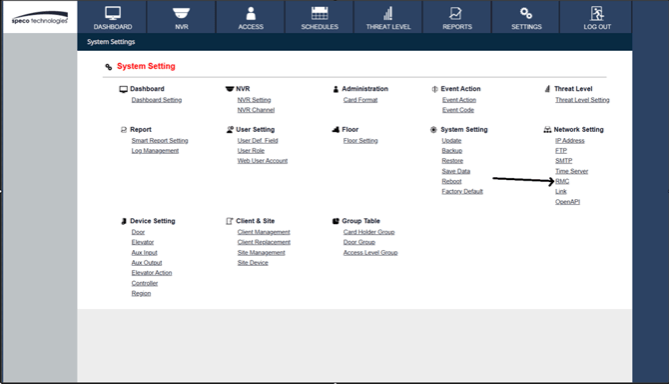
.
Step 2: Activate RMC
.
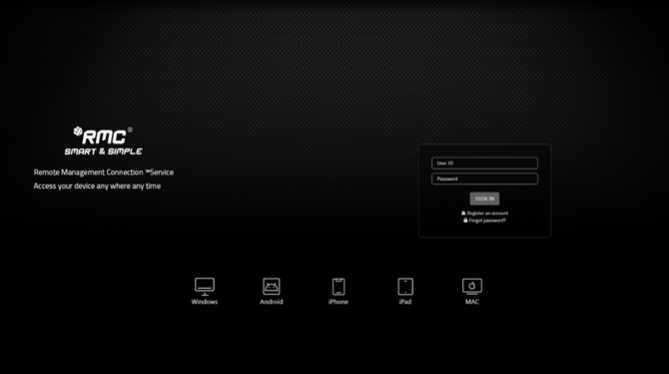
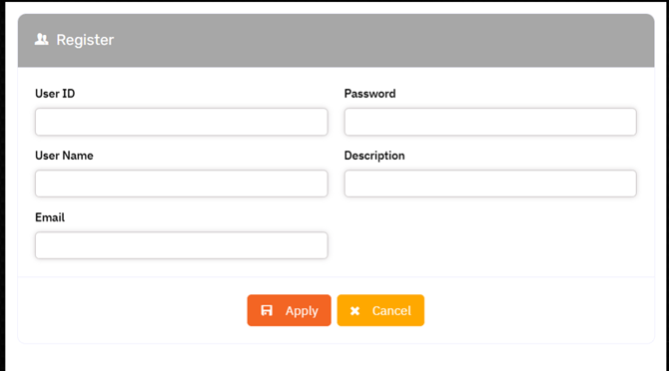
Step 3: Register RMC Account
.
.
.
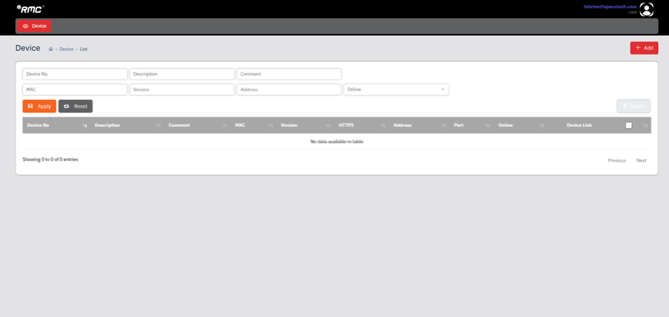
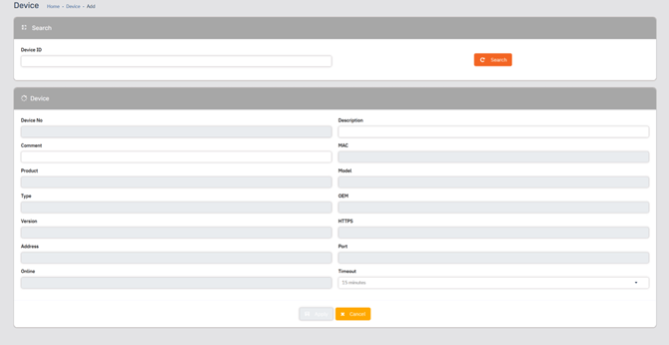
Step 4: Adding Access Control Unit to the RMC
.
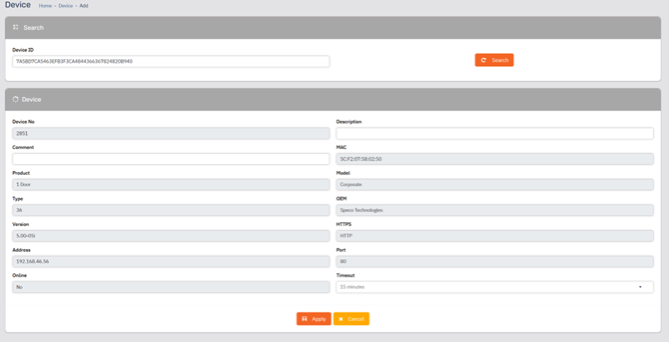
.
Step 5: Confirming the Site Addition
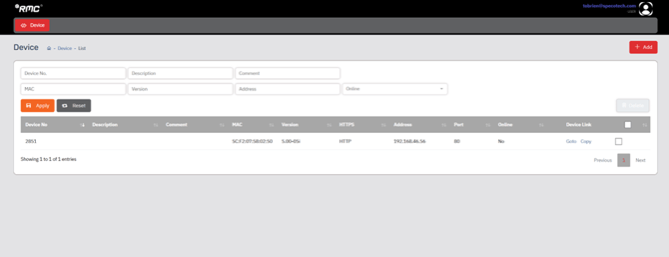
How to add NVR Integration in Speco Access (Video)
Access Control Card Types
Speco Technologies Access Control Cards can have different functions based on the card type selected.
Step 1:
Step 2:
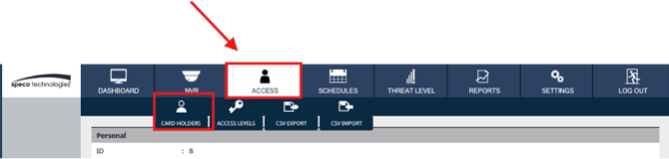
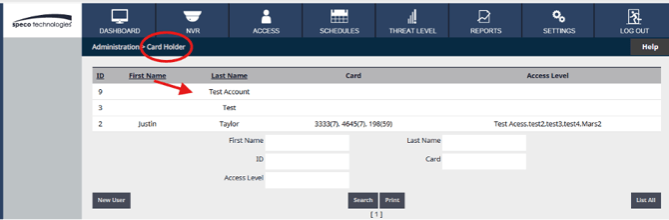
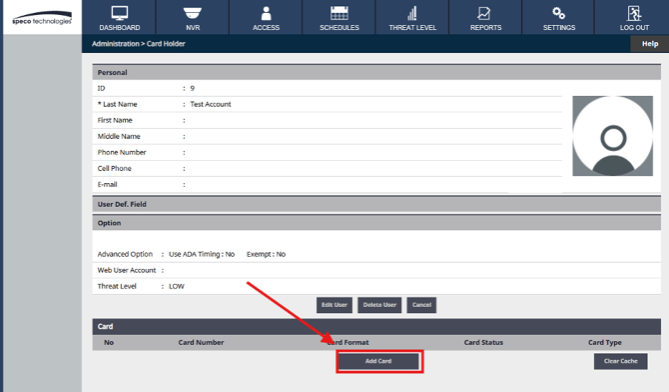
.
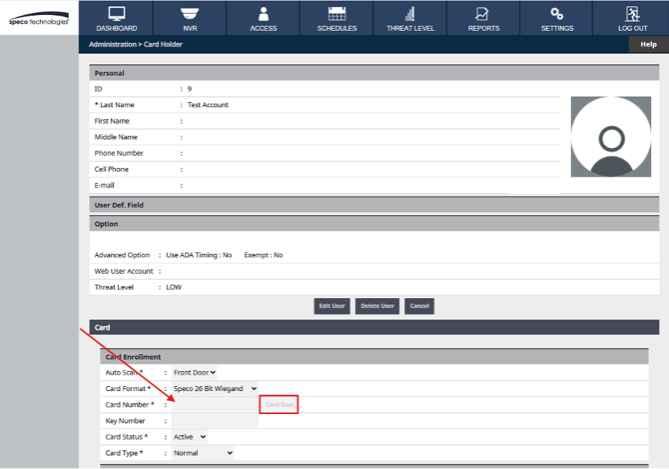
Step 3.
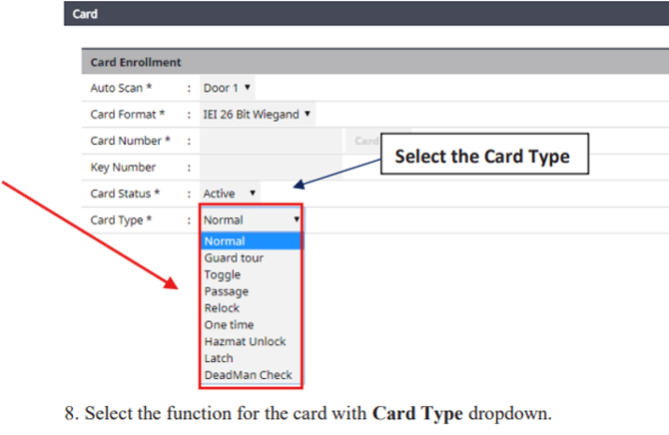
Descriptions of the different Card Types
Relock
Toggle
Passage
One time
Guard Tour
Hazmat Unlock
Note; If a person is in the HazMat room and the HazMat alarm is activated, the user CANNOT swipe out of the room using the “Hazmat Unlock” card.
Latch
Note: This card cannot be used as a normal access card.
Deadman Check
Note: Deadman card does not grant access.
Speco Access Control Mobile App Set Up
The step-by-step setup for getting an Access Control panel linked to the Speco Access App
.
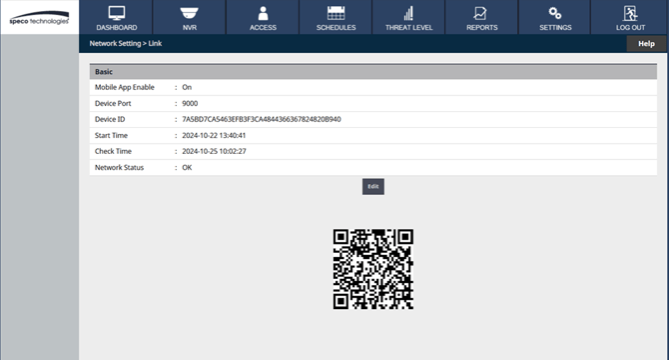
Step 1: Access Control Panel Setup
3.Keep this open, the QR Code/Device ID will be used in later steps
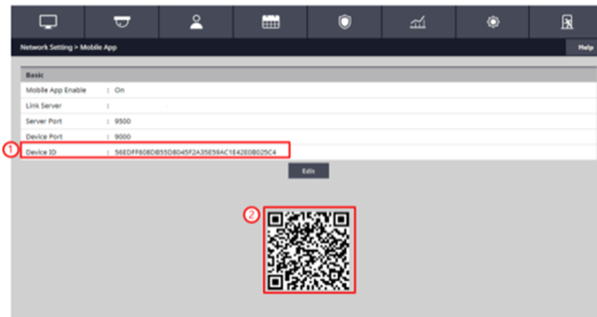
.
Step 2: App Site Setup

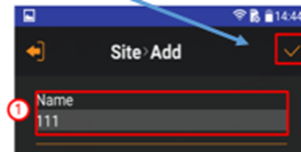
1. Enter Site Name – Name of the System you are accessing.
– Note: You can have multiple sites managed from one app.
2. Select the method to connect to the device. There are two ways to connect:
– Address Method OR Linked Method. The App will default to Linked
3. You will leave the Device number and linked type blank as it will auto-fill and/or after you scan the QR code will provide the device number.
4. Enter your Username and Password.
.
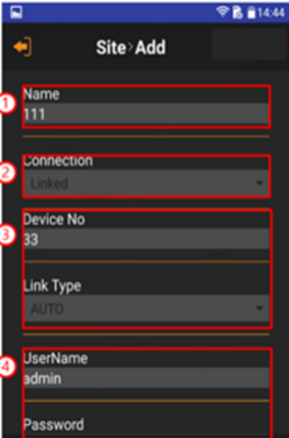
.
Step 3: Linking App to System

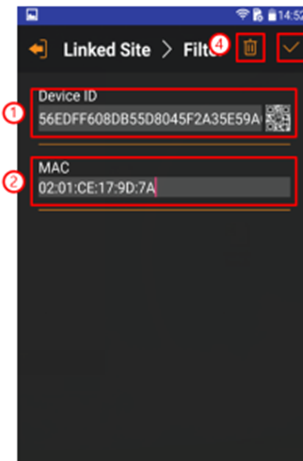
.
Step 4: Linked Site
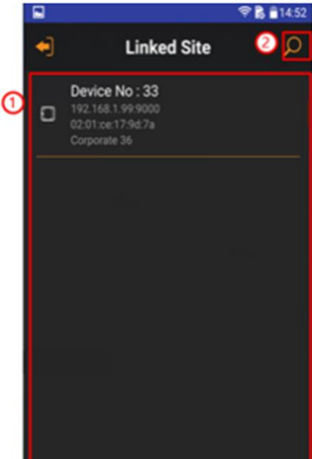
.
Step 5: Site Add Check Box
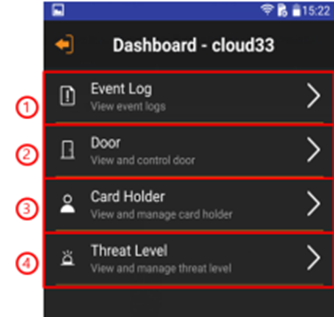
Now you can use the App to manage your system via the Dashboard
Access Control: How to set up “Keypad and Card”
For a user to have “Keypad and Card” for every door, every door must be set at “Keypad and Card” for all users and all users must have the same format card
In order to use “Keypad and Card” the following criteria completed:
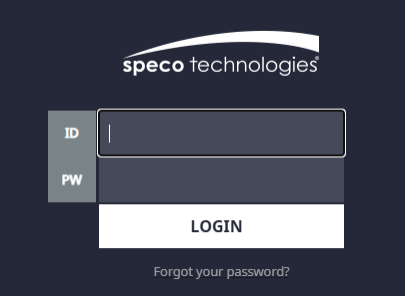
STEP 1:

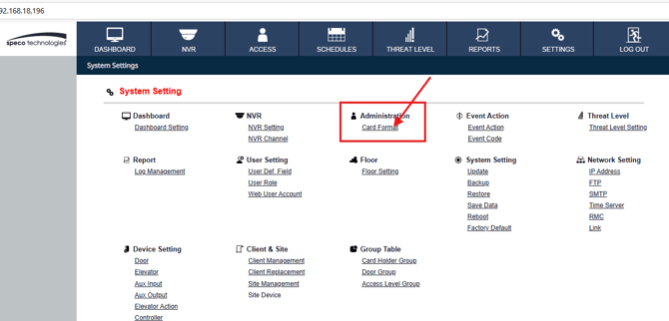
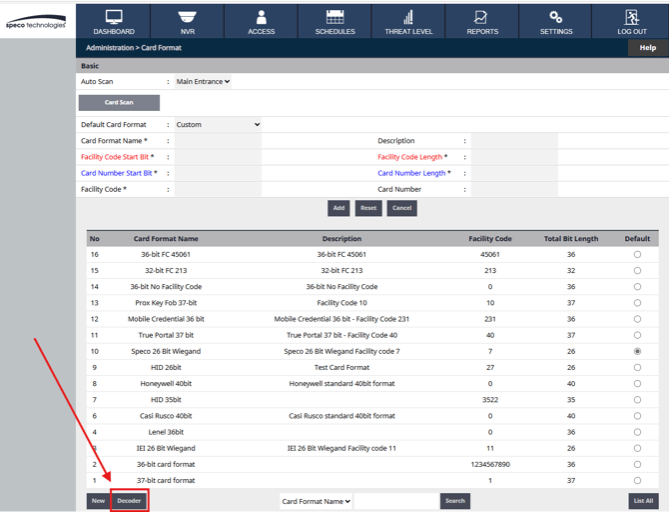
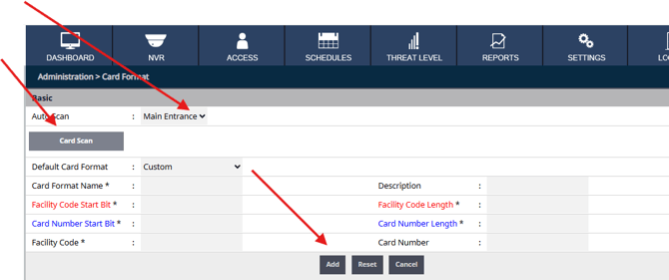
4. Next select “Auto Scan” drop down and select a door / reader – if nothing appears then the door must be configured first.
5. Next click card scan, a timer will begin, counting to 30 seconds, Enter your 1 – 5 digit code followed by a * (or # depending on the keypad)
6. Now enter the card format name (Keypad) – recommend to use a name that is easy to recognize as a keypad pin format
7. Then click Add
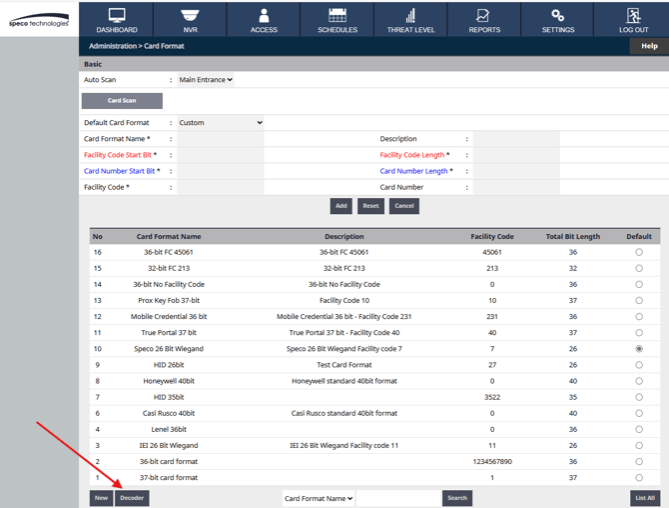
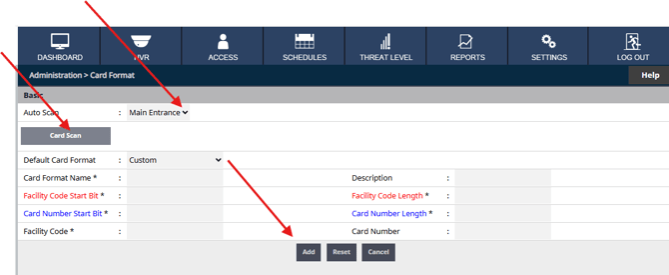
Next Repeat the same step but decode your Proximity card.
Create card format for card / FOB
5.Then click Add
6.
Setting the Door and Reader for Keypad and Card
Click the Settings” Icon,

7. Then Click “Door”
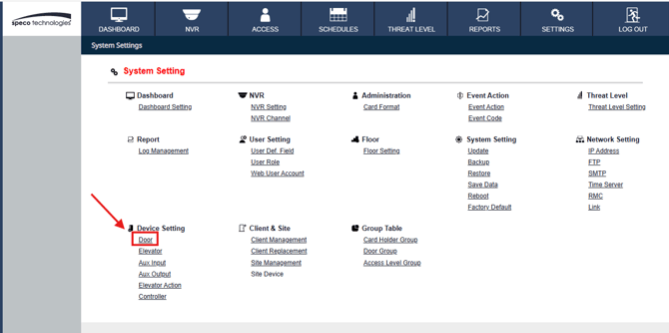
8. Next select and click on the door to be selected for Keypad and Reader.
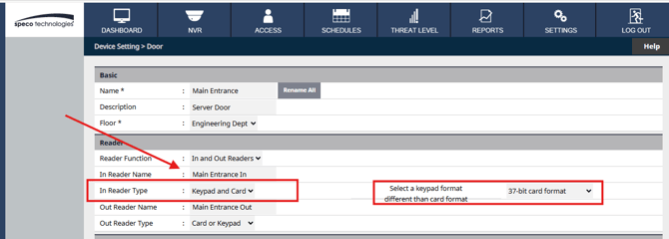
9. Move down on the door settings page until you see the Edit Icon – click to edit default profile.
10. Scrolling toward the top you will find “Reader” Section
11. Locate the drop down for In reader type – Click drop down and select Keypad and Card
12. Then select the keypad format created
13. Scroll down and click save.
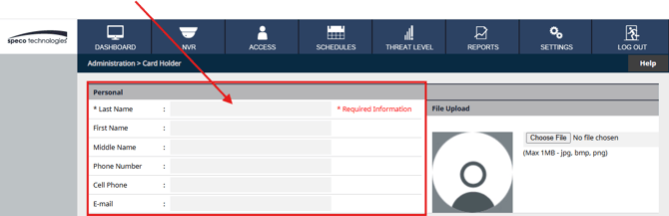
Next Add a Keypad code and card user
6.Next the Keypad number
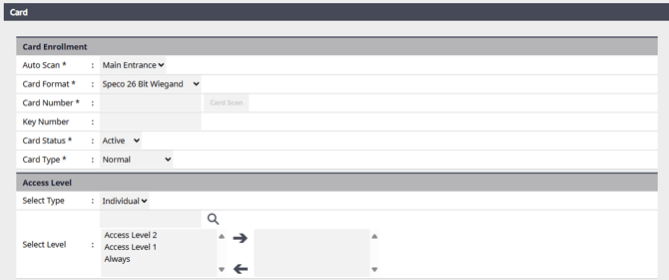
Note: If the user requires the card to be swiped before entering the code, follow these steps:
How to activate the ACMC2 credentials.
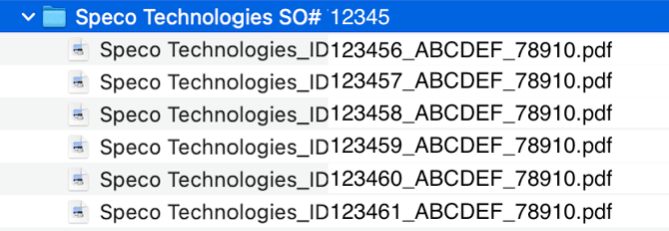
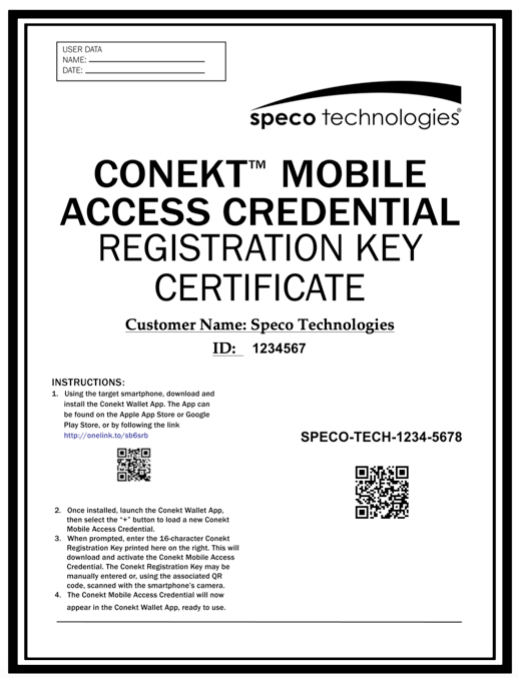
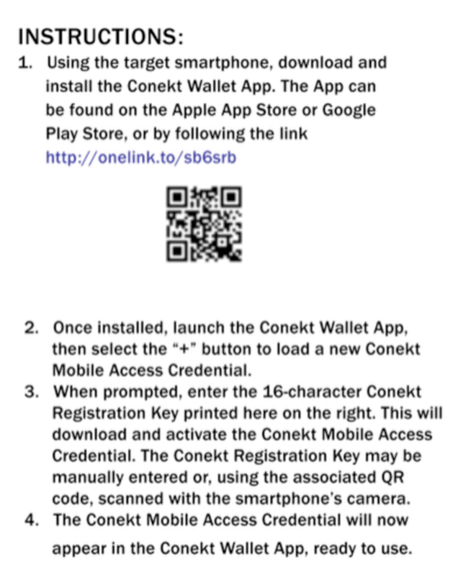
Once the digital credentials are received , how are they deployed and activated on a smart phone.
Step 1:
Step 2:
Step 3:
.