Advertisement
43 min read

Seetong NVR USER MANUAL

M.Salih ASLAN M.Salih ASLAN • • 2 Discussion
Seetong NVR USER MANUAL
AI Powered

AI Content Summary

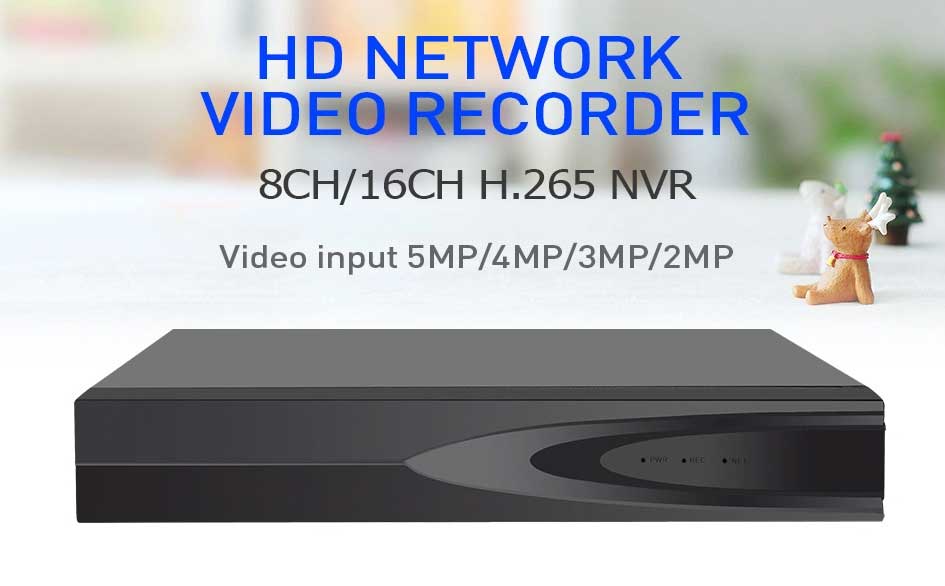
Seetong NVR USER MANUAL, NVR4.0 series are the latest professional monitoring storage devices which have been developed and launched by our company, adopting Hisilicon video processing chipset,integrating excellent video encoder video codec algorithm .NVR4.0 series products own four features that are stability,ease of use. NVR4.0 USER MANUAL .

Key Moments & Highlights
  • 1
    Seetong NVR USER MANUAL

    Key analytical insights and practical findings are highlighted here.

4.5.Screen Layout

Function instruction: Used to adjust different screen layout, including view 1/2/4/6/8/9/10/16/25/36

Operation steps:Right-click on desktop and select ‘View Layout’ submenu. Then, you can change different screen layout.

4.6.Rotation

Function instruction: Take turns to preview video stream according to current screen layout

Advertisement

Operation steps:

1.Move mouse to bottom menu and click on the rotation icon, as the following picture shows:

  %E5%9B%BE%E7%89%87 1 264w88h轮巡2

2.Check out the channels that you want to rotate and you can also save your current rotation configure.
3.Click ‘OK’ to start rotation.
4.Click on the rotation icon again will stop current rotation operation.
4.7.Electronic zoom in and zoom out

Function instruction: Zoom in/out part of the region to get details of the video stream.

Operation steps:

1.Select a channel that you want to zoom in
2.Move mouse to bottom menu and click on the magnifier icon
3.Scroll mouse middle button to zoom in or out.
4.Click single picture or drag the green area to zoom in
5.Right-click to terminate zoom-in operation

Remarks: Zoom in/out is effective only in 4-channel-NVR, 8-channel-NVR, 16-channel-NVR, 32-channel-NVR and 36-channel-NVR

4.8. Output Adjust


Function instruction: Used to set different output effects, as the following picture shows:

%E5%9B%BE%E7%89%87 1 525w263h

Operation steps:

1.Move mouse to bottom menu and click on the ‘output to adjust’ icon
2.Left click the combobox which include 4 modes.
3.Select ‘custom’ mode and you’ll be able to adjust the parameters on your own.
4.Click on ‘OK’ button to save current configuration and close the window.

Advertisement
Share this story
M.Salih ASLAN
About the Author

M.Salih ASLAN

Owner and Founder dvraid.com and dvrdestek.com

2 Comments

Leave a Reply

Your email address will not be published. Required fields are marked *

This site uses Akismet to reduce spam. Learn how your comment data is processed.

Pure inspiration, zero spam ✨

Subscribe to our Newsletter

Get the finest stories, perspectives, and trends delivered straight to your inbox.

UP NEXT 98% relevance match
Dahua Two Way Talk Setup

Dahua Two Way Talk Setup

Before you go: Dahua Two Way Talk Setup