Advertisement
64 min read

2MT-4XXX Series User Guide

M.Salih ASLAN M.Salih ASLAN • • 0 Discussion
2MT-4XXX Series User Guide
AI Powered

AI Content Summary

2MT-4XXX Series User Guide,Digital Video Recorders DVRs are devices which record video to a hard drive. DVRs are used with closed circuit security cameras to create a surveillance system that can detect an record crimes.

Key Moments & Highlights
  • 1
    2MT-4XXX Series User Guide

    Key analytical insights and practical findings are highlighted here.

  • 2
    read next : InVid Tech Devices Password Reset.

    Key analytical insights and practical findings are highlighted here.

Icon

Description

.

Advertisement

Rest the mouse pointer on it to view the date. Or click this icon to edit time settings.

13

Click to automatically hide the toolbar, or click E to lock.

.

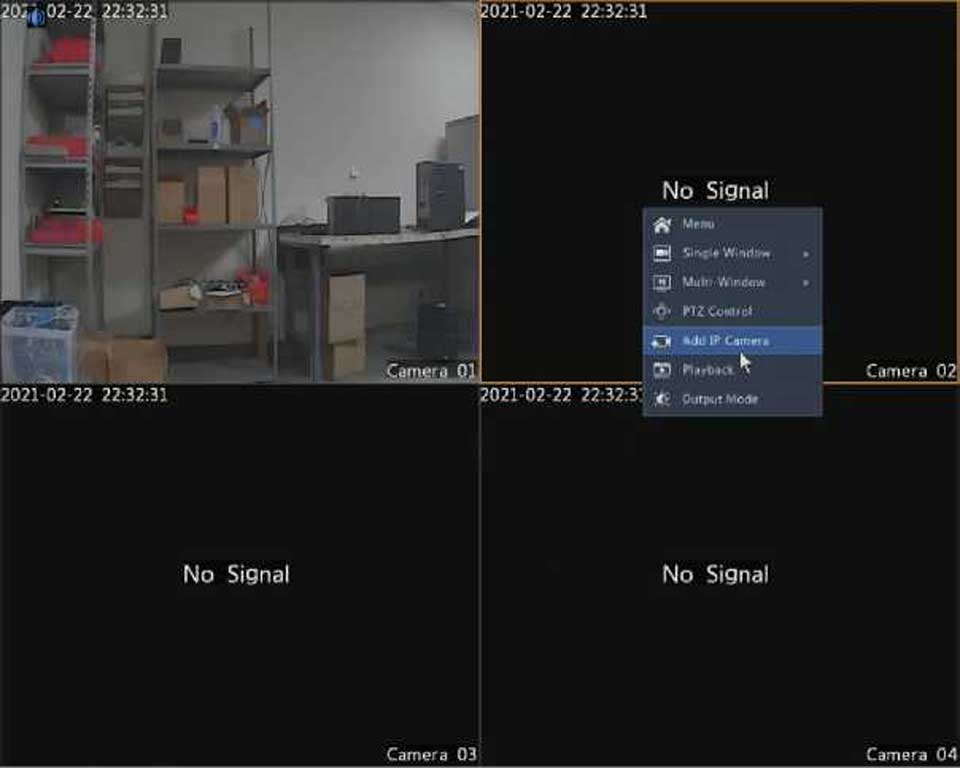
Shortcut Menu

A shortcut menu as shown below appears when you right-click in a window. Some menu items are described in Shortcut Menu Description.

Table 3-2 Shortcut Menu

^ÿ Menu

0= Common Menu |~n~I MultiWindow 0 Corridor

Playback

Table 3-3 Shortcut Menu Description

Menu

Description

Menu

Access the main menu.

Most of operations described in this manual are performed start from the main menu; for example, click Camera > Camera (with Menu > omitted).

Common Menu

Click this button to open the Camera, Network and Backup pages.

Corridor

Choose a corridor mode. Corridor mode can also be set in the Default Layout drop-down list under System > Preview.

To display images in corridor mode, the camera must be installed correctly (rotated 90° clockwise or counterclockwise), and then use the Image Rotation parameter under Camera > Image to rotate images accordingly.

Playback

Play the current day’s recording for the camera linked to the current window.

Sequence Operation

The sequence operation requires you to configure the screen layout, windows, linked cameras, and the sequence interval.

This example describes how to configure sequence for five cameras based on a 4-window screen layout.

1.Click 4 Windows on the screen toolbar.

The number of windows that can be displayed may vary with DVR model.

2.Click Start Sequence on the screen toolbar. Sequence starts by displaying four windows on the first screen and then the fifth on the second at the set interval.

Picture 14 335w189h

.

Picture 15 330w194h

.

NOTE!

•The default sequence interval is eight seconds and can be set under System > Preview.
•You may drag video to an intended window on the screen.

Zoom

Zoom in on an area of images in a window for details.

1.Click the window and then click  on the window toolbar.
2.In the small window in the lower right corner, click and drag your mouse to specify the area to zoom in on. The image in the main window zooms in. The following shows an example.

Advertisement
Share this story
M.Salih ASLAN
About the Author

M.Salih ASLAN

Owner and Founder dvraid.com and dvrdestek.com

Leave a Reply

Your email address will not be published. Required fields are marked *

This site uses Akismet to reduce spam. Learn how your comment data is processed.

Pure inspiration, zero spam ✨

Subscribe to our Newsletter

Get the finest stories, perspectives, and trends delivered straight to your inbox.

UP NEXT 98% relevance match
Hikvision How To Tutorials Part 1
Before you go: Hikvision How To Tutorials Part 1