Advertisement
64 min read

2MT-4XXX Series User Guide

M.Salih ASLAN M.Salih ASLAN • • 0 Discussion
2MT-4XXX Series User Guide
AI Powered

AI Content Summary

2MT-4XXX Series User Guide,Digital Video Recorders DVRs are devices which record video to a hard drive. DVRs are used with closed circuit security cameras to create a surveillance system that can detect an record crimes.

Key Moments & Highlights
  • 1
    2MT-4XXX Series User Guide

    Key analytical insights and practical findings are highlighted here.

  • 2
    read next : InVid Tech Devices Password Reset.

    Key analytical insights and practical findings are highlighted here.

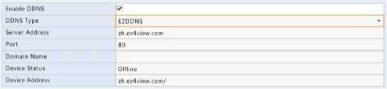
Enable DDNS

0

DDNS Type

Advertisement

DynDNS

–

Server Address

members.dyndns.org

Port

30

Domain Name

NVR.dyndns.com

Username

admin

Password

******

Confirm

.

.

•If the DDNS type is EZDDNS, enter a valid domain name for your

DVR and then click Test to see if the domain name is available.
Picture box 91 387w89h

Port

3. Click Apply to save the settings.

.

.

Normally the default port numbers need no modification. This function is mainly used together with the port mapping function. See Port Mapping for more details.

1.Click System > Network > Port.
2.Configure ports as planned. Each port number must be unique.

80

HTTP Port

RTSP Port

HTTPS Port

RTSP URL Format

554

443

rtsp://<ip>:<port*/unicast/c«channel number*/s<stream type*/live «channel number*: 1-n

«stream type*: 0(main stream} or l(sub stream)

NOTE!

•A valid port number ranges from 1 to 65535, among which 21, 23,

2000, 3702 and 60000 are reserved.

•An RTSP URL can be used to view live video of a channel of the current DVR from another DVR. See Option 4 in Adding an IP Device for more information.
3.Click Apply to save the settings.

Port Mapping

Configure internal and external ports manually.

NOTE!

•The principle of port mapping is that the internal and external ports of the DVR are consistent with that of the router.
•Some routers may require the same internal and external ports for the DVR and the router.
1.Click System > Network > Port Mapping.
2.Select Manual for Mapping Mode, and then set external ports manually.
3.Click Apply to save the settings.

NOTE!

After port mapping is completed, you may access the Web client of your DVR by entering the following information in the address bar of your web browser: router’s WAN port IP address:external HTTP port. For example, if 10.2.2.10 is the IP address and 82 is the HTTP port, then you enter http://10.2.2.10:82.


Advertisement
Share this story
M.Salih ASLAN
About the Author

M.Salih ASLAN

Owner and Founder dvraid.com and dvrdestek.com

Leave a Reply

Your email address will not be published. Required fields are marked *

This site uses Akismet to reduce spam. Learn how your comment data is processed.

Pure inspiration, zero spam ✨

Subscribe to our Newsletter

Get the finest stories, perspectives, and trends delivered straight to your inbox.

UP NEXT 98% relevance match
Hikvision How To Tutorials Part 1
Before you go: Hikvision How To Tutorials Part 1