Many of our app users are interested in storing the media files generated for IP cameras (e.g. videos, snapshots) in the cloud. We currently do not offer this service. There are many cloud storage service providers that usually require paid subscriptions. Google Drive offers FREE cloud storage of 15 GB. The following are step-by-step instructions for setting up Google Drive and our Android app Onvifer (Pro) to store IP camera video and image files in the cloud automatically. Google Drive also allows sync with your desktop PCs so that you can view them on your PC effortlessly
Set up Google Photos
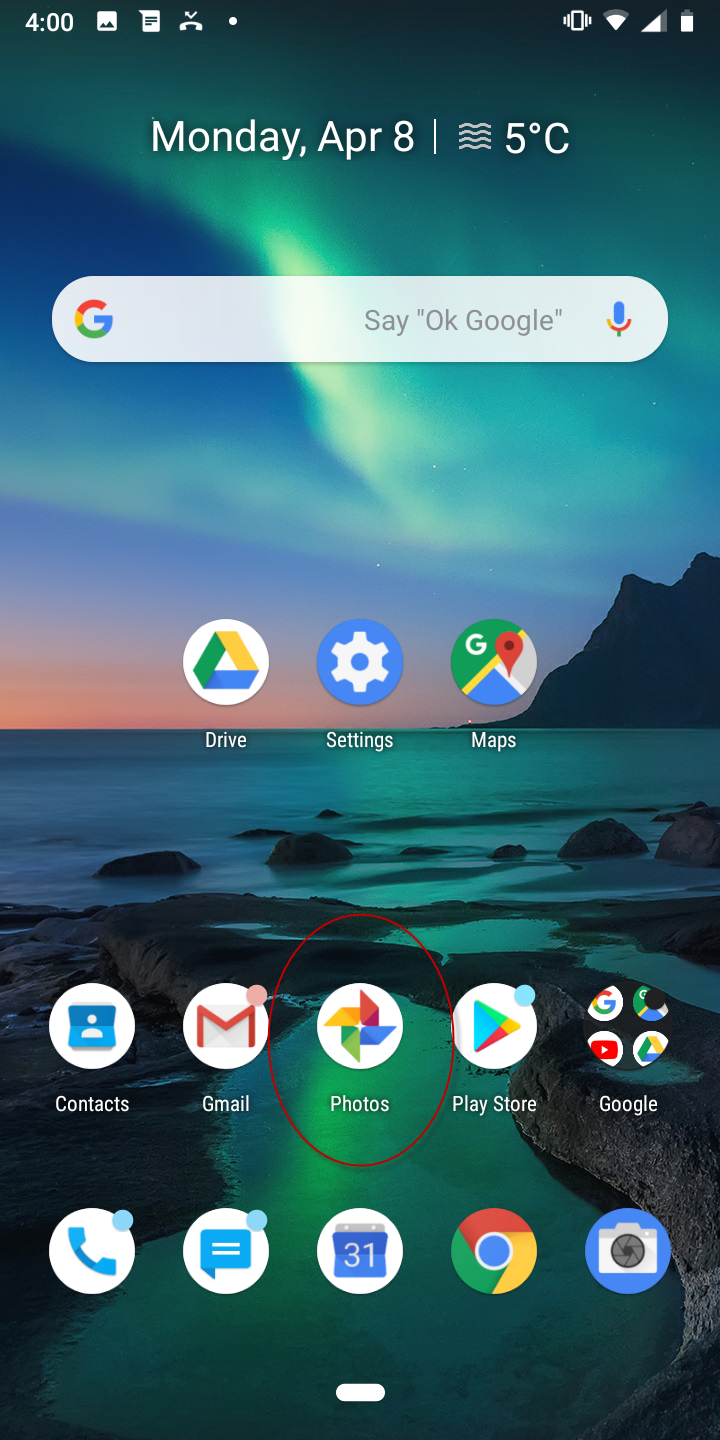
- Select Google Photos:
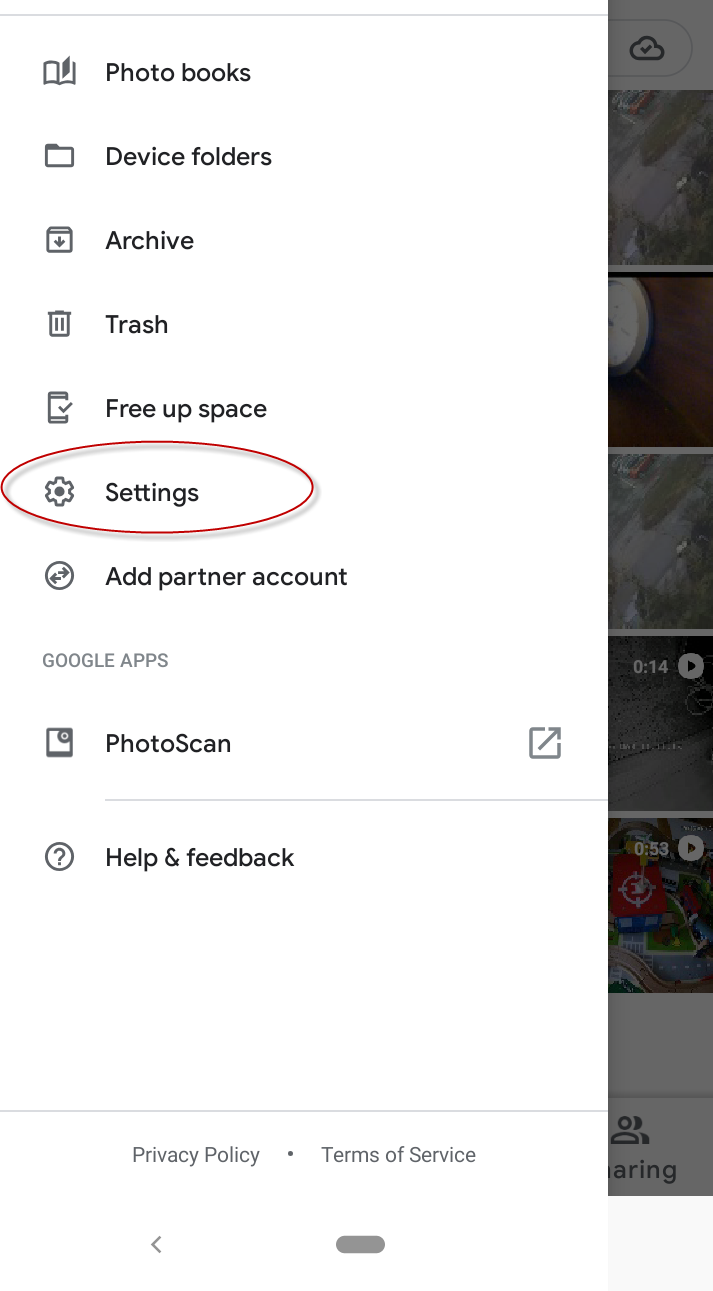
- Select the hamburger menu:

- Select settings:
- Select Back up & Sync:

- Select Back up device folders:
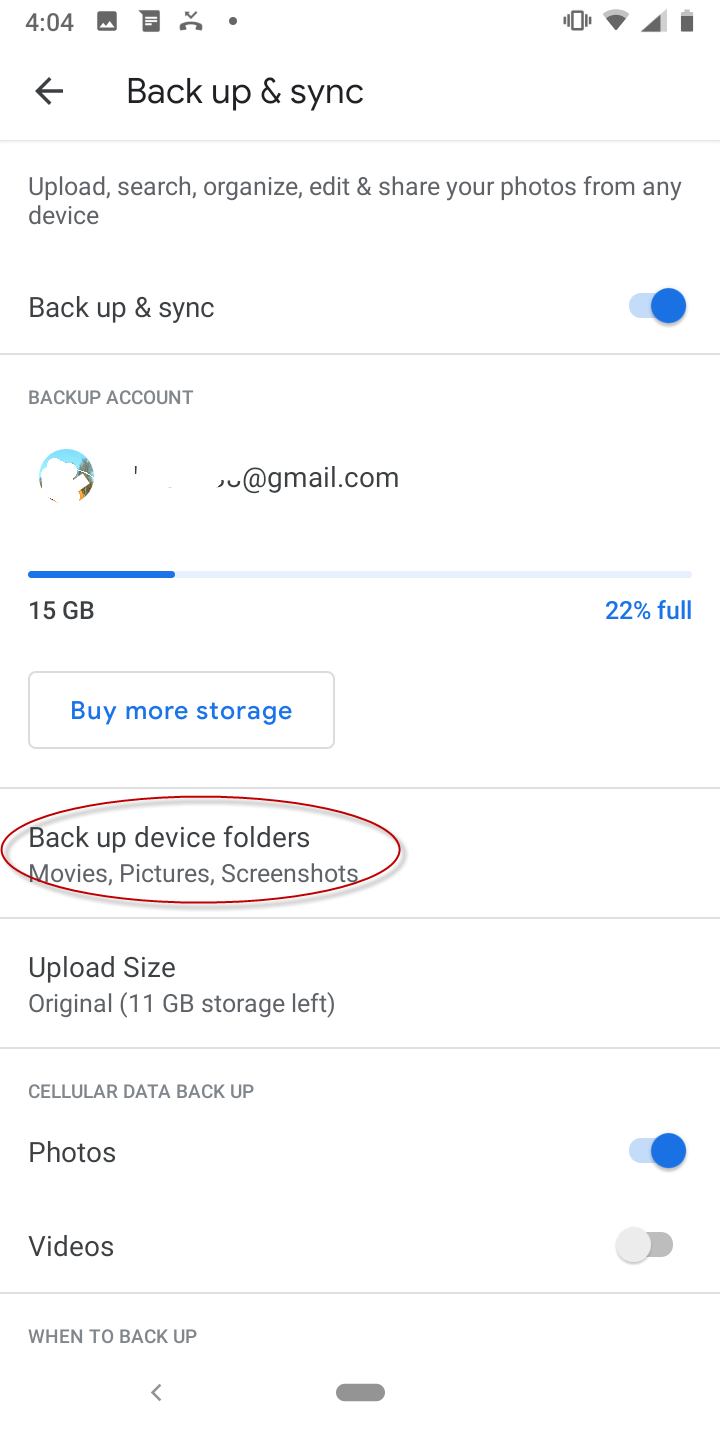
- Make sure that folder Movies is selected:

- You can choose the upload size under Back up & sync

Set up Onvifer (Pro)
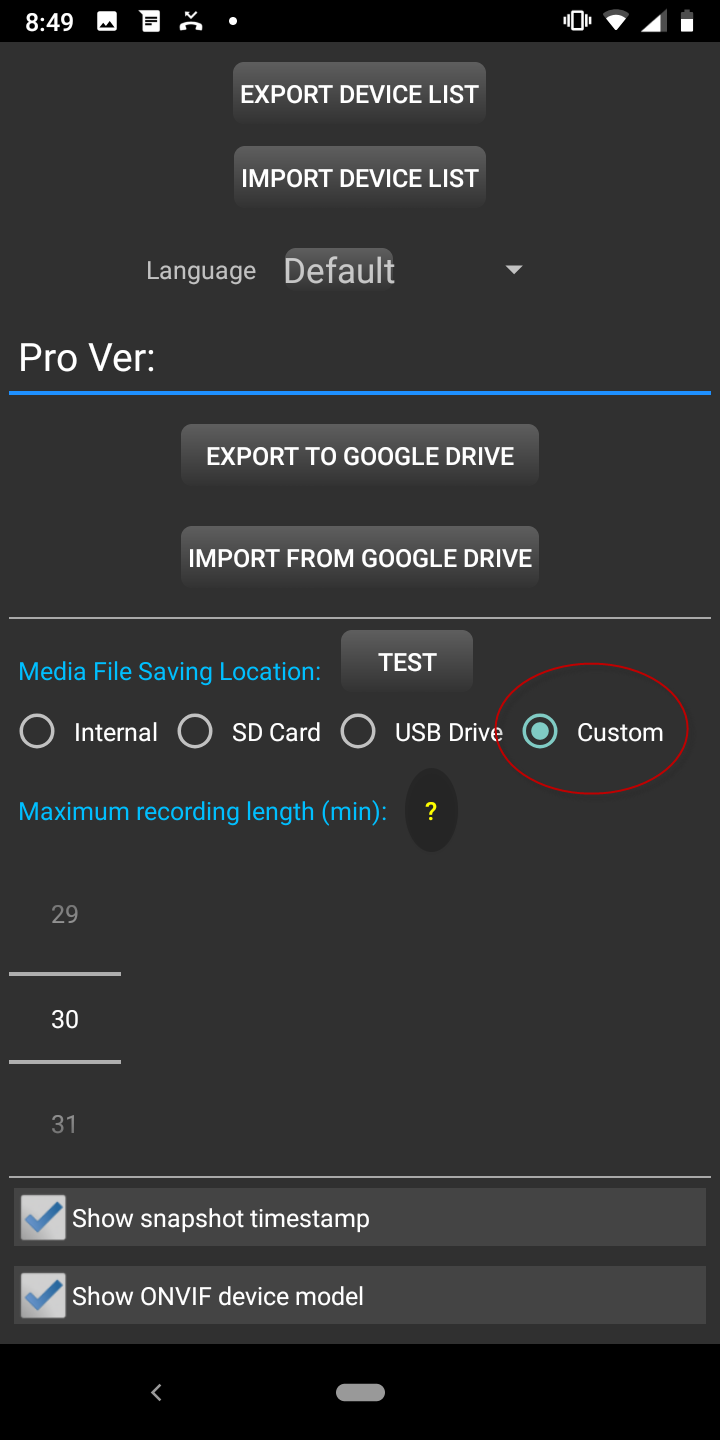
- Go to Settings and select Custom under Media File Saving Location:
- The folder selection process is highly device dependent. We use Nokia 3.1 Plus running Android 9 (Pie) for this demo. Select the top left hamburger menu, then select the device folder (Nokia 3.1 Plus for our demo):

- Select folder Movies:

- Tap Select at the bottom right corner:

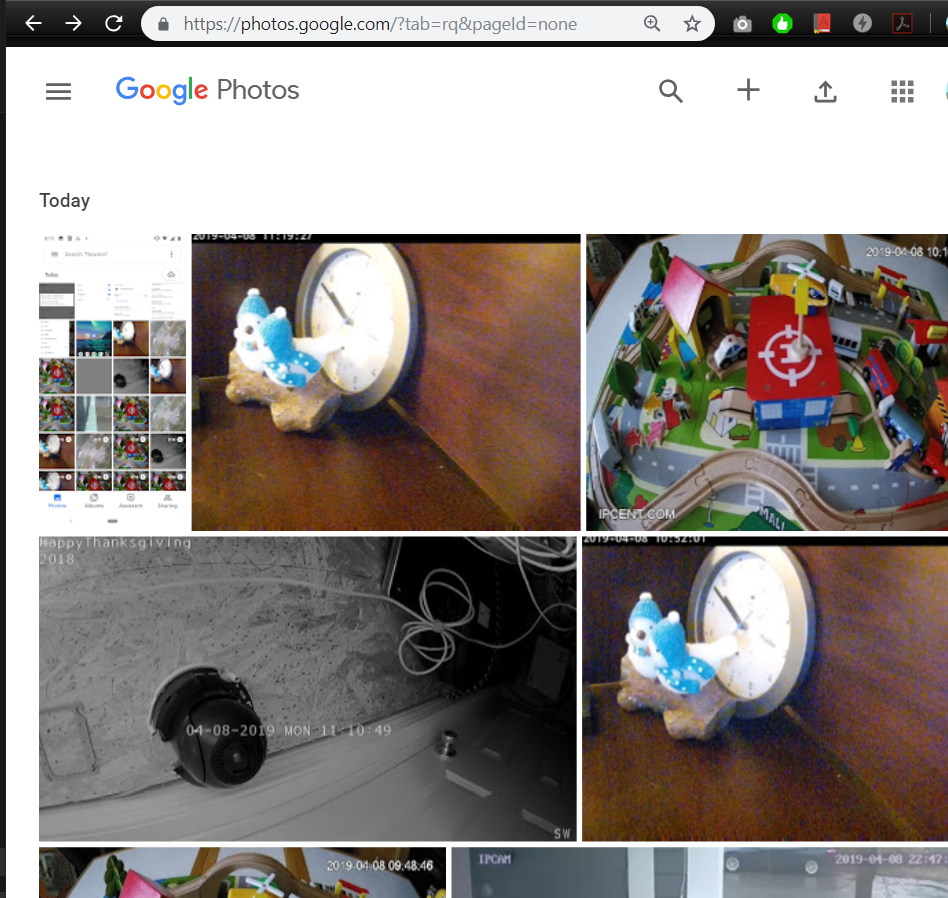
All your snapshots and video recording files will be automatically uploaded to Google Drive and Google Photos. Google Drive puts the media files under My Drive > Google Photos > Year (e.g. 2019) > Month (e.g. 04)

If Good Drive has been set up on a desktop PC, the files are downloaded automatically to it: