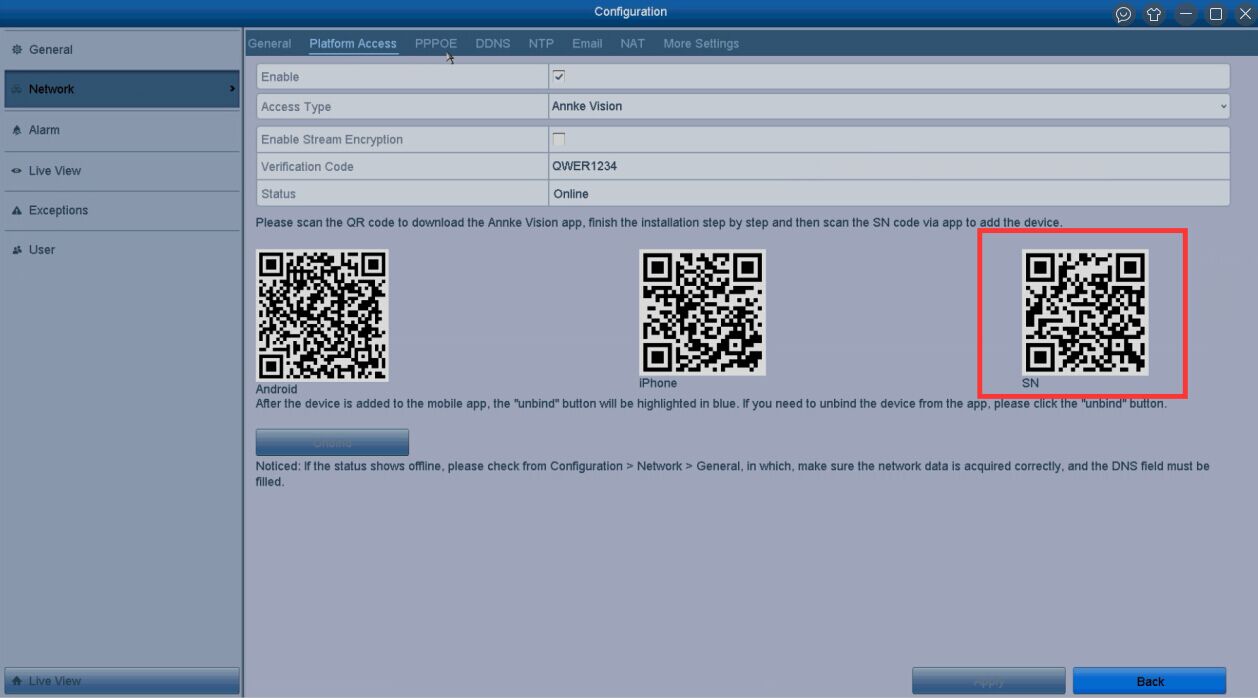
Adding the ANNKE system to the phone APP Annke Vision via QR code will allow us to watch cameras on the phone remotely ( ie. when the phone is in a different network from the ANNKE system).
To add via SN (Serial Number), please refer to this instruction.
1. Make sure the network status of the ANNKE system is “Online“.
The DVR/NVR system cannot be connected to the mobile app if the network status is ‘offline.
To check the network status, log in to the system on a TV/monitor, go to Menu -> Configuration -> Network -> Platform Access.
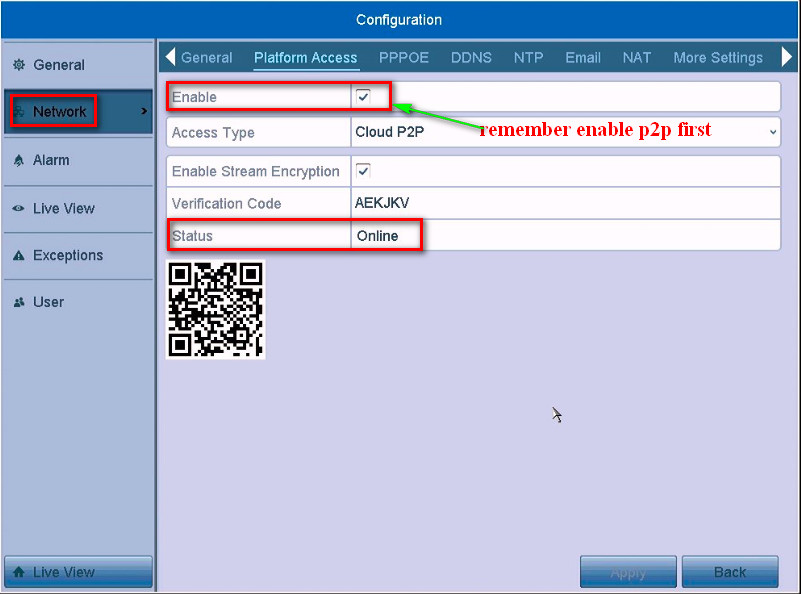
If the status is offline, please refer to the link below to make it online first.
What to Do If The Cloud P2P of The DVR/NVR System is Offline?
For the S500 Series (DW81KD/DW61LD/DW41JD), please go to Menu -> Network -> Annke Vision.
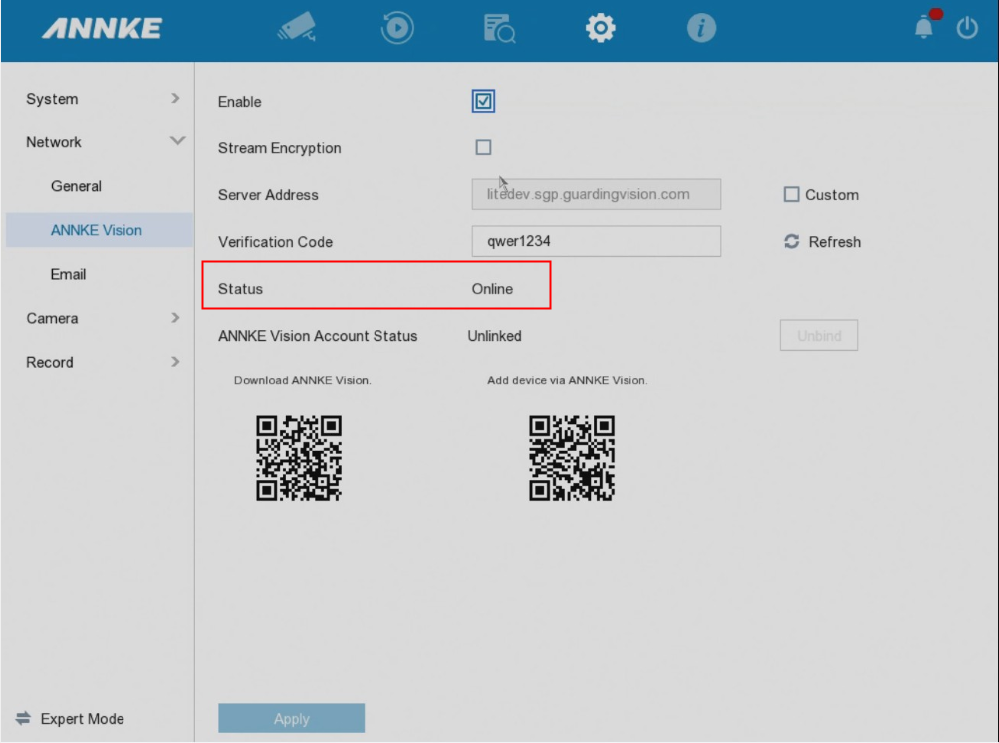
If the status is offline, please refer to the link below to make it online first.
What to Do If P2P Status Shows Offline? (S500 series)
For H800 series (N48PAW/N46PCK), please go to Menu -> Network -> Annke Vision.
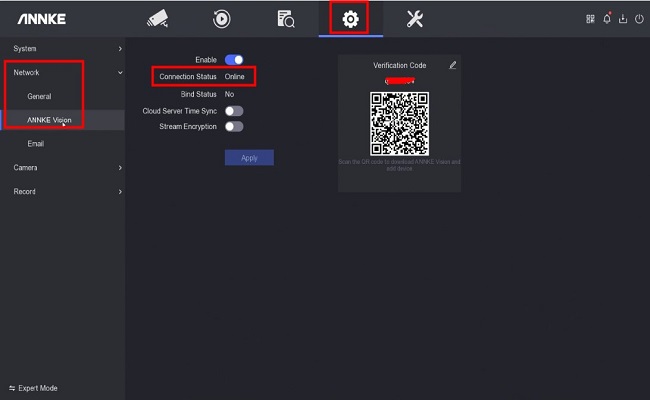
If the status is offline, please refer to the link below to make it online first.
What to Do If The NVR(H800) Is Offline?
2. Search the Annke Vision in Google Play or Apple Store and download it on the phone.
3. Run Annke Vision on the phone and create an account by email or phone number.


Steps
- Access the system on the monitor and go to Menu -> Configuration -> Network -> Platform Access page to find the QR code.
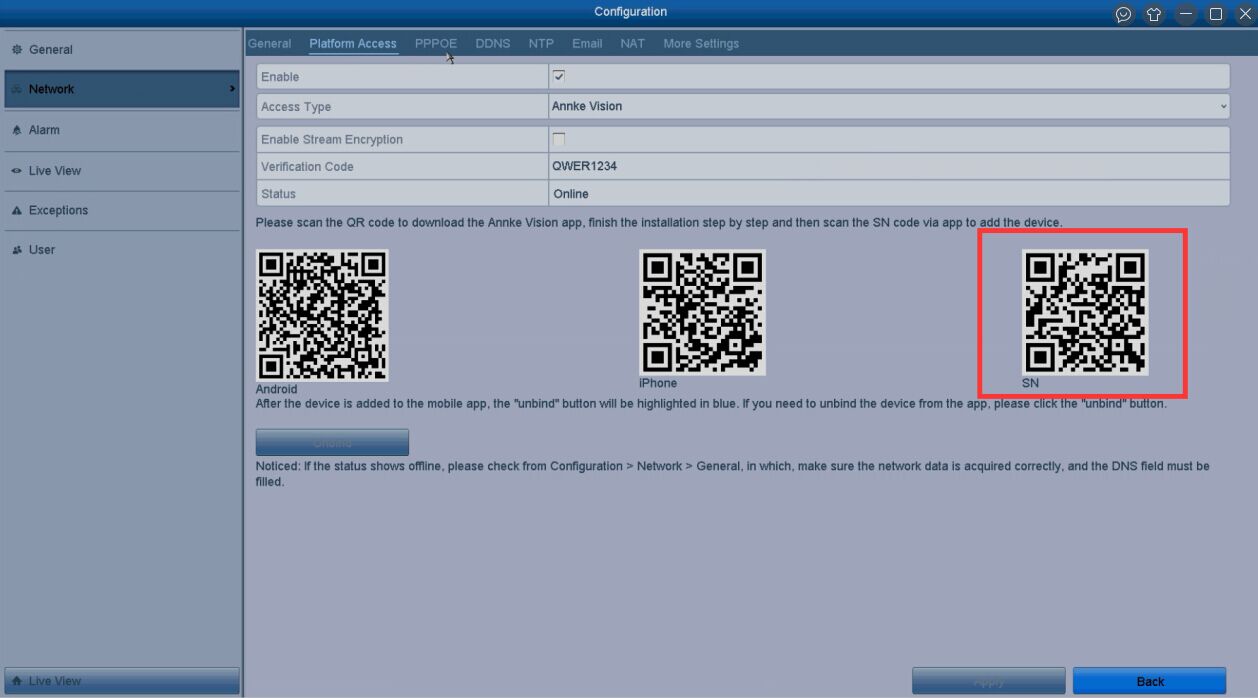
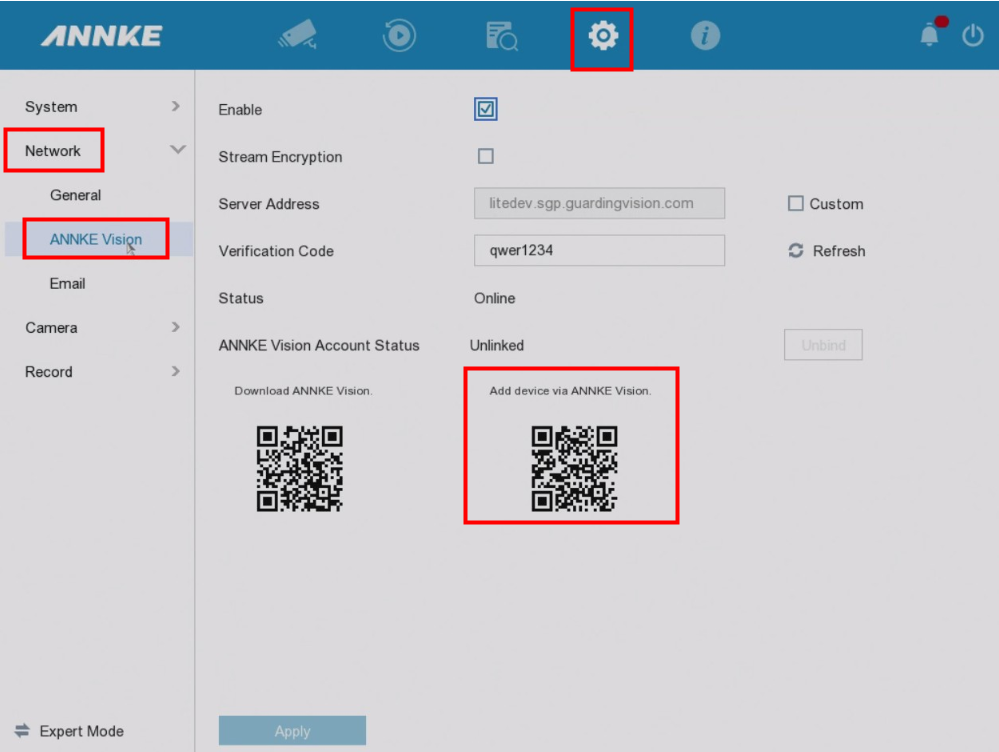
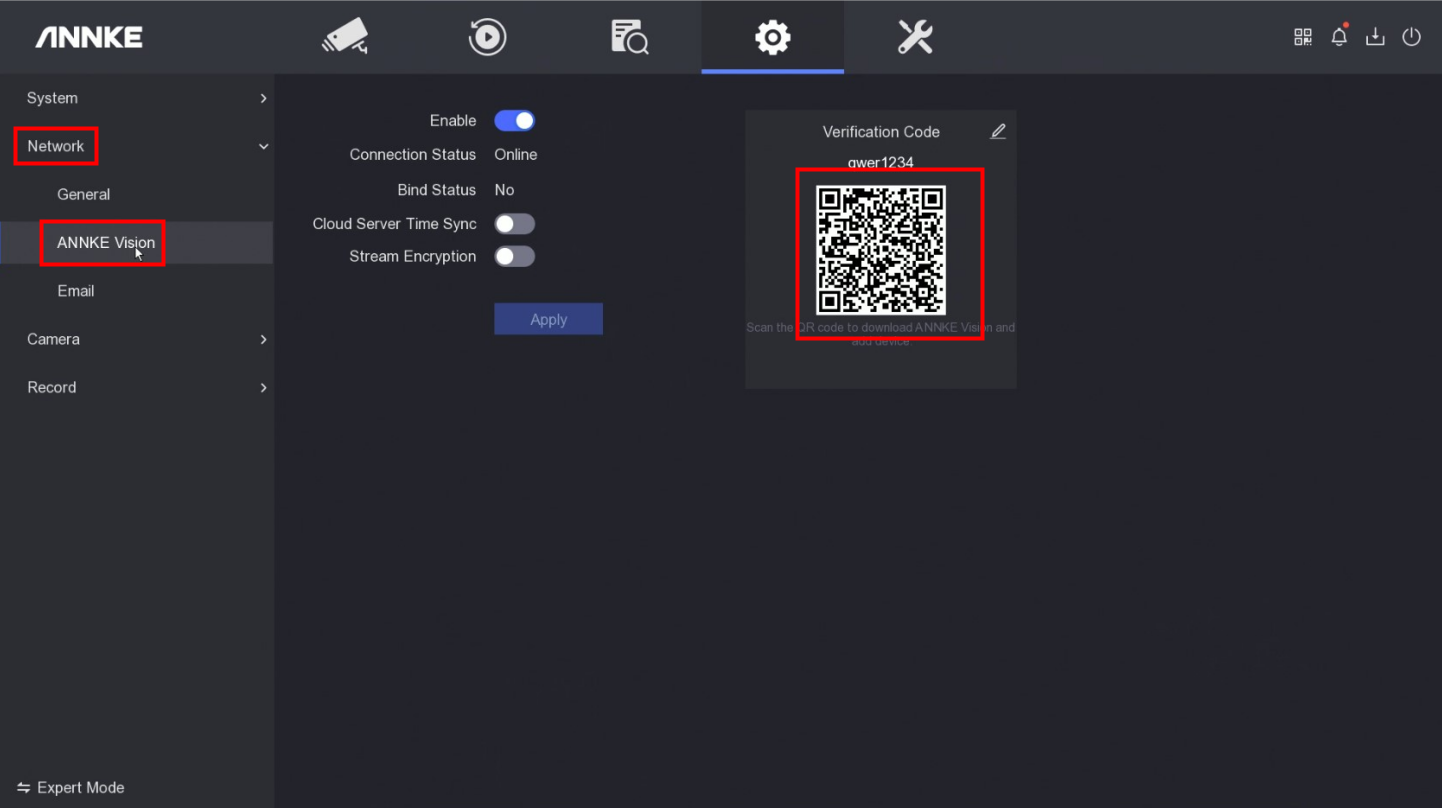
- Run Annke Vision on the phone and click ‘Add Device’.


- If the APP asks for an encryption code, we will need to input the Verification Code on the ANNKE system. Here is the instruction to find the verification code.
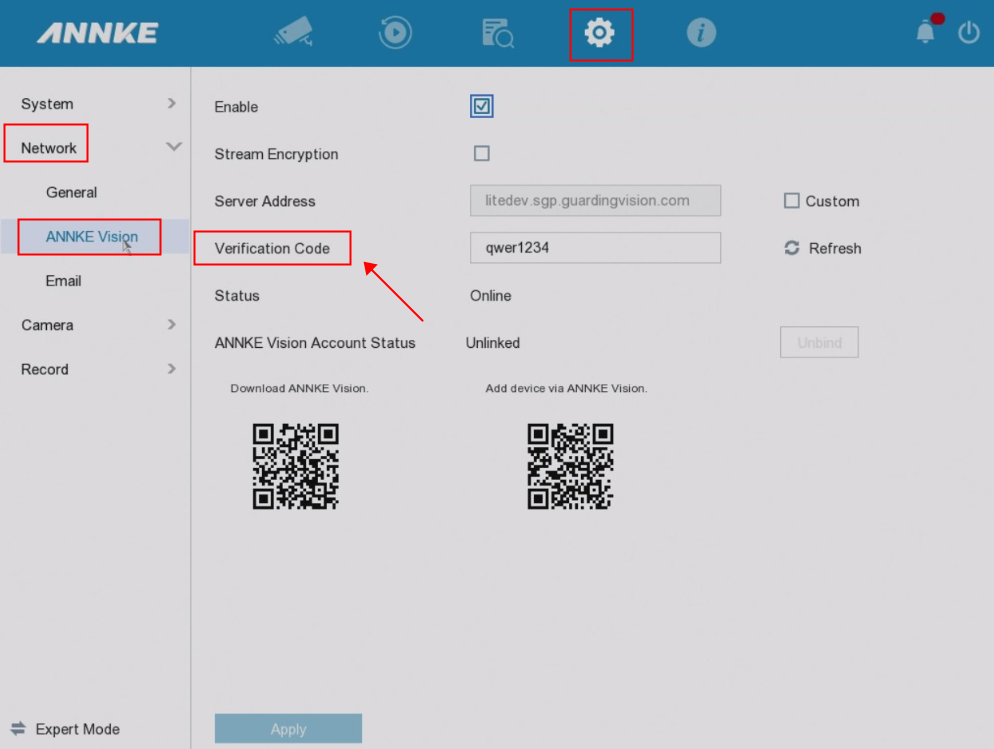 Note: For some new models (DW41JD/DW81KD/DW61LD/DT81DP/N44PAM/N48PAW/N46PCK/N88PCH), users need to manually set their own verification code. When the system doesn’t have this code, it will become ‘offline’ and thus cannot be added to the ANNKE VISION App.
- Create a name for the device.
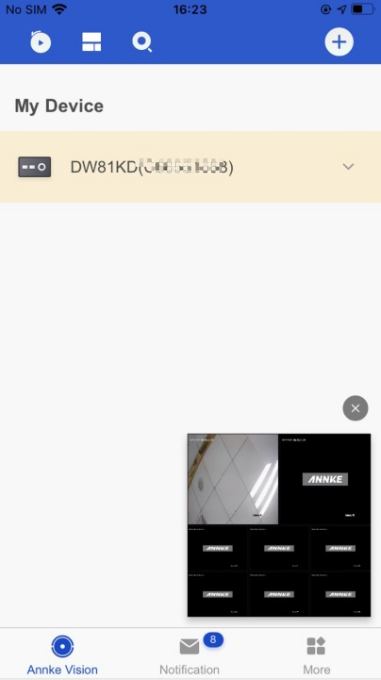
Notice: For any other questions, please feel free to contact ANNKE technical support at support@annke.com by email.
If this article is helpful to you, please click the “helpful” button after you review it. Any comments would be appreciated.