Advertisement
2 min read

How to Add a Hikvision Camera to a Dahua NVR

M.Salih ASLAN M.Salih ASLAN • • 0 Discussion
How to Add a Hikvision Camera to a Dahua NVR
AI Powered

AI Content Summary

NOTE ONVIF must be enabled on the Hikvision camera before trying to add the device to a Dahua recorder.  =>  Enable "HIkvision-CGI" Set, "Hikvision-CGI Authentication" to, "digest/basic" Set, "RTSP Authentication" and "WEB Authentication" to, "digest/basic" After IP Camera is added to recorder, reboot both devices.

Key Moments & Highlights
  • 1
    NOTE

    Key analytical insights and practical findings are highlighted here.

  • 2
    Description

    Key analytical insights and practical findings are highlighted here.

  • 3
    Prerequisites

    Key analytical insights and practical findings are highlighted here.

  • 4
    Video Instructions

    Key analytical insights and practical findings are highlighted here.

NOTE

  • ONVIF must be enabled on the Hikvision camera before trying to add the device to a Dahua recorder.

Hikvision IPC Enable ONVIF.png => Hikvision IPC Enable ONVIF1.png

  • Enable “HIkvision-CGI”

Hikvision IPC Enable ONVIF2.png

  • Set, “Hikvision-CGI Authentication” to, “digest/basic”

Hikvision IPC Enable ONVIF3.png

Advertisement
  • Set, “RTSP Authentication” and “WEB Authentication” to, “digest/basic”

Hikvision IPC Enable ONVIF4.png

  • After IP Camera is added to recorder, reboot both devices.

Description

The below instructions will show you show to add a Hikvision IP Camera to a Dahua NVR, that is on the same Local Area Network, or LAN.

Prerequisites

  • Dahua NVR
  • Hikvision IP Camera
  • NVR and IP Camera connected to the same LAN
  • IP Address of NVR and IP Camera
  • User name and password to both NVR and IP Camera

Video Instructions

Step by Step Instructions

1. Start by creating a list of your devices.

NVR4216-8P Hikvision DS-2CD2342WD-I
IP:172.16.13.121 IP: 172.16.13.41
User Name:admin User Name:admin
Password:(Your Password) Password:(Your Password)

Note:

  • You can locate your Dahua NVR’s IP address by going to the network menu, or using the ConfigTool.
  • You can locate your Hikvision’s IP address using Hikvisions SADP Tool.

2. Open Internet Explorer, and input your NVR’s IP address into the URL bar at the top of the browser window.

HikvisionAddCamera1.png

3. Enter your credentials, and click, “Login”

HikvisionAddCamera2.png

4. Click, “Setting”

HikvisionAddCamera3.png

5. Then click, “Camera” and then, “Remote”

HikvisionAddCamera4.png

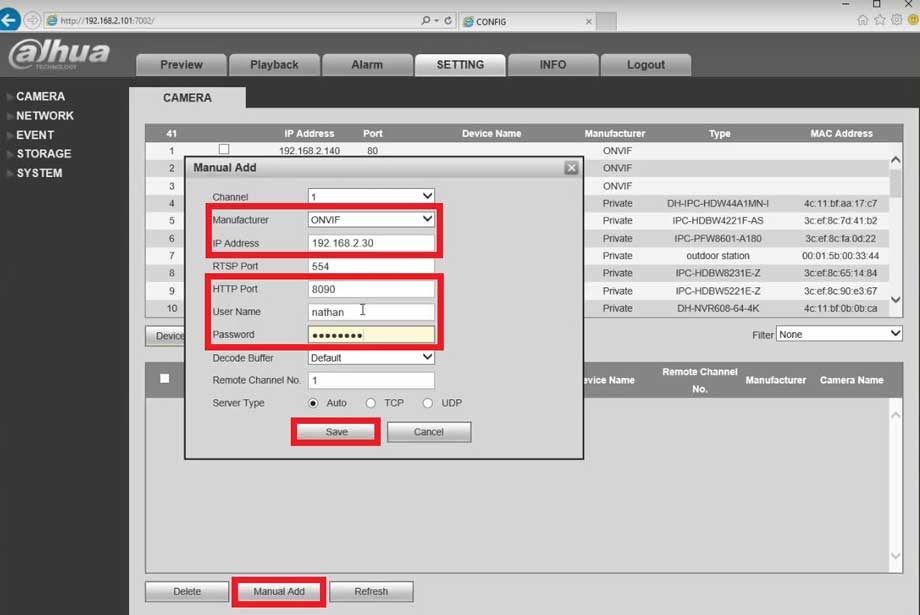
6. Click, “Manual Add”

HikvisionAddCamera5.png

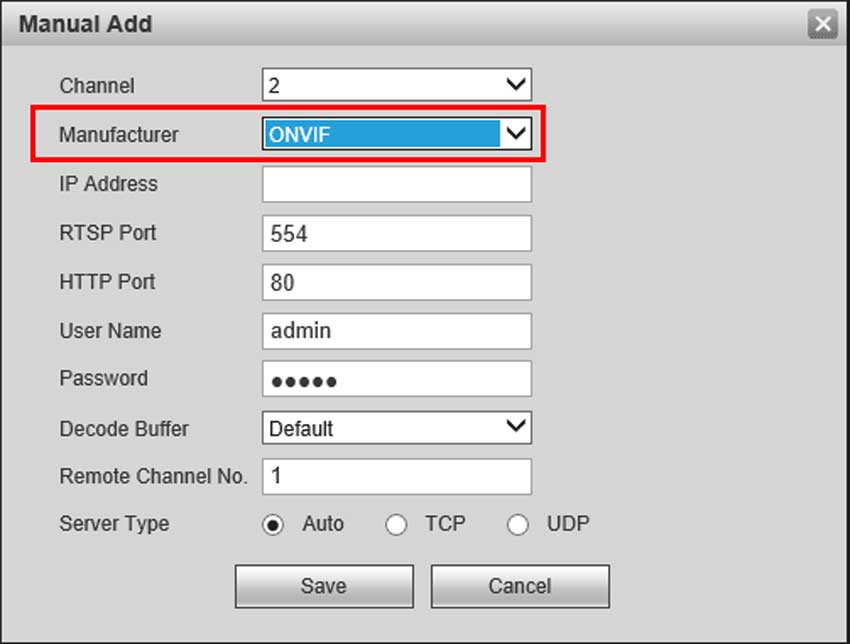
7. Change, “Manufacturer” to “ONVIF”

HikvisionAddCamera6.png

8. Input your Hikvision camera’s IP in, “IP Address”

HikvisionAddCamera10.png

9. Input your Hikvision camera’s password into the, “Password” field.

HikvisionAddCamera7.png

10. Click, “Save”

HikvisionAddCamera8.png

11. If successful, the device will be listed in the bottom table, with a green check under, “Status”

HikvisionAddCamera9.png

Advertisement
Share this story
M.Salih ASLAN
About the Author

M.Salih ASLAN

Owner and Founder dvraid.com and dvrdestek.com

Leave a Reply

Your email address will not be published. Required fields are marked *

This site uses Akismet to reduce spam. Learn how your comment data is processed.

Pure inspiration, zero spam ✨

Subscribe to our Newsletter

Get the finest stories, perspectives, and trends delivered straight to your inbox.

UP NEXT 98% relevance match
How to Add DeskCamera to a NVR
Before you go: How to Add DeskCamera to a NVR