Reklam
2 dk okuma

How to Add a Hikvision Camera to a Dahua NVR

How to Add a Hikvision Camera to a Dahua NVR
Yapay Zekâ

Yapay Zekâ İçerik Özeti

NOTE ONVIF must be enabled on the Hikvision camera before trying to add the device to a Dahua recorder.  =>  Enable "HIkvision-CGI" Set, "Hikvision-CGI Authentication" to, "digest/basic" Set, "RTSP Authentication" and "WEB Authentication" to, "digest/basic" After IP Camera is added to recorder, reboot both devices.

Önemli Satır Başları
  • 1
    NOTE

    Detaylı analiz ve önemli çıkarımlar bu bölümde yer almaktadır.

  • 2
    Description

    Detaylı analiz ve önemli çıkarımlar bu bölümde yer almaktadır.

  • 3
    Prerequisites

    Detaylı analiz ve önemli çıkarımlar bu bölümde yer almaktadır.

  • 4
    Video Instructions

    Detaylı analiz ve önemli çıkarımlar bu bölümde yer almaktadır.

NOTE

  • ONVIF must be enabled on the Hikvision camera before trying to add the device to a Dahua recorder.

Hikvision IPC Enable ONVIF.png => Hikvision IPC Enable ONVIF1.png

  • Enable “HIkvision-CGI”

Hikvision IPC Enable ONVIF2.png

  • Set, “Hikvision-CGI Authentication” to, “digest/basic”

Hikvision IPC Enable ONVIF3.png

Reklam
  • Set, “RTSP Authentication” and “WEB Authentication” to, “digest/basic”

Hikvision IPC Enable ONVIF4.png

  • After IP Camera is added to recorder, reboot both devices.

Description

The below instructions will show you show to add a Hikvision IP Camera to a Dahua NVR, that is on the same Local Area Network, or LAN.

Prerequisites

  • Dahua NVR
  • Hikvision IP Camera
  • NVR and IP Camera connected to the same LAN
  • IP Address of NVR and IP Camera
  • User name and password to both NVR and IP Camera

Video Instructions

Step by Step Instructions

1. Start by creating a list of your devices.

NVR4216-8P Hikvision DS-2CD2342WD-I
IP:172.16.13.121 IP: 172.16.13.41
User Name:admin User Name:admin
Password:(Your Password) Password:(Your Password)

Note:

  • You can locate your Dahua NVR’s IP address by going to the network menu, or using the ConfigTool.
  • You can locate your Hikvision’s IP address using Hikvisions SADP Tool.

2. Open Internet Explorer, and input your NVR’s IP address into the URL bar at the top of the browser window.

HikvisionAddCamera1.png

3. Enter your credentials, and click, “Login”

HikvisionAddCamera2.png

4. Click, “Setting”

HikvisionAddCamera3.png

5. Then click, “Camera” and then, “Remote”

HikvisionAddCamera4.png

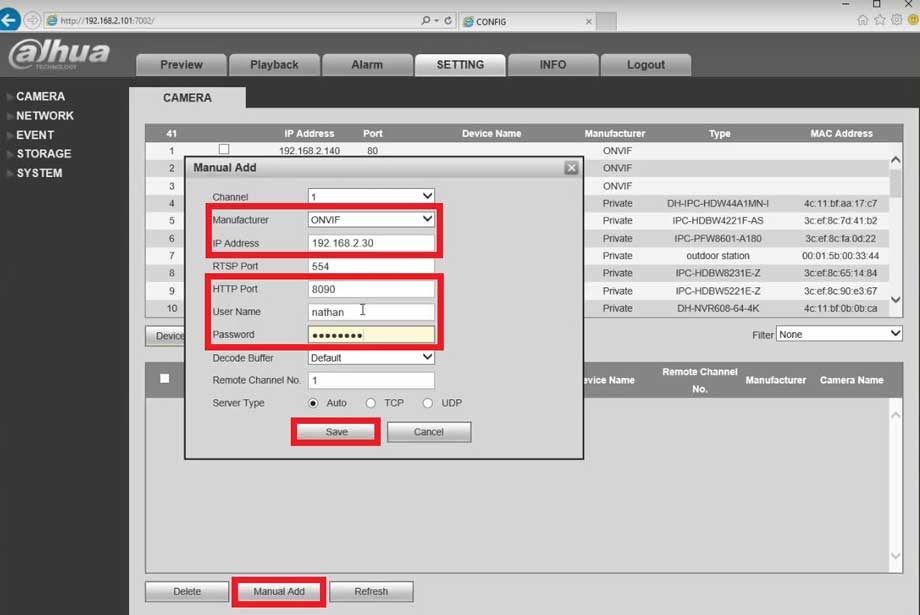
6. Click, “Manual Add”

HikvisionAddCamera5.png

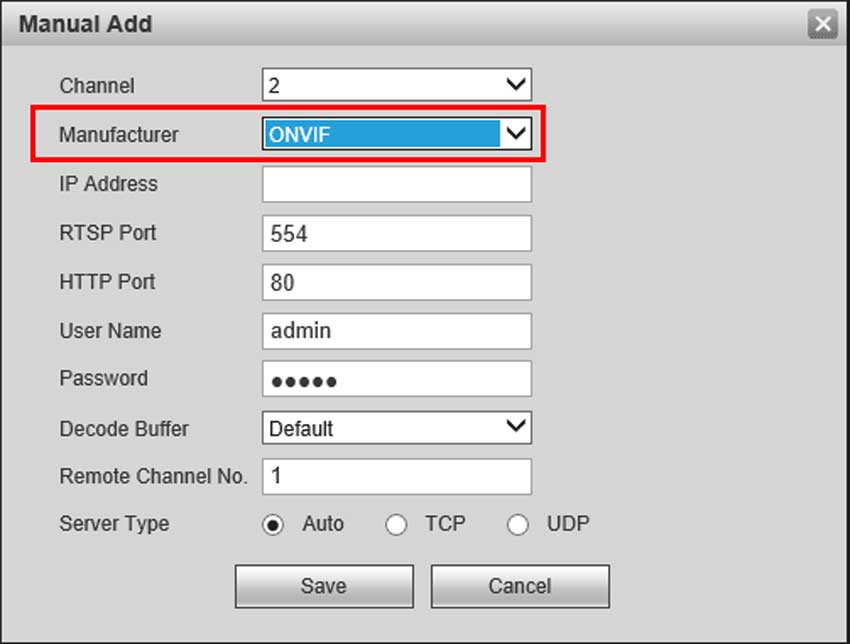
7. Change, “Manufacturer” to “ONVIF”

HikvisionAddCamera6.png

8. Input your Hikvision camera’s IP in, “IP Address”

HikvisionAddCamera10.png

9. Input your Hikvision camera’s password into the, “Password” field.

HikvisionAddCamera7.png

10. Click, “Save”

HikvisionAddCamera8.png

11. If successful, the device will be listed in the bottom table, with a green check under, “Status”

HikvisionAddCamera9.png

Reklam
Bu yazıyı paylaş
M.Salih ASLAN
Yazar Hakkında

M.Salih ASLAN

Owner and Founder dvraid.com and dvrdestek.com

Bir Yorum Yapın

Your email address will not be published. Required fields are marked *

Bu site istenmeyenleri azaltmak için Akismet kullanır. Yorum verilerinizin nasıl işlendiğini öğrenin.

Sadece ilham, sıfır spam ✨

Bültenimize Abone Olun

En iyi hikâyeleri, görüşleri ve son trendleri doğrudan e-postanıza alın.

SIRADAKİ İÇERİK %98 ilgi uyumu
How to Add DeskCamera to a NVR
Ayrılmadan önce göz atın: How to Add DeskCamera to a NVR