Reklam

Vstarcam IP Camera Setup Guide

Vstarcam IP Camera Setup Guide
Yapay Zekâ

Yapay Zekâ İçerik Özeti

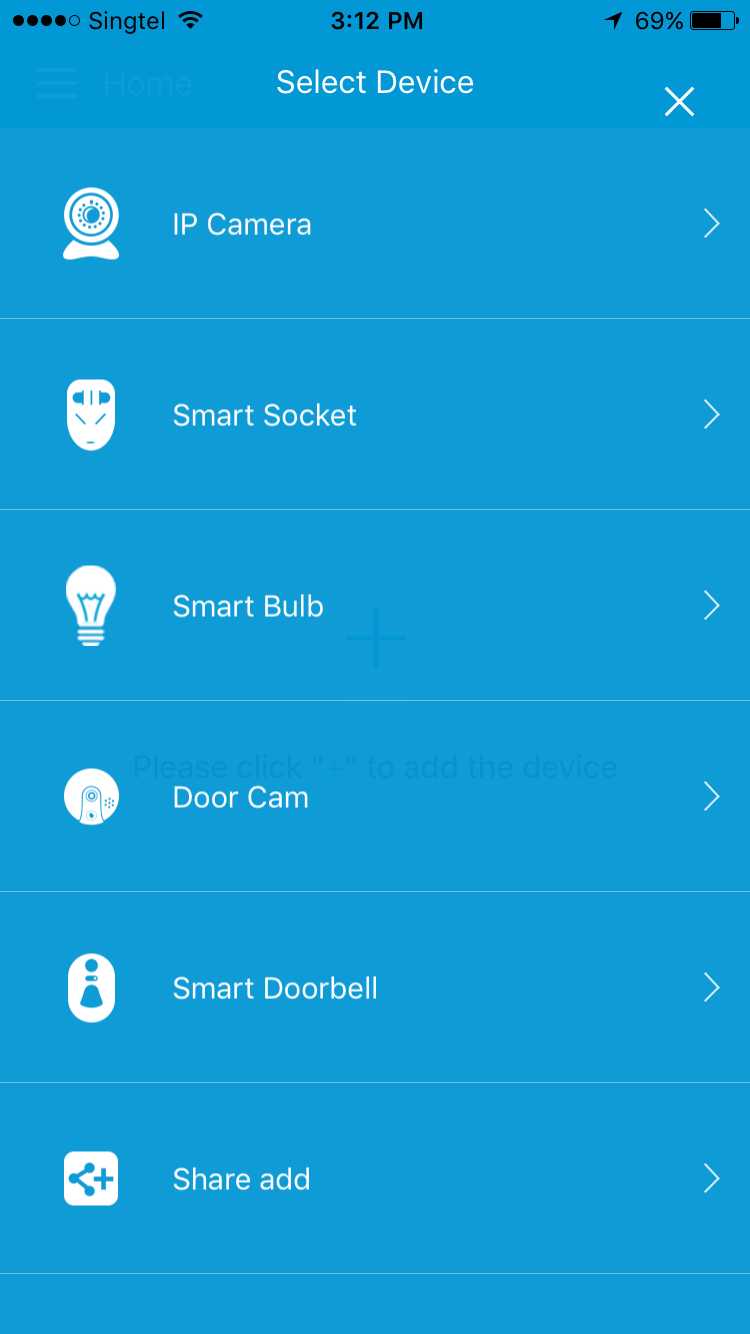
Vstarcam IP Camera Setup Guide for Eye4 on iOS Please follow the below steps to setup your Vstarcam IP Camera for Eye4 App on iPhone/iPad, before start, please download EYE4 app from App Store -Set up an account in EYE4 App -Select Add Device -Select IP camera Load More : Xmeye PoE Camera System Setup Guide -Select Manually Add (Make sure the camera is connected to the router Via LAN cable.) -Scan the QR code at the bottom of the camera. You can use thumb to hide the barcode to scan the QR code only.
Önemli Satır Başları
  • 1
    Vstarcam IP Camera Setup Guide for Eye4 on iOS

    Detaylı analiz ve önemli çıkarımlar bu bölümde yer almaktadır.

  • 2
    Please follow the below steps to setup your Vstarcam IP Camera for Eye4 App on iPhone/iPad, before start, please download EYE4 app from App Store

    Detaylı analiz ve önemli çıkarımlar bu bölümde yer almaktadır.

  • 3
    Vstarcam IP Camera Setup Guide for Eye4 on Android

    Detaylı analiz ve önemli çıkarımlar bu bölümde yer almaktadır.

  • 4
    Please follow the below steps to setup your Vstarcam IP Camera for Eye4 App on Android phone, before start, please download EYE4 app from Play Store:

    Detaylı analiz ve önemli çıkarımlar bu bölümde yer almaktadır.

Vstarcam IP Camera Setup Guide for Eye4 on iOS

Please follow the below steps to setup your Vstarcam IP Camera for Eye4 App on iPhone/iPad, before start, please download EYE4 app from App Store

-Set up an account in EYE4 App

-Select Add Device

0623_1

Reklam

-Select IP camera

0623_2

Load More : Xmeye PoE Camera System Setup Guide

-Select Manually Add

(Make sure the camera is connected to the router Via LAN cable.)

0623_3

-Scan the QR code at the bottom of the camera.

You can use thumb to hide the barcode to scan the QR code only.

0623_4

-Key in the default password (888888)

-Select OK

Change to wireless setting.

-Press the 3 vertical dots on the top right corner.

0623_5

-Select settings

0623_6

-Select WiFI

0623_7

-Choose your house Wifi(Make sure it is not 5G Network)

0623_8

-Key in the wifi password

(Do not unplug the lan cable )

0623_11

-The camera will reboot one time.

-After you can see the image,you can unplug the LAN cable. The setup is successful


Vstarcam IP Camera Setup Guide for Eye4 on Android

Please follow the below steps to setup your Vstarcam IP Camera for Eye4 App on Android phone, before start, please download EYE4 app from Play Store:

-Set up an account in EYE4 App

-Select Add Device

0623_9

-Input Manually

(Make sure the camera is connected to the router Via lan cable)

0623_10

-Scan the QR code at the bottom of the camera.

You may use your thumb to hide the barcode to scan the QR code only.

0623_7

-Key in the default password (888888)

0623_6

-Select Confirm

Change to wireless setting.

-Press the 3 vertical dots on the top right corner.

0623_1

-Select Parameter settings

0623_1 (3)

-Select WiFI setting

0623_4

-Choose your house Wifi(Make sure it is not 5G Network)

0623_5

-Key in the wifi password (Do not unplug the lan cable )

0623_3

0623_2

-The camera will reboot one time.

-After you can see the image,you can unplug the lan cable. The setup is successful.


Reklam
Bu yazıyı paylaş
M.Salih ASLAN
Yazar Hakkında

M.Salih ASLAN

Owner and Founder dvraid.com and dvrdestek.com

Bir Yorum Yapın

Your email address will not be published. Required fields are marked *

Bu site istenmeyenleri azaltmak için Akismet kullanır. Yorum verilerinizin nasıl işlendiğini öğrenin.

Sadece ilham, sıfır spam ✨

Bültenimize Abone Olun

En iyi hikâyeleri, görüşleri ve son trendleri doğrudan e-postanıza alın.

SIRADAKİ İÇERİK %98 ilgi uyumu
How to find and connect to VIVOTEK cameras
Ayrılmadan önce göz atın: How to find and connect to VIVOTEK cameras