If you forgot your NVR password, you may refer to the following two methods to reset your password.
Method 1. Reset the Password by Pressing the Reset Button
Step 1. Reboot your device and make sure you can see the live-view on the monitor screen.
Note: Please stay on live view page through the whole process. Please make sure the nvr system on live view page instead of the logging page while pressing the button
Press the usb mouse and make sure all icons hidden and nvr in live view on the monitor.

Step 2. Remove the outer casing of the NVR using the screwdriver.
Step 3. Press the Reset button for 10 seconds until you hear the buzzing “bee”.
The Reset button of WiFi NVR:

The Reset button of 8-Channel NVR:
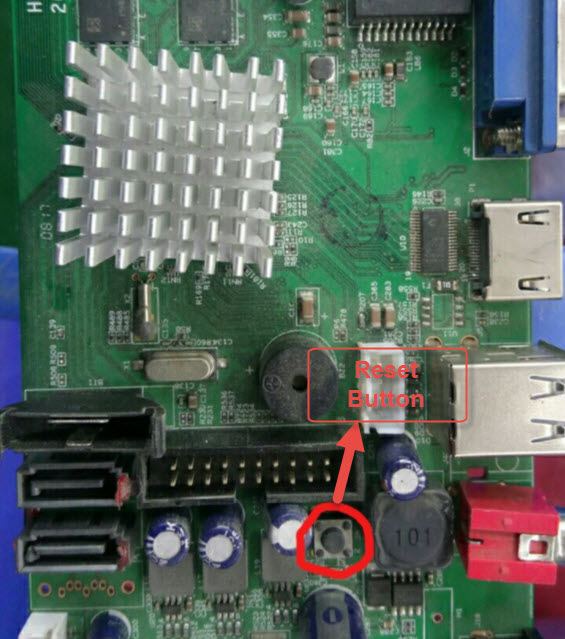
The Reset button of 16-Channel NVR:
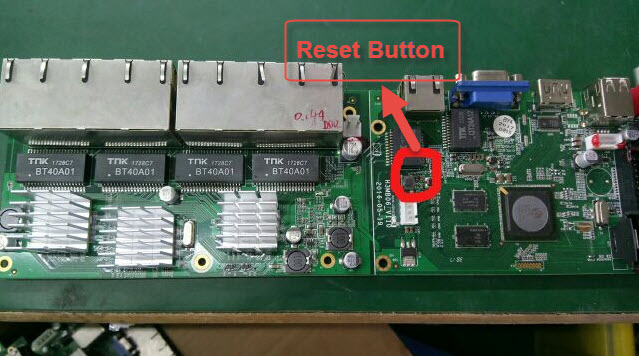
Step 4. After the Setup Wizard pops out, create a new password and follow the Setup Wizard to complete the setup.
Method 2. Reset the Password via Super Password
If method 1 doesn’t work, you may Use Super Password to Reset the Admin Password on Reolink NVR.
Use Super Password to Reset the Admin Password on Reolink NVR
Applies to: All Reolink NVRs.
If you forget the password of Reolink NVR, you may create a super password via Super Password application, then use it to reset your NVR password and set a new password.
Here we will guide you to reset the password of your PoE NVR by using the super password in the following steps.
Note: To get the Super Password application package, you can download it from the link below: https://s3.amazonaws.com/reolink-storage/website/download/SuperPassword.exe. If you fail to download it, you can contact support.
Step 1: Connect the NVR to a monitor by HDMI cable. (If there is no display, please connect it to a VGA monitor and change the pixel to 1920*1080.)
Step 2: Login in the NVR and click Forgot Password button.

Then you will get this page:

Step 3: Open Super Password application installed on the computer, then input the random code.

Step 4: Click Create Super Password to create a super password.

Step 5: Go back to the System Login interface on the monitor of NVR. Input the generated super password, then click the OK button.
Note: When you finished the steps above, the password of your NVR will be successfully reset and the old password will be removed.
Step 6: Create a new password for logging in.

Step 7: Start to set up configurations on the Setup Wizard interface.

Step 8: Click Finish button when you set up all the configurations.

Done! You have successfully reset the password of your NVR. Now you can make login with the new password.