Reklam
2 dk okuma

How to Connect DVR/NVR on Computer Software CMS?

mceclip1
Yapay Zekâ

Yapay Zekâ İçerik Özeti

CMS can help you to manage your DVR/NVR both locally and remotely. But before adding your DVR/NVR to CMS, please go to the Main menu--Info--Version to make sure NAT status is connected.

Önemli Satır Başları
  • 1
    Stratejik Vizyon & Dönüşüm

    Gelişen trendlerin ve yenilikçi yaklaşımların temel prensipleri.

  • 2
    Verimlilik ve Uygulama

    Pratikte karşılaşılan zorluklar ve optimize edilmiş çözüm yolları.

  • 3
    Geleceğe Dair Öngörüler

    Önümüzdeki dönemde sektörde ve günlük hayatta yaratacağı etkiler.

CMS can help you to manage your DVR/NVR both locally and remotely. But before adding your DVR/NVR to CMS,
please go to the Main menu–Info–Version to make sure NAT status is connected. If you have a problem, please click this link for help.

https://help.annke.com/hc/en-us/articles/360000250141-What-to-do-if-DVR-or-NVR-can-t-connect-to-internet-successfully-

Here is new CMS software for Windows computers.

Reklam

https://download.annke.com/document/Computer_Software/General_Bate_CMS_V3.1.0.9.T.20190306.exe

Then you can follow the steps below to add NVR/DVR to your CMS.

1 Download CMS and install it on your computer according to the instruction in the download file.

2 Double click the icon to open CMS, the default User Name is super, the password is blank (no password).


mceclip0.png


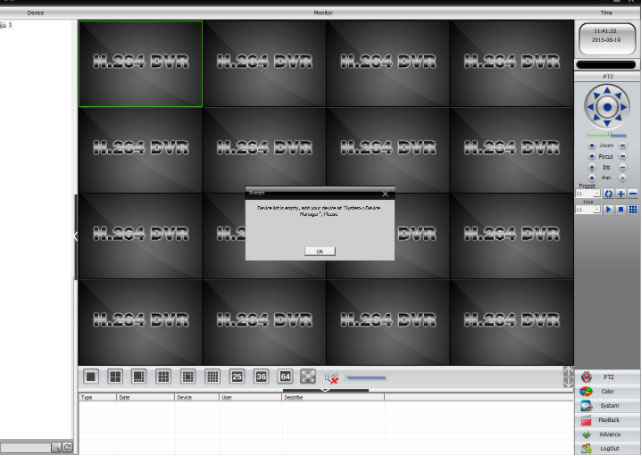
3 For the first time login, you will see the interface as below.

mceclip1.png


4 To add DVR/NVR, you can click the System menu on the bottom right corner. Then go to Device Manager, click ADD AREA to create a zone.

Name the zone yourself and click OK.

mceclip2.png

5 After adding area, click the area name you created then click on mceclip3.png to add your DVR/NVR.

Device Name: name it yourself

Login type: choose Cloud

Serial ID: Here is a method to find Serial ID.

https://help.annke.com/hc/en-us/articles/360000248422-Where-to-find-the-serial-number-and-QR-code-of-system-and-NAT-status-

User Name/Password: default is admin and no password, same as your DVR

Click “ OK” after you have done the above parameters, you could double click to open this device.

mceclip4.png


6 After you add your DVR successfully, you can view and manage your DVR on CMS.

mceclip5.png

mceclip6.png


7 Here is the introduction to the CMS interface.

mceclip7.png


Note: If you have a problem to add DVR/NVR to CMS, please double-check the connection between

your DVR/NVR and the Internet and upgrade your CMS to the latest version.

Reklam
Bu yazıyı paylaş
M.Salih ASLAN
Yazar Hakkında

M.Salih ASLAN

Owner and Founder dvraid.com and dvrdestek.com

Bir Yorum Yapın

Your email address will not be published. Required fields are marked *

Bu site istenmeyenleri azaltmak için Akismet kullanır. Yorum verilerinizin nasıl işlendiğini öğrenin.

Sadece ilham, sıfır spam ✨

Bültenimize Abone Olun

En iyi hikâyeleri, görüşleri ve son trendleri doğrudan e-postanıza alın.

SIRADAKİ İÇERİK %98 ilgi uyumu
app
Ayrılmadan önce göz atın: How to Connect DVR/NVR to Phone App?