Lorex N910 Series Installation Guides, Update or start your security system with this future-ready 16 camera capable (8 wired + 8 Fusion Wi-Fi) NVR. For the first time, this NVR introduces 12MP recoding capabilities, a revamped Fusion onboarding experience. Along with support for all the latest smart detection, deterrence, and privacy features, this NVR will be a powerful cornerstone for your security ecosystem for years to come.
N910, E910 Series: Using Your Camera’s Warning Lights
This article provides step-by-step instructions on using your camera’s warning lights to deter potential intruders, explaining the process for both the Lorex app and the recorder.
Lorex N910 Series Installation Guide
The bright, white warning lights positioned on the front of your IP Wired Security Camera serve as a visible deterrent to potential intruders, enhancing the camera’s effectiveness by warning individuals that they are under surveillance. These lights are designed to discourage unwanted activity and promote a sense of increased security, ultimately helping to prevent or minimize security threats.
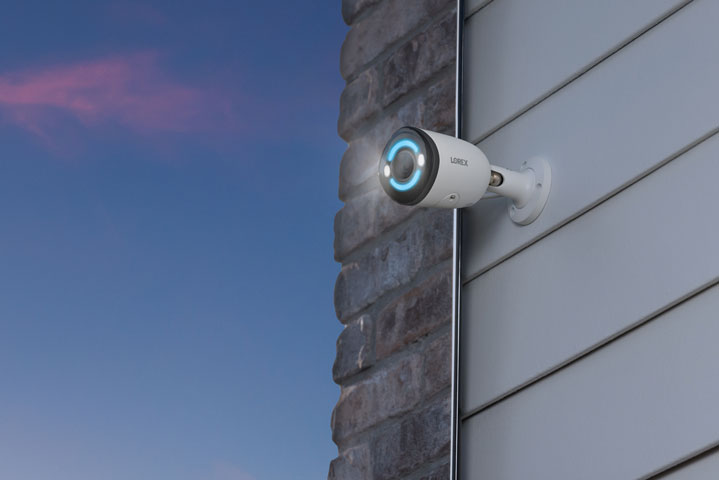
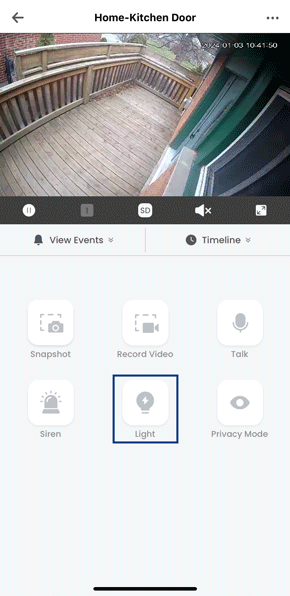
Manually Activate Your Camera’s Warning Lights Through the Lorex App
Before you begin: Ensure you have downloaded the Lorex app and successfully connected your system. For detailed instructions, please consult the article “DVR / NVR – Download the Lorex App”.
The warning light will activate for a duration of 10 seconds; tap once more to manually deactivate it.
.
Set Your Camera’s Warning Lights to Activate on Smart Motion Through the Lorex App
Before you begin: Ensure you have downloaded the Lorex app and successfully connected your system. For detailed instructions, please consult the article “DVR / NVR – Download the Lorex App”.
 to enable the Deterrence Light, and then customize the light settings: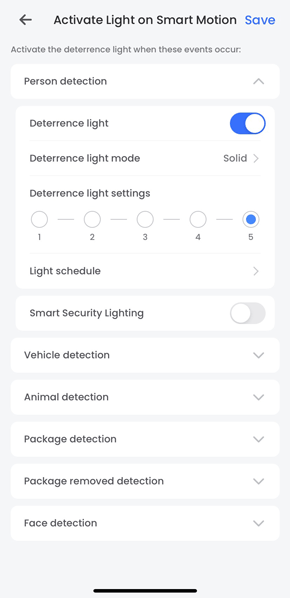
.
Manually Activate Your Camera’s Warning Lights via Your Recorder
Within the Live View display, hover the mouse pointer near the top of your camera’s image to reveal the Camera Toolbar. Click the warning lights icon to activate it, and click again to manually deactivate it.

.
Set Your Camera’s Warning Lights to Activate on Smart Motion via Your Recorder
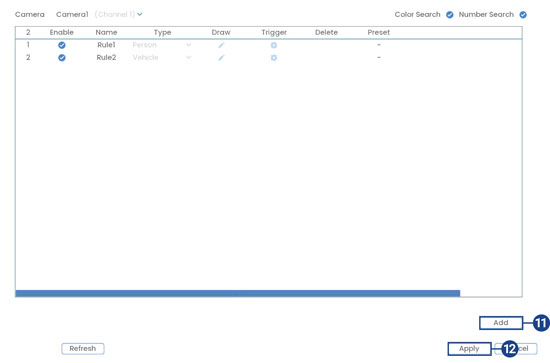
Note: If the Smart Plan is not correctly enabled on your recorder, the smart motion feature will not function. Prior to proceeding, ensure that you activate the smart motion feature. For more information, consult the article “Change Your Recorder’s Smart Plan”.
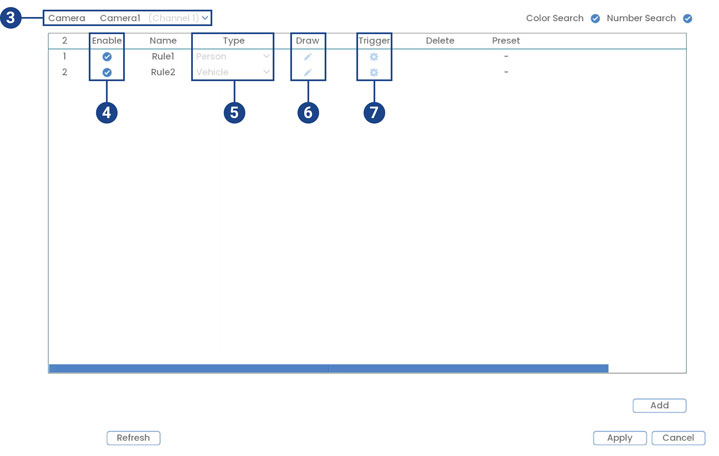
Note: The initial two smart motion detection rules are automatically included. The detection type for these default rules cannot be changed, and the areas can only be enabled or disabled. Subsequent rules added allow for modification or deletion of all details.
 and customize the active area for automatic warning light: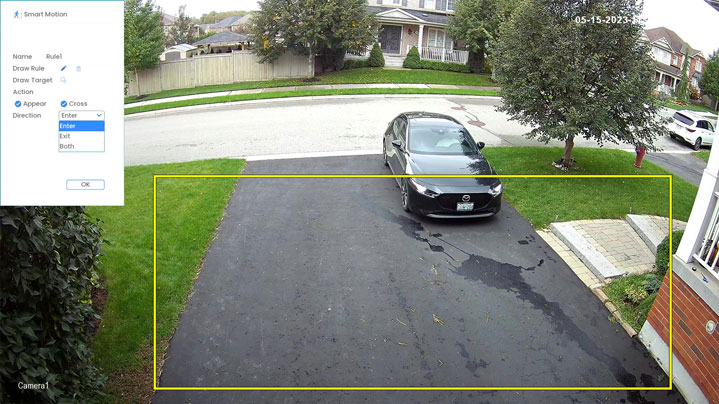
 to remove the current one, then click on the camera’s live view image and draw a line around the area that you want to monitor. Continue to click to change the direction and then right-click to close the area.
 .
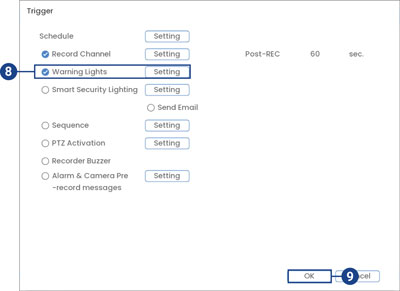
.
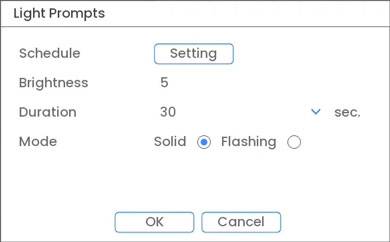
.
Activate All Siren and Warning Lights on All Cameras via Your Recorder (Panic Button)
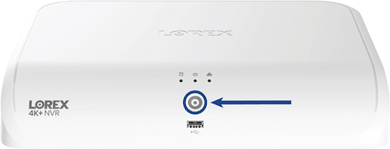
Hold the info/panic button for 3 seconds to activate sirens and warning lights on all connected deterrence cameras; they will automatically deactivate after 10 seconds.
.
For detailed instructions on configuring your system, refer to your recorder’s Series Manual on the product support page. Visit help.lorextechnology.com and search your recorder’s model number.
N910, E910 Series: Using Your Camera’s Siren
The following article provides both Lorex App and recorder instructions for using your IP wired camera’s siren..
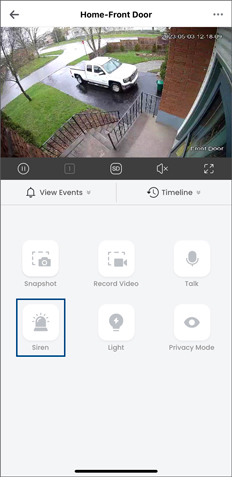
Manually Activate Your Camera’s Siren Through the Lorex App
Before you begin: Ensure you have downloaded the Lorex app and successfully connected your system. For detailed instructions, please consult the article “DVR / NVR – Download the Lorex App”.
The siren will activate for a duration of 10 seconds; tap once more to manually deactivate it.
.
Manually Activate Your Camera’s Siren via Your Recorder
Within the Live View display, hover the mouse pointer near the top of your camera’s image to reveal the Camera Toolbar. Click the siren icon to activate it, and click again to manually deactivate it.

.
Customize Your Camera’s Siren Settings via Your Recorder
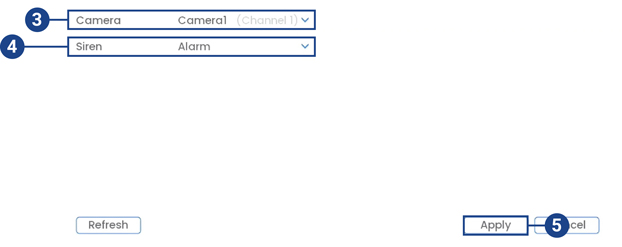
Select between different siren options for your camera.
To configure the siren: 1. From the Live View display, right-click to open the Quick Menu, then click Main Menu. 2. Click Events, then Event Settings. Click the Siren tab from the side panel.
.
Activate All Siren and Warning Lights on All Cameras via Your Recorder (Panic Button)
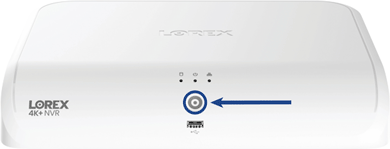
Hold the info/panic button for 3 seconds to activate sirens and warning lights on all connected deterrence cameras; they will automatically deactivate after 10 seconds.
.
For detailed instructions on configuring your system, refer to your recorder’s Series Manual on the product support page. Visit help.lorextechnology.com and search your recorder’s model number.
N910, E910 Series: Using Your Camera’s Smart Security Lighting
This article provides instructions for how to use the Smart Security Lighting feature on your IP wired deterrence cameras through both the Lorex App and your recorder.
.
Certain Lorex IP wired deterrence cameras have a built-in, vibrant Smart Security Lighting positioned on the front of the camera. This feature allows users to customize different colored lighting modes or synchronize it with smart motion detection settings.
Smart Security Lighting is available on certain Lorex IP wired deterrence cameras. To view a list of cameras with Smart Security Lighting, please refer to the Product Compatibility Chart.

Customize Smart Security Lighting Through the Lorex App
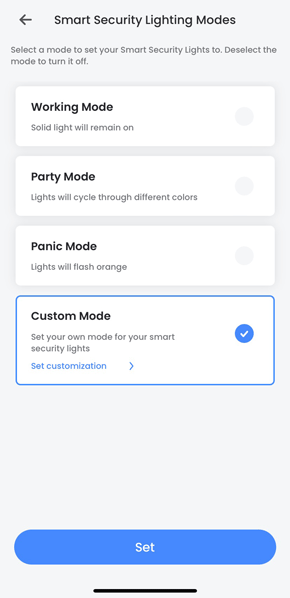
Set Your Camera’s Smart Security Lighting Mode
Before you begin: Ensure you have downloaded the Lorex app and successfully connected your system. For detailed instructions, please consult the article “DVR / NVR – Download the Lorex App”.
To turn Smart Security Lighting Off: Deselect the mode and tap Save.
.
Activate Smart Security Lighting on Smart Motion
Before you begin: Ensure you have downloaded the Lorex app and successfully connected your system. For detailed instructions, please consult the article “DVR / NVR – Download the Lorex App”.
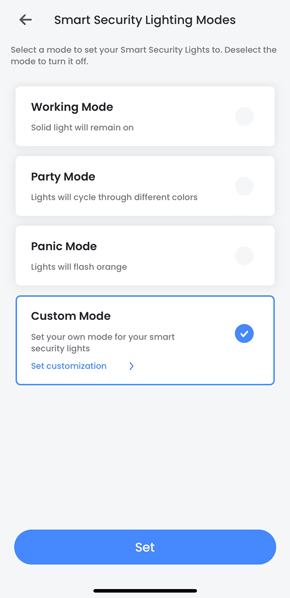
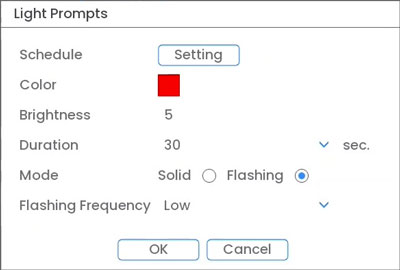
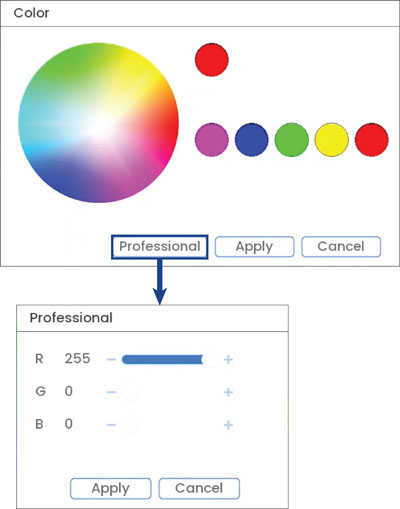
 to enable the Smart Security Lighting, and then customize the light settings:
To turn Smart Security Lighting Off: Disable Smart Security Lighting and tap Save.
.
Customize Smart Security Lighting via Your Recorder
.
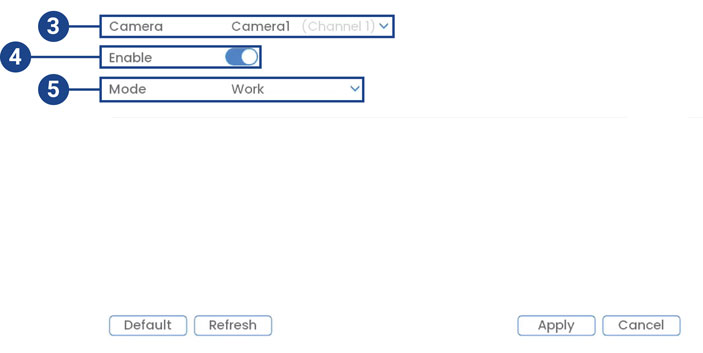
Set Your Camera’s Smart Security Lighting Mode
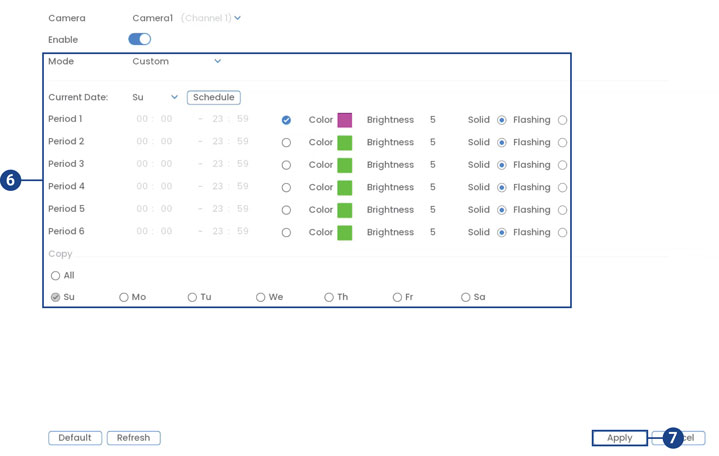
.
Activate Smart Security Lighting on Smart Motion
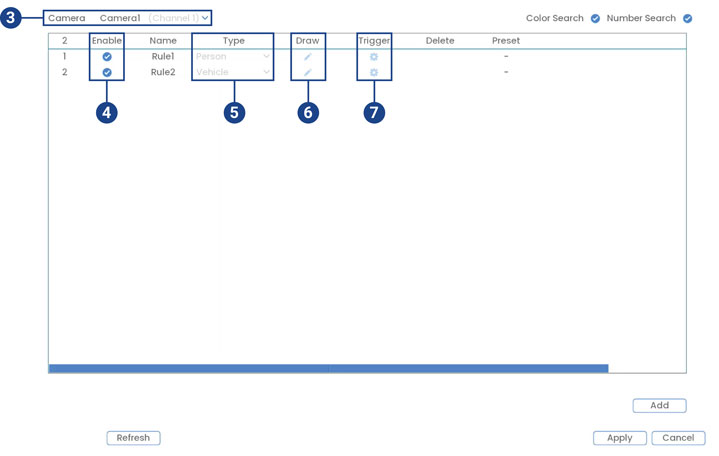
Note: The initial two smart motion detection rules are automatically included. The detection type for these default rules cannot be changed, and the areas can only be enabled or disabled. Subsequent rules added allow for modification or deletion of all details.
 and customize the active area for automatic Smart Security Lighting: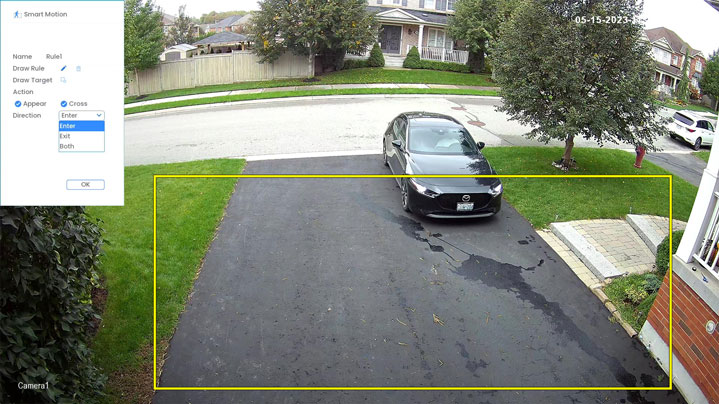
 to remove the current box. Draw a line around the monitoring area on the live view image and then right-click to close the area.
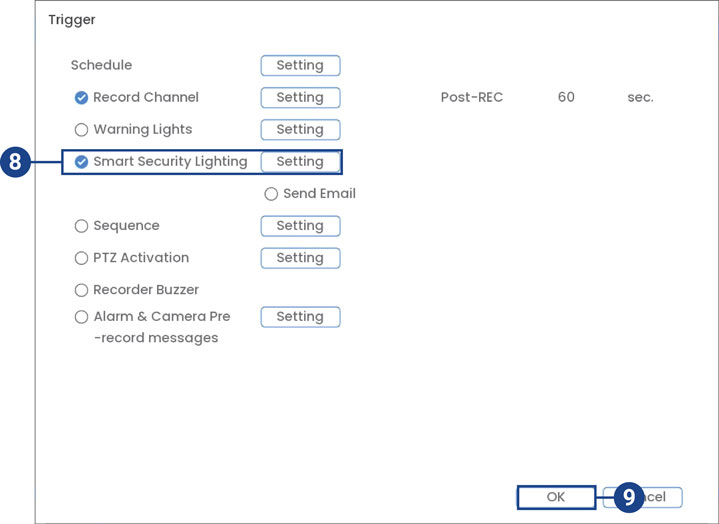
 .
.
.
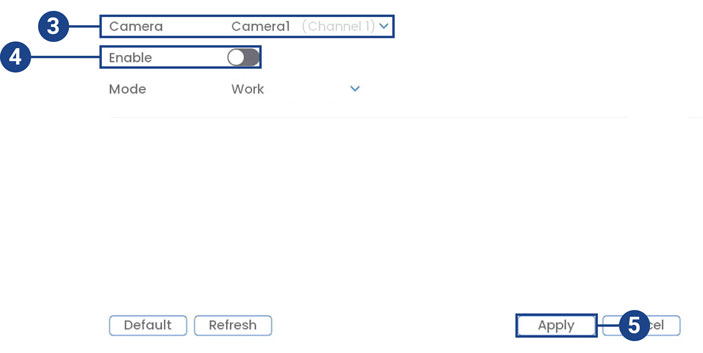
Turn Smart Security Lighting Off
N910 Series – 4K+ Ultra HD 12MP 16 Camera Capable NVR: Person & Vehicle Detection
The following article provides both Lorex App and recorder instructions for using Person and Vehicle Detection on your IP security cameras.
.
The system supports detection of people and vehicles with compatible IP cameras only. This helps deliver more relevant notifications when using the Lorex App for remote viewing.
You can also link the warning lights, sirens, and more to person and vehicle detection on compatible Lorex deterrence cameras for an added level of smart security.
Ensuring Accurate Person Detection
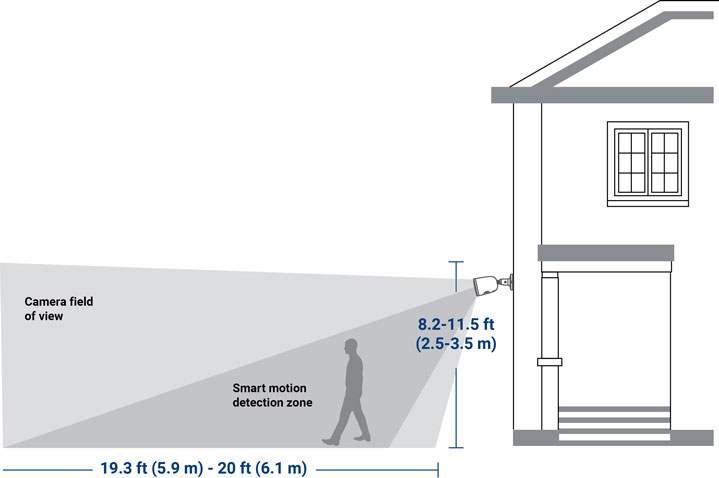
The following are important camera installation notes to ensure accurate person detection. Refer to the documentation that came with your camera or search for your camera model number at lorex.com for full mounting instructions.
Person Detection
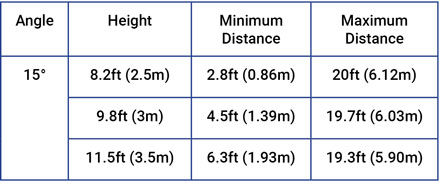
Accuracy of person detection will be influenced by multiple factors, such as: * The object’s distance from the camera. * The size of the object. * The height and angle of the camera.
Night vision will also impact the accuracy of detection.
.
Ensuring Accurate Vehicle Detection & Number Search
The following are important camera installation notes to ensure accurate vehicle detection. Refer to the documentation that came with your camera or search for your camera model number at lorex.com for full mounting instructions.
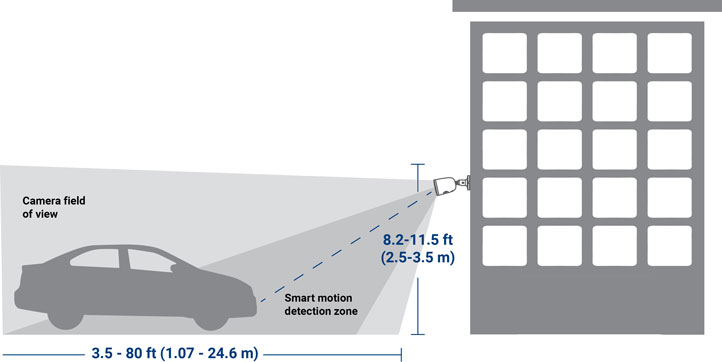
Vehicle Detection
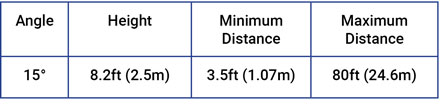
Accuracy of person detection will be influenced by multiple factors, such as: * The object’s distance from the camera. * The size of the object. * The height and angle of the camera.
Night vision will also impact the accuracy of detection.
.
Configuring Person & Vehicle Detection
The system allows you to monitor for smart motion events and differentiate between person, vehicle, and animal shapes. Adjust preferences for person, vehicle, and/or animal detection per channel.
Important: If a Smart Plan is not enabled properly on your camera, the Smart Motion feature will not work. Please make sure to enable the Smart Motion feature before continuing, see Change Your Recoder’s Smart Plan.
To configure person & vehicle detection: 1. From the Live View display, right-click to open the Quick Menu, then click Main Menu. 2. Click Events, then Event Settings. Click the Person & Vehicle tab from the side panel. 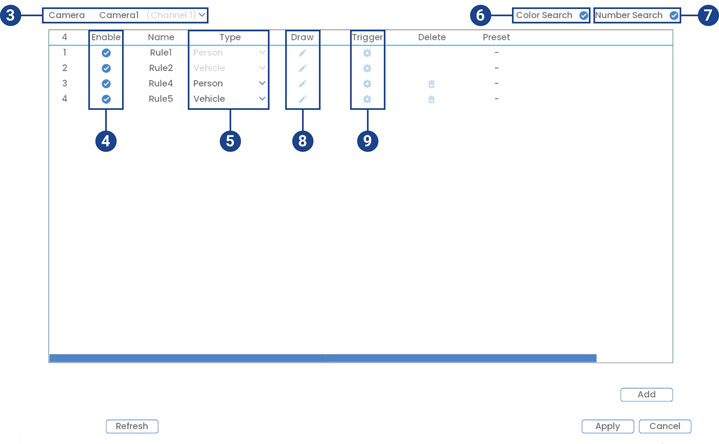
Important: The first two person & vehicle detection rules were added by default. The detection type for the two default rules cannot change and the areas can only be enabled or disabled. All details from rules added after can be changed or deleted.
 and customize the active area for animal detection: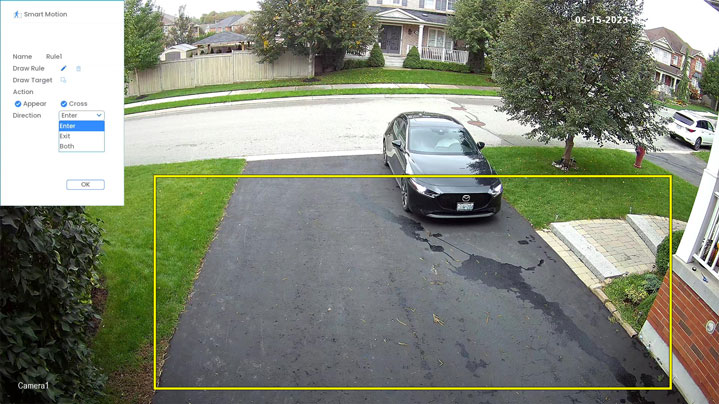
 to remove the current one, then click on the camera’s live view image and draw a line around the area that you want to monitor. Continue to click to change the direction and then right-click to close the area.
 to adjust how the system will react to person & vehicle detection.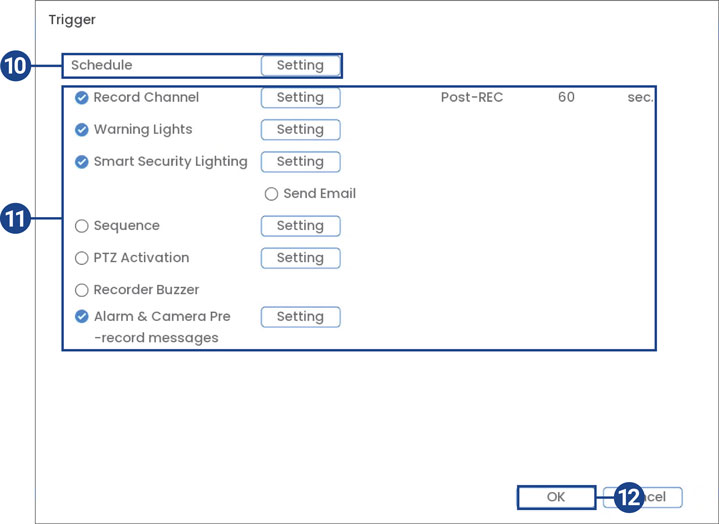
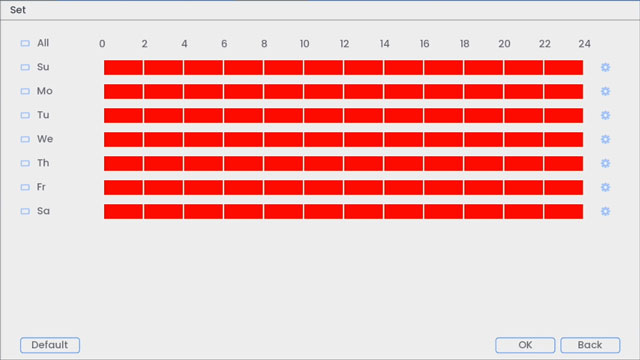
 beside 2 or more days to link schedules (
 ). This allows you to quickly change multiple schedules at once.
 . This will allow you to set exact start and end times for a schedule.
 to remove the rule.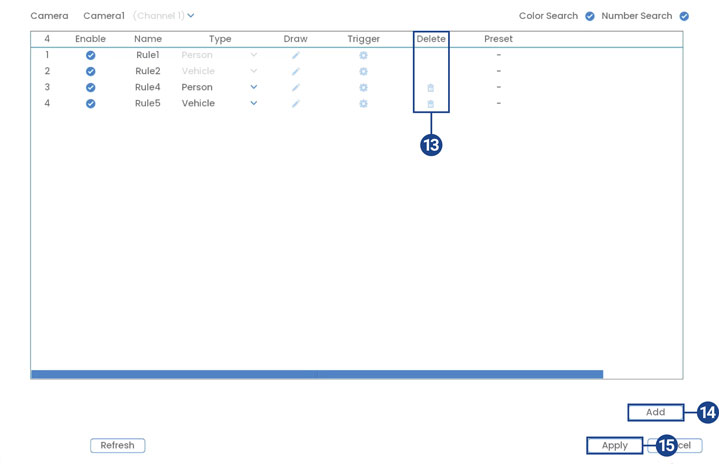
.
Searching for Person & Vehicle Detection (Smart Search)
Smart Search lets you filter recorded video to search for person and/or vehicle detection events.
Important: In order to use Smart Search, you must configure at least one camera’s smart detection settings. See Person and Vehicle Detection for full instructions.
To perform a Smart Search: 1. From the Live View display, right-click to open the Quick Menu, then click Smart Search. 2. Click the Person & Vehicle tab from the side panel.
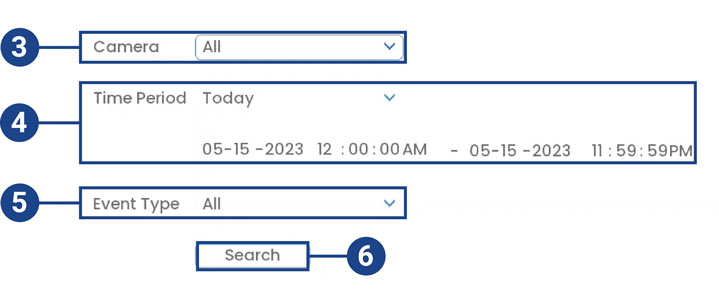
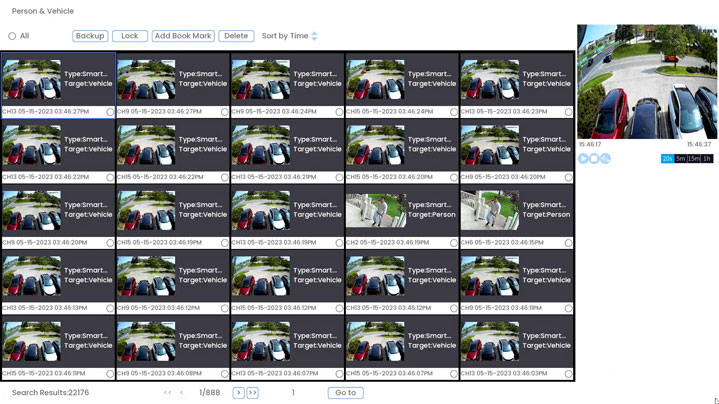
.
Configuring Active View
Track motion that is detected by following and zooming in on the moving object.
To configure the active view settings:
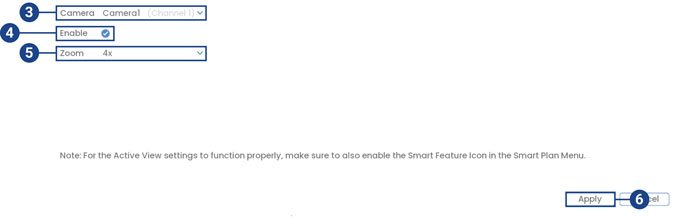
.
Configuring Person and Vehicle Detection in the Lorex App
The following steps are applicable to the Lorex App.
 above the recorder’s thumbnail.
 to enable Person Detection or Vehicle Detection.
 This will take you to a new screen where you can shrink, stretch, or reposition your Person and Vehicle Motion Zones™ as needed. For full instructions on how to set customized Motion Zones™, refer to “Configure Motion Zones™”.
N910 Series – 4K+ Ultra HD 12MP 16 Camera Capable NVR: Face Detection
The following article helps you detect and capture faces in the camera’s field-of-view while triggering alarms and/or notifications.
.
Caution: Facial recording without consent is illegal in certain jurisdictions. Lorex Technology does not assume liability for any use of its product that fails to conform with local laws.
Face Detection is compatible with certain Lorex IP cameras. For a complete list of compatible cameras, navigate to your recorder series at Product Compatibility Chart.
Ensuring Face & Mask Detection Accuracy
The following are important camera installation notes to ensure accurate Face Detection. For full camera mounting instructions, see your camera’s documentation at lorex.com.
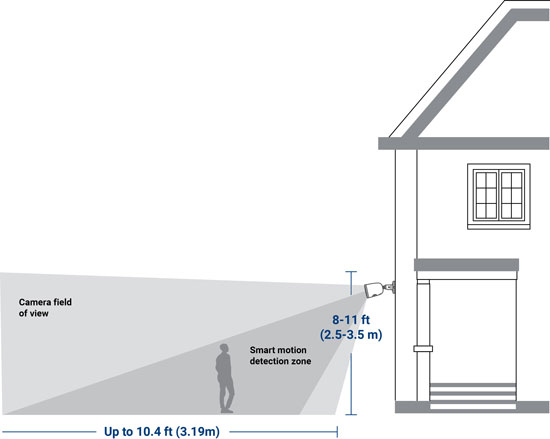
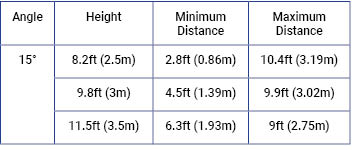
.
Configuring Face Detection
The face detection option cannot be used simultaneously with other smart plans. Make sure you have disabled all other smart plans to enable the Face Detection feature. To enable face detection in smart plan settings, see Change Your Recorder’s Smart Plan
The system allows you to monitor for face events. Select channels that you want to enable face detection on and adjust preferences.
To configure face detection: 1. From the Live View display, right-click to open the Quick Menu, then click Main Menu. 2. Click Events, then Event Settings. Click the Face Detection tab from the side panel.
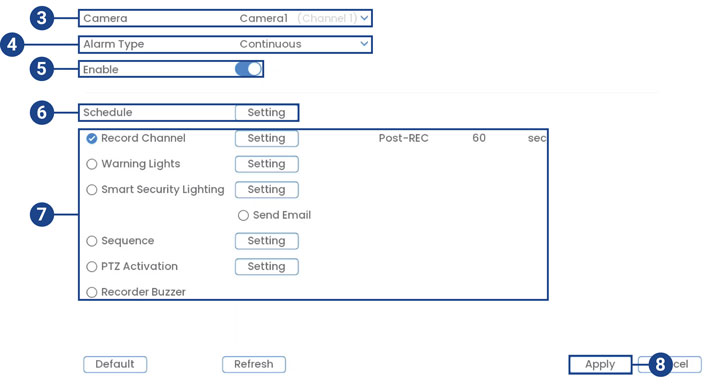
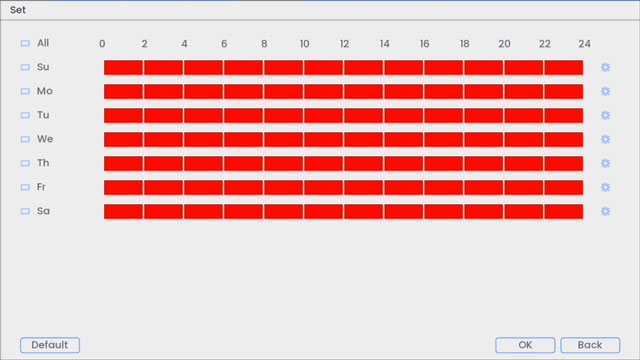
 beside 2 or more days to link schedules (
 ). This allows you to quickly change multiple schedules at once.
 . This will allow you to set exact start and end times for a schedule.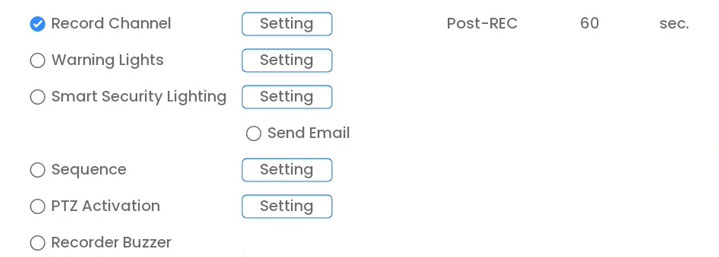
.
Configuring Mask Detection
Select channels that you want to enable mask detection on and adjust preferences.
To configure mask detection: 1. From the Live View display, right-click to open the Quick Menu, then click Main Menu. 2. Click Events, then Event Settings. Click the Face Detection tab from the side panel.
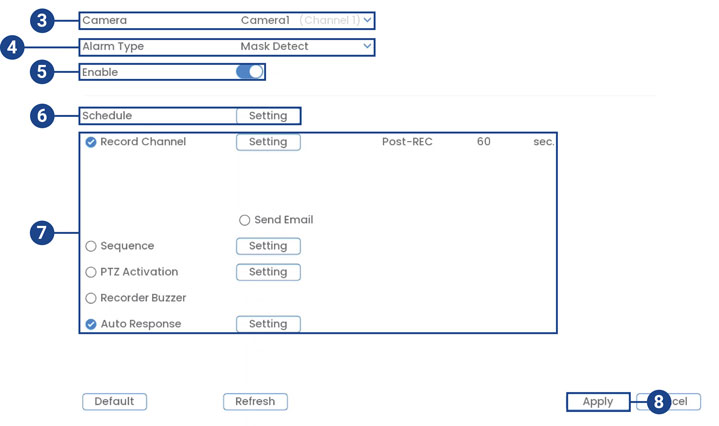 3. Select a camera to configure. 4. Select Continuous. 5. Check to enable face detection on the selected channel. 6. Click Setting next to Schedule to choose which days of the week to enable face detection: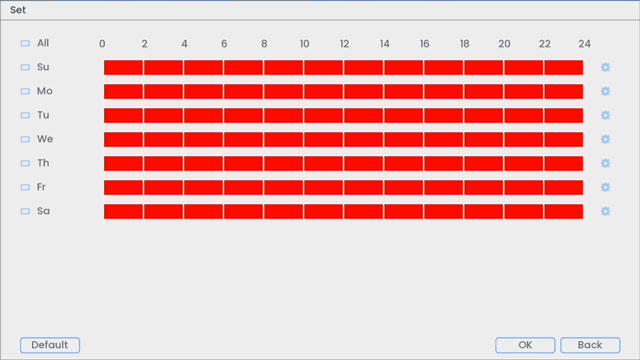
 beside 2 or more days to link schedules (
 ). This allows you to quickly change multiple schedules at once.
 . This will allow you to set exact start and end times for a schedule.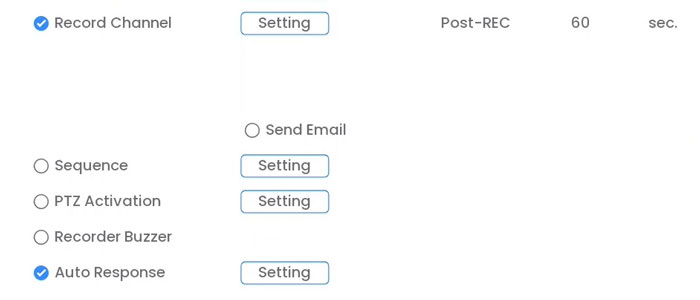
.
Live Preview of Face & Mask Detection
You can now preview captured face detection and mask detection on your camera’s live view display.
To preview face and/or mask detection:
You can also search for face detection events on a specific camera or the entire system. You can also choose to back up events (USB flash drive required not included).To perform a Smart Search, see Searching for Person & Vehicle Detection (Smart Search) in Person & Vehicle Detection.
.
Configuring Face Detection Through the Lorex App
 above the recorder’s thumbnail.
 to enable Face Detection.
 Configuring Smart Motion Detection Zones (including face detection) can only be done using your recorder. For full instructions on how to set customized Motion Zones™, refer to “Configure Motion Zones™”.
Port Forwarding: Setup
Port forwarding tells a router which device on the internal network to send external traffic to. When port forwarding is set up on a router, traffic is taken from an external IP address and the data is sent to an internal IP address.
To set up port forwarding, all DVR / NVR systems have specific ports that need to be open. Refer to your user manual for model specific ports. Click here for downloads and documentation for your product.
Prerequisites:
To set up port forwarding on your router:
IMPORTANT: Port forwarding is not the same as port triggering.
TIP: You can use an online port checker to ensure you have configured your port forwarding properly on your router.
REMINDER: If you do not have this option in your router, you can set up a static IP address on your DVR / NVR. Click here for more information on the differences between DHCP and static IP addresses.
Once you successfully set up port forwarding, you can set up a DDNS and login to your system remotely. If you lose remote connection with your DVR / NVR, click here for instructions to troubleshoot your port forwarding settings.
N910 Series – 4K+ Ultra HD 12MP 16 Camera Capable NVR: Change Your Recorder’s Smart Plan
The following article provides instructions on changing your recorder’s Smart Plan.
.
To use a smart detection feature on your camera, it must first be enabled in the Smart Plan settings from your system. Select the smart plan feature for each camera.
To configure your smart plan settings: 1. From the Live View display, right-click to open the Quick Menu, then click Main Menu. 2. Click Events, then Event Settings. Click the Smart Plan tab from the side panel.
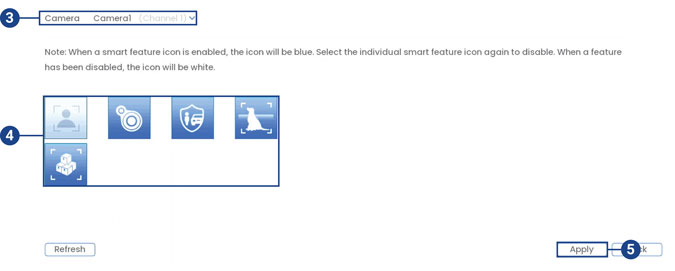
 Face Detection will only notify you of motion events when a face has been detected, which prevents motion notifications from people or vehicles simply passing by and not coming towards the camera. Important: The face detection feature cannot be used simultaneously with other smart plans and is disabled by default. To enable the face detection feature, disable all other smart plans.
 Heat Map displays the area and frequency of motion detected in the camera’s image using a warm-to-cool color scheme.
 Person & Vehicle Detection, Safeguard, and Active View helps you detection of people and vehicles with compatible IP cameras only. With its features you will only get a push notification whenever a person or vehicle is detected on your property.
 Animal Detection, Active View helps you detect the animals on your camera even when you are not at home. It is especially helpful if you have a large space to monitor so you can get alerts whenever your pet roams around.
 Package and Envelope Detection is used to detect and record mail, boxes, a courier, or a mail truck.
Important: When a smart feature icon is enabled, the icon will be blue. Select the individual smart feature icon again to disable. When a feature has been disabled, the icon will be white.
N910 Series – 4K+ Ultra HD 12MP 16 Camera Capable NVR: Color Search and Number Search
The following article provides instructions for using Color Search to identify a person by what colors they are wearing. This article also gives you information about Number Search to help you filter, search, and browse for numbers on vehicle detection recordings.
For a complete understanding of detection of people and vehicles see Person & Vehicle Detection.
Searching for Colors (Smart Search)
The system can search for certain colors to provide an additional layer of data when you need to locate or identify a person by what colors they are wearing, or it can help you keep tabs on vehicles driving on your premises.
Important: In order to use Smart Search, you must configure at least one camera’s smart detection settings. See the procedure above for full instructions.
To perform a Smart Search: 1. From the Live View display, right-click to open the Quick Menu, then click Smart Search. 2. Click the Color Search tab from the side panel.
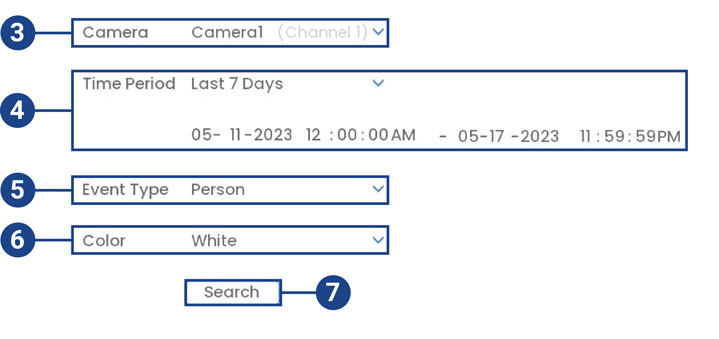
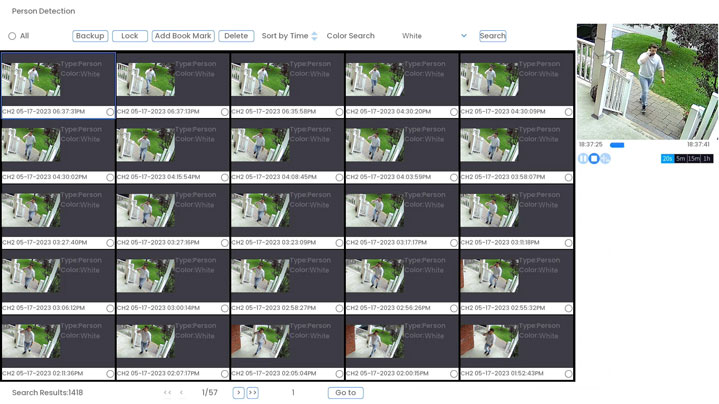
.
Searching for Numbers on Vehicle License Plates (Smart Search)
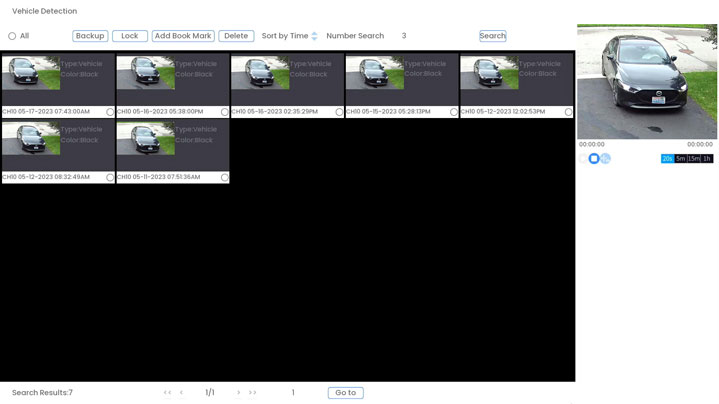
The system can filter, search, and browse for numbers on vehicle detection recordings. Each result has the snapshot, the plate number, and a video recording showing the capture.
Important: * Number Search is not an LPR (License Plate Recognition) feature. * In order to use Number Search, you must configure at least one camera’s person & vehicle detection settings and have vehicle detection enabled. See the procedure above for full instructions.
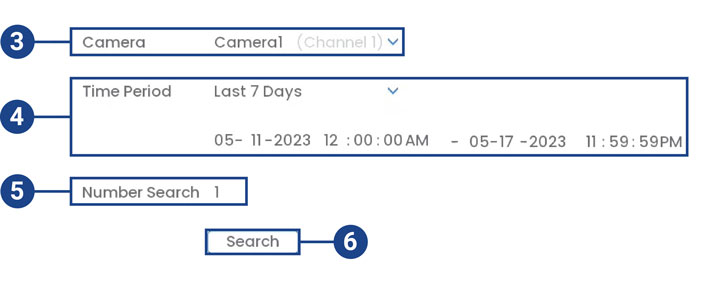
To perform a Smart Search: 1. From the Live View display, right-click to open the Quick Menu, then click Smart Search. 2. Click the Number Search tab from the side panel.