How to Reset Hikvision Device Password via Hik-Proconnect
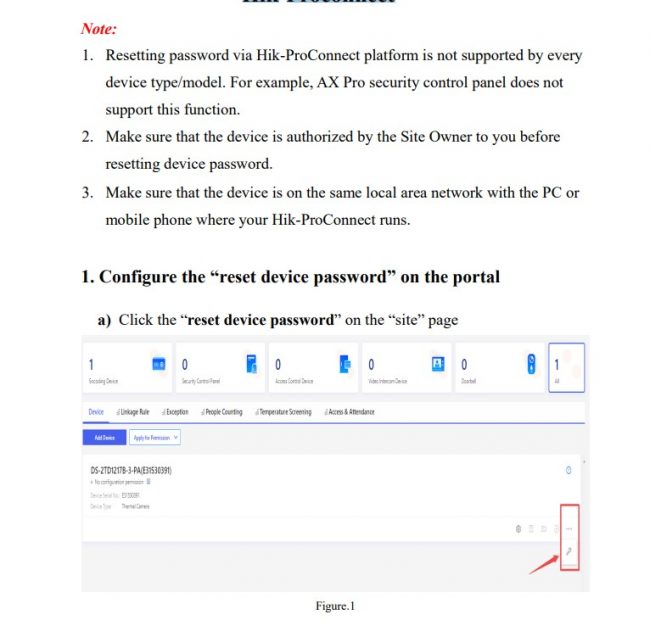
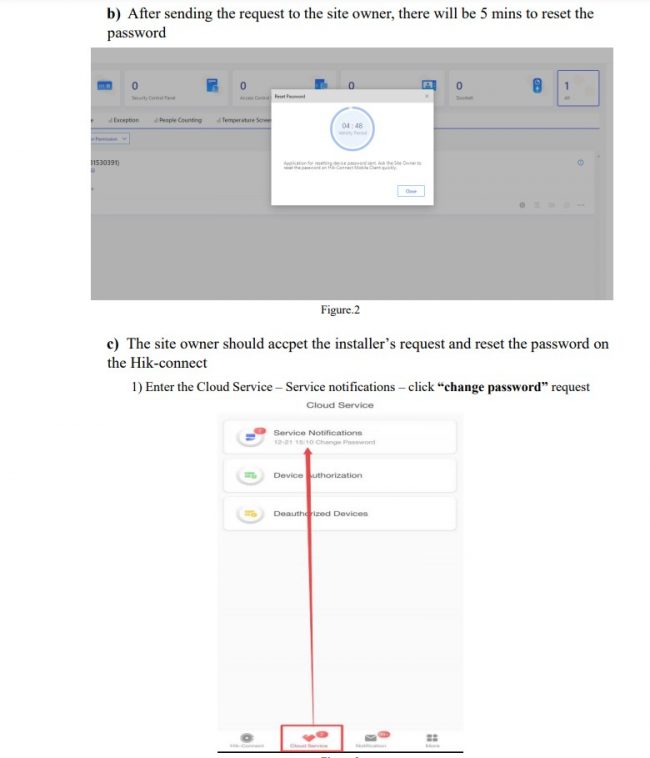
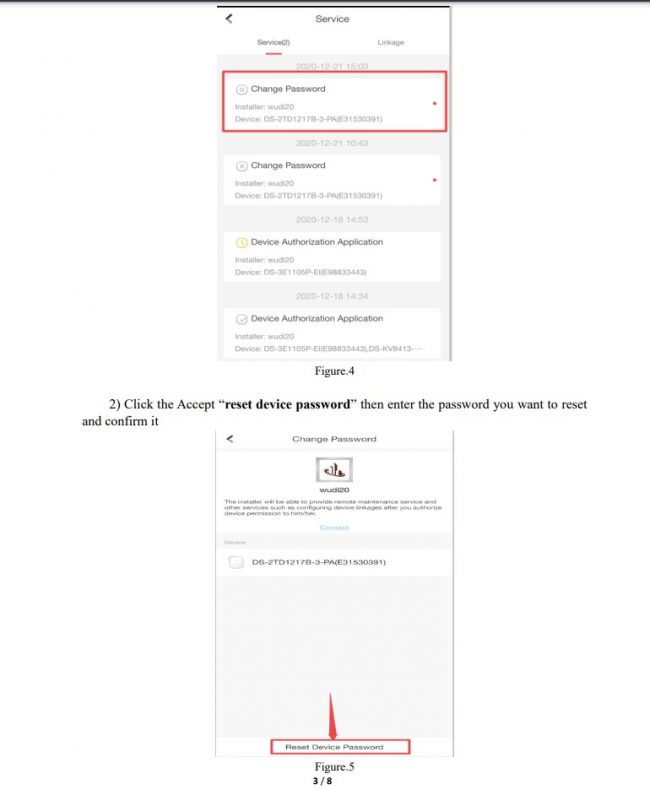
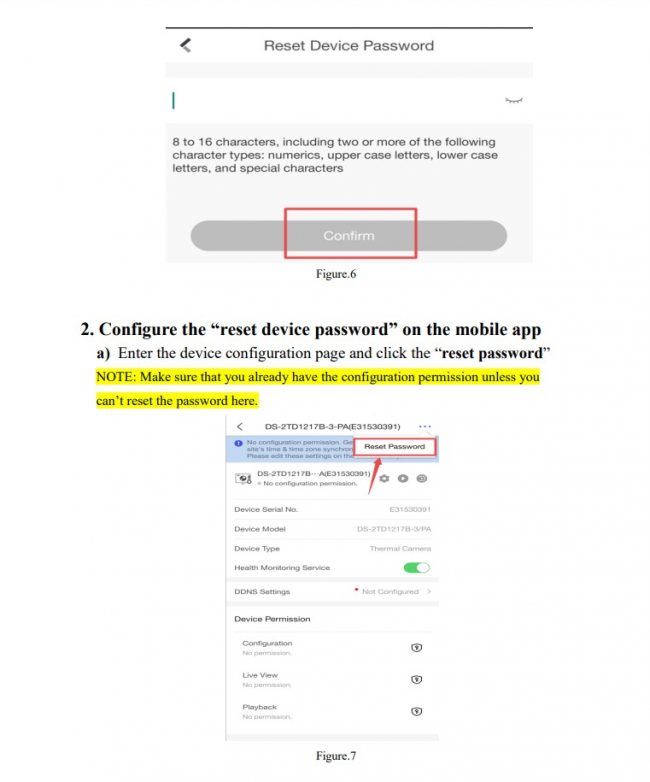
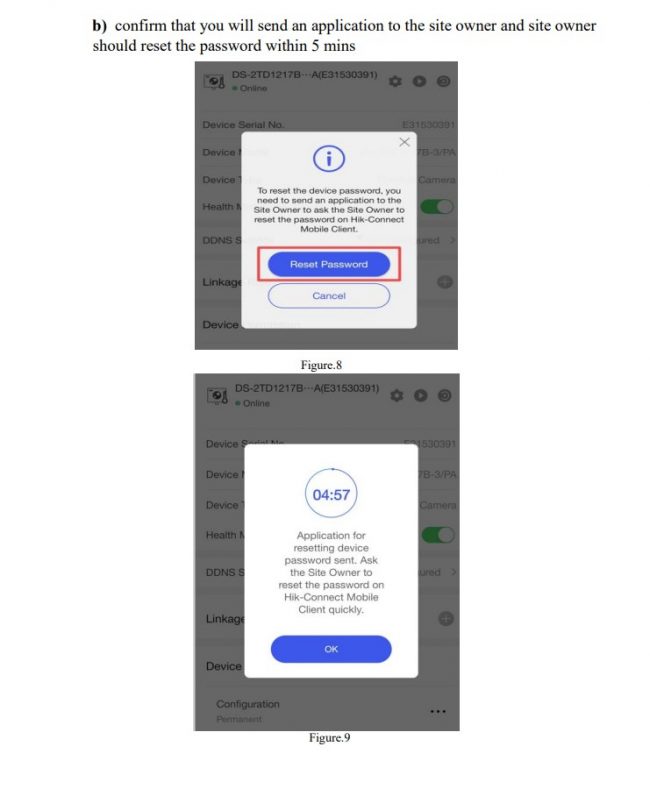
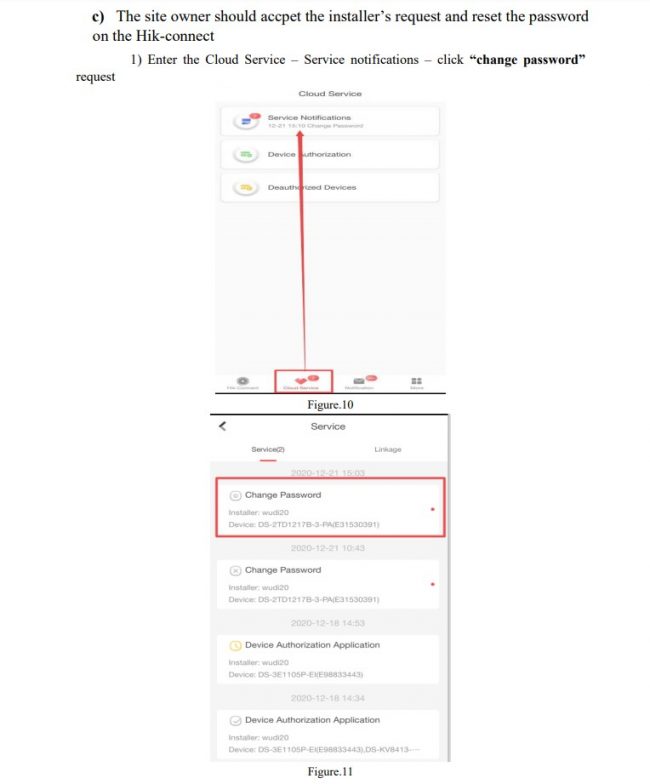
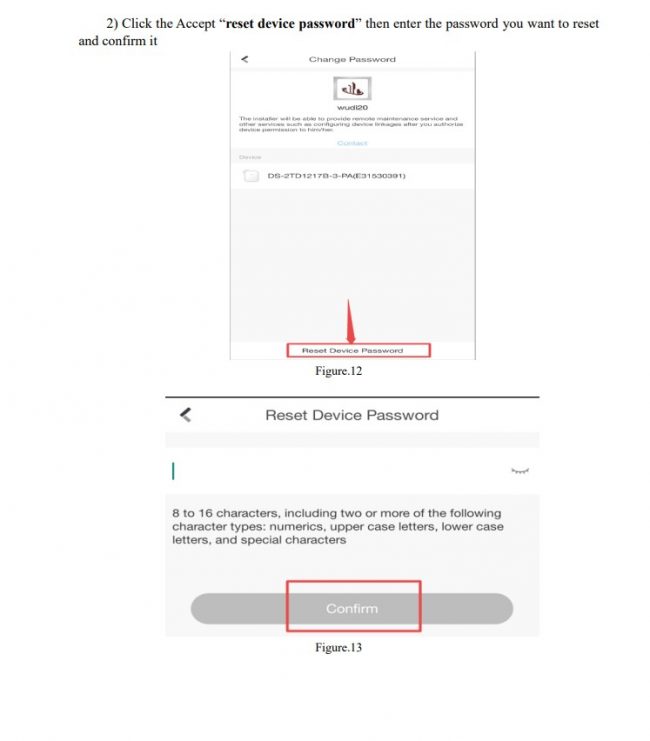
How to Reset Password of NVR DVR via Hik-Connect App
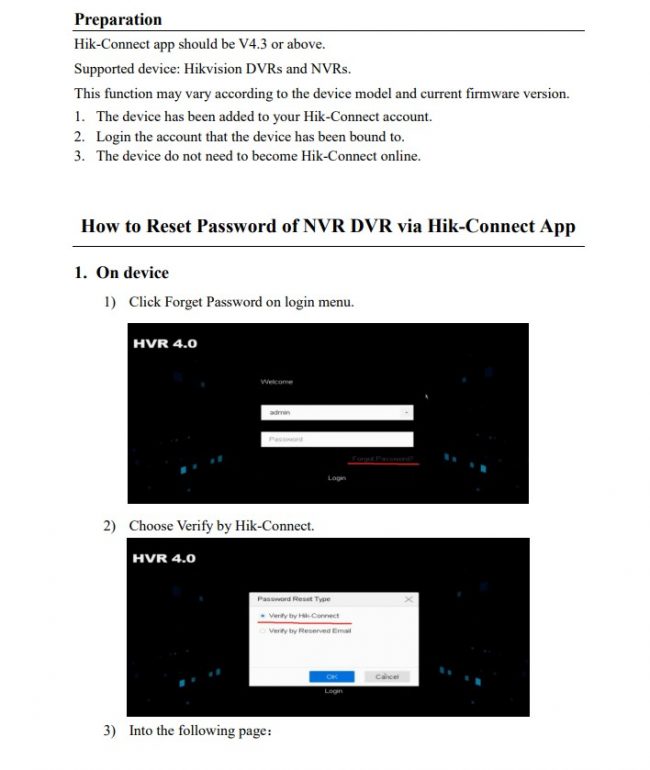
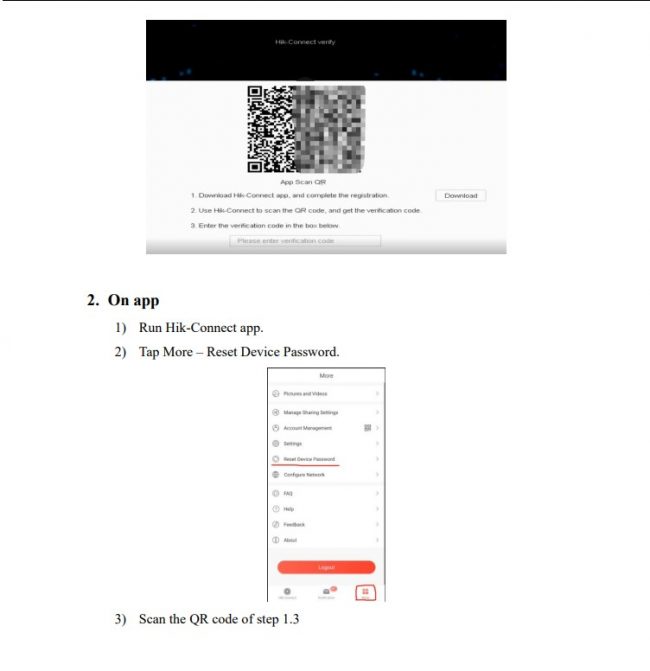
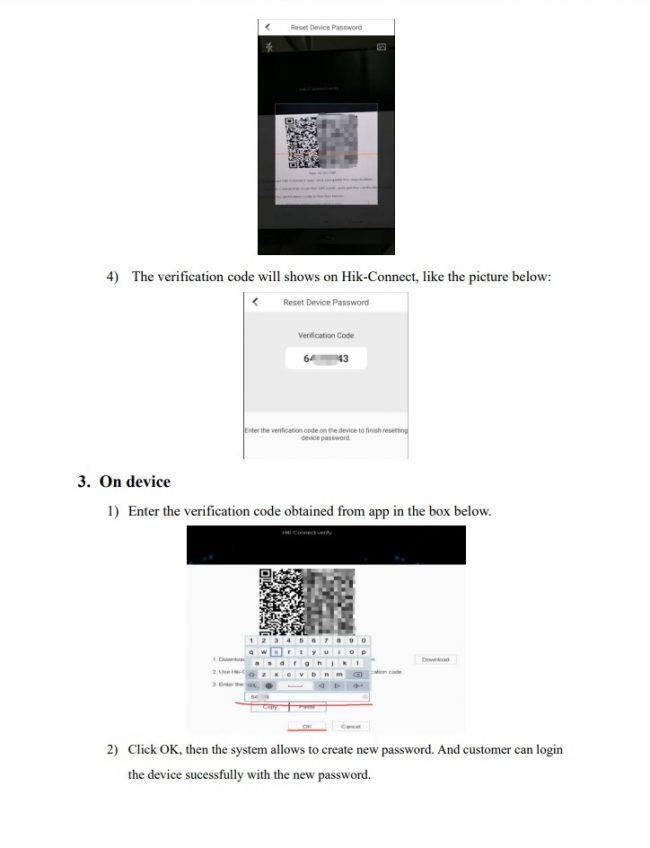
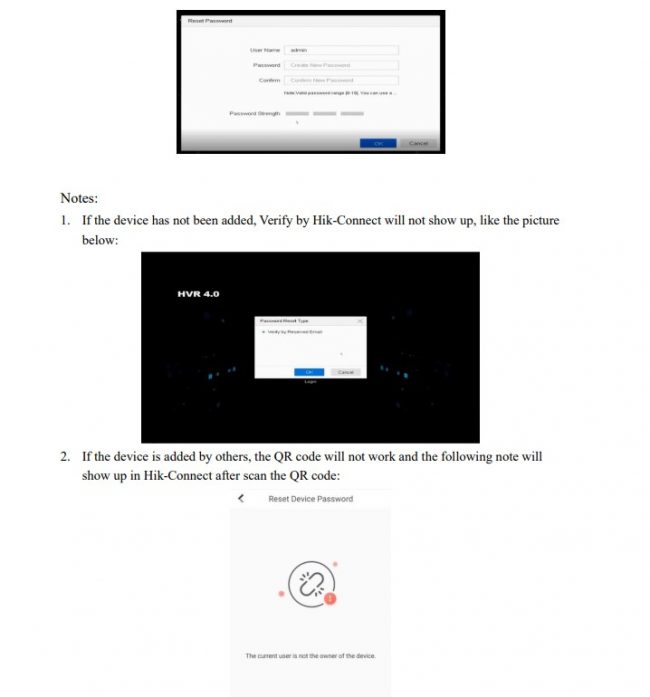
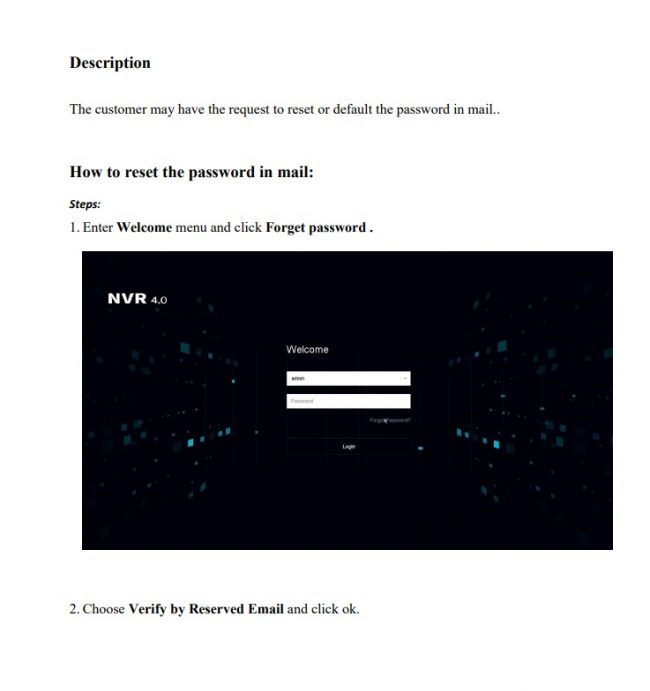
How to reset the password in mail
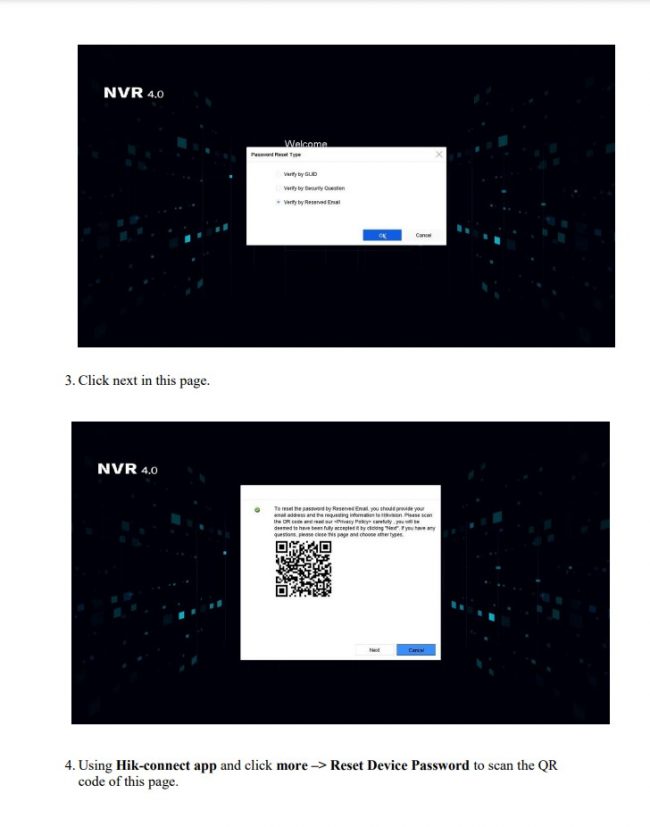
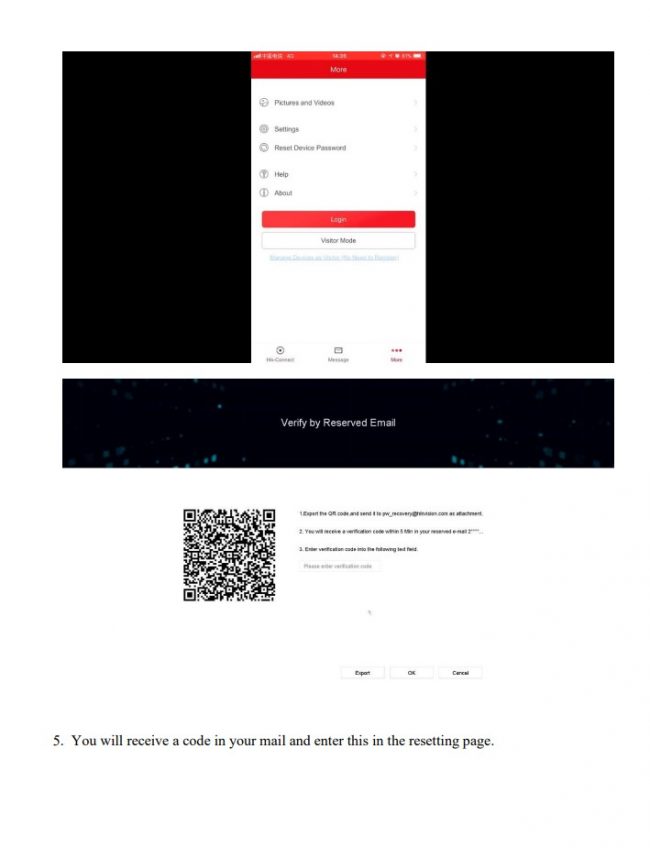
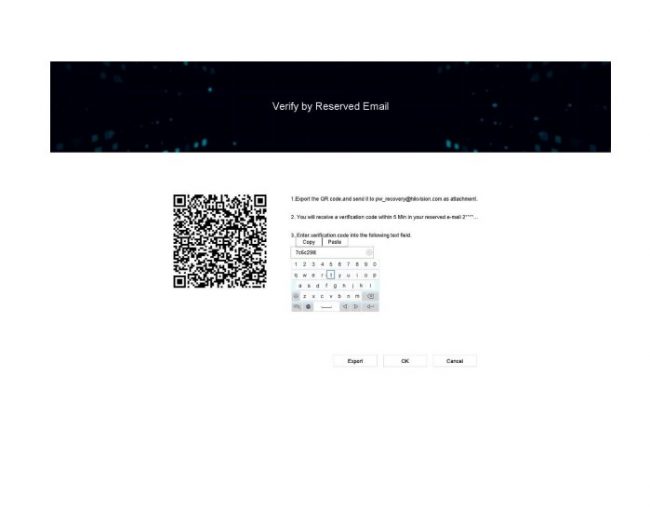
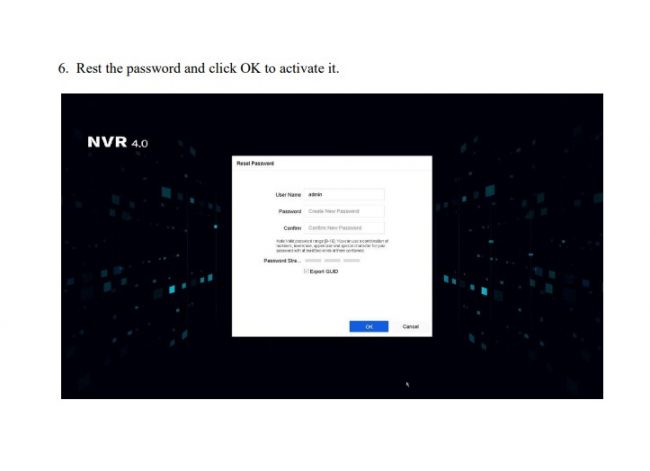
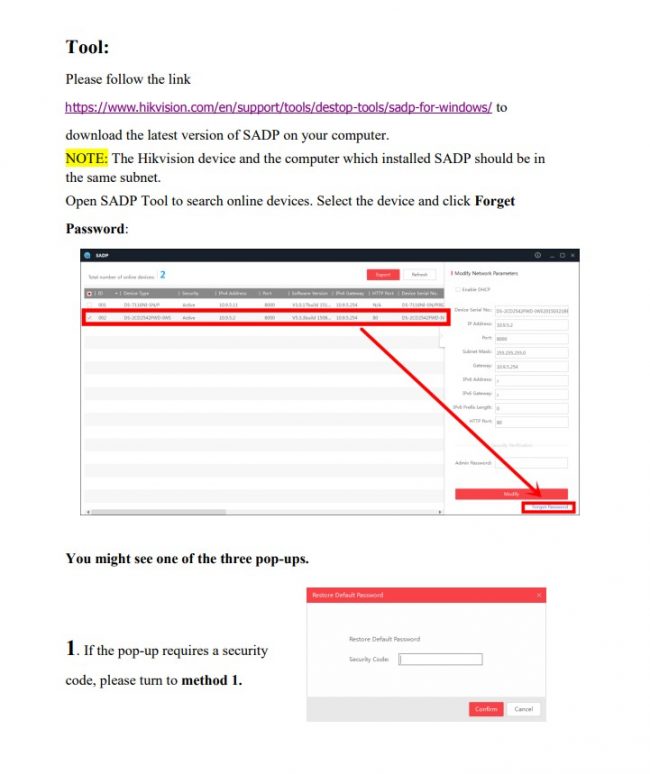
How to Reset Password on SADP Tool:
Please follow the link
https://www.hikvision.com/en/support/tools/destop-tools/sadp-for-windows/
todownload the latest version of SADP on your computer.
NOTE: The Hikvision device and the computer which installed SADP should be in
the same subnet
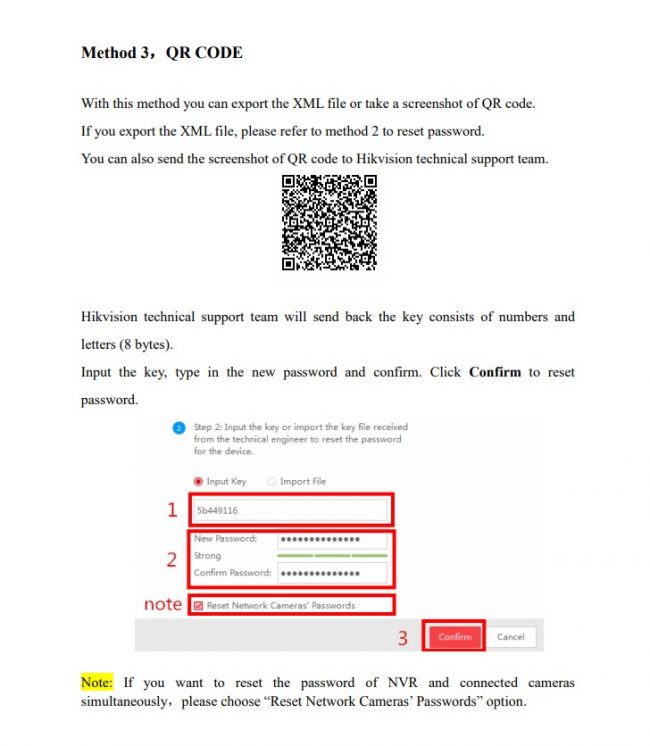
How to Reset Password by Answering Validation Questions on Web
type:DS-7216HUHI-F2 / N
Firmware:V3.4.80 build 161028
Preparation:
This method is available for –E/-K/-I series NVR of V3.4.90 or above and Turbo 3.0 DVR
(DS-HG/HQ/HUHI-F series) of V3.4.80 or above. With this strategy, customers could be able to
reset device password by themselves.
Make sure that the device and the computer are in the same subnet or the device has been port
forwarded successfully. Then input the IP address : port to login.
Step1: When using the device for the first time, users need to activate the device through a
compulsory password setting procedure. And the device would show the password intensity
according to the combination of number.
Step2: We strongly recommend you to set a STRONG password.
After setting password, it would pop up the security question configuration. User should set
validation questions in advance.
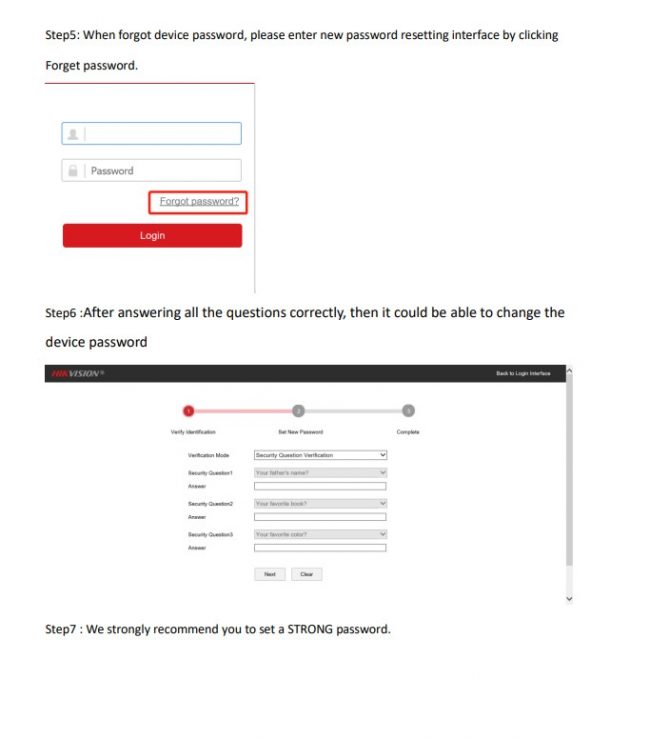
When forgot password, users could reset password by answering the pre-set questions
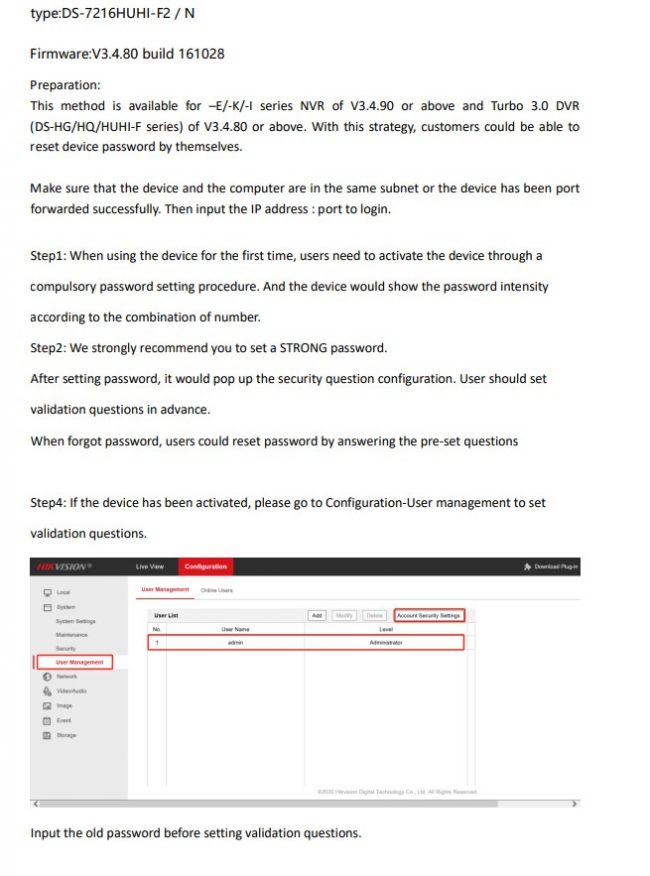
Step4: If the device has been activated, please go to Configuration-User management to set
validation questions.
How to Reset Password Using the GUID File on Web
Step1: When using the device for the first time, users need to activate the device through a
compulsory password setting procedure.
And the device would show the password intensity
according to the combination of number.
Step2: We strongly recommend you to set a STRONG password.
Step3: Then export the GUID file.
Next time when there is a need to reset password, please
import the GUID file.
Notice that if the admin password was changed or GUID file has been used,
the GUID file would be invalid.
Step4: If the device has been activated, please go to Configuration-User management to export
the GUID file.
Input the old password before exporting the GUID file.
Notice that if the admin password was changed or the GUID file has been used, the GUID file
would be invalid.
Step5: When you forgot your device password, enter new password resetting interface by clicking
Forget password.
Step6 : Select the GUID Verification Mode. Find the exported GUID file, then import it to reset
device password.
Step7 : We strongly recommend you to set a STRONG password.
Step8: After resetting new password, please remember to export the new GUID file for resetting
password next time