Reklam
2 dk okuma

Download Uniview USB Local Recordings

M.Salih ASLAN M.Salih ASLAN • • 0 Yorumlar ve Tartışma
Download Uniview USB Local Recordings
Yapay Zekâ

Yapay Zekâ İçerik Özeti

Uniview has two ways to download recordings, which we will develop below. The first way would be the following, in the live viewing quadrant, we will press the right mouse button and select the playback section as shown in the image.

Önemli Satır Başları
  • 1
    Stratejik Vizyon & Dönüşüm

    Gelişen trendlerin ve yenilikçi yaklaşımların temel prensipleri.

  • 2
    Verimlilik ve Uygulama

    Pratikte karşılaşılan zorluklar ve optimize edilmiş çözüm yolları.

  • 3
    Geleceğe Dair Öngörüler

    Önümüzdeki dönemde sektörde ve günlük hayatta yaratacağı etkiler.

Uniview has two ways to download recordings, which we will develop below.

The first way would be the following, in the live viewing quadrant, we will press the right mouse button and select the playback section as shown in the image.

mceclip1.png

Reklam

Once inside:

  • We choose the camera from which we need recordings
  • We select the day, which by default shows 24H without the possibility of marking a specific time, and for this we would use the cutting scissors.
  • Once we select camera and day, we will give to reproduce (PLAY)

To finish the trimming process before downloading, we would press scissors, select the section to download and press scissors again.

mceclip2.png

Once pressed for the second time the scissors, the clip will be saved in the folder on the right, which we see in the image.

Skip,%20since%20insertion%20is%20handled%20via%20gallery

mceclip3.png

mceclip4.png

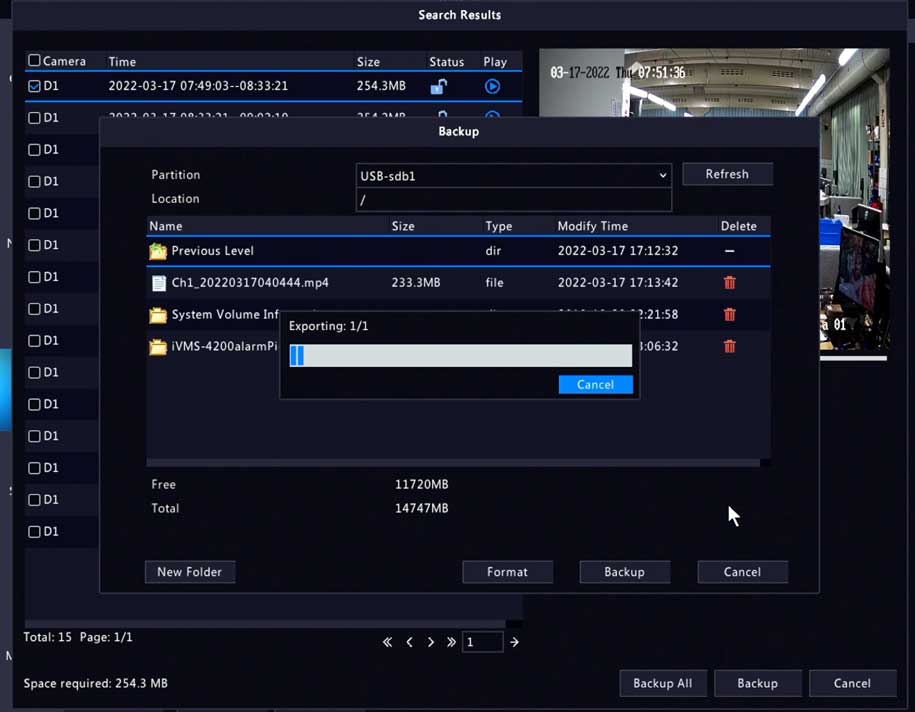
Once we give to the backup a window opens in which we will choose USB and to finalize backup again.

mceclip5.png

The second way to make recordings 24 hours or by time is as follows:

In direct view we click the mouse with the right button and select MENU

Skip,%20since%20insertion%20is%20handled%20via%20gallery

mceclip6.png

Once inside we select Backup, once inside, recordings and select camera, day, time and search.

Skip,%20since%20insertion%20is%20handled%20via%20gallerymceclip7.png

Once inside we select the files and backup copy

Skip,%20since%20insertion%20is%20handled%20via%20gallerymceclip8.png

Select USB and again backup.

mceclip9.png

mceclip10.png

And we would already have finished the extraction of images of the equipment in local.

Reklam
Bu yazıyı paylaş
M.Salih ASLAN
Yazar Hakkında

M.Salih ASLAN

Owner and Founder dvraid.com and dvrdestek.com

Bir Yorum Yapın

Your email address will not be published. Required fields are marked *

Bu site istenmeyenleri azaltmak için Akismet kullanır. Yorum verilerinizin nasıl işlendiğini öğrenin.

Sadece ilham, sıfır spam ✨

Bültenimize Abone Olun

En iyi hikâyeleri, görüşleri ve son trendleri doğrudan e-postanıza alın.

SIRADAKİ İÇERİK %98 ilgi uyumu
How to reset passwords of Nivian cameras and recorders
Ayrılmadan önce göz atın: How to reset passwords of Nivian cameras and recorders