SAFY Dashcams Installation Guide, With its built-in GPS, SAFY9 logs every trip with precise time, speed, and location data. Each video is automatically geotagged, making it easy to review your routes through the SAFY app and providing stronger evidence for insurance claims or disputes.
How to view driving location and route (GPS Tracking)
With its built-in GPS, SAFY9 logs every trip with precise time, speed, and location data. Each video is automatically geotagged, making it easy to review your routes through the SAFY app and providing stronger evidence for insurance claims or disputes.
To check the location and route, the video recording should be downloaded first.
3.Next, choose the folder according to the type of video that was downloaded. For example, select Event Video as in the screen shot below.
4.Select the recording file.
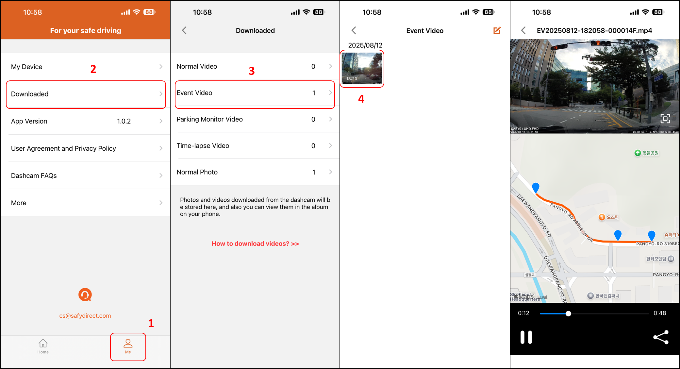
You can see on the screen the actual footage on the upper half section and the route/location of the car on the lower half section.
SAFY Dashcams Installation Guide
How to adjust SAFY 9 dashcam settings in the app
Here is the compilation of SAFY 9 dashcam settings with options and default values. You can adjust the settings according to your recording needs.
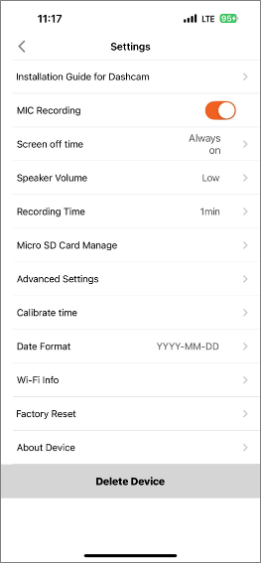
1.Installation Guide for Dashcam
• Show Auxiliary Lines: guide lines on the live view screen during camera installation
2.MIC Recording – enable or disable audio recording
3.Screen off time – the length of time before the camera LCD screen turns off
4.Speaker Volume – the volume level control for audio alerts and button sounds
5.Recording Time – the recording file segment length, in terms of minutes
6.Micro SD Card Manage – shows the current SD card information that includes the following:
• Capacity of micro SD card
• Photo capacity (in numbers)
• Event video capacity (in GB)
• Parking monitor video capacity (in GB)
• Normal video capacity (in GB)
• Time-lapse recording capacity (in GB)
• Format – the option to delete all data in the SD Card
• Wi-Fi Hotspot Option at Startup
• Anti-Flicker Setting – setting improves video quality by removing dark, distracting bands that appear in recordings taken near streetlights or LED signs
• Emergency Video (Collision Sensitivity)
• Medium Sensitivity – Default
• No auto power-off – Default
• Speed/latitude/longitude watermark
• Set Wi-Fi password (limited to 8-digit input)
8.Calibrate time – the option to adjust recording time according to phone’s time
• Do you want to sync your phone time to the device?
11.Factory Reset – the option to restore all default values of the camera
• Are you sure to reset the dashcam to factory settings?
• Current version (firmware)
13.Delete Device – the option to remove the camera from the list
How to delete the SAFY dashcam
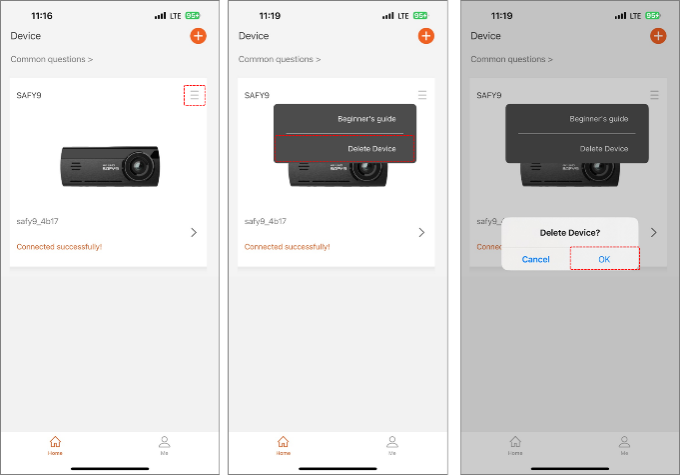
There are two options to delete a SAFY dashcam from the SAFY Direct app.
Option 1
1.From the main landing page, click the hamburger icon (three stacked horizontal lines) to reveal the menu.
2.Tap on Delete Device then OK to remove the camera from the list.
Option 2
1.For a Wi-Fi connected dashcam, tap on the dashcam you want to delete from the landing page.
2.Tap Settings located on the upper right corner of the live view screen.
3.Tap Delete Device located at the bottom of the page then press OK to proceed with the deletion of the camera from the list.
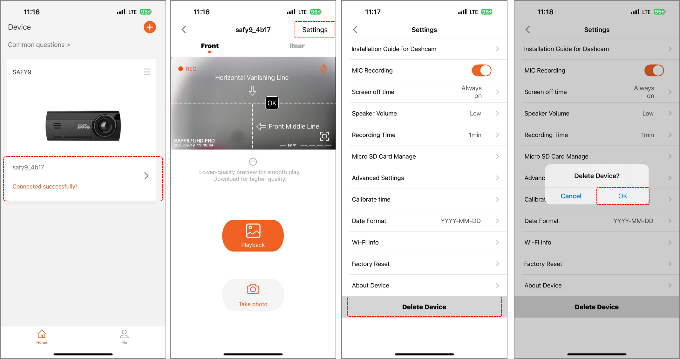
NOTE: Deleting the camera from the list will not delete the recordings saved in the SD card.
How to manage my SAFY dashcam (Firmware Update and Renaming the Device)
To maintain the excellent performance of the dashcam, firmware updates are necessary to address dashcam issues and application bugs. SAFY dashcam’s firmware can be updated by following the steps below.
Updating the Firmware
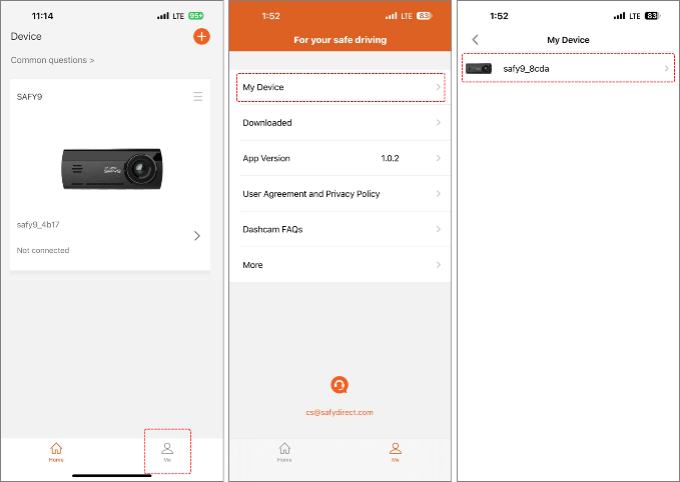
1.On the landing page, tap Me.
2.Select My Device and then the device (or dashcam) of which firmware you wish to update.
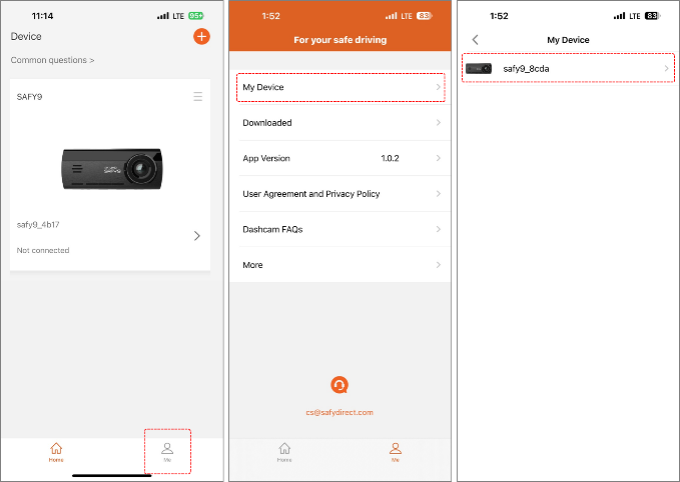
3.Tap the Firmware Update option from the screen. A new firmware version is available if you see a red dot.
4.Proceed to downloading the firmware by pressing OK. Wait for the firmware download to finish.
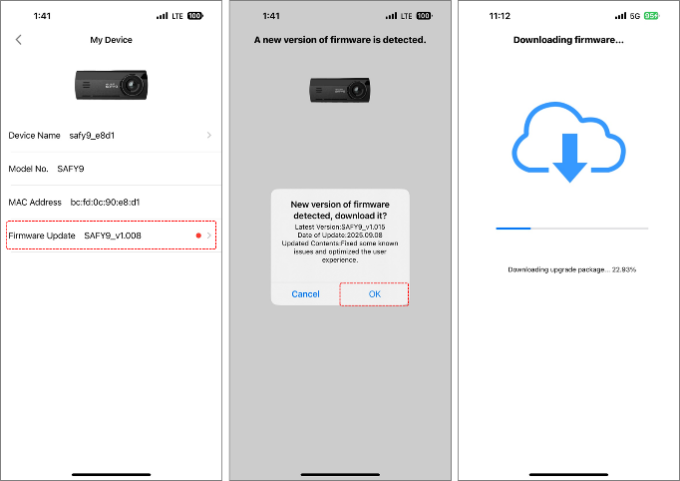
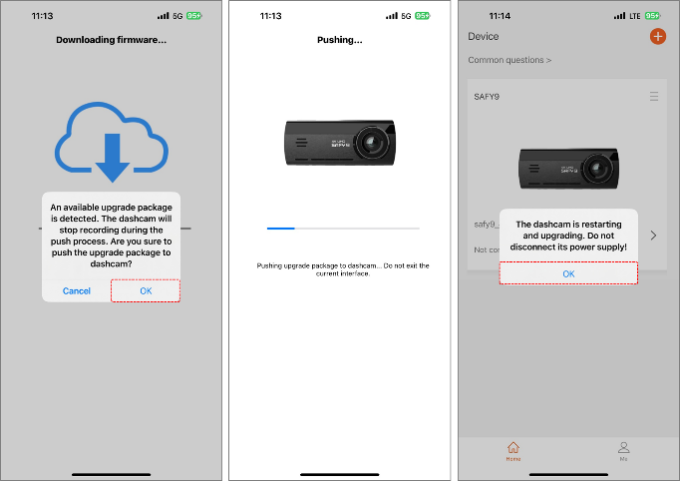
5.After the firmware download, the app will ask if you want the firmware to be loaded into the camera. Press OK to continue.
6.Allow some time for the firmware to be copied to the camera. Press OK after to allow the camera to reboot and update the firmware.
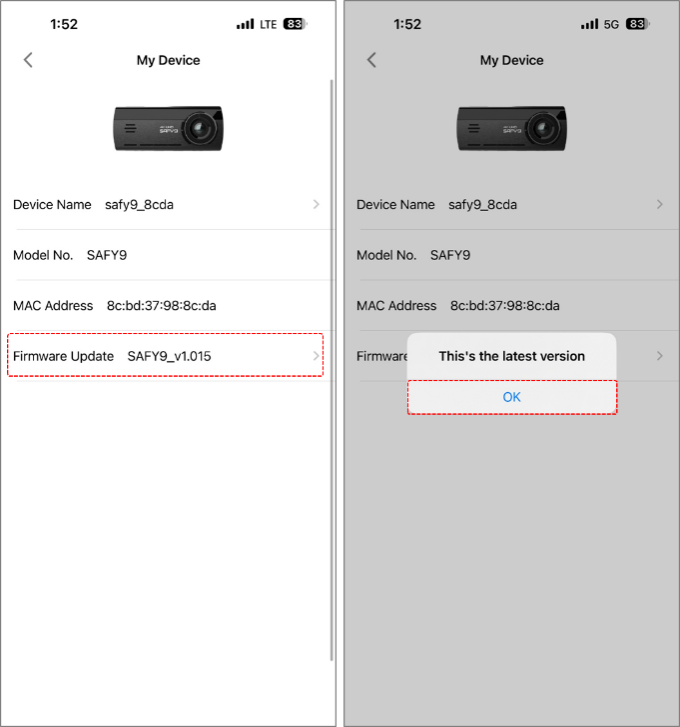
7.Once the camera completed the firmware update, you can go back to the My Device page to confirm. The red dot is now gone and you can press Firmware Update to confirm if the latest version was successfully loaded into the dashcam.
Renaming the SAFY Dashcam
It is recommended to rename your SAFY dashcam especially when you own multiple units for easy browsing and management.
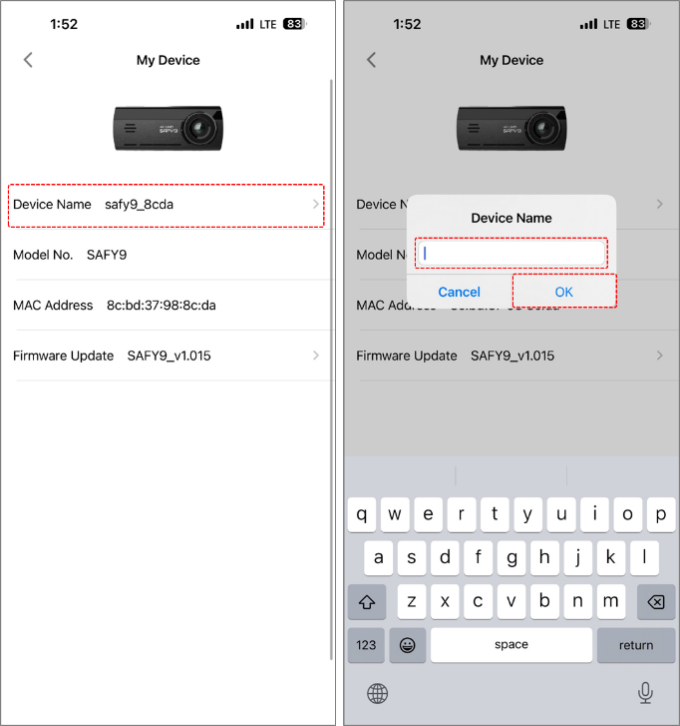
1.Select Me from the main landing page, followed by My Device and the dashcam you want to rename.
2.On the My Device page, you can tap the Device Name option.
3.Type the new device name and press OK to save changes.
How to change the WiFi password of the SAFY camera in the SAFY Direct app
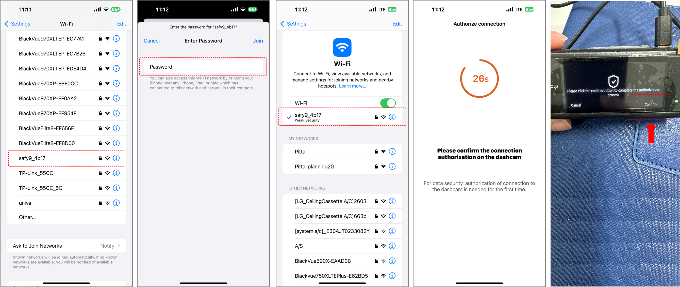
SAFY dashcam has the default password of 12345678. To prevent others from connecting to your camera and access recording files, you can change the password by following the steps below.
1.Open the app and tap the camera added on the SAFY Direct app.
2.Read the on-screen information that follows. You will be asked to allow access and connect to the Wi-Fi.
3.On your phone’s settings, look for the SAFY Direct app to check permissions. Allow permission to Photos, Local Network, and Wireless (Cellular) Data.
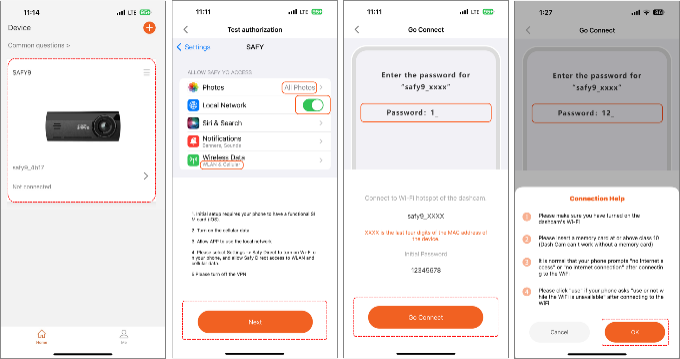
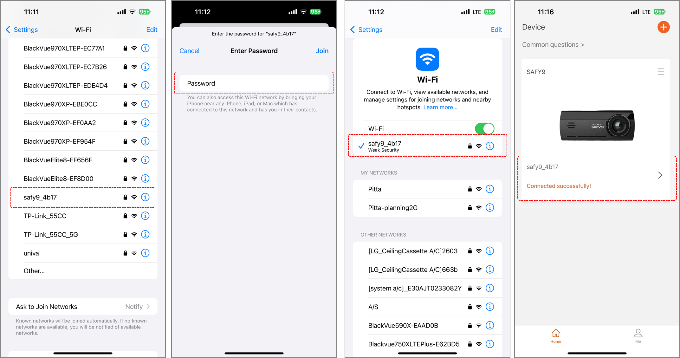
4.Press the back button and go to the Wi-Fi.
5.Locate the WiFi SSID of the SAFY dashcam and enter the default password 12345678.
6.Once connected, go back to the SAFY Direct app.
7.You will see a “Connected successfully” text at the bottom of the camera name (WiFi SSID). Click on that area to proceed to the next step.
8.Tap the Settings button located at the upper right corner of the screen to reveal the menu.
9.Select Advanced Settings > Set Wi-Fi Password.
10.Enter the existing password and set the new password. Press OK to confirm the changes.
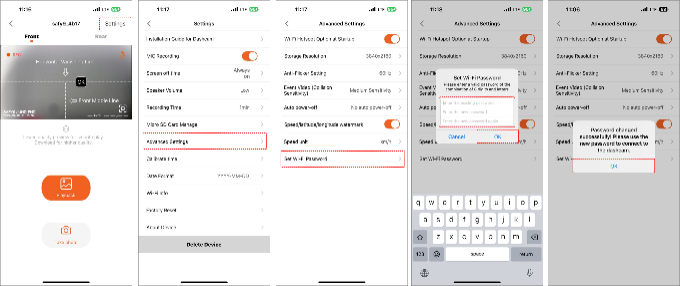
There are two options to confirm the new password.
OPTION 1: After saving the new password, you can tap the Wi-Fi Info option under Settings to see the new password.
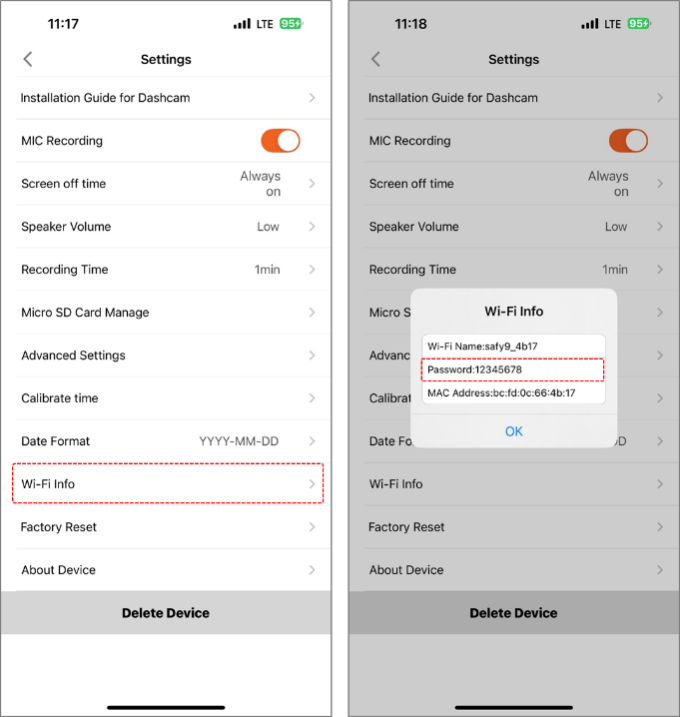
OPTION 2: You can check it from the dashcam. Press the right-most button to display the menu. Go to Systems Settings > Wi-Fi hotspot to see the new password.
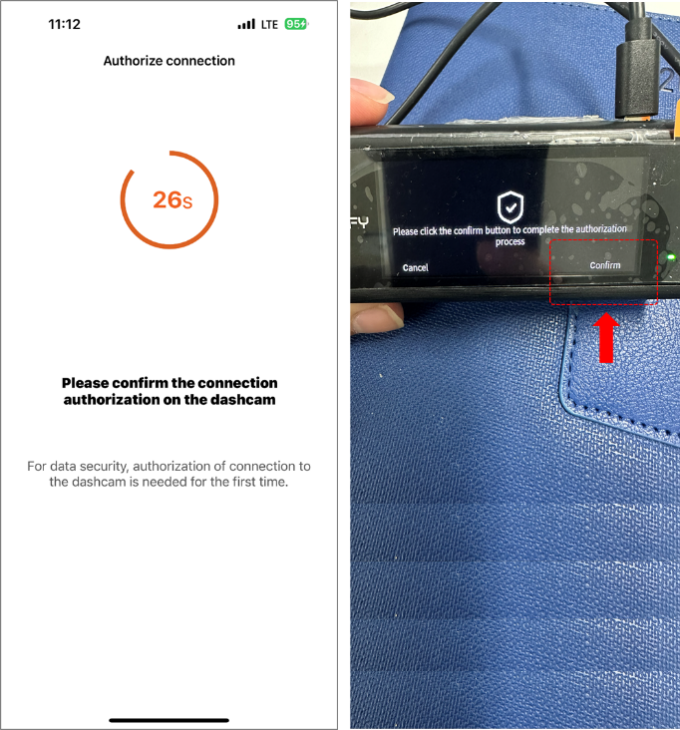
NOTE: Changing the password will require re-authorization to the camera when connecting to it again for the first after Wi-Fi password change.
The left screen will appear on the app and you have to press the right-most button of the dashcam to confirm the re-authorization. The app will then connect to the camera and display the live view screen.
How to add SAFY camera in the SAFY Direct app
Follow the steps below on how to add/link your SAFY camera to the SAFY Direct app.
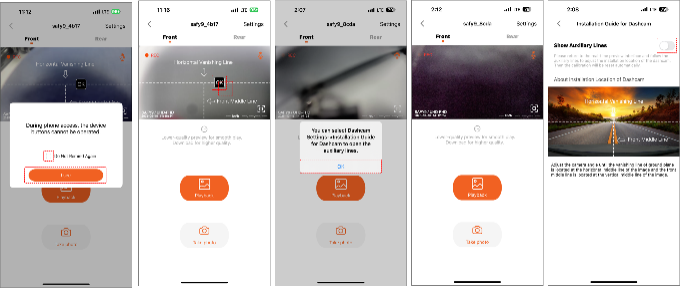
1.Open the app and tap the ‘+ Camera’ button.
2.Select SAFY9 to proceed.
3.Read the on-screen information that follows
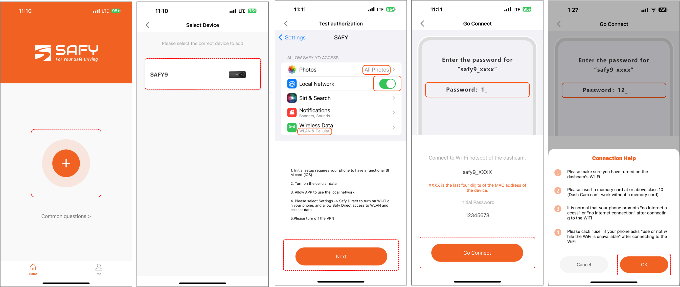
4.Search for the dashcam’s SSID on the list.
5.Enter the default password 12345678.
6.Once connected to WiFi, go back to the app screen.
7.Press the physical button on the camera that indicates Confirm.
8.Camera alignment (auxiliary) lines will appear on the live view screen of the app. You can align the camera installed while on this app page view.
9.Press OK to finalize the process.
Installation & Setup
How do I install the microSD card properly?
Insert the microSD card into the slot until you hear a click sound. Ensure the card is fully seated before powering on the dashcam. The SAFY9 supports microSD cards up to 256GB (64GB and 256GB recommended). Never remove the microSD card while it’s saving or reading data to prevent corruption.
What’s the correct way to mount the front camera?
Follow these steps:
1.Attach the mount bracket to the front camera by sliding it into the slot and moving left until it clicks
2.Clean a flat area of the windshield (avoid edges and curves)
3.Apply the electrostatic sticker and press outward from center to remove air bubbles
4.Remove adhesive backing from mount bracket and align with the sticker
5.Press firmly and hold for several seconds to ensure strong bond
How do I properly install the rear camera?
1.Clean the top center area of the rear windshield
2.Apply the electrostatic sticker without covering the lens area
3.Run the rear camera cable from front camera along headliner through C-pillar/side trim
4.Position the rear camera so the SAFY logo is upright when viewed from inside
5.Attach firmly to the electrostatic sticker and adjust angle for clear rear view
6.What fuse types are compatible with the hardwire kit?
7.The hardwire kit supports four fuse types: Micro2, Mini, ATO, and LPM (Low Profile Mini). Remove an existing fuse from your vehicle and compare it with the supplied fuse holders to identify the correct type. Each type has different shapes and pin spacing.
8.Where should I route the power cables?
9.Route cables along the windshield edge, down the A-pillar, and under the dashboard. For rear camera, run cables along the headliner and through C-pillar/side trim. Use the included pry tool or cable ties to keep cables hidden and away from moving parts or airbags.
Power & Connectivity
What are my power connection options?
You have two main options:
• Option 1: If your vehicle has USB-A power output (5V 2A or higher), plug directly into the vehicle’s USB port
• Option 2: If no USB-A support, use the supplied car charger adapter in your vehicle’s cigarette lighter (12V/24V outlet)
How do I wire the hardwire kit correctly?
Connect three wires:
• Yellow wire (ACC+): Connect to fuse slot with switched power (only on when ignition is ON)
• Red wire (VCC+): Connect to fuse slot with constant power (always 12V+)
• Black wire (GND-): Attach ring terminal to clean, unpainted metal bolt on vehicle chassis
Never connect both ACC and VCC wires to the same fuse tap.
• How do I enable Parking Mode?
• Parking Mode requires the hardwire kit (sold separately). Once properly installed with ACC and VCC connections, the dashcam will automatically switch to Parking Mode when ignition is turned off. This allows impact detection, motion detection, and time-lapse recording while parked.
• What is the Low Voltage Cut-Off feature?
• This car battery protection system prevents your vehicle battery from draining completely during extended parking recording. It automatically stops recording when battery voltage drops to a safe level, ensuring you can still start your vehicle.
How do I identify ACC and VCC fuse slots?
Use a multimeter or test light:
• ACC slots: Show 0V when ignition is OFF, 12V+ when ON (common labels: ACC, IGN, Radio, Audio, Power Outlet)
• VCC slots: Show 12V+ at all times regardless of ignition (common labels: Dome, Clock, ECU, Memory, Hazard)
App & Wi-Fi
How do I download and set up the SAFY Direct app?
1.Scan the QR code in the manual or search “SAFY Direct” on App Store (iOS) or Google Play (Android)
2.Ensure the dashcam is powered on (it creates its own Wi-Fi hotspot)
3.Open the app and tap “+” icon in upper-right corner
4.Select SAFY9 from device list and follow in-app instructions
How do I connect my phone to the dashcam’s Wi-Fi?
1.Open your smartphone’s Wi-Fi settings
2.Look for hotspot name: SAFY_SAFY9_XXXX
3.Enter default password: 12345678
4.Do not connect to home Wi-Fi or other hotspots simultaneously
5.Disable VPN if enabled on your phone before connecting
What can I do with the SAFY Direct app?
The app allows you to:
• View live camera feed on your phone
• Playback recorded footage anytime
• Download videos directly to your phone
• Adjust dashcam settings with a few taps
• Receive firmware updates via FOTA (Firmware Over-the-Air)
• Capture moments instantly with one tap
Why can’t I connect to the dashcam’s Wi-Fi?
Check these common issues:
• Ensure the dashcam is powered on and creating a hotspot
• Verify you’re using correct password (12345678)
• Disable VPN on your phone
• Don’t connect to other Wi-Fi networks simultaneously
• Restart both dashcam and phone if connection fails
Recording & Features
What recording modes are available?
The SAFY9 offers several recording modes:
• Normal recording: Continuous loop recording during driving
• Event recording: Triggered by impact detection (G-sensor)
• Parking recording: Impact detection, motion detection, and time-lapse while parked
• Manual recording: One-tap capture through the app
What are the recording specifications?
• Front camera: 4K UHD at 30fps using Sony STARVIS IMX415 8MP sensor
• Rear camera: Full HD at 25fps using GalaxyCore GC2053 2MP sensor
• Video codec: H.265 compression for efficient storage
• Audio codec: AAC for clear sound recording
• How does the AI-Powered Night Vision work?
• The front camera features AI-enhanced night vision technology that automatically optimizes image quality in low-light conditions. This feature is only available on the front camera and works in conjunction with the Sony STARVIS sensor for superior nighttime recording.
• What is Loop Recording and how does it work?
• Loop recording continuously records video in segments, automatically overwriting the oldest files when storage is full. Event files triggered by impact detection are protected from being overwritten, ensuring important footage is preserved.
• How sensitive is the G-sensor for event detection?
• The built-in 3-axis acceleration sensor detects sudden impacts or movements that trigger event recording. Sensitivity can be adjusted through the SAFY Direct app to match your driving conditions and preferences.
Troubleshooting
What do the LED indicator colors mean?
LED indicators show different statuses:
• Solid Green: Normal recording or Parking mode active
• Flashing Green (fast): Emergency event recording in progress
• Solid Red: Not recording (card error) or SD card removed
• Solid Blue: Recording stopped while viewing files from app
• Flashing Blue (fast): Formatting storage card or factory reset in progress
Why isn’t my dashcam recording?
Check these potential issues:
• Verify microSD card is properly inserted and functional
• Ensure sufficient power supply (5V 2A minimum)
• Check if storage is full (loop recording should handle this automatically)
• Confirm card isn’t corrupted (try formatting through app)
• Look for solid red LED indicating card error
• How do I restart an unresponsive dashcam?
• Use the reset button located on the device. Press the reset button with a pointed object to restart the dashcam when it becomes unresponsive. This is different from the power button and is specifically for troubleshooting frozen devices.
Why is my video quality poor at certain times?
Video quality may deteriorate in these situations:
• Entering or exiting tunnels (automatic exposure adjustment)
• Facing directly into bright sunlight (overexposure)
• Recording at night without adequate lighting
• Extreme temperature conditions outside optimal range (-20°C to +60°C)
What should I do if parking mode isn’t working?
Verify these requirements:
• Hardwire kit must be properly installed
• ACC wire connected to switched power source
• VCC wire connected to constant power source
• Ground wire securely attached to vehicle chassis
• Test with multimeter to confirm proper voltage at fuse slots