Akuvox PC Manager Administrator Guide, Thank you for reading this manual. This manual is intended for administrators who need to properly manage the PC Manager, a tool incorporating configuration management, LAN-based device AutoP provisioning, upgrade, etc. This manual applies to PC Manager with the software version 2.0.0.2. Please consult our technical support for any new information or the latest software version.
What’s New:
Akuvox PC Manager Administrator Guide
PC Manager Overview
PC Manager, a LAN-based on-premise platform, is designed for the one-stop configurations and auto-provisioning of devices deployed on LAN.
PC Manager will help you to:
PC Manager Installation
Installation Requirements
Prior to the installation of the PC Manager, please make sure that the following installation requirements are met:
Install PC Manager
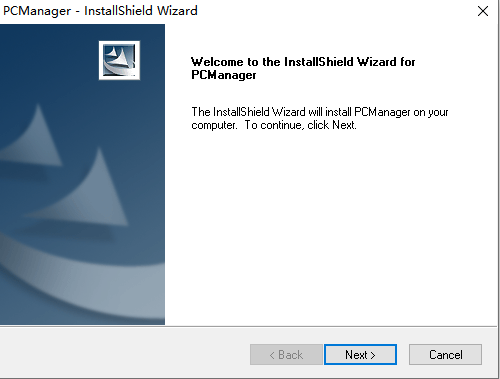
Steps to install PC Manager:
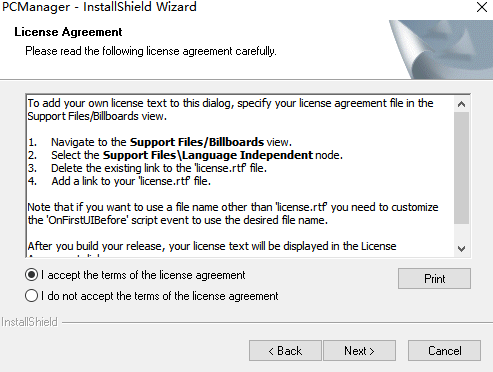
4. Accept the terms and click Next.
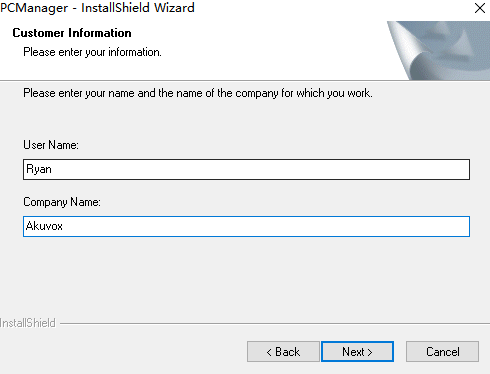
5. Enter your user name and company name. Click Next.
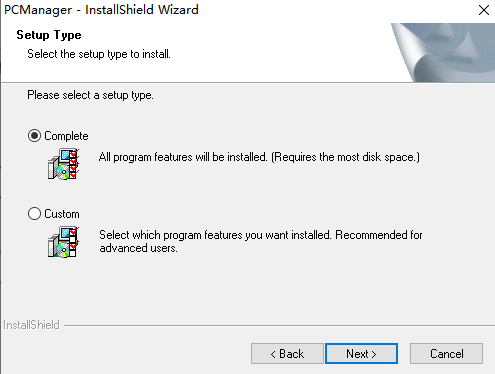
6. Select the Complete or Custom installation to your liking and click Next.
Note
The PC Manager installation path should not contain any Chinese characters.
7. Click Finish to finish the installation.
Login
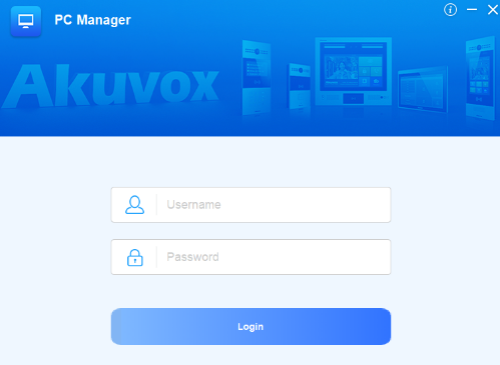
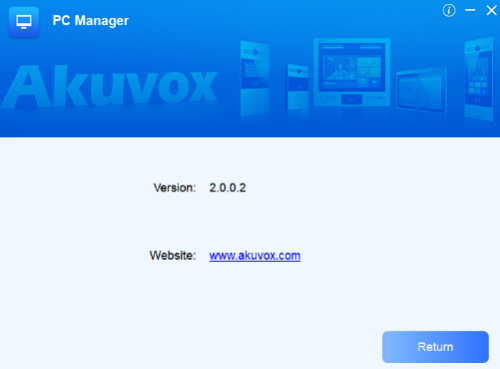
Enter the username and password, which are both “admin” by default. On the upper right corner of the login interface, click  if you want to check the software version, then click Return to go back to the login interface.
Note
Currently, login user name and password cannot be changed.
Device Configuration
After login, you can see there are three modules on the left columns:
AutoP
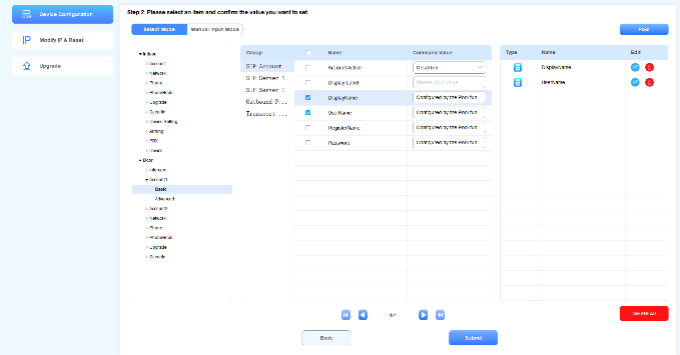
On the Device Configuration module, you can perform AutoP on target devices.
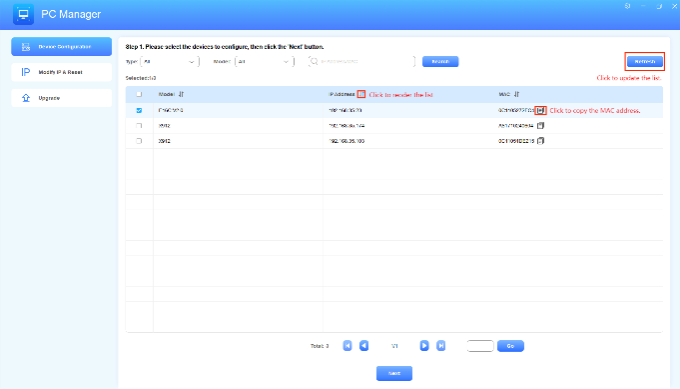
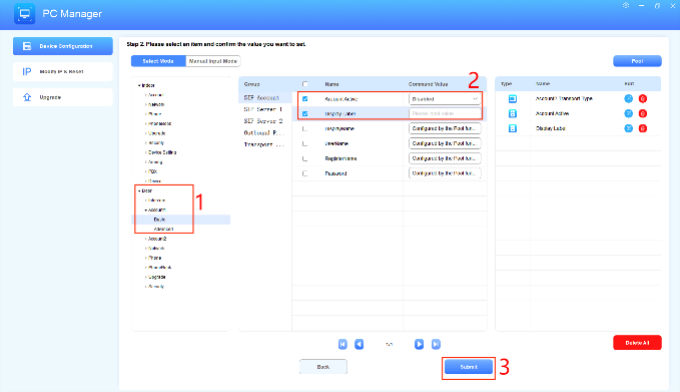
Select Mode:
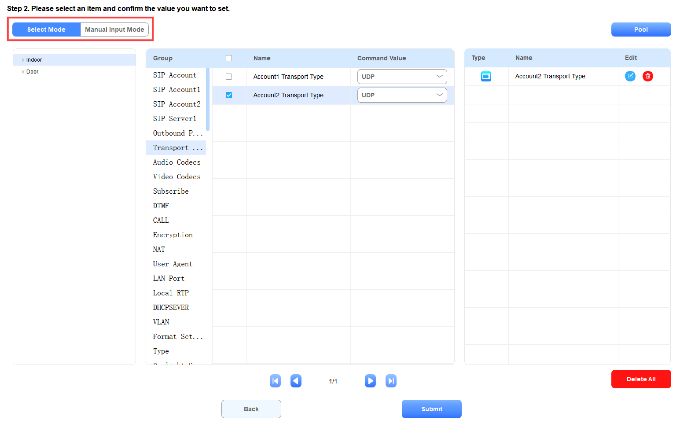 Manual Input Mode:
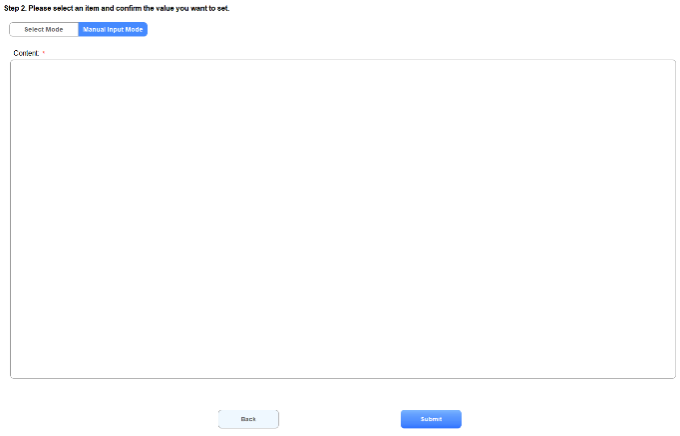
 .
There are three types of configuration items:
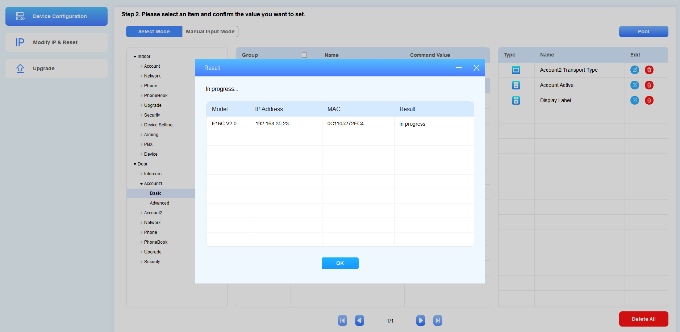
The synchronization status will be displayed on the Result window.
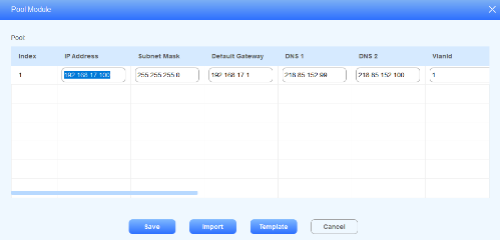
Pool AutoP
The configuration pool is used for batch AutoP of devices. You can prepare and store a set of pre-configured items and upload them to the target devices for quick deployment.
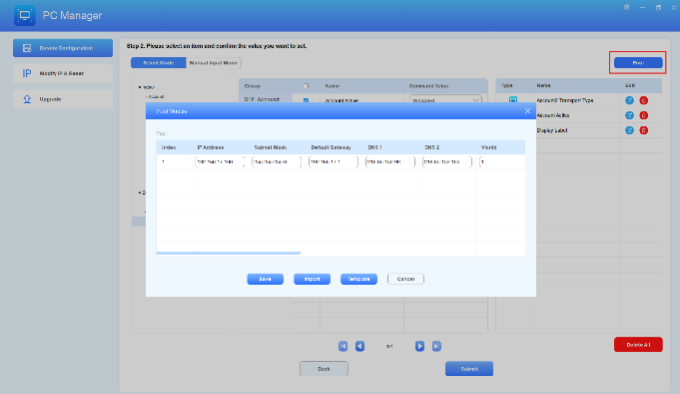
Note

Device Static IP Setup and Reset
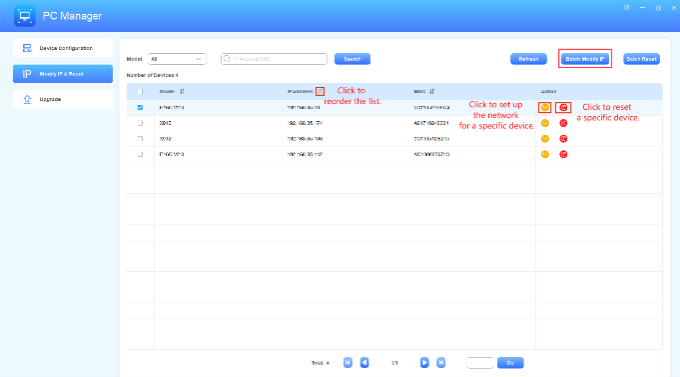
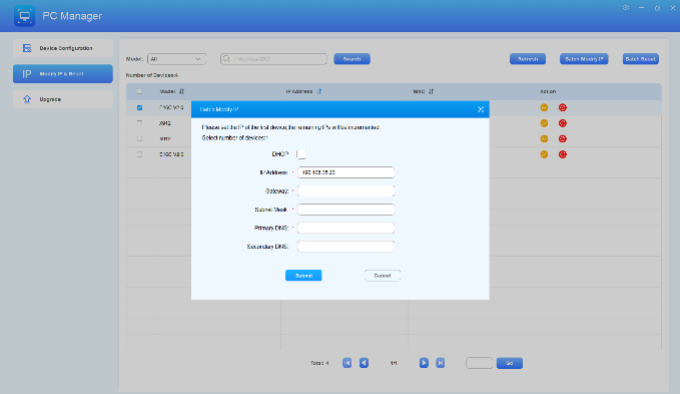
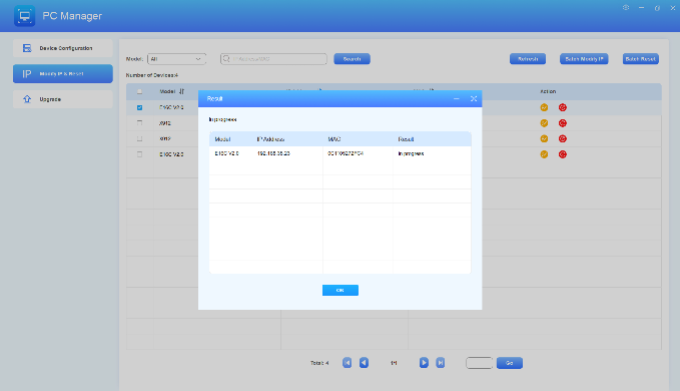
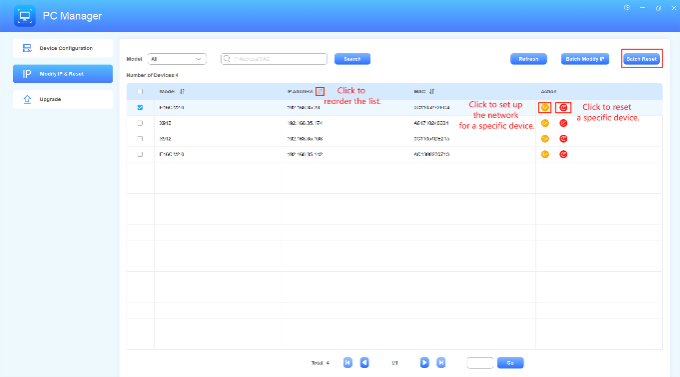
You can set static IPs for multiple devices and reset them to factory settings on the Modify IP & Reset module.
Set Static IP
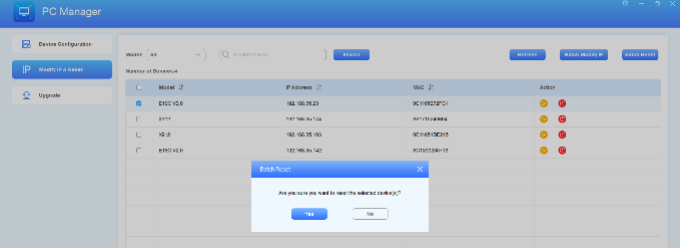
Reset Devices
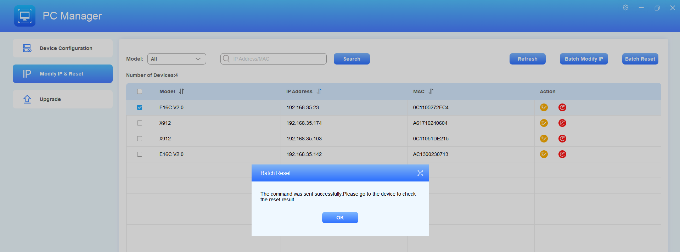
You can check on the device to see whether the resetting is successful.
Upgrade
You can upgrade up to 100 devices of the same model each time in a good network condition.
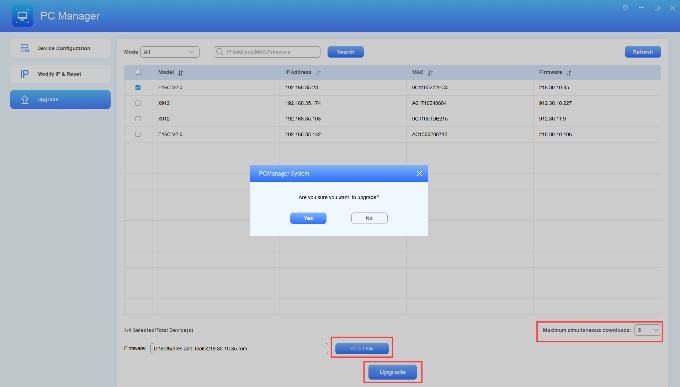
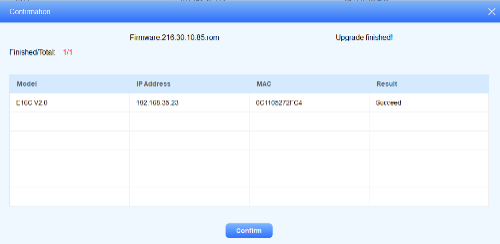
You can check the upgrade status and result on the pop-up window.
Data Backup
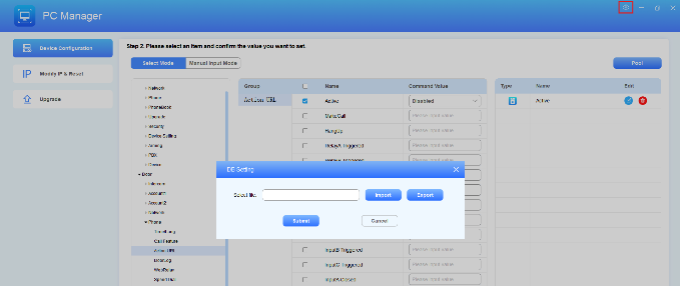
You can export AutoP data as a backup for later use in case you need to recover altered data.
 in the upper right corner.
Backstage Management
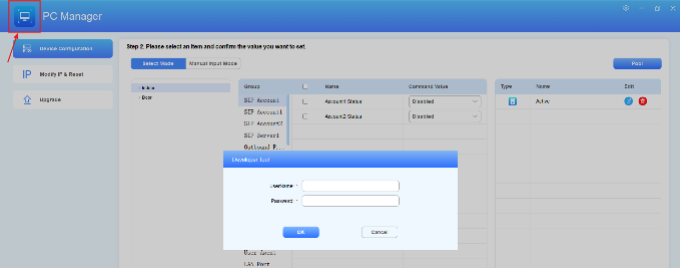
On the PC manager’s backstage, you can change the configuration groups and nodes, add new configurations, modify pool settings, etc.
Backstage Login
 in the upper left corner until the login window pops up.
Note
Currently, the user name and password cannot be changed.
Dashboard Overview
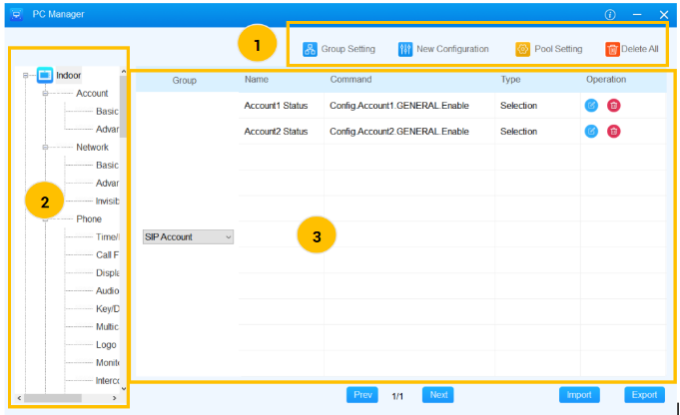
Dashboard Description:
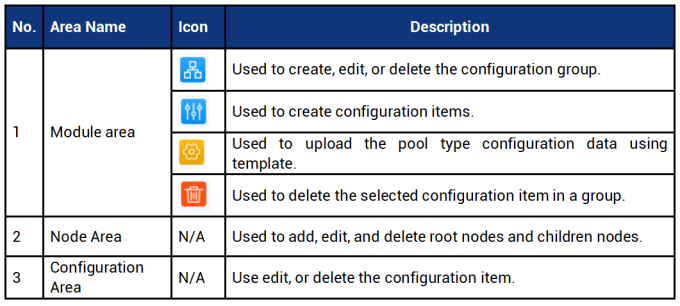
Node Management
You can manage the node tree by adding, deleting, and renaming nodes.
There are three levels of nodes.
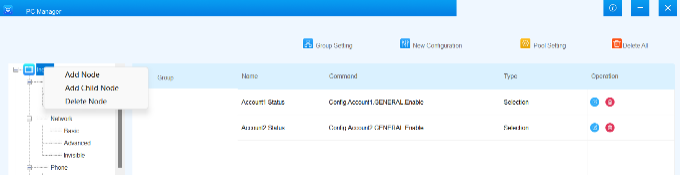
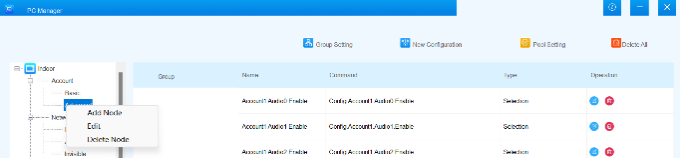
Right-click on the root node to add another root node, delete it, or add a child node to it.
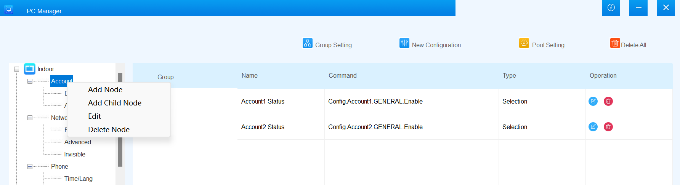
Right-click on the group node to add another group node, add a child node, rename it, or delete it.
Right-click on the configuration node to add another configuration node, rename, or delete it.
Group Management
The Group categorizes specific configuration items. You can add, delete, and rename groups.
Column Description:
Click Group Setting.
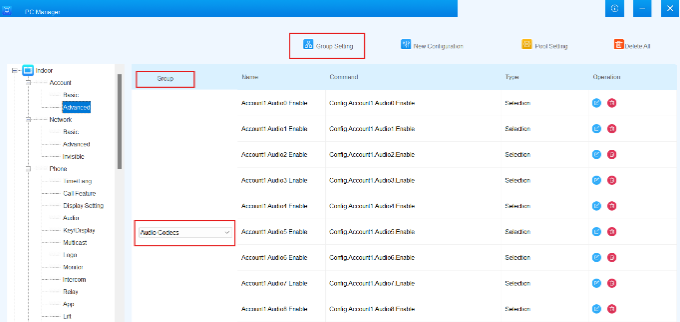
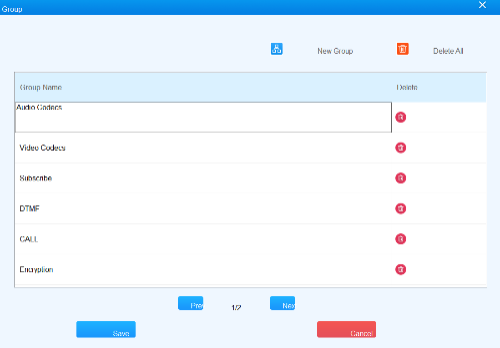
On the Group Setting interface, you can:
 to delete a specific group;
 to remove all groups in the node.
Configuration Items Management
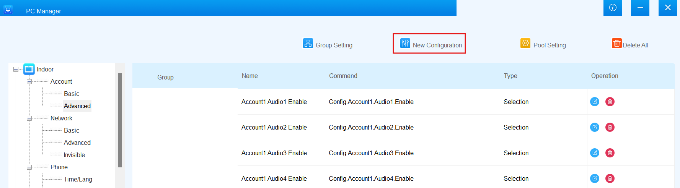
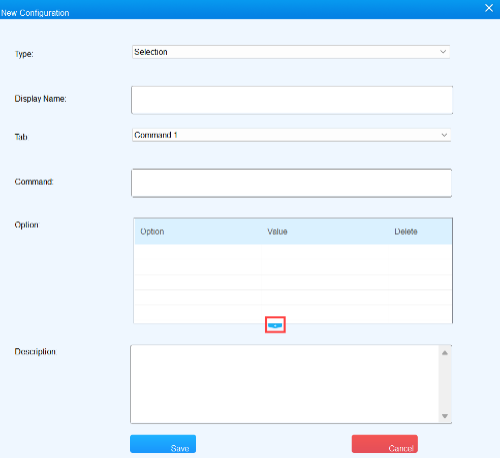
You can edit and delete the existing configuration items, and add a new one.
Add a Configuration Item
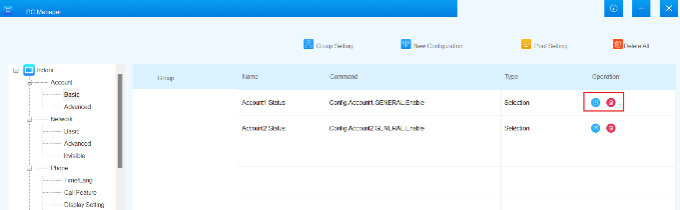
Edit/Delete a Configuration Item
 next to the specific configuration item to delete it.
 next to the specific configuration item to edit it.
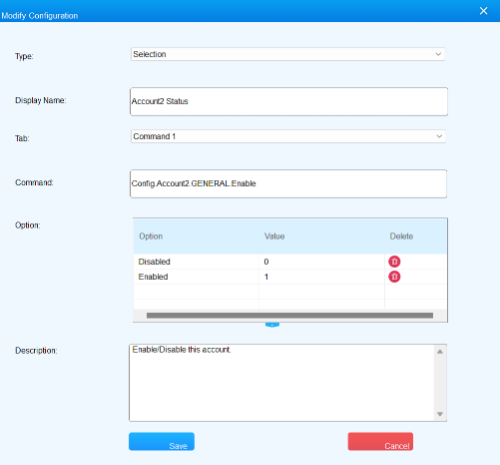
On the Editing interface, you can:
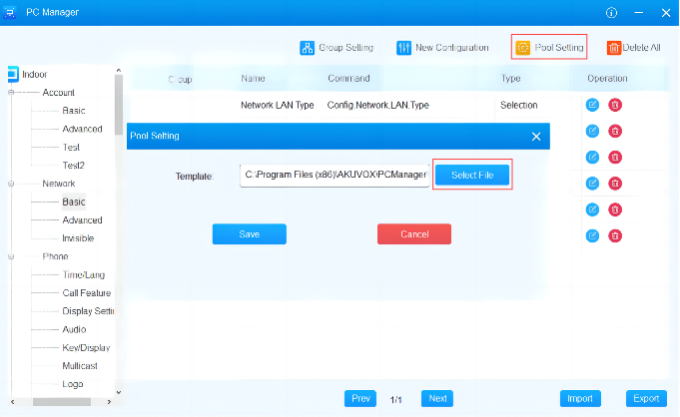
Pool Management
You can upload a pool template to the PC manager for customized AutoP.
Data Backup
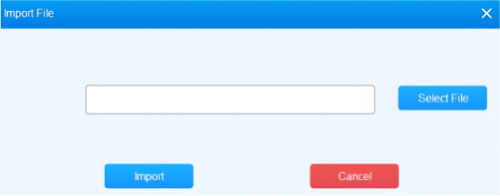
You can import the configuration data for quick device setup by obtaining a template from the Akuvox tech team. Click Import in the lower right corner and select the file to be uploaded.
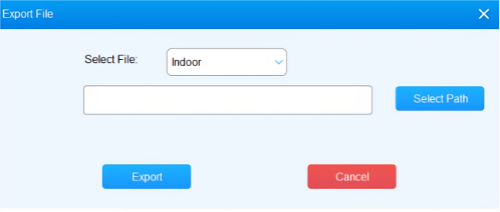
You can export the data covering the node structure, configuration groups, configuration items, etc for backup. Click Export in the lower right corner and select the path to store the file.
Note
Make sure that you have installed Microsoft Excel in your computer. Otherwise, the file import and export may fail.
.