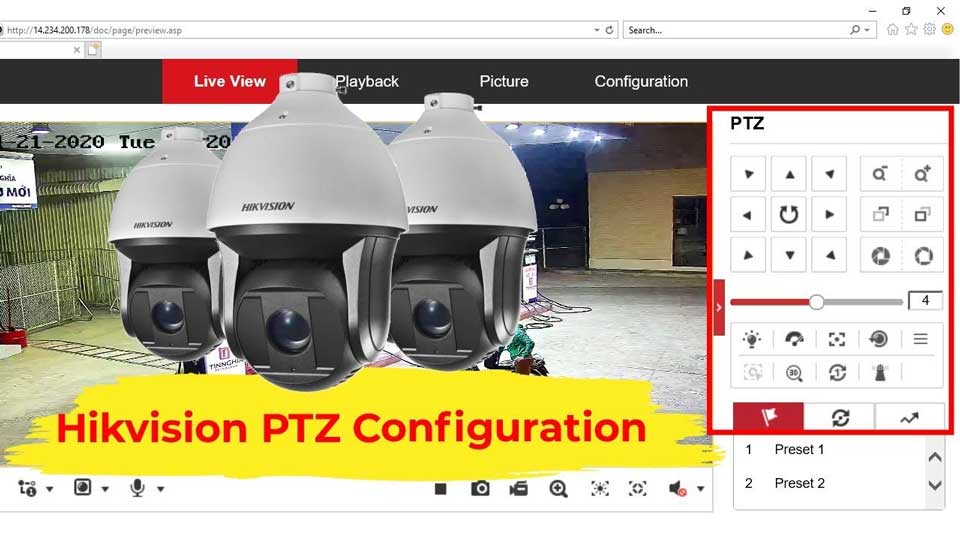
How to Configure Hikvision PTZ Function, PTZ is an abbreviation for “Pan, Tilt, and Zoom“. With the PTZ Control functionality provided by the Mobile Client, you can make the cameras pan and tilt to the required positions, and zoom in or out the live video images. For some network cameras, you can also enable auto-tracking to make the camera pan, tilt, and zoom to track the detected moving objects.
Preparation
How to Configure PTZ Function
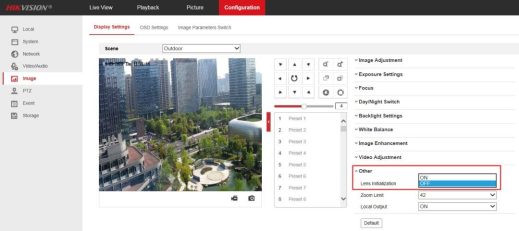
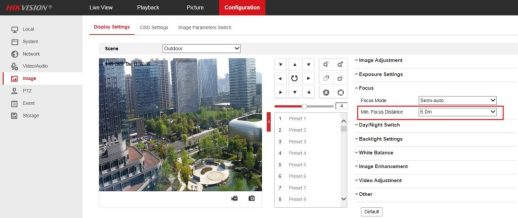 Go to Configuration->Image->Display Setting->Focus interface, the Min. Focus Distance is recommended to be set to 6.0m for outdoor scene and 1.5m for indoor scene.
Note:
Once the lens initialization is enabled, it will be initialized at one o’clock every day.
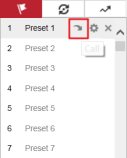
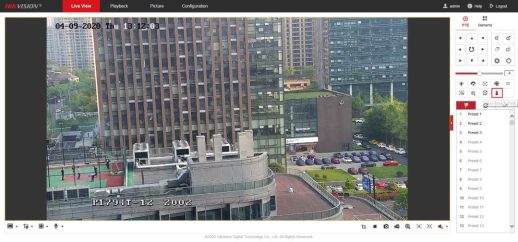
A preset is a predefined image position. For the defined preset, you can click the calling button to quickly view the desired image position.
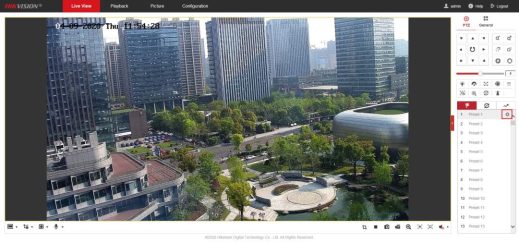 Go to Live View->PTZ interface, select the preset which you want to set, left click on Set.
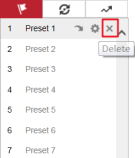
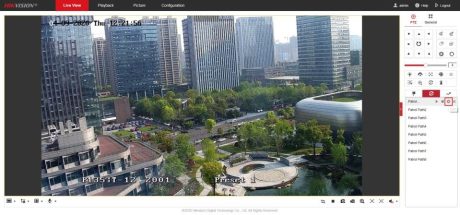
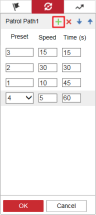
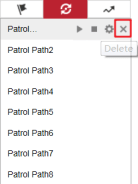
A patrol is a memorized series of preset function. It can be configured and called on the patrol settings interface. There are up to 8 patrols for customizing. A patrol can be configured with 32 presets.
Note:
The dwell time of the preset cannot be set less than 15 seconds, this is to ensure that the slip ring has a longer service life.
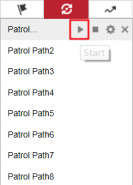
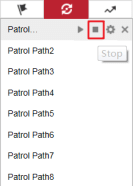
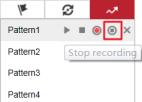
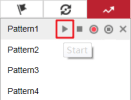
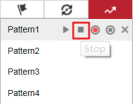
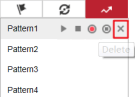
A pattern is a memorized series of pan, tilt, zoom, and preset functions. It can be called on the pattern settings interface. There are up to 4 patterns for customizing.
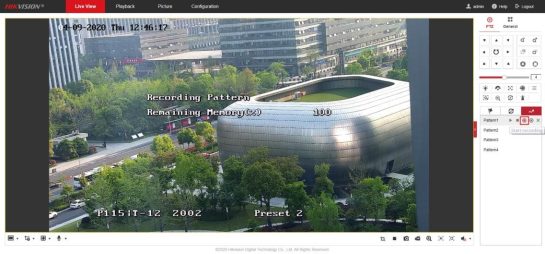
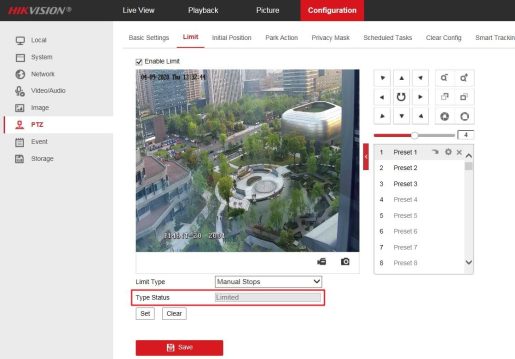
The dome can be programmed to move within the configurable limit stops (left/right, up/down).
scan, tilt scan, panorama scan is performed only in the limited surveillance area.
Note:
Manual Stops of Limit Type is prior to Scan Stops. When you set these two limit types at the same time, Manual the Scan Stops is invalid.
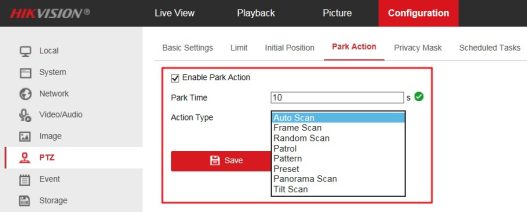
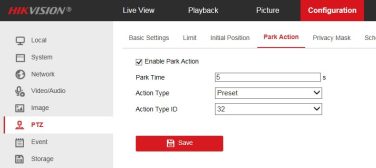
This feature allows the dome to start a predefined park action (scan, preset, pattern and etc.) automatically after a period of inactivity (park time).
and set Park Time and Action Type according to the actual needs.
 Go to Live View->PTZ interface, click to save the current view as the preset No. 32 and start park at the the current position.
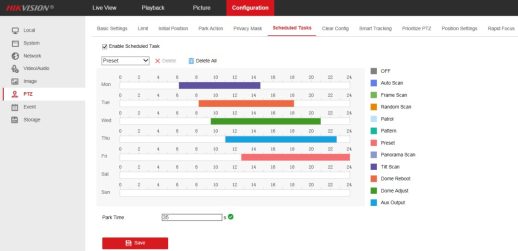
You can configure the network dome to perform a certain action automatically in a user-defined time period.
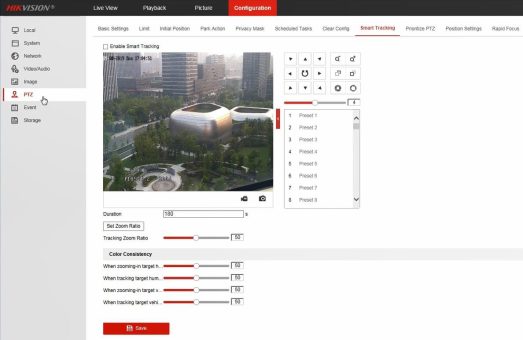
The speed dome tracks the moving objects automatically after you configure this function.
Ratio to a desired value. Then the camera determines the actual zoom ratio dynamically according to the detected target size and the set value. Larger value means larger zoom ratio.
Note:
As long as you set the Tracking Zoom Ratio value as not 0, the zoom ratio you set manually is invalid.
Note:
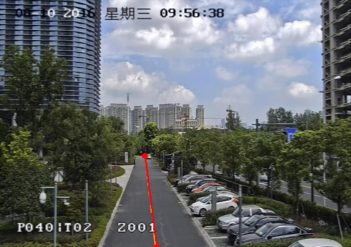
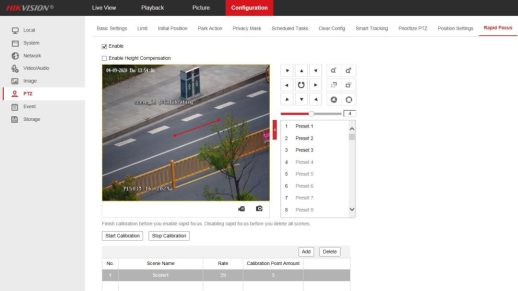
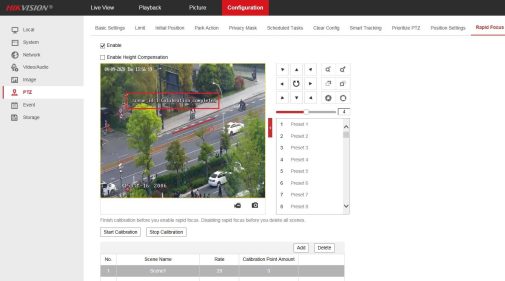
The red line is recommended to stay in the center of the scene which covering the ground at the same time. If the line is not in the center, use PTZ control to adjust the scene
How to Configure Hikvision PTZ Function
Read More : Hikvision TandemVu PTZ Camera User Manual
Controlling PTZ
Purpose:
The client provides PTZ control for cameras. The PTZ speed is available for adjustment. If the camera supports preset function, you can also set and call the preset.
Note: The PTZ control function should be supported by the added device.
Controlling Pan and Tilt
Steps:
 to enter the PTZ control panel.
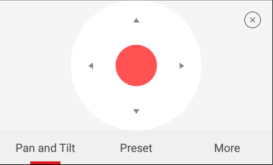
Note: The Preset function should be supported by the device, or the Preset tab will not be displayed on the page.
For the local device, you can also slide to upper left, upper right, lower left, and lower right to control the camera.
Setting Preset
Purpose:
A preset is a predefined image position which contains information of pan, tilt, etc. After the preset is configured, you can call the preset. The camera will move to the programmed image position.
Note: The function should be supported by the device.
Adding a Preset
Steps:
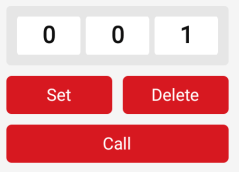
Note: The preset No. should be between 1 and 256.
Calling a Preset
Steps:
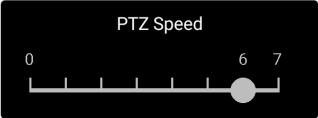
Adjusting PTZ Speed
Steps:
 to enter the PTZ Speed panel.
Setting Other Functions
In the PTZ control panel, tap More to enter the More tab.
The table below is icons‘ descriptions in the More panel:
|
Icon |
Description |
|
|
Start/stop the auto-scan. |
|
|
Zoom control: |
|
|
Focus control: |
|
|
Iris control: |
|
|
Adjust the PTZ speed. |


Notes:
Pan and Tilt a Camera
The Mobile Client allows you to pan and tilt a camera’s view.
Note:
For details about how to start live view, see Start and Stop Live View.
 to open the PTZ Control panel.
Figure 1. PTZ Control Panel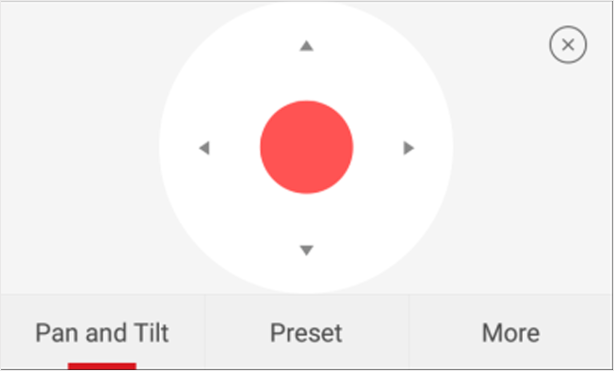
Set a Preset
A preset is a predefined image position which contains configuration parameters for pan, tilt, zoom, focus and other parameters. You can also set a virtual preset after enabling digital zoom. After you set a preset, you can call the preset and then the camera will move to the programmed position.
Note:
See Pan and Tilt a Camera for details.
Figure 1. Set a Preset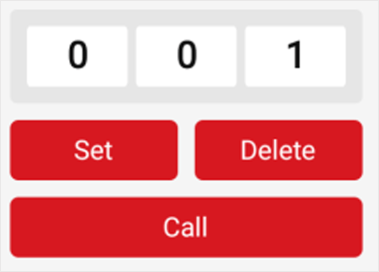
Note:
The preset No. should be between 1 and 256.
Adjust PTZ Speed
You can adjust the PTZ speed.
Other Functions
The PTZ Control panels provide other functions such as PTZ speed adjustment, auto-scan, focus control, iris control, and auto-tracking.
Tap More on the PTZ Control panel to view the functions.
|
Icon |
Description |
|---|---|
|
|
Start/stop the auto-scan, which means to make the speed dome pan, tilt, and (or) zoom by a predefined route. Note: • You can define the route on the device. For details, see the user manual of the device.
• The function should be supported by the device.
|
|
|
Zoom control: |
|
|
Focus control: |
|
|
Iris control: |
|
|
Adjust PTZ speed. |
|
|
Enable/Disable auto-tracking. After enabled, when the camera detects a moving object, the camera will pan, tilt, and zoom to track the object until the object moves out of the field of view of the camera. Note: The function should be supported by the device. |