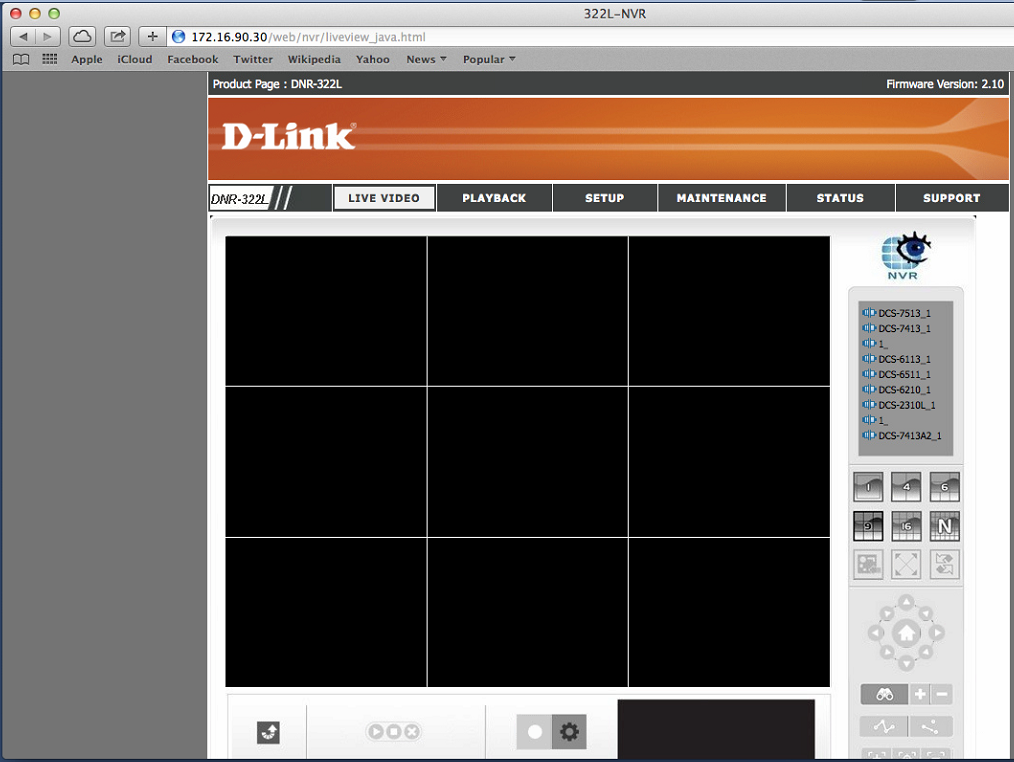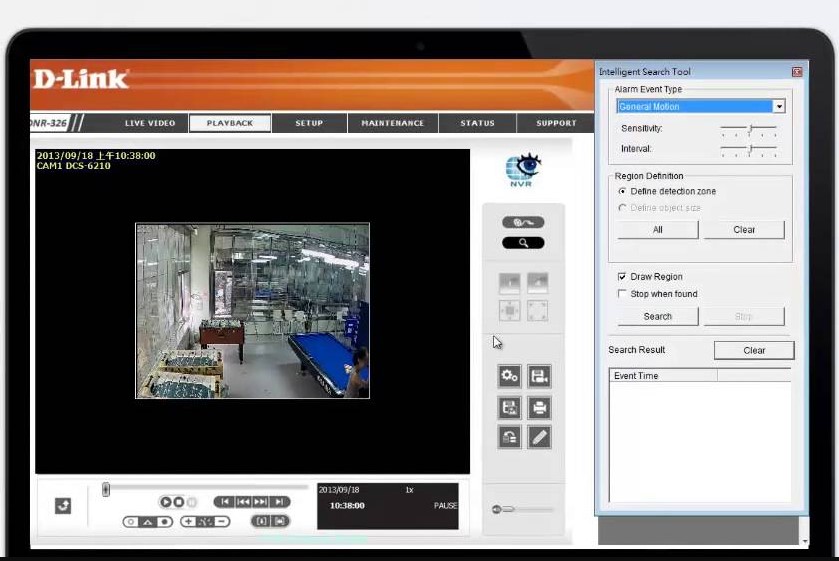
- A:
- NOTES: * Applies to devices using firmware version 2.0 and above. If you are not using the latest firmware version please upgrade the firmware.
* Please make sure you are using the latest version of Java. If you are unsure on what version you are current running, please visit www.java.com/verify *
Plese select your browser:
- Using IE
- Using Firefox
- Using Chrome
- Using Safari
Using IE
Step 1: To view the LIVE VIDEO and PLAYBACK, please make sure to install the Microsoft Visual C++ 2005 SP1 Redistributable Package. The file can be located on the included CD, at http://www.microsoft.com/en-us/download/details.aspx?id=5638, or by clicking on the “Download from Microsoft Web Site” on the Warning pop up message
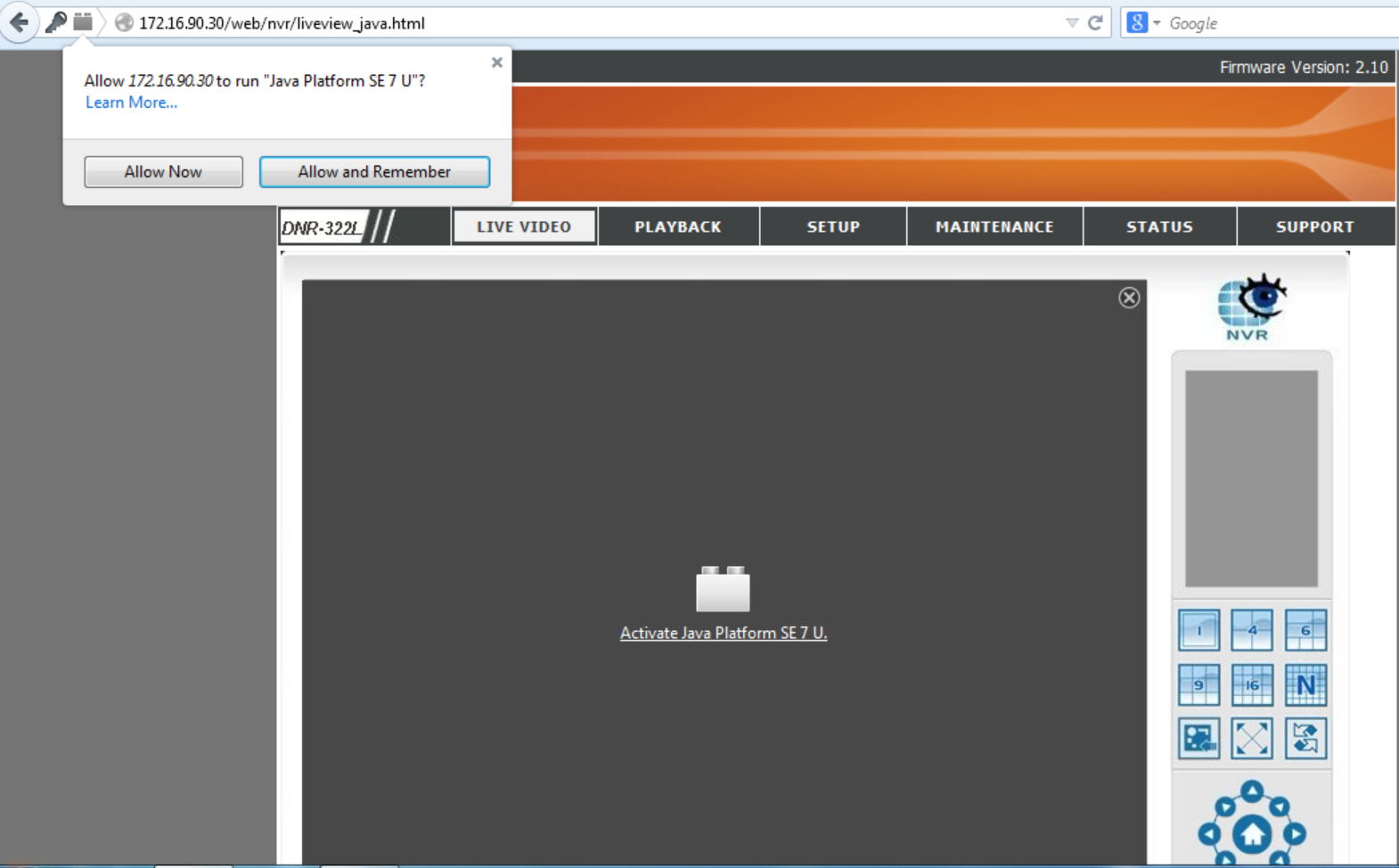
Step 2: Make sure to allow all add-ons to properly view the LIVE VIDEO and PLAYBACK.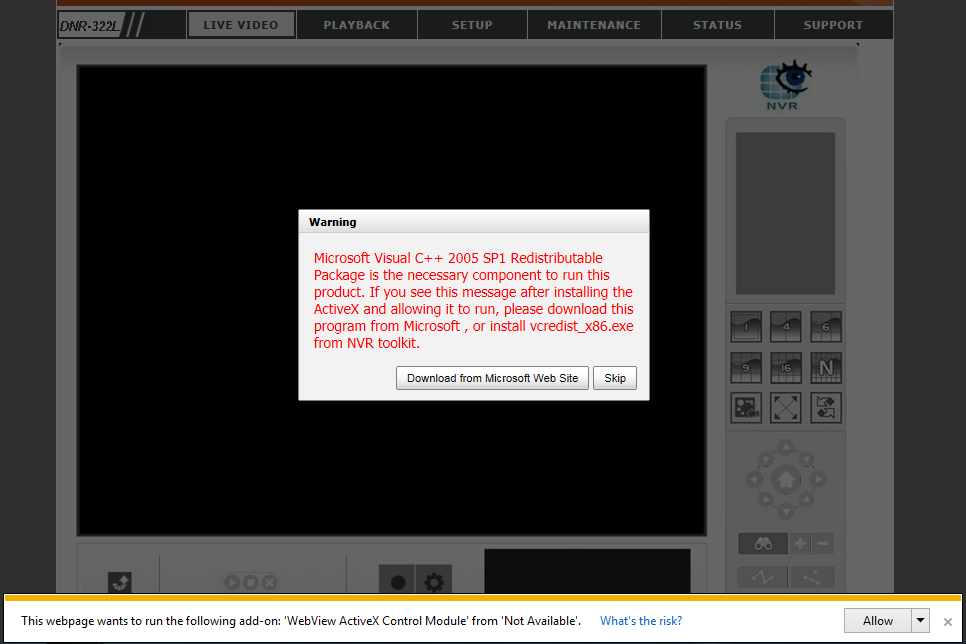 Step 1: To view the LIVE VIEW and PLAYBACK, please make sure to download/install the latest version of Java.Step 2: Click the “Activate Java Platform SE 7 U.” link or click the block icon to the left of the address bar
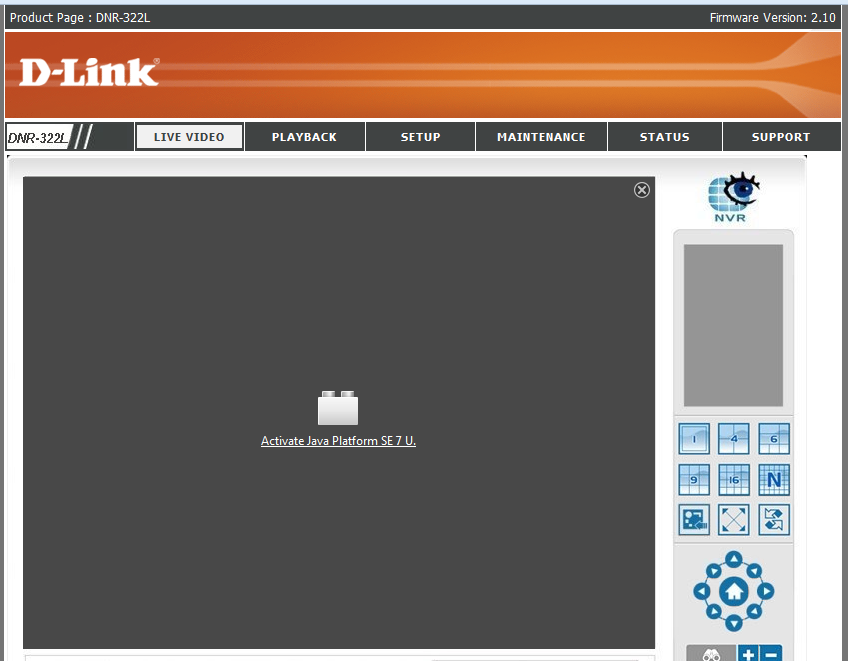 Step 3: Click to Allow Now or Allow and Remember
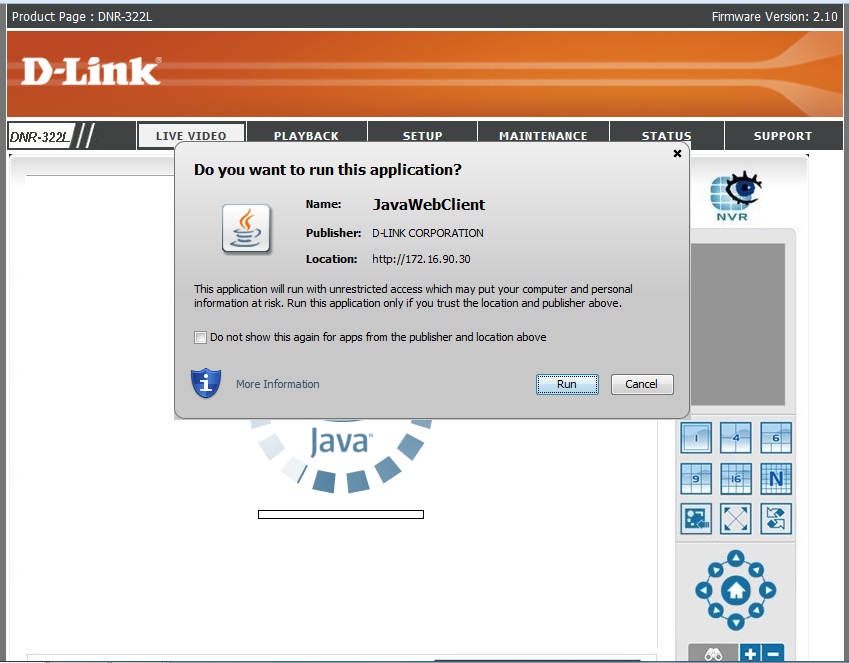
 Step 4: Run the Java application.
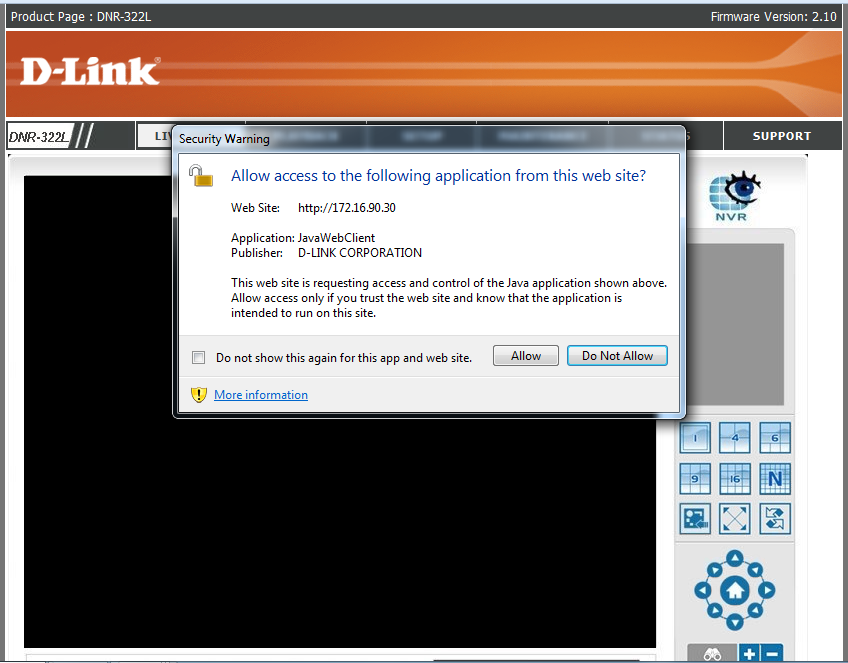
 Step 5: Allow the security warning popup.
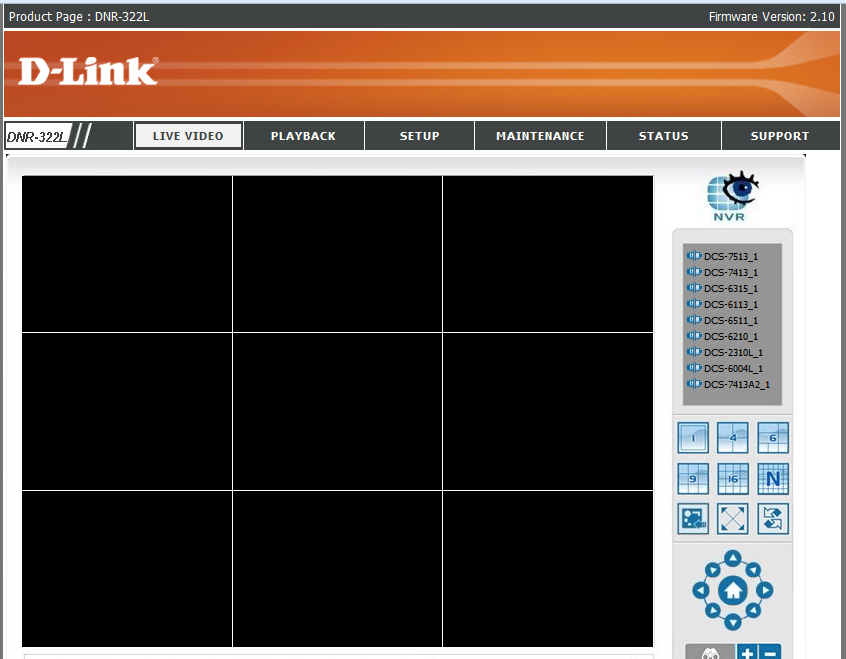
 Step 6: You should now be able to see the LIVE VIEW or PLAYBACK
 Step 1: To view the LIVE VIDEO and PLAYBACK, please make sure to download/install the latest version of Java.
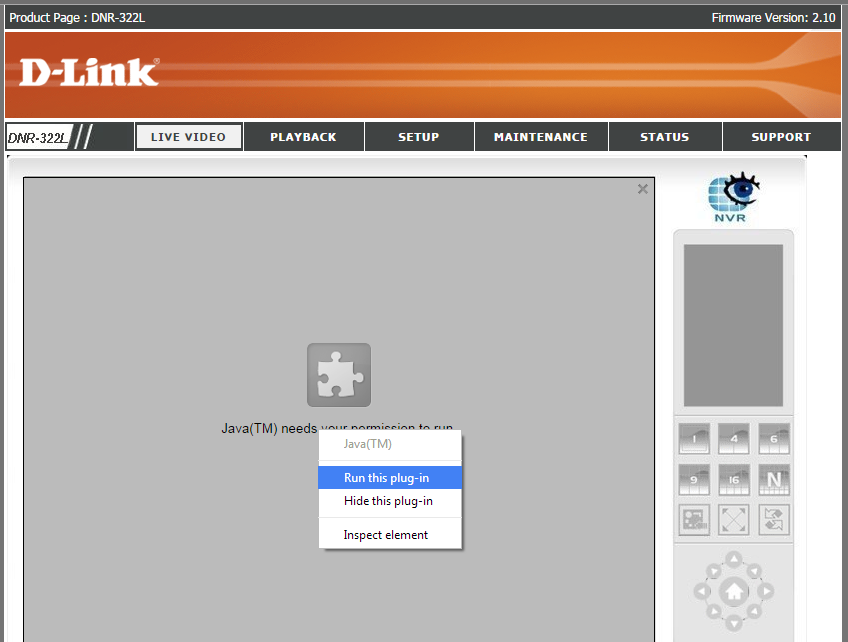
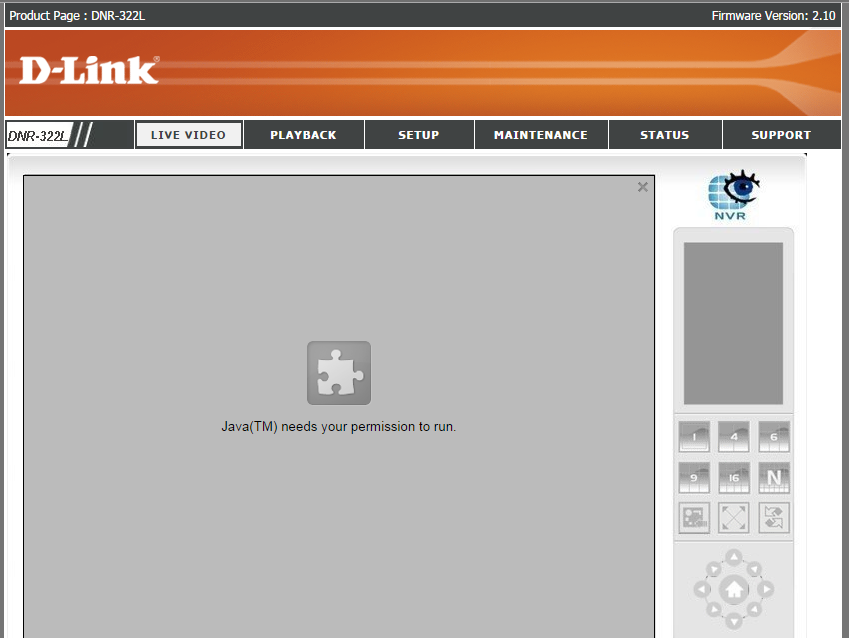 Step 2: Right click the viewing area, and Run this plug-in
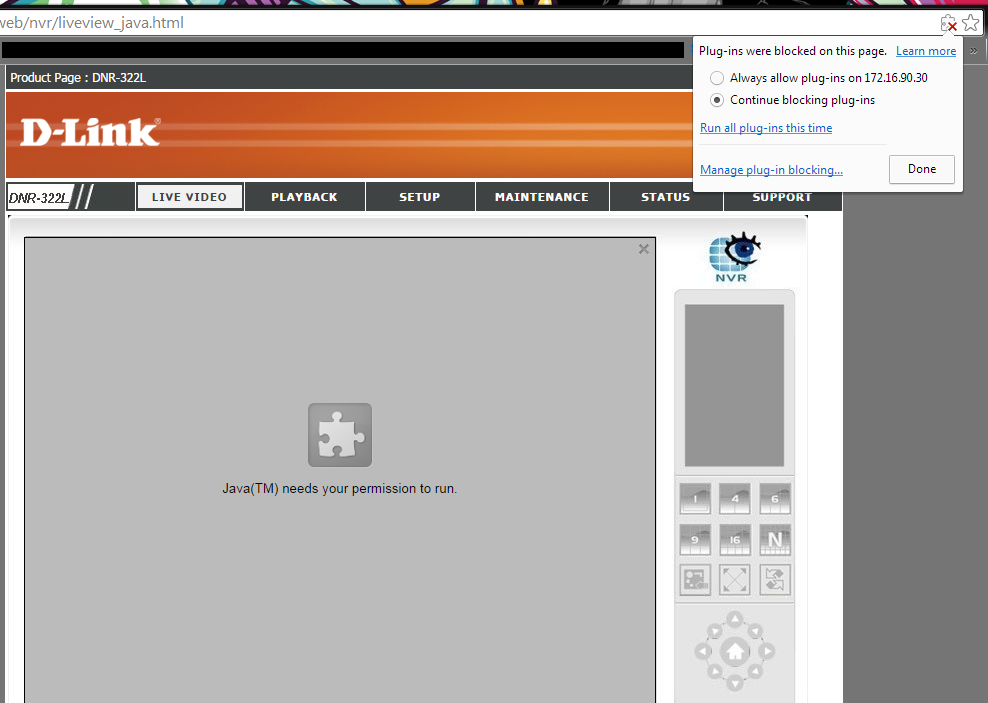
 Step 3: Or click the icon on the far right hand corner of the address bar to Always allow plug-ins to on X.X.X.X
 Step 4: Run the Java application
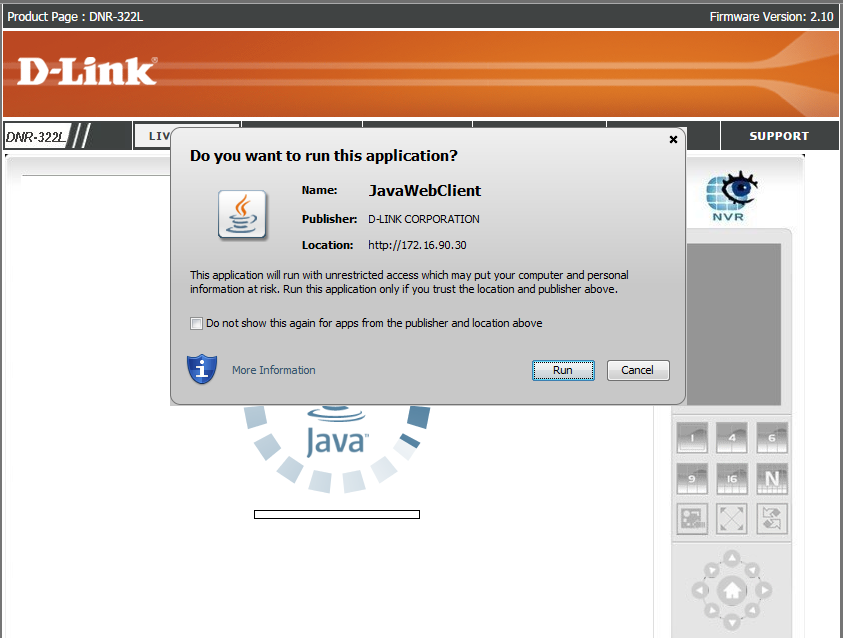 Step 5: Allow the security warning popup.
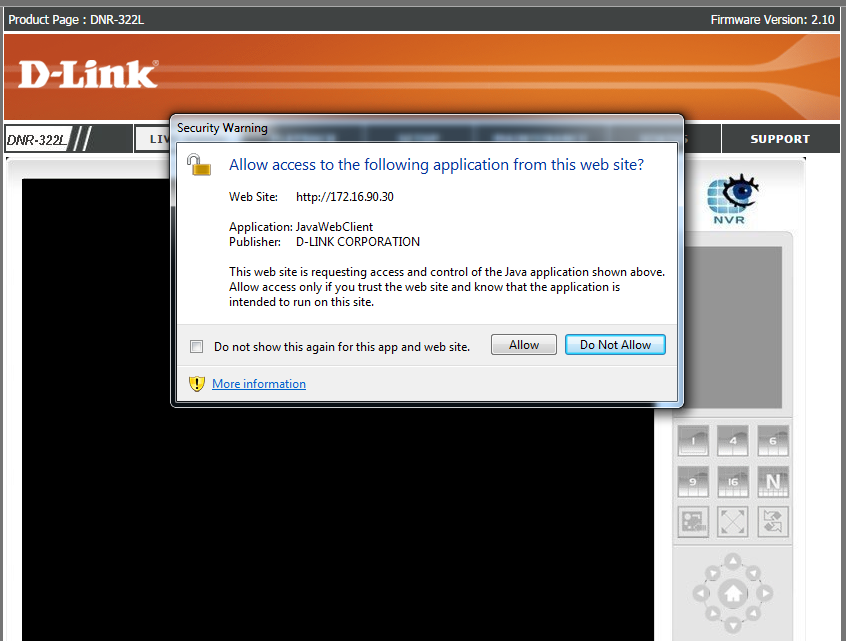 Step 6: You should now be able to see the LIVE VIDEO or PLAYBACK
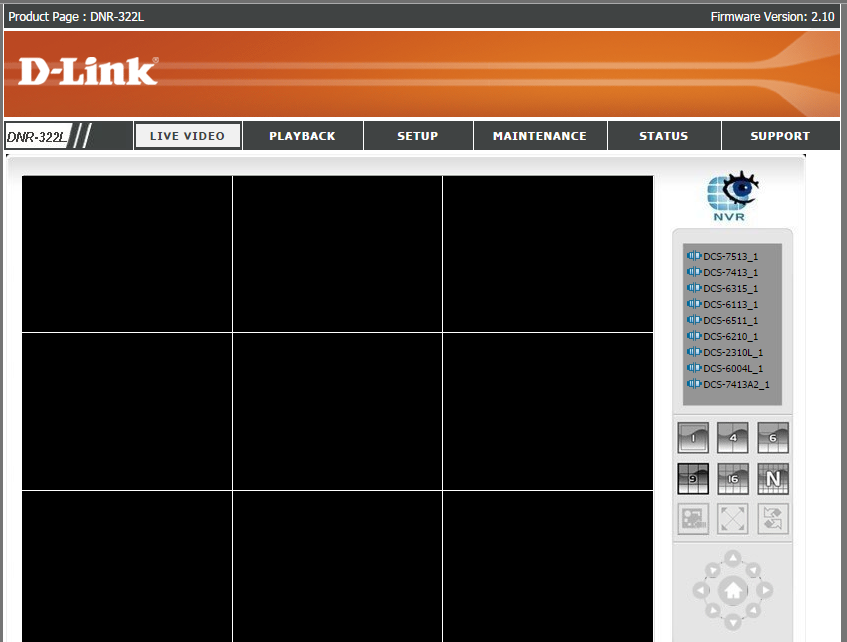 Step 1: To view the LIVE VIDEO and PLAYBACK, please make sure to download/install the latest version of Java.Click on the Java blocked for this website
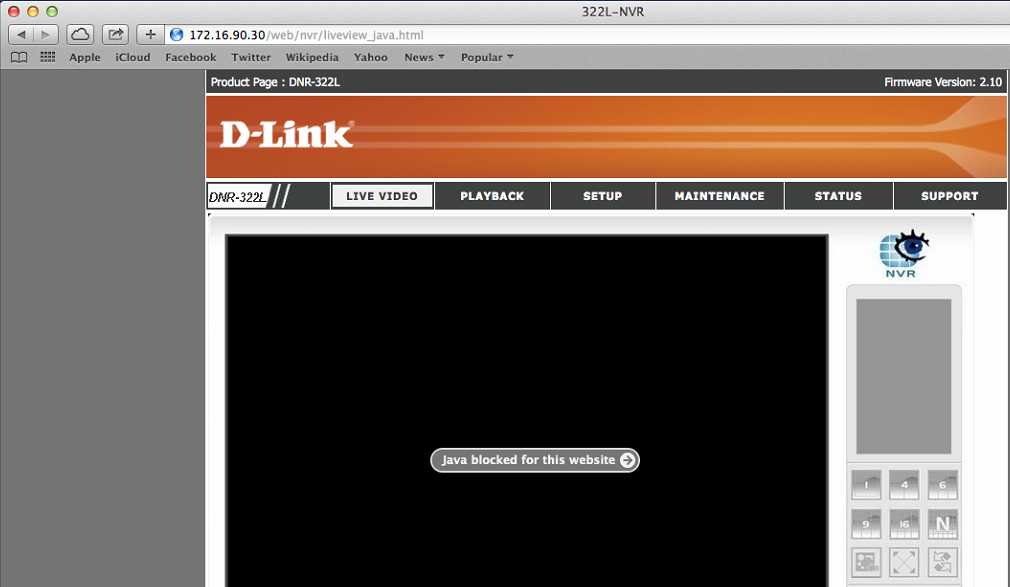 Step 2: Trust to run this plug-in.
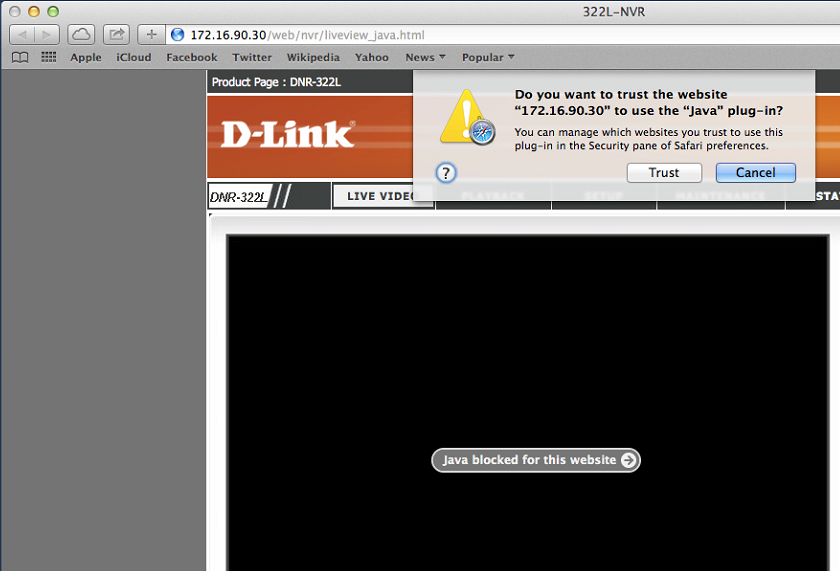 Step 3: Run the Java application
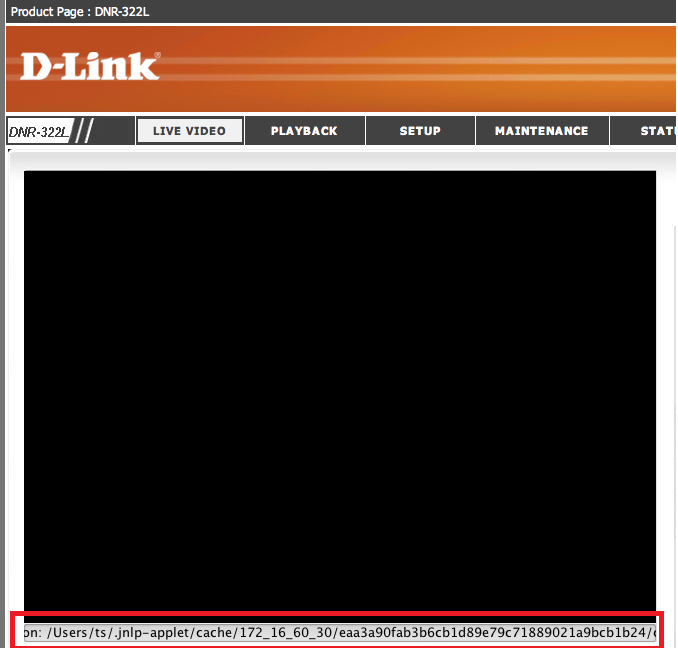
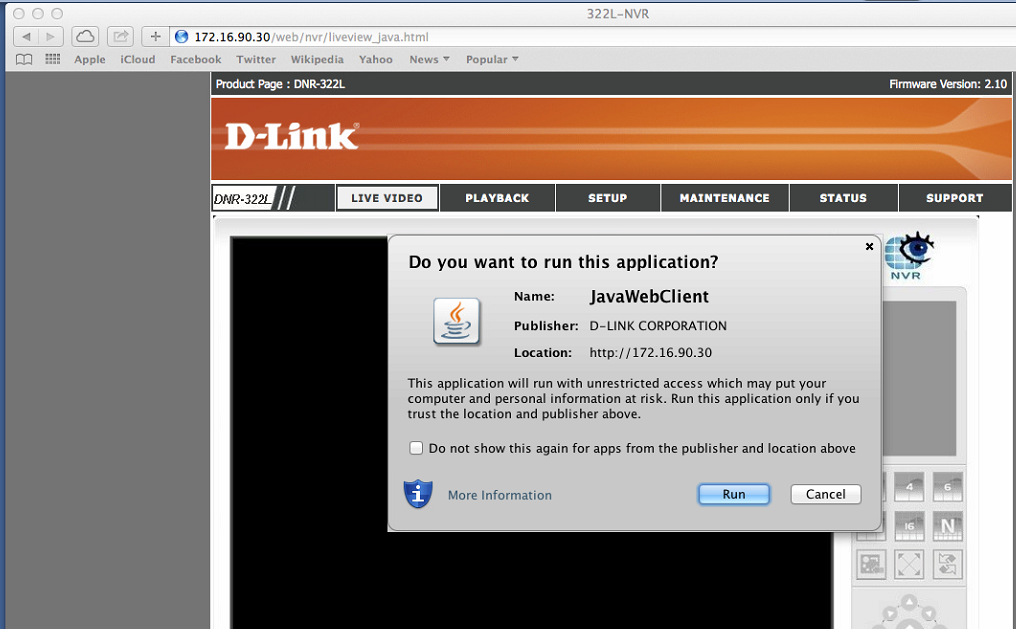 Step 4: If you get an error message on the bottom of the LIVE VIDEO, such as the picture below in the red box, continue on to Step 5 to 10.
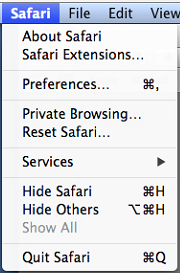
 Step 5: Go into Safari’s Preferences…
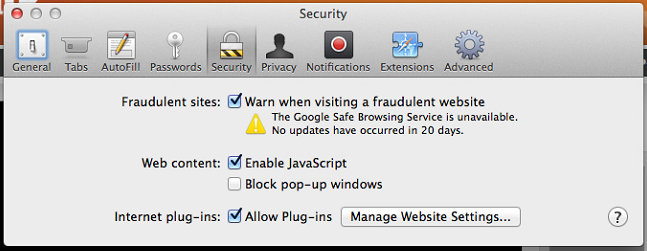
 Step 6: Click on the Security button. Make sure Internet plug-ins: is check marked, and click on Manage Website Settings…
 Step 7: In the Java plug-in section. Under Currently Open Websites, you should see the IP address of the DNR. On the drop menu, set to Run in Unsafe Mode.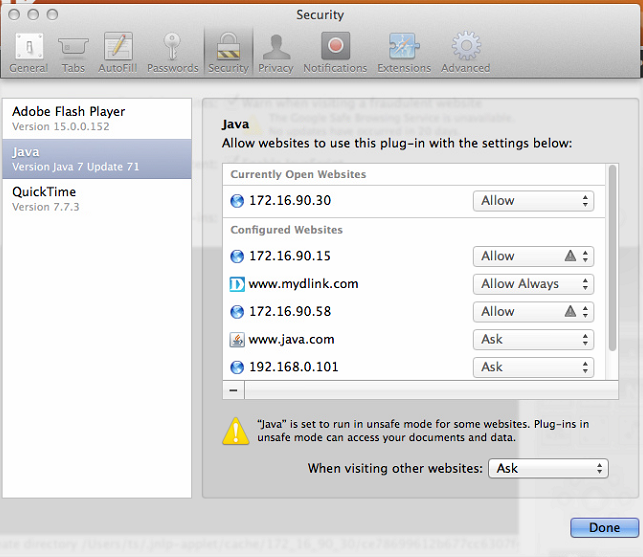
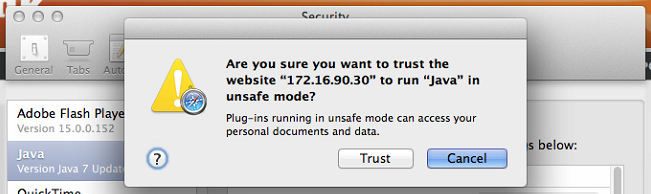
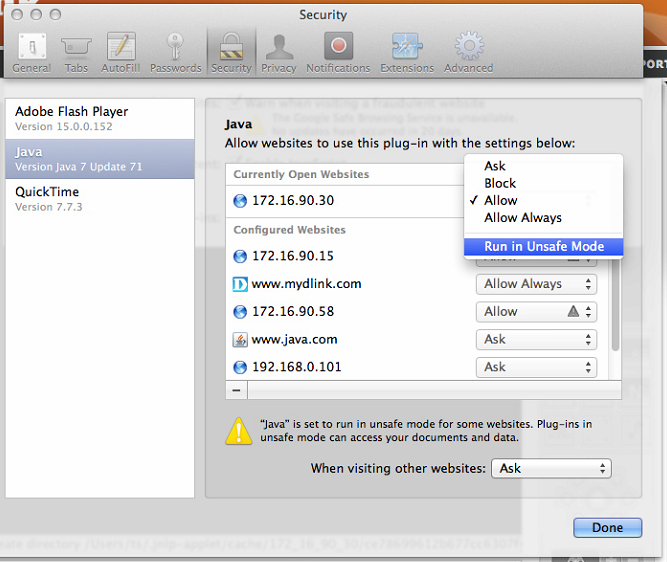 Step 8: Trust to run the website in unsafe mode
 Step 9: Allow the Java application
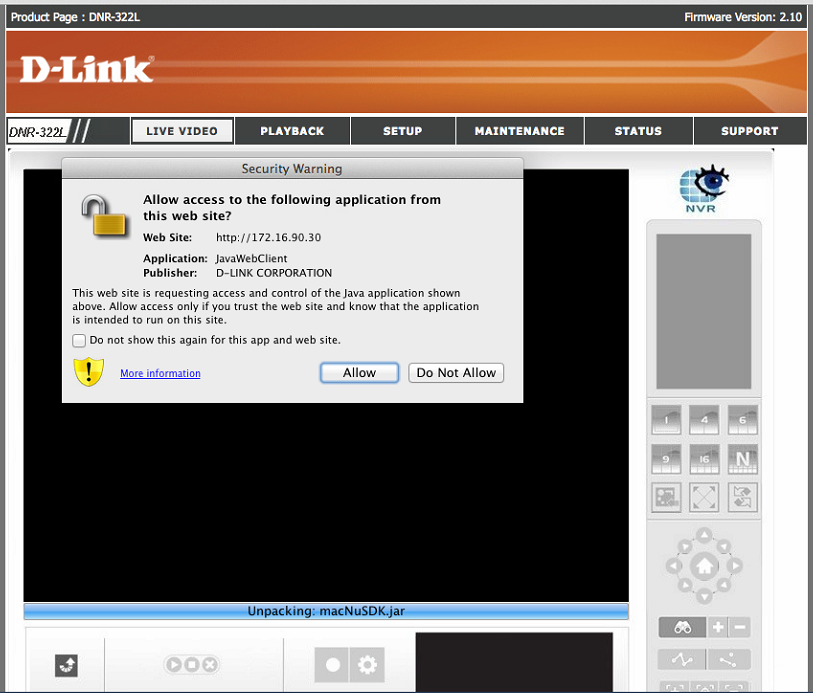 Step 10: We should now be able to view the LIVE VIDEO or PLAYBACK