Advertisement
2 min read

How to reset Dahua IP Camera via ConfigTool

M.Salih ASLAN M.Salih ASLAN • • 0 Discussion
XMLPasswordReset8
AI Powered

AI Content Summary

Reset Dahua Device Password Using ConfigTool Description These instructions will show how to reset the password of a Dahua device using ConfigTool on a local computer PLEASE NOTE: These instructions can not be completed without assistance from Dahua Technical Support. Please contact Dahua Technical Support via one of the methods HERE Prerequisites Dahua IP camera, connected to network Local computer , with ConfigTool installed Step by Step Instructions 1.

Key Moments & Highlights
  • 1
    Description

    Key analytical insights and practical findings are highlighted here.

  • 2
    Prerequisites

    Key analytical insights and practical findings are highlighted here.

  • 3
    Step by Step Instructions

    Key analytical insights and practical findings are highlighted here.

Reset Dahua Device Password Using ConfigTool

Description

These instructions will show how to reset the password of a Dahua device using ConfigTool on a local computer

PLEASE NOTE: These instructions can not be completed without assistance from Dahua Technical Support. Please contact Dahua Technical Support via one of the methods HERE

Prerequisites

  • Dahua IP camera, connected to network
  • Local computer , with ConfigTool installed

Step by Step Instructions

1. Open ConfigTool

Select “Password Reset” on the left.

Advertisement

Find the device in the list, and verify it has the XML reset option under “Support”.

Click the Reset button on the right

XMLPasswordReset1.png

2. Click Agree

XMLPasswordReset2.png

3. Select the Reset Mode drop-down and then select XML File

XMLPasswordReset3.png

4. Click OK to confirm XML password reset method

XMLPasswordReset4.png

5. The default location the XML file will be saved to is displayed. Click Browse Path to select a new location. Click Next

XMLPasswordReset5.png

6. The ExportFile XML file will be created. Click OK to continue

XMLPasswordReset6.png

7. This file will be used in the password reset process. Contact Dahua technical support via one of the methods HERE for the result file. Once you recieve the Result file, select Open and choose the file on your file system. Click Next

XMLPasswordReset7.png

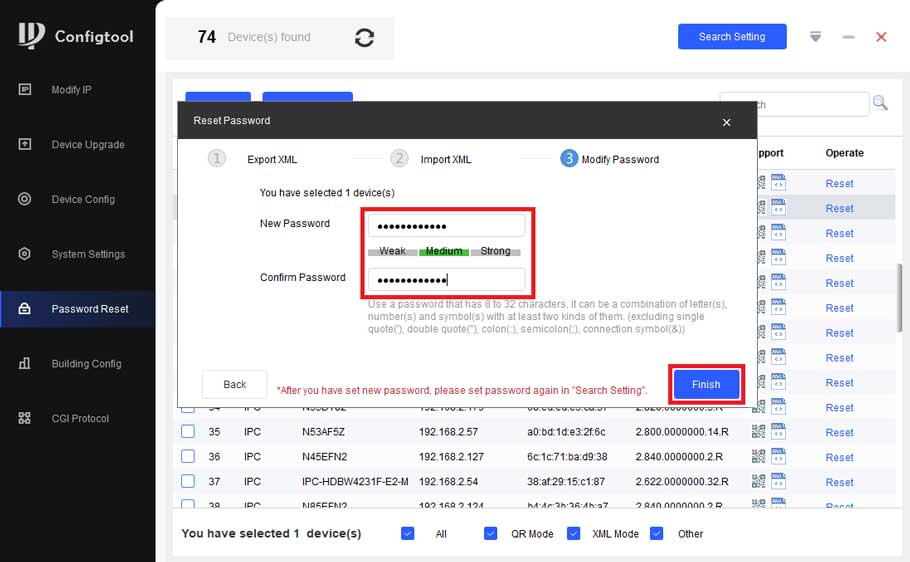
8. If the Result file is accepted, it will allow you to set the new password. Input a new password in the New Password and Confirm Password fields. Click Finish

XMLPasswordReset8.png

9. If the password is successfully reset, you will see a Green Check Mark next to the camera in the list

XMLPasswordReset9.PNG

Advertisement
Share this story
M.Salih ASLAN
About the Author

M.Salih ASLAN

Owner and Founder dvraid.com and dvrdestek.com

Leave a Reply

Your email address will not be published. Required fields are marked *

This site uses Akismet to reduce spam. Learn how your comment data is processed.

Pure inspiration, zero spam ✨

Subscribe to our Newsletter

Get the finest stories, perspectives, and trends delivered straight to your inbox.

UP NEXT 98% relevance match
How to initialize Video Intercom using Configtool 8
Before you go: How to Initialize Video Intercom using Configtool