Dahua NVRs and DVRs offer a variety of recording options. You can configure recording schedules based on the following methods:
- General
- Motion Detection
- Alarm Based
- Motion Detection + Alarm
- IVS if the feature is available depending on the model.
For this tutorial we will be setting up IVS recording. We will be using the X72A2A and DH-IPC-HDW44A1MN-I to set this up.
Prerequisites
- Dahua Recorder with new GUI and supportive IVS features
- Dahua Camera with IVS rule and Smartplan enabled
Step by Step Instructions
Step One:
Creating an IVS Rule on the camera and enabling Smartplan
- Login to the Camera’s WEBUI

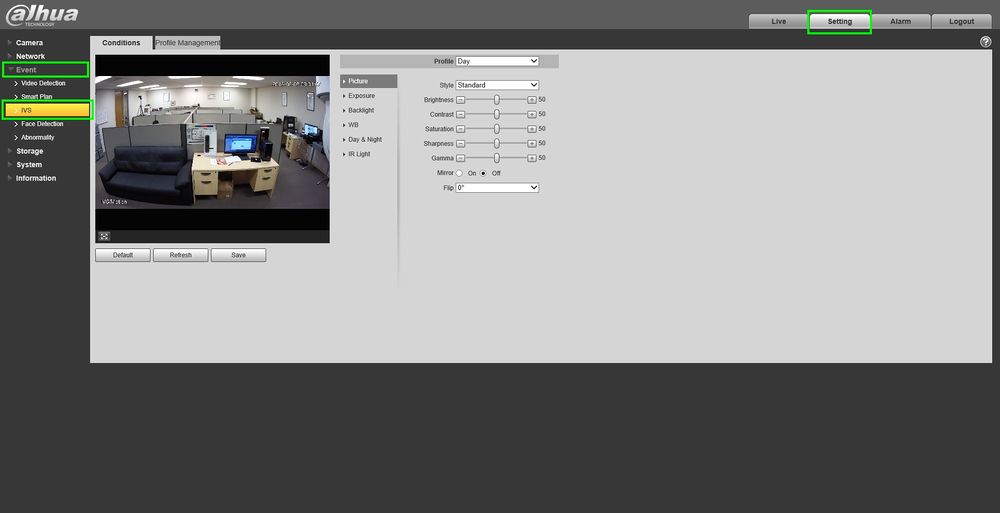
- Go to Settings>Events>IVS

- Click on the green “+” icon to add a rule. You can also rename the rule by double clicking under “Name”. We will be adding a Tripwire in this example

- Click on Draw Rule to start drawing
-Left-Click for starting point and Left-Click again for end point
-Right-Click to finish

- Change the direction you want to the tripwire to go off, enable “Record” and click on save when you’re done enabling the settings.

- Smartplan is crucial, it MUST be enabled so our IVS rules can take affect. Highlight “IVS” and save it.

Step Two:
Adding the camera to the recorder and enabling Intel recording
- Login to the recorder and go to Camera>Registration>Manual Add

- Type in the information it asks for and click on save when finished, we will be adding this camera to channel 7

- Now lets go to Storage>Schedule, select the channel and click on the “Settings” tab on the right side

- Keep “Intel” checked and copy it to all days, save it

- Click on “Save” to finalize the changes

- In the main menu go to “Video”

- Select the channel with the IVS rules, you can now see the recordings of when that tripwire was tripped