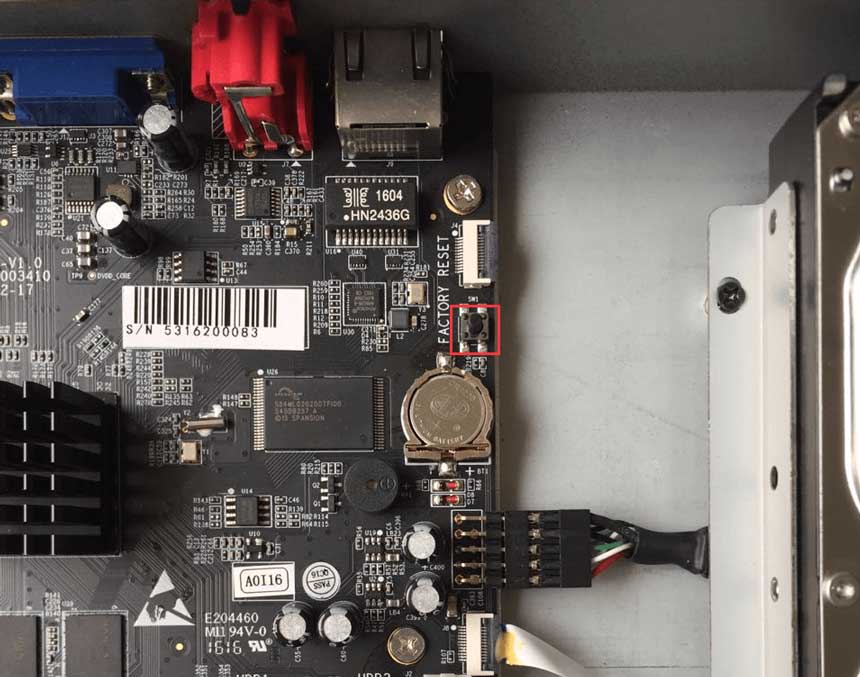
The following will introduce how to reset NVR via hardware.
1. Position of Reset Button
Series-1000:
100x/1009-UT: There is a hole on the back, use a pin or something like that to push the button deeper inside the hole.

1009-UPT/UNT: Slide and open the shell, an orange button on the inside like the figure shown below.

Series-5000:
50XX: Slide and open the right panel, a black button on the inside like the figure shown below.

50XX-UH/UT: Slide and open the panel, a black button on the inside like the figure shown below.

5016-UPT: Slide and open the panel, a black button on the inside like the figure shown below.


Series-7000:
70XX: Slide and open the front panel, a reset button on the left side of the front panel.

70XX-UH: Slide and open the panel, a black button on the inside like the figure shown below.

7032-UPH: Slide and open the panel, a black button on the inside like the figure shown below.


Series-8000:
80XX: Open the front panel, a hole on the right side of the front panel like the figure shown below, use a pin or something like that to push the button deeper inside the hole.

80XX-UH: Slide and open the panel, a black button on the inside like the figure shown below.

2. Reset Steps
For NVRs whose software version is before 7x.9.0.2-r3, or 61.x.x.xx/ 30.x.x.xx/ 1.x.x.xx/ 2.x.x.xx, please refer to the steps below:
Step1: Turn off the power;
Step1: Press the reset button;
Step1: Keep pressing the reset button and power on the NVR at the same time;
Step1: You will hear several short “beep” during this time;
Step1: Reset successfully when the short “beep” become an nonstop “beep”.
For NVRs whose software version is 7x.9.0.2-r3 or above, please refer to the steps below:
Step1: Turn off the power;
Step1: Press the reset button;
Step1: Keep pressing the reset button and power on the NVR, you will hear a short “beep” sound at the same time;
Step1: After 5 seconds you will hear a “beep” sound lasting about 3 seconds;
Step1: Reset successfully when the “beep” sound stops.