Tenda IP Cameras FAQs All Model, The dual-lens linkage outdoor Wi-Fi pan/tilt camera RH10, is a high-performance outdoor security camera that integrates 10MP resolution video(5MP+5MP), 360° visual coverage, full-color night vision, full-duplex two-way audio, human detection, vehicle detection, line crossing detection, intrusion detection, dual-lens smart linkage, sound and light alarm functions. The product is mostly used for outdoor protect scenarios such as courtyard, farms and shops, etc. The users can access the video via wireless or wired connection to the Internet.
What should I do if my camera image is reddish?
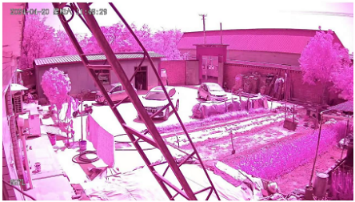
The camera image is reddish as shown in the following picture:
Solution:
Step 1: Please confirm that the input power of the device is the same as the output power of the power adapter.
If not, please replace it with a suitable adapter to power the camera.
Step 2: Please enter the device settings, find Infrared Night Vision.
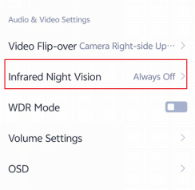
Change Night Vision mode to Always On. Then change it to Always Off.
Finally, please check whether the camera image is normal.
Step 3: Please restart or reset your camera. After restart or reset is completed, please check the camera image to see if there is reddish.
If the above steps still do not solve your problem, Please contact our technical support.
Tenda IP Cameras FAQs All Model
Video playback from IP Cam by RTSP_eng
Integrating Tenda IP cameras into video surveillance systems and viewing video on a computer in a local network.
To view video from an IP camera on a computer, you need the following:
| Model | Stream address | Resolution |
| CP3 v2
CP7 |
rtsp://IP.address.of.camera:8554/profile0
rtsp://IP.address.of.camera:8554/profile1 |
HiRes
LowRes |
| CP6 | rtsp://IP.address.of.camera:554/tenda, rtsp://IP.address.of.camera:554/tenda_sub | HiRes
LowRes |
| СT6 | rtsp://IP.address.of.camera/tenda, rtsp://IP.address.of.camera/tenda_sub | HiRes
LowRes |
| CP3 v3 | rtsp://IP.address.of.camera:554/ch=1?subtype=0
rtsp://IP.address.of.camera:554/ch=1?subtype=1 |
HiRes
LowRes |
| CH3 v1 | rtsp://IP.address.of.camera:554/ch=1?subtype=0
rtsp://IP.address.of.camera:554/ch=1?subtype=0 |
HiRes
LowRes |
| CH3 v2 | rtsp:// IP.address.of.camera:554/ch=1?subtype=0
rtsp:// IP.address.of.camera:554/ch=1?subtype=1 |
HiRes
LowRes |
| ITxx
ICxx |
rtsp://IP.address.of.camera:8554/profile0
rtsp://IP.address.of.camera:8554/profile1 |
HiRes
LowRes |
| NVR | rtsp://IP.адрес.NVR:554/ch=1&subtype=0
rtsp://IP.адрес.NVR:554/ch=2&subtype=0 rtsp://IP.адрес.NVR:554/ch=1&subtype=1 |
HiRes Ch1
HiRes Ch2 LowRes Ch1 |
For NVR rtsp://IP.address.NVR:554/ch=1&subtype=0; ch=1 means that the camera is connected to the first channel of the NVR; subtype = 0 means the main stream, subtype = 1 means an additional stream.
In general, the stream address with Login/Password will be: rtsp://login:pass@192.168.xx.yy:8554/profile0 for HD, profile1 for LowRes (CT series) rtsp://login:pass@192.168.xx.yy:554/tenda for HD, tenda_sub for LowRes;
Log/Pass admin/admin123456 by default
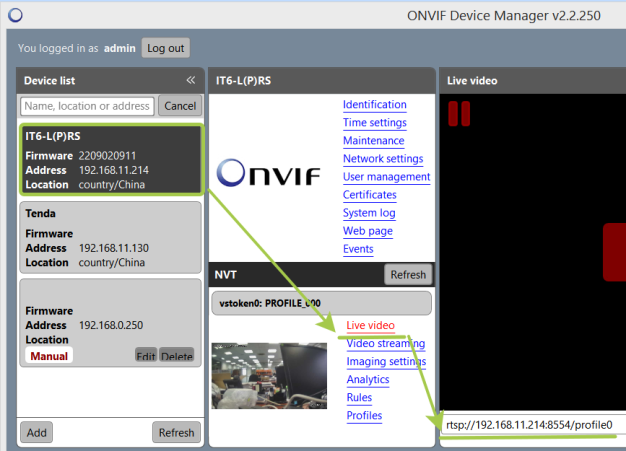
Detecting a camera and determining the stream address:
Play stream:
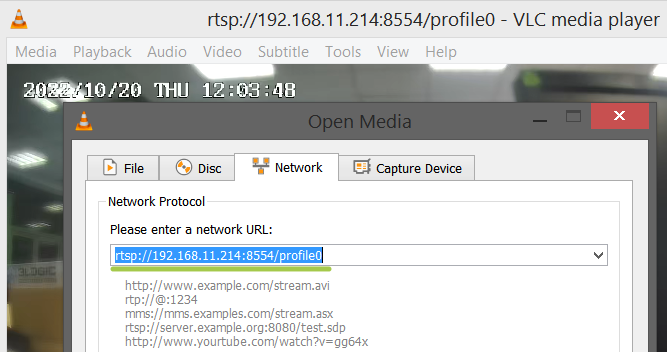
Or directly in Happytime Onvif Client X64
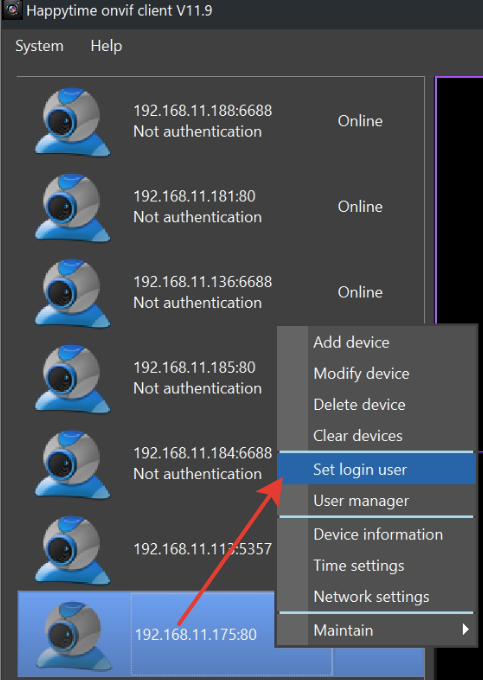
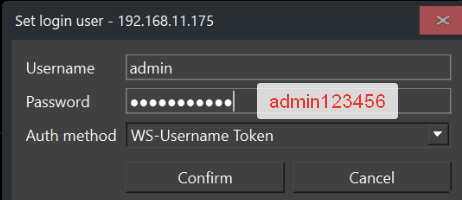
Integration of Tenda cameras into video surveillance systems.
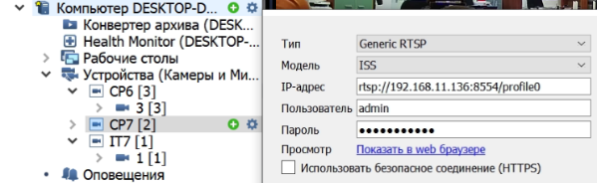
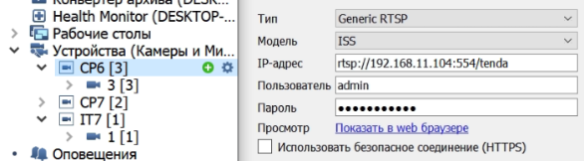
Can be used in Securos (and similar) when connecting via RTSP, the stream address is found using ONVIF Device Manager, log/pass admin/admin123456:
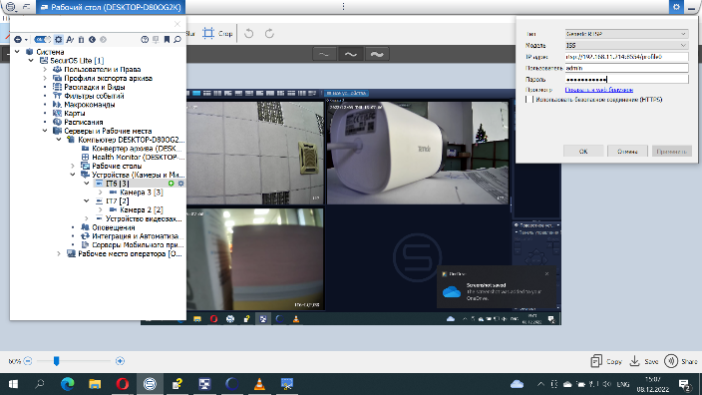
How to upgrade the camera’s firmware version
This FAQ is designed to help users understand how to update the camera’s firmware version and the different update methods.
Method 1: Online Update
Tenda is devoted to constantly improving and innovating products to provide users with a smoother online experience. The device can achieve new functions or more stable performance through firmware upgrades. Upgrade the firmware if a new firmware version is detected.
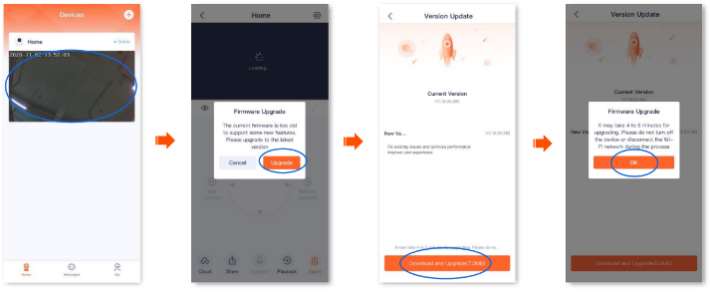
Step 1 Log in to TDSEE App. Tap the specific device on the homepage, which is the camera Home in this example. The firmware upgrade window will pop up if a new firmware version is detected. Tap Upgrade.
Step 2 Tap Download and Upgrade, and tap OK in the pop-up window. The TDSEE App will download the firmware and upgrade automatically. After upgrading successfully, the device will automatically reboot.
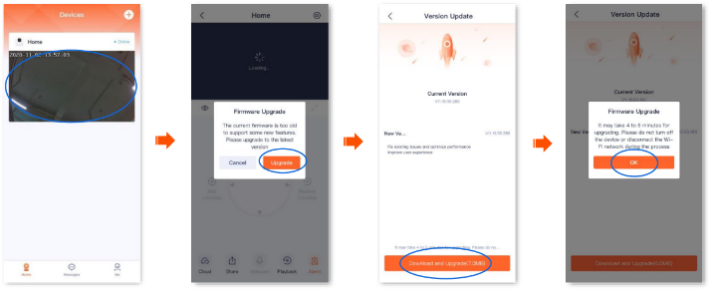
Note: During the upgrade, do not cut off the power or disconnect the device from the internet, otherwise, the upgrade may fail and damage the device.
Method 2: OTA push
Sometimes, due to differences between countries and regions, some countries and regions may not receive the latest push of the camera version in the first place. If users encounter some problems during use, and these problems can only be solved in the new version or users want to have a better experience, users can provide us with the UUID of the camera, and we will push the new version to users in batches or individually via OTA. Users can update the new version online after receiving the push.
Method 3: Upgrading via SD card
If the camera cannot be upgraded online, you can upgrade it using an SD card.
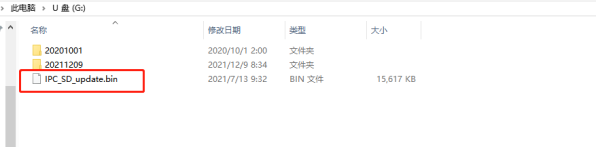
Step 1 Put the upgrade file directly into the root directory of the SD card, as shown below:
Step 2 Insert the SD card into the camera and then power on the camera.
Step 3 After powering on, the camera’s blue light flashes, indicating that the camera is being upgraded.
Step 4 After the upgrade is successful, the device will automatically restart.
How to reset a camera
This FAQ will guide you on how to reset the camera according to different camera models.
Method 1:
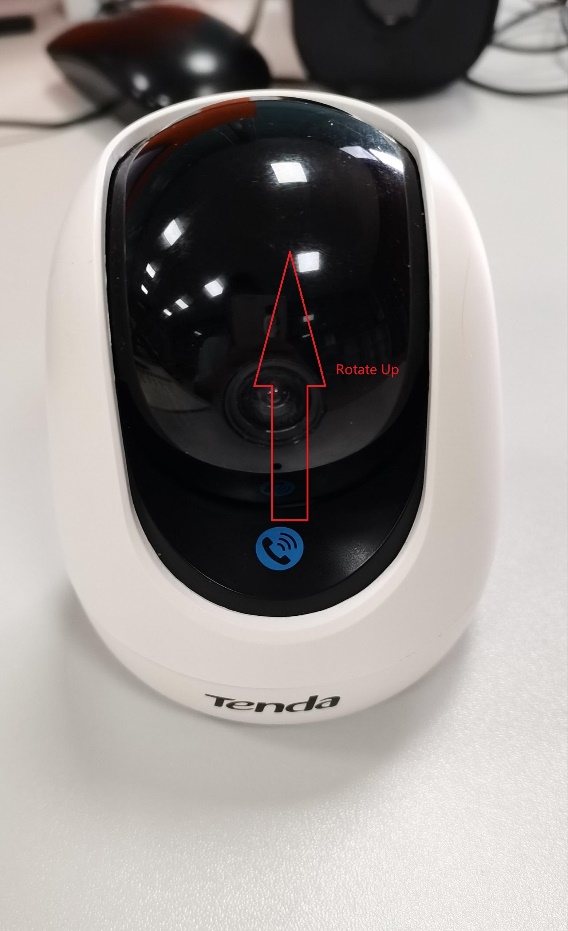
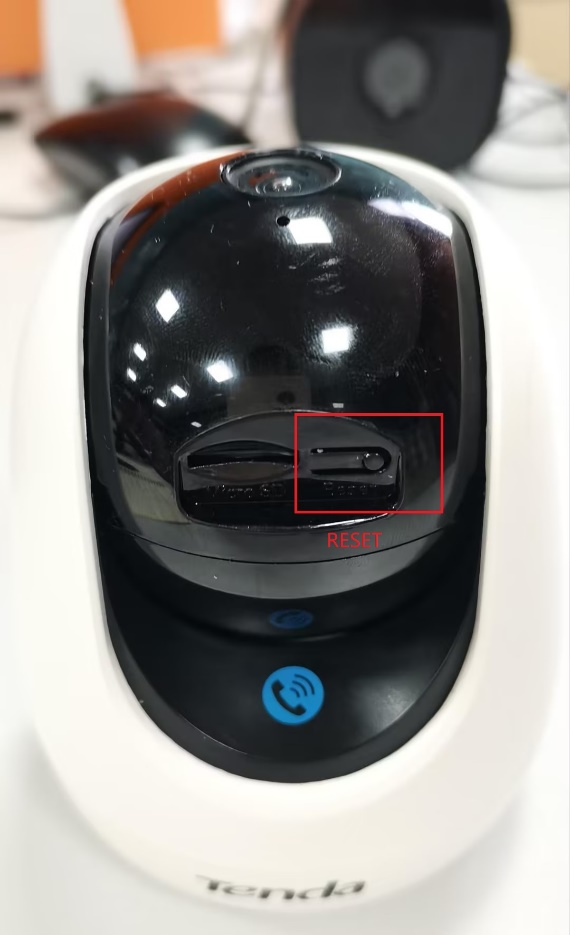
For most SOHO cameras, the reset is usually done by pressing the reset button on the camera lens. Take the CP3 in the picture as an example. Turn the lens upwards and you will see the SD card slot. The reset button is next to the card slot. When you want to reset the camera, keep the camera powered on and press the reset button for about 3 to 5 seconds. When you hear the “Reset Successful” prompt tone, it means the camera has been successfully reset.
Method 2:
If the reset button of the camera is damaged, you can also reset the camera by unbinding the device.
The specific steps are:
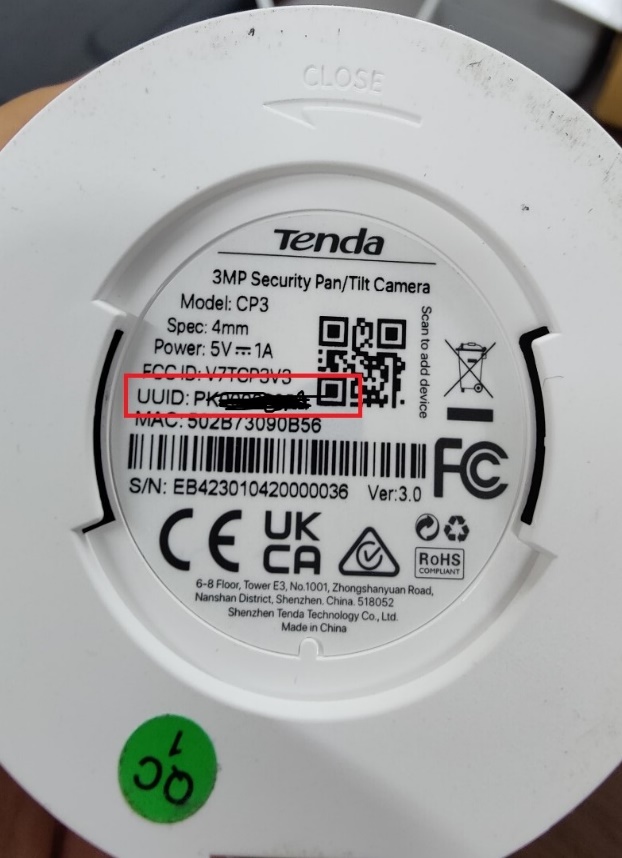
1. Provide the UUID and device registration country of the device to us;
2. We will help you complete the unbinding in the background;
3. After the unbinding is successful, there will be a prompt sound when the device is powered on, indicating that the reset is successful.
The premise of using this method is that the device has been bound to an account.
Method 3:
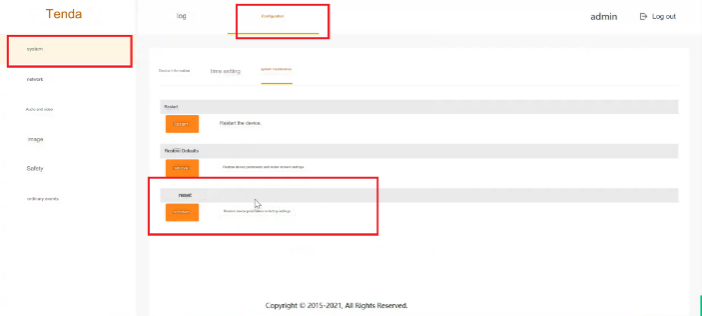
For SMB cameras, such as IC and IT series, there is usually no reset button. For this type of camera, we usually log in to the camera’s web management interface through the IP address, and then reset it in the management interface.
The steps are as follows:
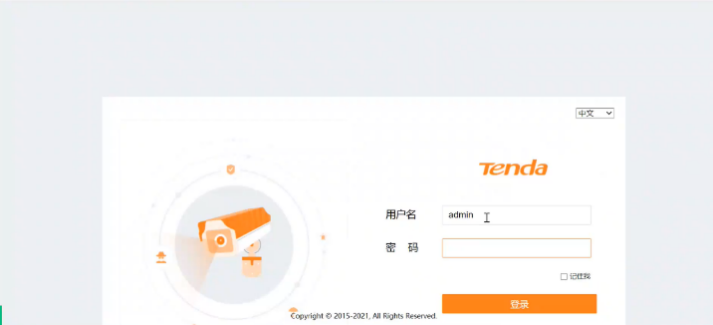
1. Enter the camera’s IP address in the browser address bar;
2. Log in to the web interface (the default password is: admin/admin123456);
3. Enter Configuration-System to reset
How to add a camera to TDSEE APP through QR code for the first time
This FAQ will guide you how to add a camera to the app via a QR code. The following illustrations use CP3 as an example.
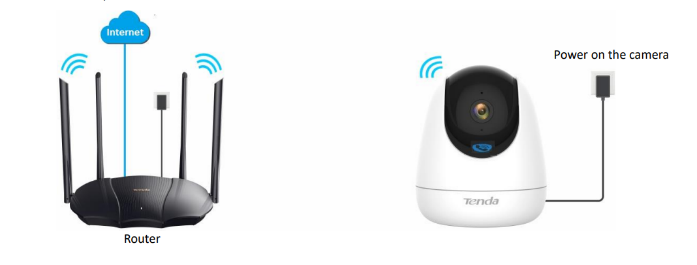
Step 1 Power on the camera.
The LED indicator lights solid red after the camera is powered on. When the LED indicator blinks blue quickly, the camera is waiting to connect to a 2.4 GHz Wi-Fi network.
Assume that the 2.4 GHz Wi-Fi information of the router is:
Wi-Fi name: Tenda_123456
Step 2 Add the camera to TDSEE App
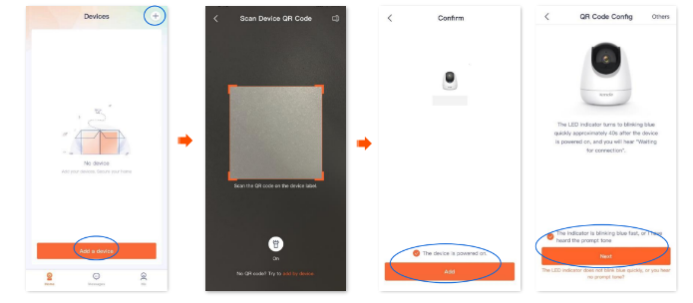
1 Scan the QR code of the camera.
(1) Open the TDSEE App on a smartphone that is connected to the internet. Enter the homepage, and tap Add a device or in the
upper right corner of the homepage.
(2) Scan the QR code on the bottom of the camera.
(3) Confirm and tick The device is powered on. Tap Add.
(4) Confirm and tick The indicator is blinking blue fast, or I have heard the prompt tone, and tap Next.
2 Connect to the router’s Wi-Fi.
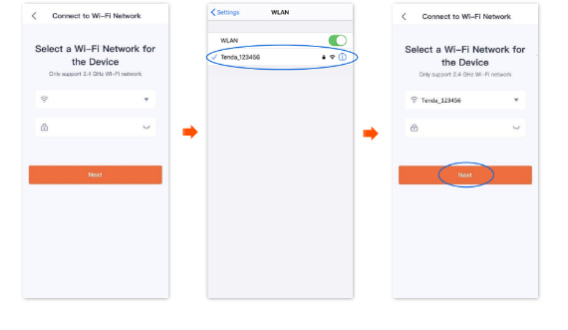
On the WiFi configuration interface, select the 2.4G WiFi you want to connect to, which is Tenda_123456 in this example,enter the password and click Next
3 Camera scans the App’s QR code.
If you do not hear the prompt tone, try the following solutions:
Try moving the smartphone back and forth to adjust the distance between the screen of the smartphone and the camera, and keep each position for about two seconds.
Ensure that the camera lens has no shade or blemishes. Remove the protective film (if any) and try again.
Ensure that the smartphone screen is clear, with no cracks and no reflections.
(1)Align the lens of the camera with the QR code for scanning from 15 to 25 cm.
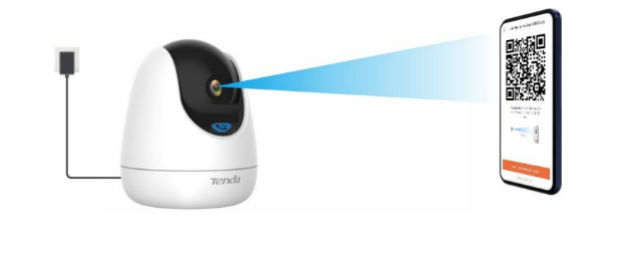
(2)When you hear a prompt tone “Connecting. Please wait”, tap I have heard the prompt tone, then the TDSEE App starts to add the device.
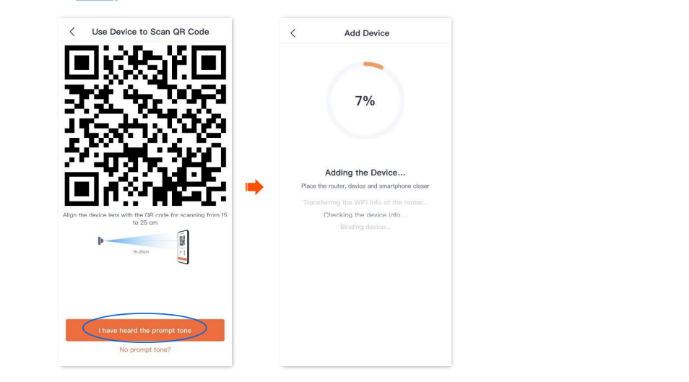
Wait a moment, and the camera is added successfully
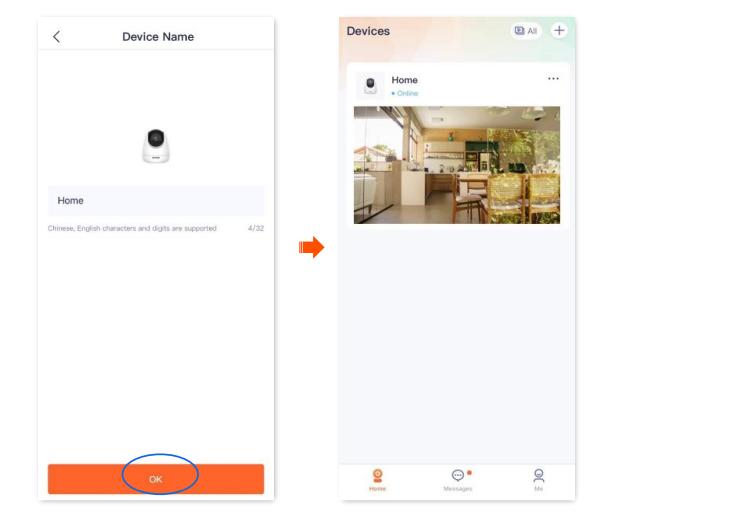
4 Name your camera.
You can name your camera, which is Home in this example. Tap OK.
How to register a TDSEE account
This FAQ is designed to help customers register an account correctly when using TDSEE for the first time. It will also explain several different login methods.
First make sure the smart device you use for setup (such as a smartphone) has internet access.
1.If you do not have a registered account (Example: Email Registration):
Step 1:Open the TDSEE App.
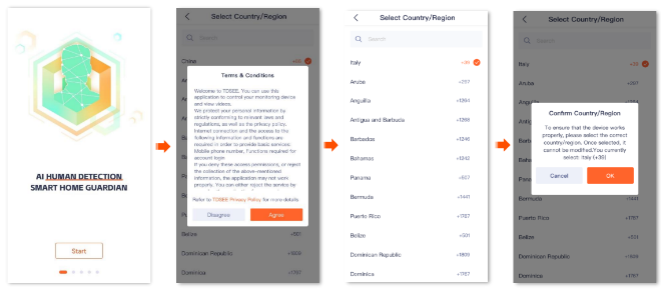
Step 2:Tap Start, read the Terms & Conditions, and tap Agree.
Step 3:Select the region where you are, and tap OK.
Step 4:Tap Register.
Step 5:Select the region where you are, and tap OK.
Step 6:Enter your email address, tick I have read and agree to the TDSEE User Agreement & TDSEE Privacy Policy, and then tap Get Verification Code.
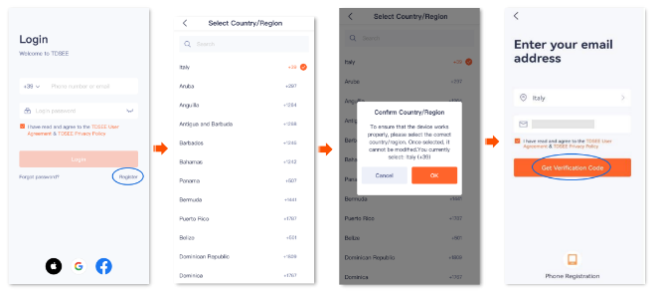
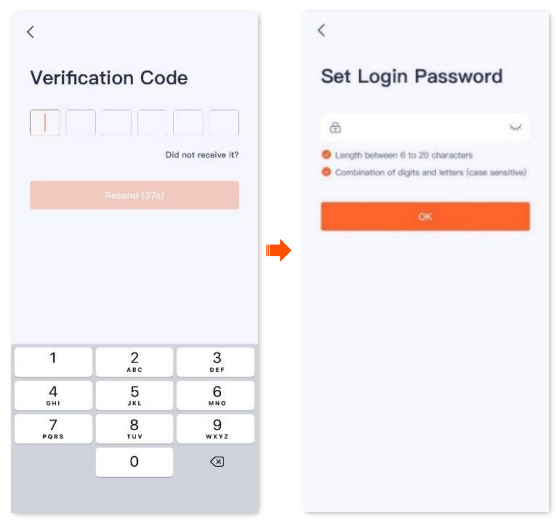
Step 7:Follow the on-screen prompts and enter the Verification Code.
Step 8:Set the login password, and tap OK.
2. If you already have a registered account
Step 1:Open the TDSEE App.
Step 2:Tap Start, read the Terms & Conditions, and tap Agree.
Step 3:Select the region where you are, and tap OK.
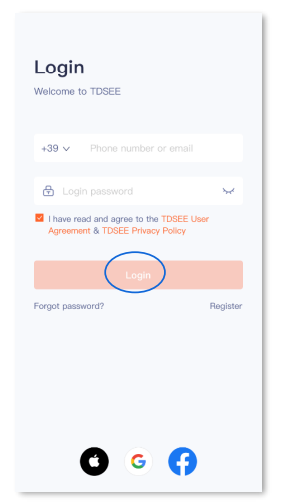
Step 4:Enter the registered smartphone number or email address and password, tick I have read and agree to the TDSEE User Agreement & TDSEE Privacy Policy, and tap Login.
3. Login with the third-party accounts
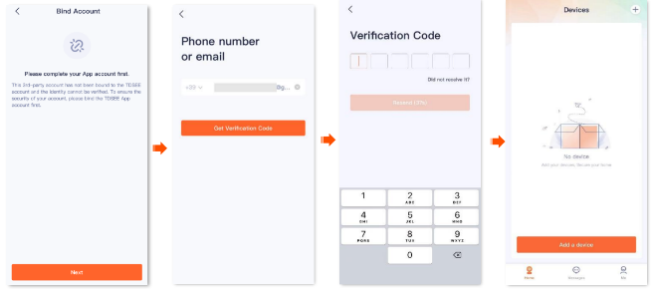
The TDSEE App with version 1.5.0 is used for illustrations here. For TDSEE App v1.5.0 and above, when you authorize a third-party account to log in to TDSEE App, if the third-party account is not bound to the TDSEE App account, you need to bind the third-party account to the TDSEE App account your registered to log in successfully. The third-party accounts may vary from country/region and the operating system of smartphone. The Apple ID is used as an example here.
Tip: Before binding, delete the cameras from the third-party account and add it again after the account is successfully bound.
Step 1:Open the TDSEE App. Tap Start, read the Terms & Conditions, and tap Agree.
Step 2:Select the region where you are, and tap OK.
Step 3:Tick I have read and agree to the TDSEE User Agreement & TDSEE Privacy Policy, tap Apple Icon , authorize your Apple ID account to log in to TDSEE App, and tap Continue. Select the region where you are, and tap OK.
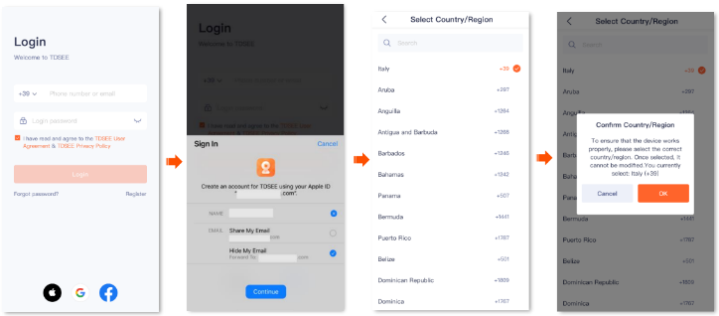
Step 4:Confirm the on-screen prompts and tap Next.
Step 5:Enter the phone number or email used to register the TDSEE APP, tap Get Verification Code, then follow the on-screen prompts and enter the Verification Code. Log in TDSEE APP successfully, and the third-party account is bound to the TDSEE App account.
What should I do if the camera cannot be powered on
What should I do if the camera cannot be powered on?
This FAQ applies to all models of Tenda’s SMB cameras.
Case 1: If you use a power adapter to power on.
Method: Please try changing it to a 12V 1A power adapter with a cable length of about 1 meter. If the camera can start normally, you can replace the previous power adapter or use a short power cable.
Case 2:If you use a POE device to power on.
Method: Please try connecting a single camera to one POE device. If it can be started normally, you can replace the POE power supply device with a higher power or reduce the number of connected cameras.
If the above steps still do not solve your problem, it may be the camera’s hardware failure. Please contact the supplier for exchange or return to the factory for repair.
Why Tenda HTTPS Web Interface Is Detected As Unsecure by Some Web Browsers
Sometimes, we receive some feedbacks which are related to the security issue of Tenda web interface management via HTTPS. When customers enable Local Management via HTTPS option on Tenda router to stay extra safe, some web browsers still report Not Secure when accessing HTTPS Tenda web interface however. This article will explain why this happens with details.
The error message reported by some web browsers for Tenda https web interface would be like the following picture:
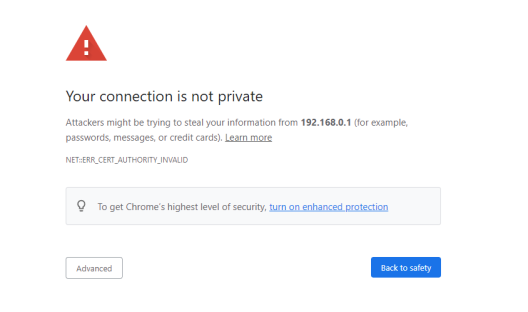
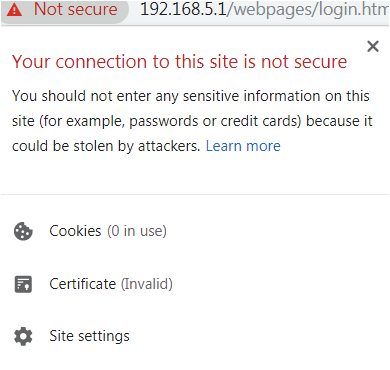
The reason why our browsers recognize tendawifi.com as “insecure” is that tendawifi.com’s Certificate is a self-signed Certificate. Most browsers do not accept this kind of Certificate because tendawifi.com is not an authoritative CA.
However, even if our self-signed Certificate is not trusted, the connection between your browser and the tendawifi.com server is secure.
A Certificate’s purpose is only to allow a client verify an unknown server. It has nothing to do with the encrypted connection. The data transmitted between the browser (client) and tendawifi.com (server) remains safe and encrypted. No one else could decrypt these data except the client and the server.
How to Add Friend in TDSEE App
How to Add Friend in TDSEE App:
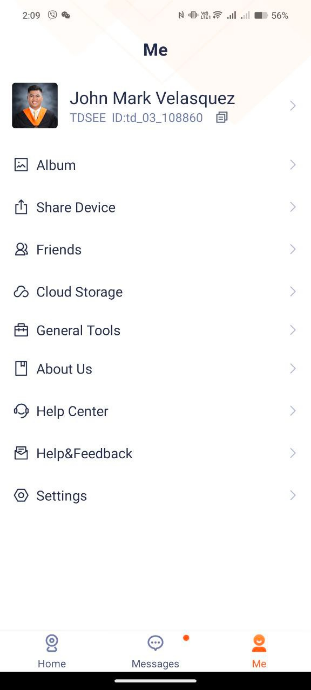
Open the Tenda Security app Click “Me” and choose Friends
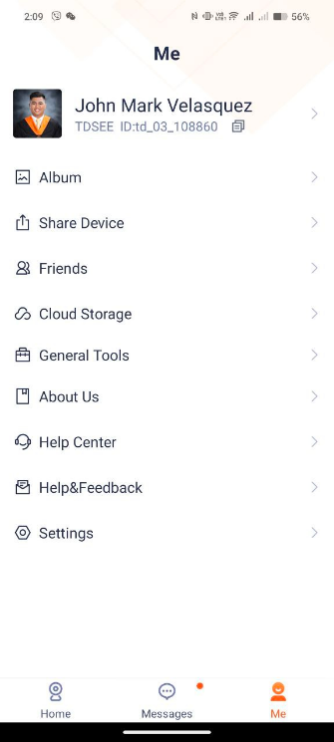

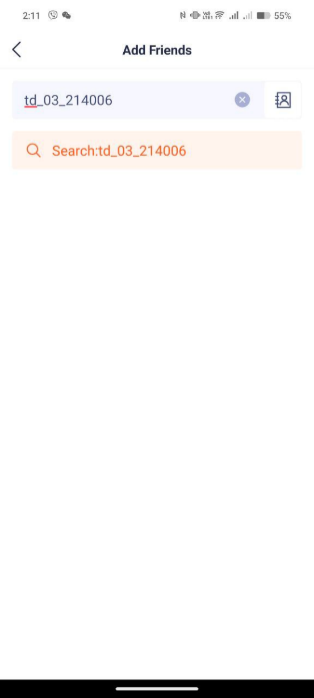
Click “Add” to send friend request from the other user.
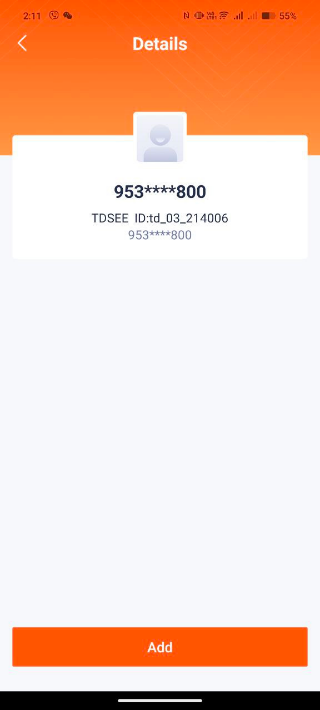
Please note: Make sure that the other user has a verify account of TDSEE App able to send friend request.
How to accept friend request from TDSEE form other users
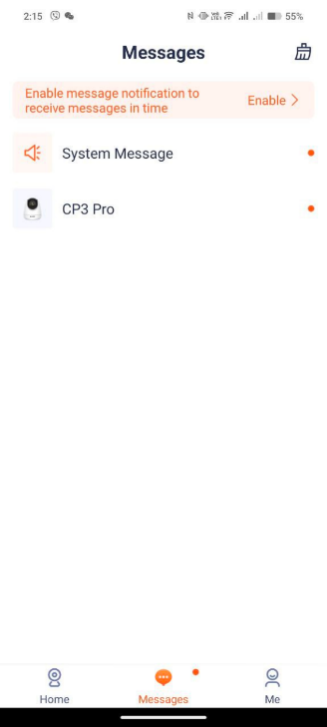
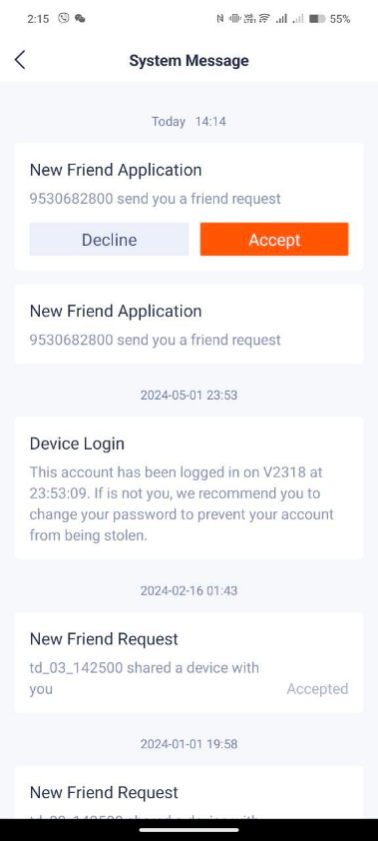
How to accept friend request from TDSEE form other users:
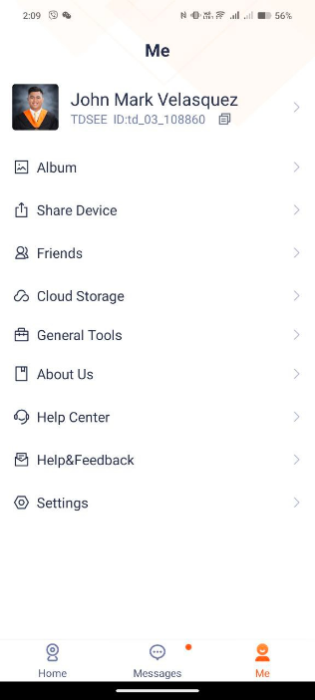
Open the Tenda Security app Click “Messages”
Common troubleshooting issues when CP3 devices keep rebooting
Possible reasons for device restart:
1.Power supply problem
2.SD card compatibility issues
Investigation direction:
1.Inspection on power supply:
(1)Check whether the adapter is original and meets the power supply specifications of the product;
(2)Check whether the power supply has been modified and lengthened (extended)
(3)Check the power supply method. If it is centralized power supply, use relevant tools (such as a multimeter) to measure the power;
(4)Check whether the power supply at the power point is stable;
2.SD card troubleshooting:
(1)Check whether the SD card is a security-specific card and whether the relevant parameters comply with
(2)Check whether there is any improper use of the SD card, causing damage to the SD card (use a card reader to plug into the computer to verify)
What should I do if I failed to add the camera
What should I do if I failed to add the camera?
1.Ensure that the router is connected to the internet successfully.The camera only supports 2.4 GHz Wi-Fi network.When adding the camera,you need to connect the smartphone to a 2.4 GHz Wi-Fi network.
2.Do not hide the Wi-Fi network of the router when adding the camera(After the camera is added successfully,you can hide the Wi-Fi network).
3.Confirm whether the LED indicator of the camera blinks blue quickly.If not,please reset the camera and configure it again.
Reset method:Hold down the Reset button for about 5 seconds and release it when the LED indicator blinks blue quickly or you hear a prompt tone.The camera is reset successfully.
How can I log in to the web Ul of the camera
How can I log in to the web UI of the camera?
1.Connect the computer to the router that is connected to the camera
2.Set the IP address of the computer to an unused one belonging to the same network segment as the IP address of the camera but different from the IP address of the camera.By default,the login IP address of the camera is 192.168.1.203,and the DHCP function is enabled.If there is a DHCP server in the network,the IP address of the camera may be changed.Please refer to the actual IP address assigned to the camera by the DHCP server.
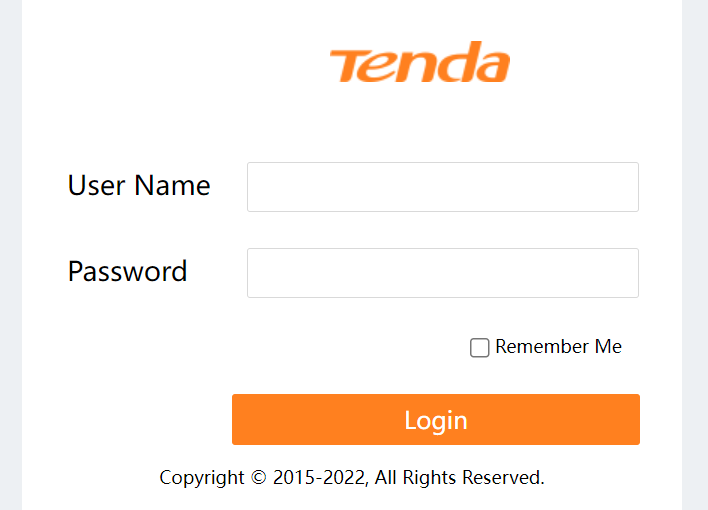
3.Start a browser and enter the IP address of the camera in the address bar to access the login page Enter the Login Username (default:admin)and Login Password(default:admin123456),then click Login.
How to find the hardware version on a Tenda device
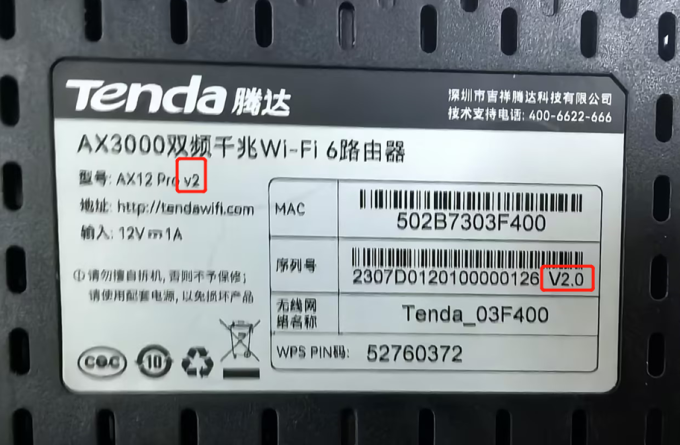
For most of products
Turn over the device so you can see a label on the back or bottom of the unit. Look for a character string next to the serial number, the looks like: “V: X.X”. This is the hardware version of the device.
For products without labels:
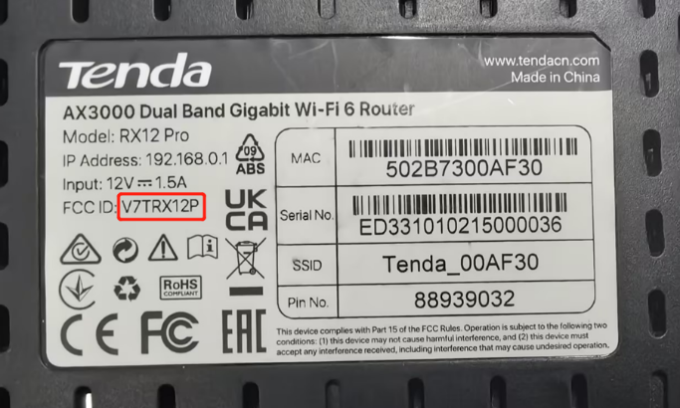
The number at the end of the FCC ID indicates the hardware version. If there is no version number, like V7TRX12P, after the model number, that means it’s version 1.
For products with management interface:
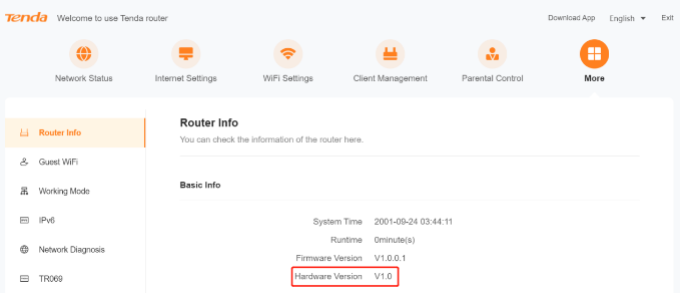
Open a web browser and enter the domain name which can vary between units in the address bar. The address for your device can be found on the label on the back or bottom of the unit.
Below are the official domains currently in use:
Router – http://www.tendawifi.com
Range Extender – http://re.tenda.cn
There is a character string “Ver:X.Y” (for example, Ver:1.0) in the Serial Number field, and the number X is the hardware version of the device. If the string is “Ver: 1.1”, normally it means that the hardware version is V1. Different model has different management interface.
How to reset the camera to factory settings
Long Press the reset button until you hear the “bugu” sound, waitting for the device to restart, then device emit a du-du-du sound. Finally, the red indicator flashes slowly or the device emit voice prompt ” Starting the device” then “Please configure the wireless settings for camera” , the device reset successfully .
For more questions, run Teye APP,  – > MORE – > FAQ->
 , input the device model, then display the device’s FAQ in the search results list.
Tenda C8-How to reset the camera to factory settings