Lorex N910 Series Installation Guides, Update or start your security system with this future-ready 16 camera capable (8 wired + 8 Fusion Wi-Fi) NVR. For the first time, this NVR introduces 12MP recoding capabilities, a revamped Fusion onboarding experience. Along with support for all the latest smart detection, deterrence, and privacy features, this NVR will be a powerful cornerstone for your security ecosystem for years to come.
N910, E910 Series: Using Your Camera’s Warning Lights
This article provides step-by-step instructions on using your camera’s warning lights to deter potential intruders, explaining the process for both the Lorex app and the recorder.
Lorex N910 Series Installation Guide
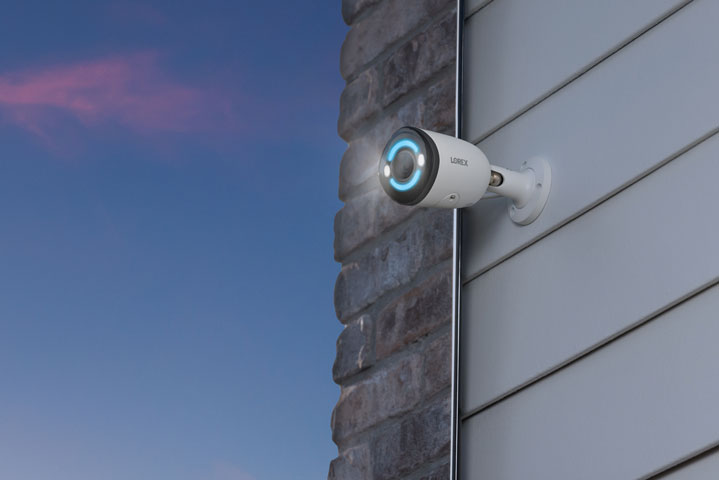
The bright, white warning lights positioned on the front of your IP Wired Security Camera serve as a visible deterrent to potential intruders, enhancing the camera’s effectiveness by warning individuals that they are under surveillance. These lights are designed to discourage unwanted activity and promote a sense of increased security, ultimately helping to prevent or minimize security threats.
Manually Activate Your Camera’s Warning Lights Through the Lorex App
Before you begin: Ensure you have downloaded the Lorex app and successfully connected your system. For detailed instructions, please consult the article “DVR / NVR – Download the Lorex App”.
1.Launch the Lorex app and log in to your account.
2.Swipe left under your recorder and select the desired camera.
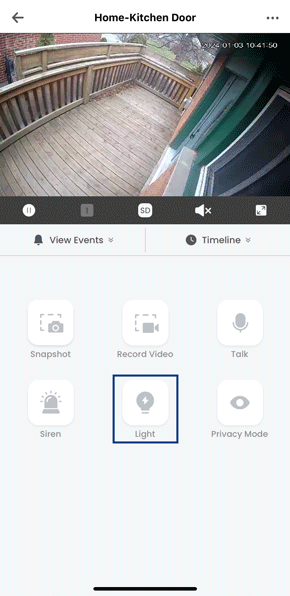
3.Within the Live View display, locate and tap the Light icon.
The warning light will activate for a duration of 10 seconds; tap once more to manually deactivate it.
.
Set Your Camera’s Warning Lights to Activate on Smart Motion Through the Lorex App
Before you begin: Ensure you have downloaded the Lorex app and successfully connected your system. For detailed instructions, please consult the article “DVR / NVR – Download the Lorex App”.
1.Launch the Lorex app and log in to your account.
2.Swipe left under your recorder and select the desired camera.
3.Tap the Device Settings icon (™™™) located in the top right corner of the app.
4.Tap Light Settings > Activate Light on Smart Motion.
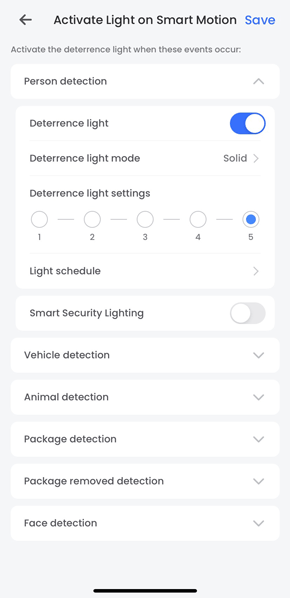
5.Tap the desired Smart Motion detection type, tap

to enable the Deterrence Light, and then customize the light settings:
• Deterrence light mode: Opt for Solid for consistent white lights or Flashing for lights that flash.
• Deterrence light settings: Adjust the brightness level of the lights (from 1 being the lowest to 5 being the highest).
• Light schedule: Tap to edit the lights schedule. Tap the day of the week and select the custom time.
.
Manually Activate Your Camera’s Warning Lights via Your Recorder
Within the Live View display, hover the mouse pointer near the top of your camera’s image to reveal the Camera Toolbar. Click the warning lights icon to activate it, and click again to manually deactivate it.

.
Set Your Camera’s Warning Lights to Activate on Smart Motion via Your Recorder
Note: If the Smart Plan is not correctly enabled on your recorder, the smart motion feature will not function. Prior to proceeding, ensure that you activate the smart motion feature. For more information, consult the article “Change Your Recorder’s Smart Plan”.
1.From the Live View display, right-click to open the Quick Menu, then click Main Menu.
2.Click Events > Event Settings. Click the Person & Vehicle tab from the side panel.
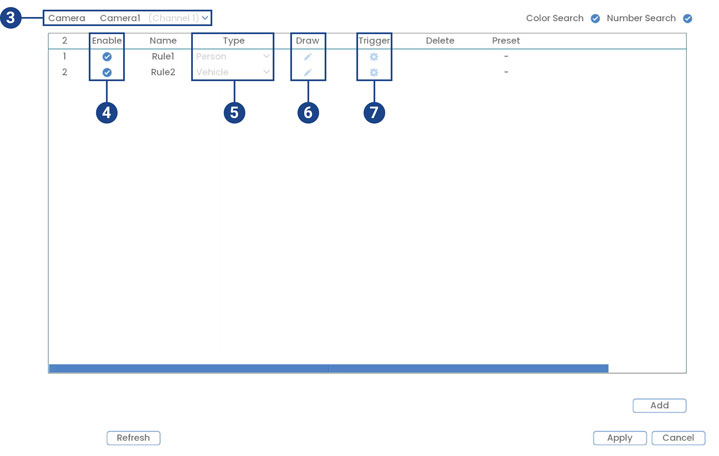
3.Select a camera to configure.
4.Check to enable the detection rule that you want to use.
5.Select between Person or Vehicle detection types.
Note: The initial two smart motion detection rules are automatically included. The detection type for these default rules cannot be changed, and the areas can only be enabled or disabled. Subsequent rules added allow for modification or deletion of all details.
6.Click the Draw icon

and customize the active area for automatic warning light:
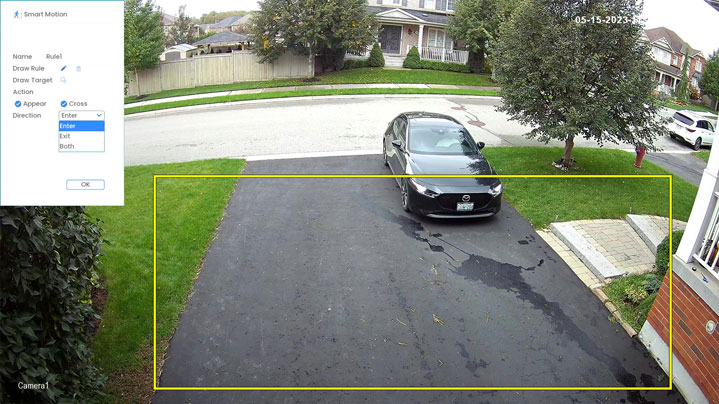
• Name:Click to enter a custom name for the detection area.
◦ Draw Rule: Click-and-drag the corners of the yellow box to resize the area. To create a new bounding box, click the delete icon

to remove the current one, then click on the camera’s live view image and draw a line around the area that you want to monitor. Continue to click to change the direction and then right-click to close the area.
◦ Action: Check Appear to detect if an object of interest appears in the defined area. Check Cross to detect if an object of interest enters or crosses through the defined area. Check both to enable each type of action.
◦ Direction: Determine which direction an object needs to travel in order to trigger automatic deterrence. You can select Enter for movement entering the defined area, or Exit for movement exiting the defined area, or Both for both types of directions.
◦ Click OK when finished.
7.Click the Trigger icon

.
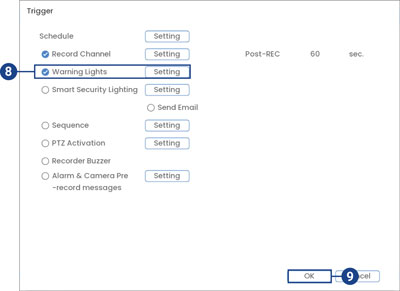
8.Check Warning Lights, and then click Setting.
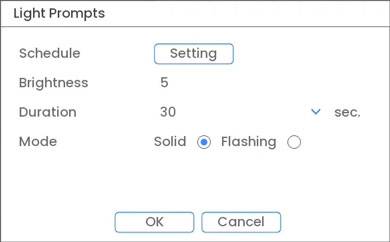
9.Adjust warning lights preferences:
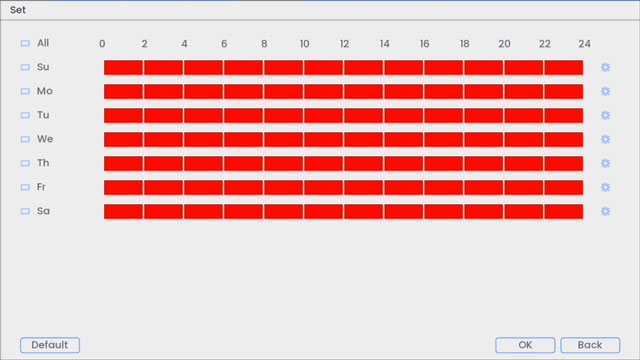
• Schedule: Click Setting choose which days and times or the week to enable automatic warning lights. Click or click-and-drag along each of the red timelines to quickly add or remove time from each day’s schedule in 30minute segments.
• Brightness: Set the warning lights brightness level.
• Duration: Choose how long the warning light will stay on following a smart motion detection event.
• Mode: Select Solid for solid white lights or Flashing for flashing lights. If you select Flashing, set how quickly the lights will flash under Flashing Frequency.
11.Click Add to create additional active areas for automatic warning lights on.
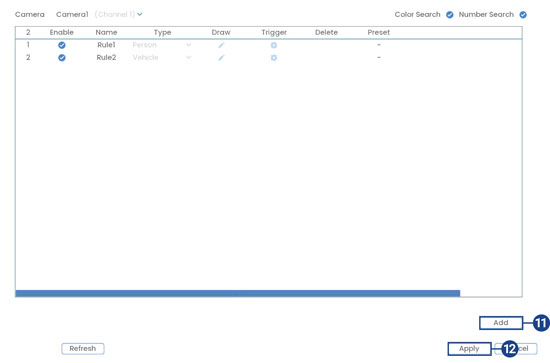
12.Click Apply to save changes.
.
Activate All Siren and Warning Lights on All Cameras via Your Recorder (Panic Button)
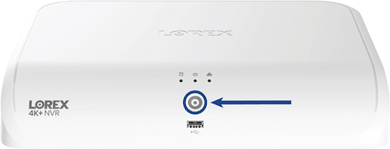
Hold the info/panic button for 3 seconds to activate sirens and warning lights on all connected deterrence cameras; they will automatically deactivate after 10 seconds.
.
For detailed instructions on configuring your system, refer to your recorder’s Series Manual on the product support page. Visit help.lorextechnology.com and search your recorder’s model number.
N910, E910 Series: Using Your Camera’s Siren
The following article provides both Lorex App and recorder instructions for using your IP wired camera’s siren..
Manually Activate Your Camera’s Siren Through the Lorex App
Before you begin: Ensure you have downloaded the Lorex app and successfully connected your system. For detailed instructions, please consult the article “DVR / NVR – Download the Lorex App”.
1.Launch the Lorex app and log in to your account.
2.Swipe left under your recorder and select the desired camera.
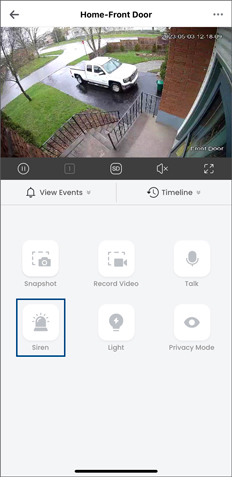
3.Within the Live View display, locate and tap the Siren icon.
The siren will activate for a duration of 10 seconds; tap once more to manually deactivate it.
.
Manually Activate Your Camera’s Siren via Your Recorder
Within the Live View display, hover the mouse pointer near the top of your camera’s image to reveal the Camera Toolbar. Click the siren icon to activate it, and click again to manually deactivate it.

.
Customize Your Camera’s Siren Settings via Your Recorder
Select between different siren options for your camera.
To configure the siren: 1. From the Live View display, right-click to open the Quick Menu, then click Main Menu. 2. Click Events, then Event Settings. Click the Siren tab from the side panel.
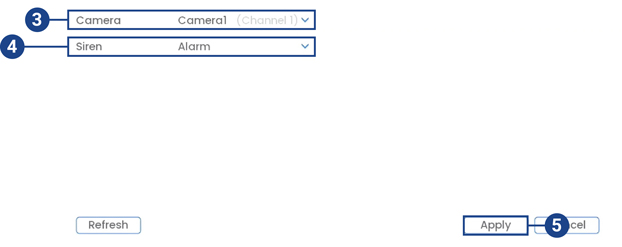
3.Select a camera you want to configure.
4.Select one of the siren options from the drop-down list.
5.Click Apply to save changes.
.
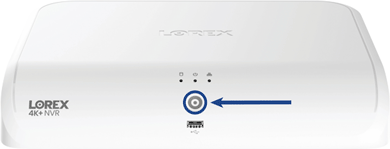
Activate All Siren and Warning Lights on All Cameras via Your Recorder (Panic Button)
Hold the info/panic button for 3 seconds to activate sirens and warning lights on all connected deterrence cameras; they will automatically deactivate after 10 seconds.
.
For detailed instructions on configuring your system, refer to your recorder’s Series Manual on the product support page. Visit help.lorextechnology.com and search your recorder’s model number.
N910, E910 Series: Using Your Camera’s Smart Security Lighting
This article provides instructions for how to use the Smart Security Lighting feature on your IP wired deterrence cameras through both the Lorex App and your recorder.
.
Certain Lorex IP wired deterrence cameras have a built-in, vibrant Smart Security Lighting positioned on the front of the camera. This feature allows users to customize different colored lighting modes or synchronize it with smart motion detection settings.
Smart Security Lighting is available on certain Lorex IP wired deterrence cameras. To view a list of cameras with Smart Security Lighting, please refer to the Product Compatibility Chart.

Customize Smart Security Lighting Through the Lorex App
Set Your Camera’s Smart Security Lighting Mode
Before you begin: Ensure you have downloaded the Lorex app and successfully connected your system. For detailed instructions, please consult the article “DVR / NVR – Download the Lorex App”.
1.Launch the Lorex app and log in to your account.
2.Swipe left under your recorder and select the desired camera.
3.Tap the Device Settings icon (™™™) located in the top right corner of the app.
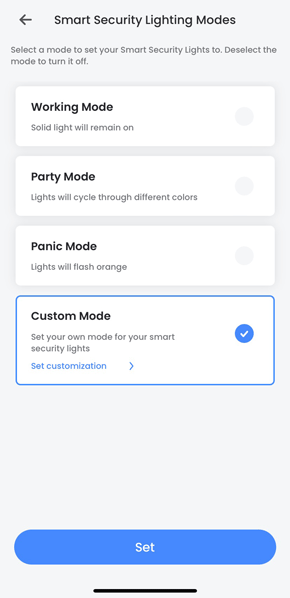
4.Tap Light Settings > Smart Security Lighting Modes.
5.Select a mode to set your Smart Security Lighting to. Personalize Smart Security Lighting by selecting your own colors in Custom Mode.
To turn Smart Security Lighting Off: Deselect the mode and tap Save.
.
Activate Smart Security Lighting on Smart Motion
Before you begin: Ensure you have downloaded the Lorex app and successfully connected your system. For detailed instructions, please consult the article “DVR / NVR – Download the Lorex App”.
1.Launch the Lorex app and log in to your account.
2.Swipe left under your recorder and select the desired camera.
3.Tap the Device Settings icon (™™™) located in the top right corner of the app.
4.Tap Light Settings > Activate Light on Smart Motion.
5.Tap the desired Smart Motion detection type, tap

to enable the Smart Security Lighting, and then customize the light settings:
• Light color: Tap the red circle, set a custom color, then click Save.
• Deterrence light mode: Opt for Solid for a consistent light or Flashing for a light that flashes.
• Deterrence light settings: Adjust the brightness level of the light (from 1 being the lowest to 5 being the highest).
• Light schedule: Tap to edit the light schedule. Tap the day of the week and select the custom time.
To turn Smart Security Lighting Off: Disable Smart Security Lighting and tap Save.
.
Customize Smart Security Lighting via Your Recorder
.
Set Your Camera’s Smart Security Lighting Mode
1.Right-click on the Live View display to access the Quick Menu, then proceed to click on Main Menu.
2.Navigate to Events > Event Settings and click on the Smart Security Lighting tab located in the side panel.
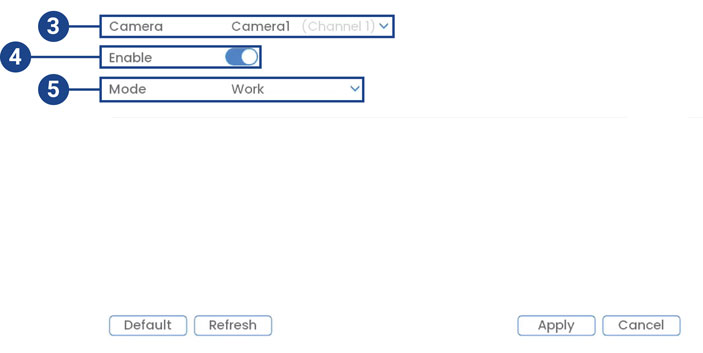
3.Choose the camera you want to configure.
5.Under Mode, choose from various lighting modes or customize colors in Custom.
6.(Optional) Adjust Custom mode preferences:
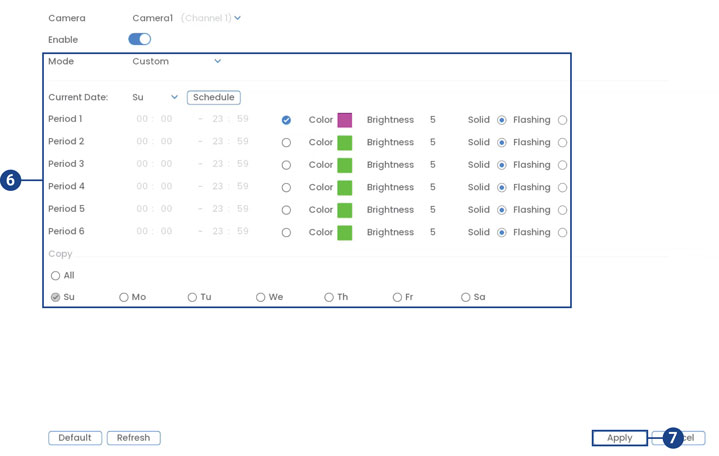
• Current Date: Select the weekday from the drop-down menu and then click Schedule to choose the times of the week to enable Smart Security Lighting.
• Period (16): Choose the time that Smart Security Lighting will be active.
• Color: Click on the green color box to open the color settings. Set a custom color by clicking through the rainbow color palette, then click OK to select the color.
• Brightness: Set the brightness level.
• Select Normal for a solid light or Flashing for a flashing light.
• Copy: Copy your preferences onto other weekdays or All.
7.Click Apply to save changes.
• Current Date: Pick the weekday, then click Schedule to set times for Smart Security Lighting.
• Period (16): Choose the time that Smart Security Lighting will be active.
• Color: Click the green box, set a custom color by clicking through the rainbow color palette, then click OK.
• Brightness: Adjust brightness.
• Select Normal for a solid light or Flashing for a blinking light.
• Copy: Duplicate preferences for other days or All.
.
Activate Smart Security Lighting on Smart Motion
1.Right-click on the Live View display to access the Quick Menu, then proceed to click on Main Menu.
2.Navigate to Events > Event Settings and click on the Person & Vehicle tab located in the side panel.
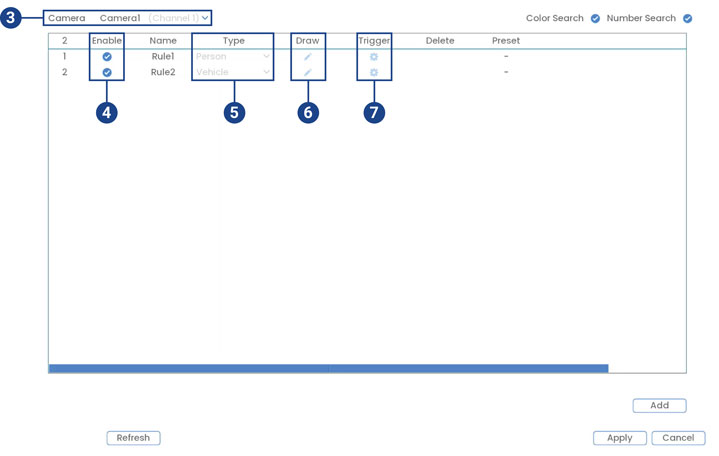
3.Choose the camera you want to configure.
4.Enable the desired detection rule by checking the corresponding box.
5.Select between Person or Vehicle detection types.
Note: The initial two smart motion detection rules are automatically included. The detection type for these default rules cannot be changed, and the areas can only be enabled or disabled. Subsequent rules added allow for modification or deletion of all details.
6.Click the Draw icon

and customize the active area for automatic Smart Security Lighting:
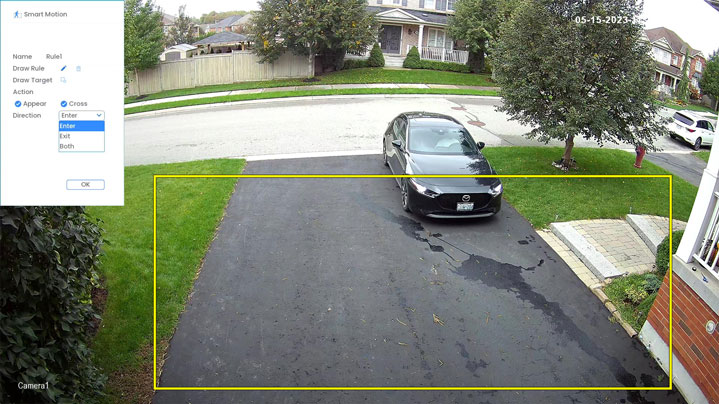
• Name: Click to enter a custom name for the detection area.
• Draw Rule: Resize or create a new bounding box by clicking and dragging. Use the delete icon

to remove the current box. Draw a line around the monitoring area on the live view image and then right-click to close the area.
• Action: Check Appear for detecting objects appearing in the area, and Cross for objects entering or crossing through. Enable both for each action.
• Direction: Specify the direction an object must travel to trigger automatic deterrence. Choose Enter for movement entering the defined area, Exit for movement exiting the area, or Both for both directions.
• Click OK to save.
7.Click the Trigger icon

.
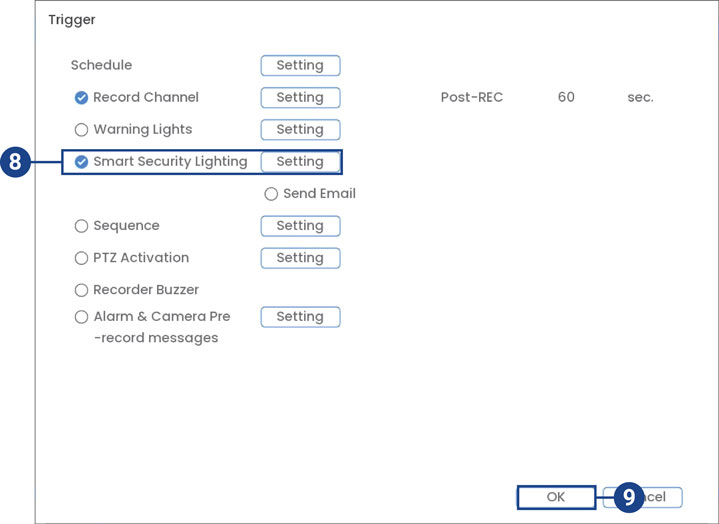
8.Check Smart Security Lighting, and then click Setting.
9.Adjust Smart Security Lighting preferences:
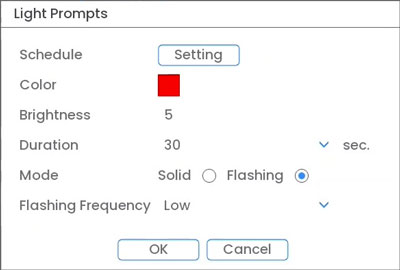
◦ Schedule: Click Setting choose which days and times or the week to enable automatic warning lights. Click or click-and-drag along each of the red timelines to quickly add or remove time from each days schedule in 30minute segments.
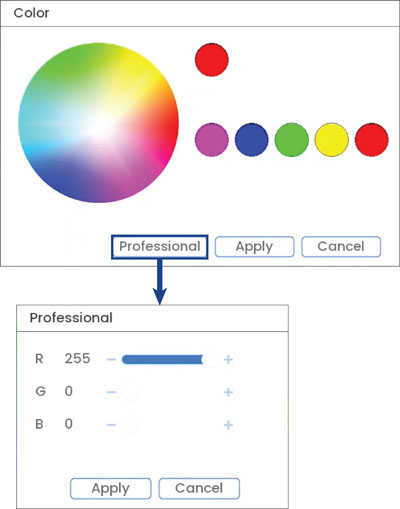
◦ Color: Click on the red color box to open the color settings. Set a custom color by clicking through the rainbow color palette or click Professional to enter an RGB code. Click Apply to save the color.
10.
◦ Brightness: Set the Smart Security Lighting brightness level.
◦ Duration: Choose how long the Smart Security Lighting will stay on following a smart motion detection event.
◦ Mode: Select Solid for a solid light or Flashing for a flashing light. If you select Flashing, set how quickly the light will flash under Flashing Frequency
12.Click Add to create additional active areas for automatic Smart Security Lighting on the selected channel
13.Click Apply to save changes.
.
Turn Smart Security Lighting Off
1.From the Live View display, right-click to open the Quick Menu, then click Main Menu.
2.Click Events > Event Settings, and then click the Smart Security Lighting tab from the side panel.
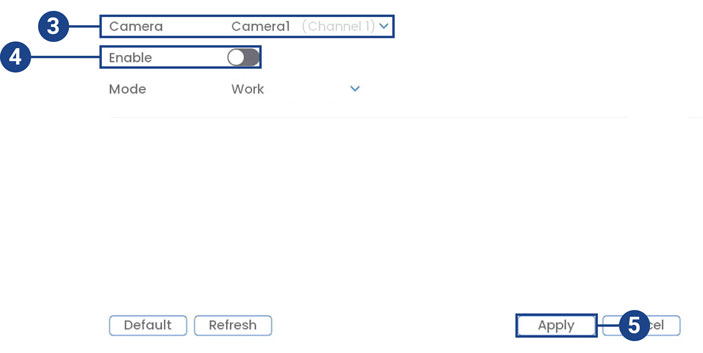
3.Select a camera to configure.
5.Click Apply to save changes.
N910 Series – 4K+ Ultra HD 12MP 16 Camera Capable NVR: Person & Vehicle Detection
The following article provides both Lorex App and recorder instructions for using Person and Vehicle Detection on your IP security cameras.
.
The system supports detection of people and vehicles with compatible IP cameras only. This helps deliver more relevant notifications when using the Lorex App for remote viewing.
You can also link the warning lights, sirens, and more to person and vehicle detection on compatible Lorex deterrence cameras for an added level of smart security.
Ensuring Accurate Person Detection
The following are important camera installation notes to ensure accurate person detection. Refer to the documentation that came with your camera or search for your camera model number at lorex.com for full mounting instructions.
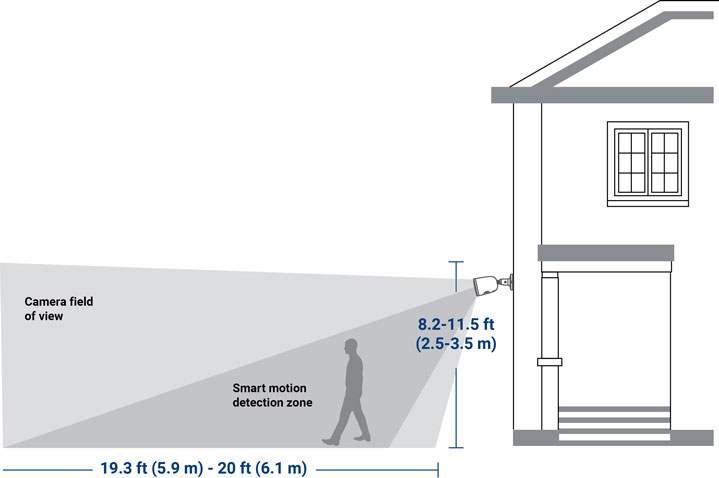
Person Detection
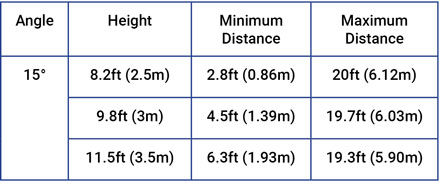
• Angle the camera so that objects of interest appear in the bottom 2/3 of the camera image.
• Choose a location where objects of interest will be no further than 20 ft (6.1 m) from the camera.
• Angle the camera 15 ° down from the level position.
• Install the camera between 8.2-11.5 ft (2.5-3.5 m) off of the ground.
Accuracy of person detection will be influenced by multiple factors, such as: * The object’s distance from the camera. * The size of the object. * The height and angle of the camera.
Night vision will also impact the accuracy of detection.
.
Ensuring Accurate Vehicle Detection & Number Search
The following are important camera installation notes to ensure accurate vehicle detection. Refer to the documentation that came with your camera or search for your camera model number at lorex.com for full mounting instructions.
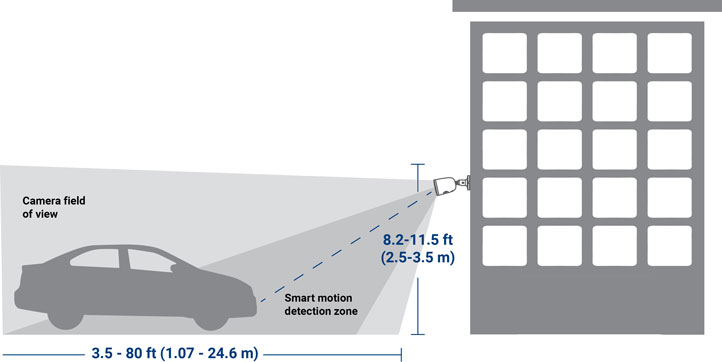
Vehicle Detection
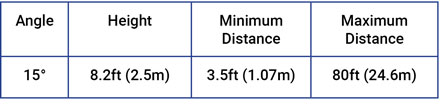
• Angle the camera so that objects of interest appear in the bottom 2/3 of the camera image.
• Choose a location where objects of interest will be no further than 20 ft (6.1 m) from the camera.
• Angle the camera 15 ° down from the level position.
• Install the camera between 8.2-11.5 ft (2.5-3.5 m) off of the ground.
• Install your camera in a focused area where you can accurately predict vehicle movement, speed, and position.
• Good examples of focused areas include a parking lot entrance/exit, an alleyway, a driveway, or a road.
• Position your camera to view license plate numbers perpendicularly (as close to straight on as possible) with clear visibility of the plates passing through.
Accuracy of person detection will be influenced by multiple factors, such as: * The object’s distance from the camera. * The size of the object. * The height and angle of the camera.
Night vision will also impact the accuracy of detection.
.
Configuring Person & Vehicle Detection
The system allows you to monitor for smart motion events and differentiate between person, vehicle, and animal shapes. Adjust preferences for person, vehicle, and/or animal detection per channel.
Important: If a Smart Plan is not enabled properly on your camera, the Smart Motion feature will not work. Please make sure to enable the Smart Motion feature before continuing, see Change Your Recoder’s Smart Plan.
To configure person & vehicle detection: 1. From the Live View display, right-click to open the Quick Menu, then click Main Menu. 2. Click Events, then Event Settings. Click the Person & Vehicle tab from the side panel. 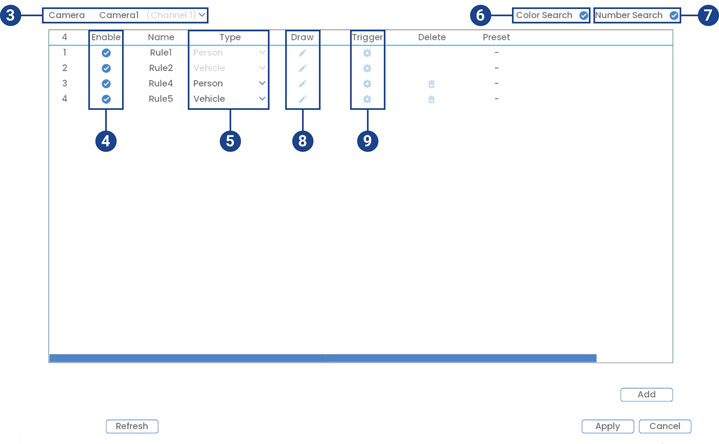
3.Select a camera to configure.
4.Check to enable the person & vehicle detection rules that you want to use.
5.Select between Person or Vehicle detection types.
Important: The first two person & vehicle detection rules were added by default. The detection type for the two default rules cannot change and the areas can only be enabled or disabled. All details from rules added after can be changed or deleted.
6.Check to enable Color Search. The system can search through recorded detection events for certain colors on a person or vehicle. For details on searching color, see 16.5 Searching for Colors (Smart Search), page 72.
7.Check to enable Number Search. The system can search through recorded detection events for numbers on vehicle license plates. For details on searching for numbers, see 16.6 Searching for Numbers on Vehicle License Plates (Smart Search), page 73.
8.Click the Draw icon

and customize the active area for animal detection:
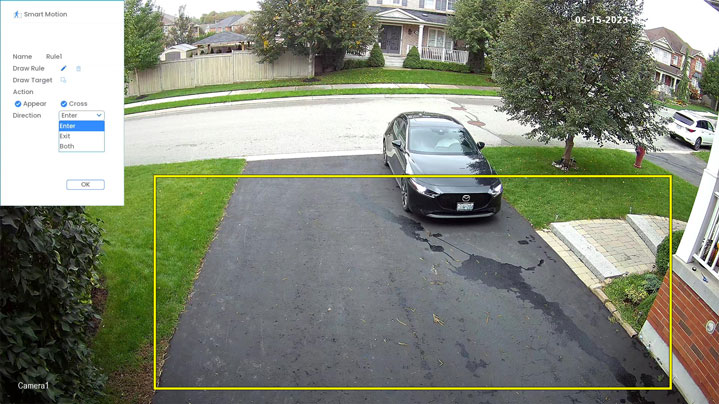
• Name: Click to enter a custom name for the detection area.
• Draw Rule: Click-and-drag the corners of the yellow box to resize the area. To create a new bounding box, click the delete icon

to remove the current one, then click on the camera’s live view image and draw a line around the area that you want to monitor. Continue to click to change the direction and then right-click to close the area.
• Action: Check Appear to detect if an object of interest appears in the defined area. Check Cross to detect if an object of interest enters or crosses through the defined area. Check both to enable each type of action.
• Direction: Determine which direction an object needs to travel in order to trigger automatic deterrence. You can select Enter for movement entering the defined area, or Exit for movement exiting the defined area, or Both for both types of directions.
• Click OK when finished.
9.Click the Trigger icon

to adjust how the system will react to person & vehicle detection.
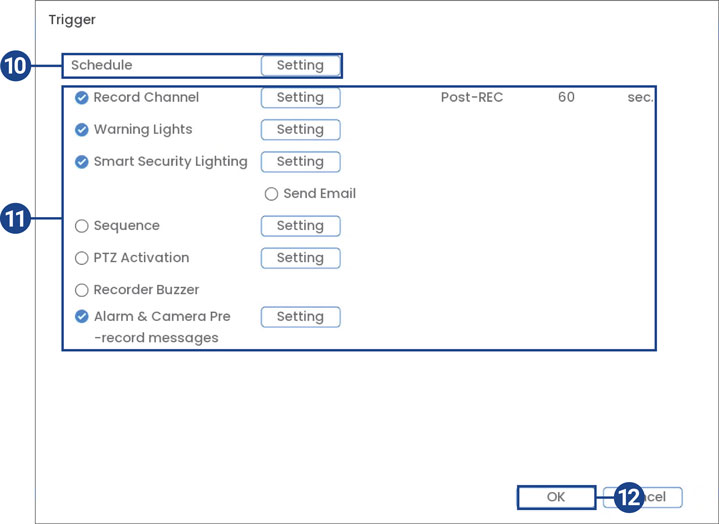
10.Click Setting next to Schedule to choose which days and times of the week to enable person & vehicle detection.
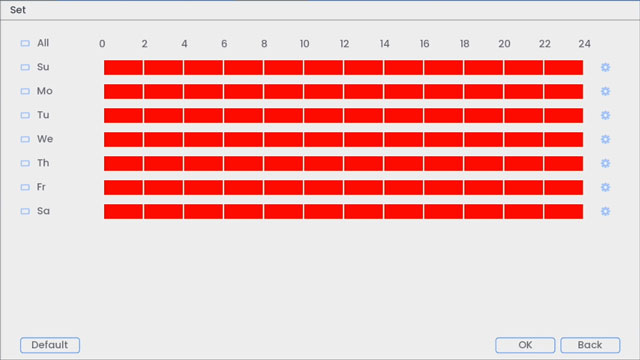
• Click or click-and-drag along each of the red timelines to quickly add or remove time from each day’s schedule in 30minute segments.
• Click

beside 2 or more days to link schedules (

). This allows you to quickly change multiple schedules at once.
• To make fine adjustments to a schedule, click

. This will allow you to set exact start and end times for a schedule.
• Click OK when finished.
11.Choose how the system will react to smart motion detection:
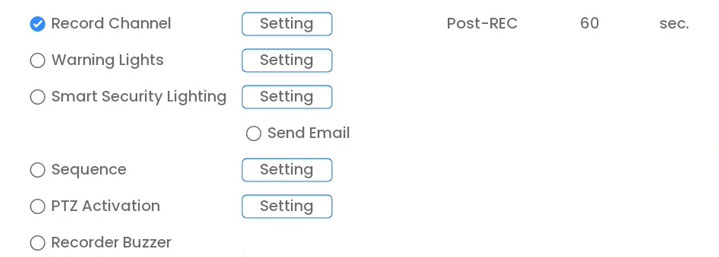
• Record Channel: Select the cameras that will record when a person & vehicle is detected. Set the length of recording following a person & vehicle detection event in the Post-REC field.
• Warning Lights: Check to enable warning lights. Click Setting to change the warning light mode to Flashing or choose how long the warning light will stay on following a person & vehicle detection event. To learn more, see 14.1.1 Smart Motion Activated Warning Lights, page 50.
• Smart Security Lighting: Check to enable Smart Security Lighting. Click Setting to select a custom color or choose how long the light will stay on following a smart motion detection event. Click on the red color box to open the custom color settings. To learn more, see 14.1.3 Smart Motion Activated Smart Security Lighting, page 56.
• Sequence: Sequence mode will begin. Select the numbered tiles next to this option to include the corresponding cameras in the sequence.
• Send Email: Check to enable email alerts. You must configure email alerts before you will be able to receive them, see 26.6.5 Configuring Email Alerts, page 132.
• PTZ Activation: Set connected PTZ cameras to start a tour, pattern, or go to a preset location.
• Recorder Buzzer: Check to enable the system buzzer.
• Alarm & Camera Pre-record Messages: Check to enable alarm & camera pre-record messages. Click Setting to select a pre-recorded voice message or alarm sound. Choose how many times the prompt will play following a person & vehicle detection event. To learn more, see 14.1.2 Smart Motion Activated Alarm & Camera Pre-record Messages, page 53.
13.Click the Delete icon

to remove the rule.
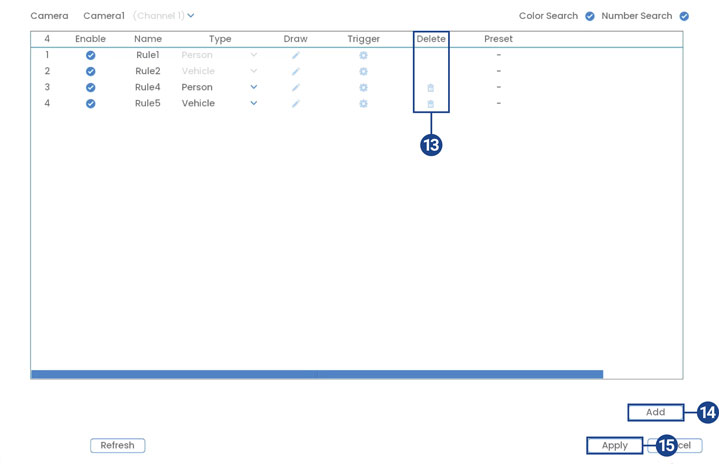
14.Click Add to create additional active areas for person and vehicle detection.
15.Click Apply to save changes.
.
Searching for Person & Vehicle Detection (Smart Search)
Smart Search lets you filter recorded video to search for person and/or vehicle detection events.
Important: In order to use Smart Search, you must configure at least one camera’s smart detection settings. See Person and Vehicle Detection for full instructions.
To perform a Smart Search: 1. From the Live View display, right-click to open the Quick Menu, then click Smart Search. 2. Click the Person & Vehicle tab from the side panel.
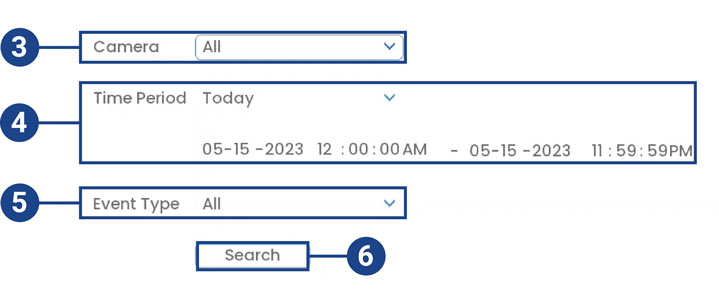
3.Select a camera to search for detection events from, or select All.
4.Select the time period for your search, then enter the start and end time.
5.Select the type of smart motion detection for your search, or select All.
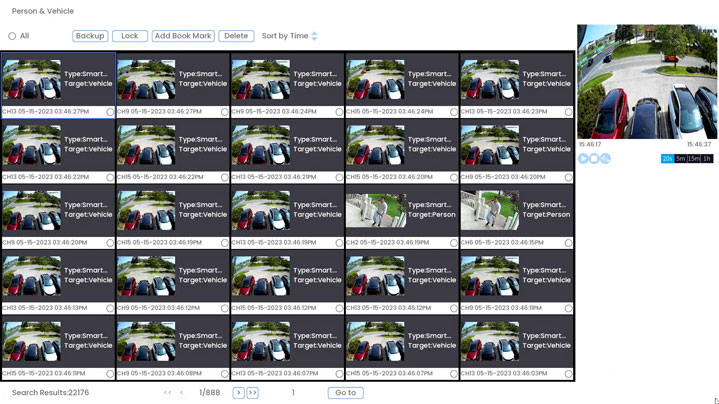
7.Events that match your search criteria are displayed. You now have the following options:
• Click a thumbnail to preview the event. Double-click the preview window to view in full screen.
• Check thumbnails to perform other actions:
◦ Backup: Back up events.
◦ Add Book Mark: Bookmark events.
.
Configuring Active View
Track motion that is detected by following and zooming in on the moving object.
To configure the active view settings:
1.From the Live View display, right-click to open the Quick Menu, then click Main Menu.
2.Click Events, then Event Settings. Click the Motion tab from the side panel, then Active View from the top panel.
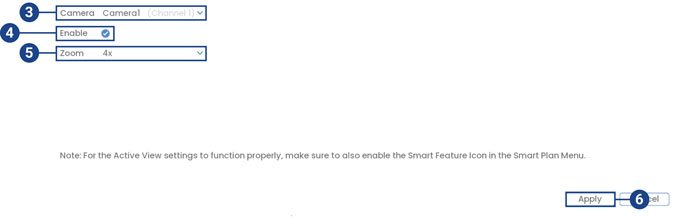
3.Select a camera to configure active view for.
4.Check to enable active view.
5.Click to select the zoom setting between 2x, 4x, 6x, or 8x.
6.Click Apply to save changes.
.
Configuring Person and Vehicle Detection in the Lorex App
The following steps are applicable to the Lorex App.
1.Tap

above the recorder’s thumbnail.
3.Tap the ellipses (…) in the top right corner of the app.
4.Tap Motion Detection Settings.
5.Tap

to enable Person Detection or Vehicle Detection.
7.Tap the Motion Zones™ to set up the detection area:
 This will take you to a new screen where you can shrink, stretch, or reposition your Person and Vehicle Motion Zones™ as needed. For full instructions on how to set customized Motion Zones™, refer to “Configure Motion Zones™”.
N910 Series – 4K+ Ultra HD 12MP 16 Camera Capable NVR: Face Detection
The following article helps you detect and capture faces in the camera’s field-of-view while triggering alarms and/or notifications.
.
Caution: Facial recording without consent is illegal in certain jurisdictions. Lorex Technology does not assume liability for any use of its product that fails to conform with local laws.
Face Detection is compatible with certain Lorex IP cameras. For a complete list of compatible cameras, navigate to your recorder series at Product Compatibility Chart.
Ensuring Face & Mask Detection Accuracy
The following are important camera installation notes to ensure accurate Face Detection. For full camera mounting instructions, see your camera’s documentation at lorex.com.
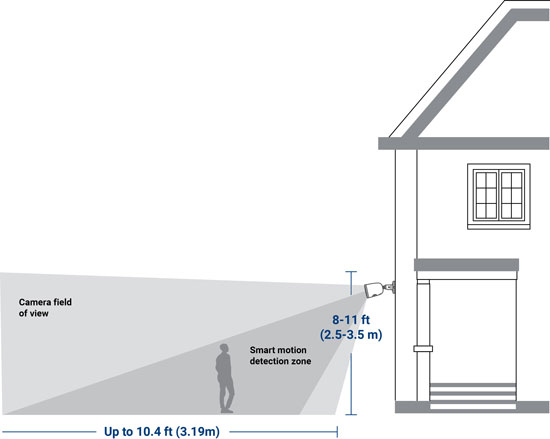
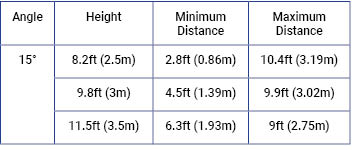
• Install in a bright area and avoid facing direct sunlight with strong backlights and dark shadows.
• Choose a location where objects of interest will be no further than 10.4 ft (3.19 m) from the camera.
• Position the camera about 9.8 ft (3 m) off the ground to detect the full proportion of a face.
• Angle the camera around 15° down from the level position.
• Point the camera directly where objects of interest will be facing.
.
Configuring Face Detection
The face detection option cannot be used simultaneously with other smart plans. Make sure you have disabled all other smart plans to enable the Face Detection feature. To enable face detection in smart plan settings, see Change Your Recorder’s Smart Plan
The system allows you to monitor for face events. Select channels that you want to enable face detection on and adjust preferences.
To configure face detection: 1. From the Live View display, right-click to open the Quick Menu, then click Main Menu. 2. Click Events, then Event Settings. Click the Face Detection tab from the side panel.
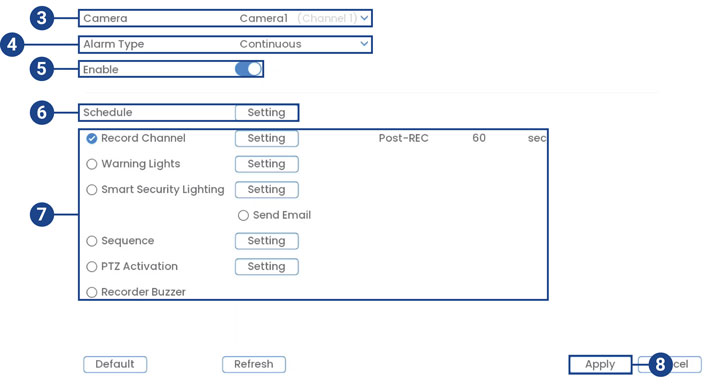
3.Select a camera to configure.
5.Check to enable face detection on the selected channel.
6.Click Setting next to Schedule to choose which days of the week to enable face detection:
◦ Click or click-and-drag along each of the red timelines to quickly add or remove time from each day’s schedule in 30minute segments.
• Click

beside 2 or more days to link schedules (

). This allows you to quickly change multiple schedules at once.
• To make fine adjustments to a schedule, click

. This will allow you to set exact start and end times for a schedule.
• Click OK when finished.
7.Choose how the system will react to face detection:
◦ Record Channel: Select the cameras that will record when a face is detected. Set the length of recording following a face detection event in the Post-REC field.
◦ Warning Lights: Check to enable warning light. Click Setting to change the warning light mode to Flashing or choose how long the warning light will stay on following a face detection event. To learn more, see 14.1.1 Smart Motion Activated Warning Lights, page 52.
◦ Smart Security Lighting: Check to enable Smart Security Lighting. Click Setting to select a custom color or choose how long the light will stay on following a face detection event. Click on the red color box to open the custom color settings. To learn more, see 14.1.3 Smart Motion Activated Smart Security Lighting, page 58.
◦ Send Email: Check to enable email alerts. You must configure email alerts before you will be able to receive them , see 26.6.5 Configuring Email Alerts, page 134.
◦ Sequence: Sequence mode will begin. Select the numbered tiles next to this option to include the corresponding cameras in the sequence.
◦ PTZ Activation: Set connected PTZ cameras to start a tour, pattern, or go to a preset location.
◦ Recorder Buzzer: Check to enable the system buzzer.
8.Click Apply to save changes.
9.(OPTIONAL) Click Copy to apply the settings to one or more other cameras.
.
Configuring Mask Detection
Select channels that you want to enable mask detection on and adjust preferences.
To configure mask detection: 1. From the Live View display, right-click to open the Quick Menu, then click Main Menu. 2. Click Events, then Event Settings. Click the Face Detection tab from the side panel.
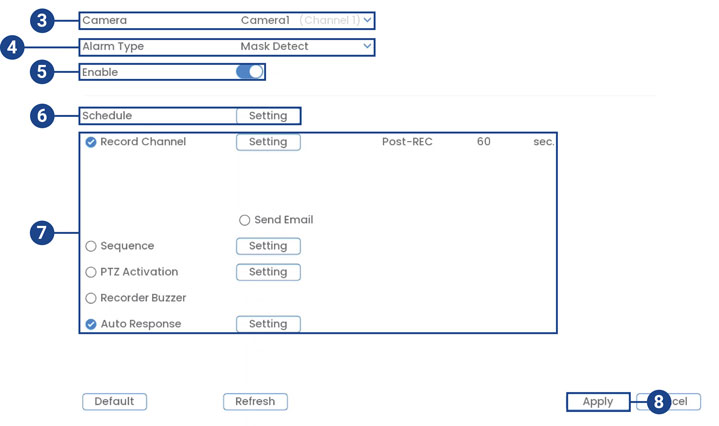 3. Select a camera to configure. 4. Select Continuous. 5. Check to enable face detection on the selected channel. 6. Click Setting next to Schedule to choose which days of the week to enable face detection: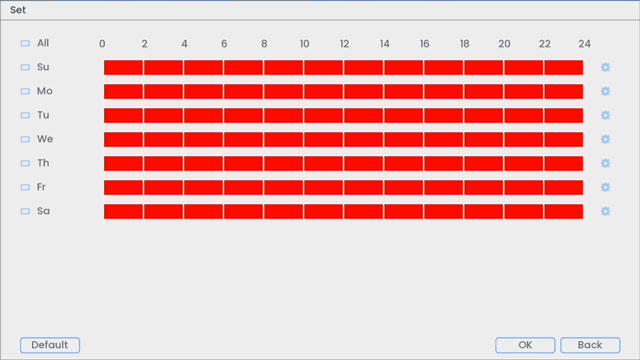
• Click or click-and-drag along each of the red timelines to quickly add or remove time from each day’s schedule in 30minute segments.
◦ Click

beside 2 or more days to link schedules (

). This allows you to quickly change multiple schedules at once.
◦ To make fine adjustments to a schedule, click

. This will allow you to set exact start and end times for a schedule.
◦ Click OK when finished.
7.You can configure how the system will react to mask detection, see
. 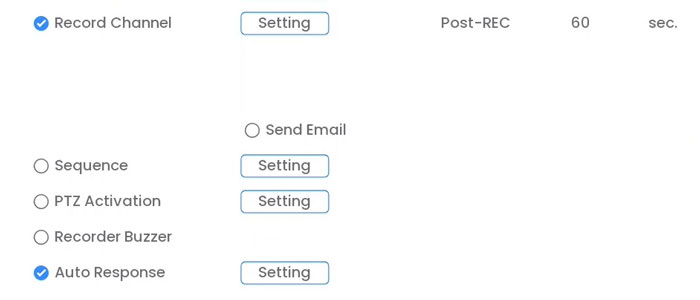
◦ Record Channel: Select the cameras that will record when a face is detected. Set the length of recording following a face detection event in the Post-REC field.
◦ Send Email: Check to enable email alerts. You must configure email alerts before you will be able to receive them , see 26.6.5 Configuring Email Alerts, page 134.
◦ Sequence: Sequence mode will begin. Select the numbered tiles next to this option to include the corresponding cameras in the sequence.
◦ PTZ Activation: Set connected PTZ cameras to start a tour, pattern, or go to a preset location.
◦ Recorder Buzzer: Check to enable the system buzzer.
◦ Auto Response: Check to enable an automatic audio response when a face is detected without a mask. Click Setting to create a schedule for auto response.
8.Click Apply to save changes.
9.(OPTIONAL) Click Copy to apply the settings to one or more other cameras.
.
Live Preview of Face & Mask Detection
You can now preview captured face detection and mask detection on your camera’s live view display.
To preview face and/or mask detection:
1.From the Live View display, right-click to open the Quick Menu, then click Face Preview.
2.Click Enable for the face preview panel to appear on the right side of the screen. Click Disable for the face preview panel to disappear from live view.
You can also search for face detection events on a specific camera or the entire system. You can also choose to back up events (USB flash drive required not included).To perform a Smart Search, see Searching for Person & Vehicle Detection (Smart Search) in Person & Vehicle Detection.
.
Configuring Face Detection Through the Lorex App
1.Tap

above the recorder’s thumbnail.
3.Tap the ellipses (…) in the top right corner of the app.
4.Tap Motion Detection Settings.
5.Tap

to enable Face Detection.
7.Here you can setup the general motion detection zone.
 Configuring Smart Motion Detection Zones (including face detection) can only be done using your recorder. For full instructions on how to set customized Motion Zones™, refer to “Configure Motion Zones™”.
Port Forwarding: Setup
Port forwarding tells a router which device on the internal network to send external traffic to. When port forwarding is set up on a router, traffic is taken from an external IP address and the data is sent to an internal IP address.
To set up port forwarding, all DVR / NVR systems have specific ports that need to be open. Refer to your user manual for model specific ports. Click here for downloads and documentation for your product.
Prerequisites:
• Ensure you have the IP address of your DVR / NVR, available in the Network menu or System Information in the DVR / NVR.
• Ensure you have your routers Gateway IP address. To find this IP address, open the Start menu on your PC. Open the Command Prompt (CMD) and type ipconfig to display your Gateway IP address.
• Ensure you have your router login information; a username and password are required to access the router. Refer to the router user manual for details.
• Ensure that you have connected your DVR / NVR to the same router as your computer.
• Ensure you have the MAC address of your DVR / NVR, available in the Network menu or System Information in the DVR / NVR. Depending on the DVR / NVR model, the MAC address can be found on the QR code sticker.
To set up port forwarding on your router:
1.In an web browser on your computer, enter your router’s Gateway IP address to log in to your router.
2.Locate your router’s port forwarding settings. Depending on your router, these can be found under different menu options such as:
IMPORTANT: Port forwarding is not the same as port triggering.
1.Once you have access to port forwarding settings on your router, configure rules for your ports.
◦ Rule Name: Enter a preferred name for the rule.
◦ Port: Input the IP address of the DVR / NVR, and the specific ports needed.
◦ Protocol: Select TCP / UDP, or both if it is available, then click Enable.
2.Click Save to save your settings.
TIP: You can use an online port checker to ensure you have configured your port forwarding properly on your router.
3.Locate the Dynamic Host Configuration Protocol (DHCP) reservation settings in your router. Set up DHCP reservation using the IP address and MAC address of your DVR / NVR. This method ensures the IP address of your system does not change if there is network or power loss.
REMINDER: If you do not have this option in your router, you can set up a static IP address on your DVR / NVR. Click here for more information on the differences between DHCP and static IP addresses.
Once you successfully set up port forwarding, you can set up a DDNS and login to your system remotely. If you lose remote connection with your DVR / NVR, click here for instructions to troubleshoot your port forwarding settings.
N910 Series – 4K+ Ultra HD 12MP 16 Camera Capable NVR: Change Your Recorder’s Smart Plan
The following article provides instructions on changing your recorder’s Smart Plan.
.
To use a smart detection feature on your camera, it must first be enabled in the Smart Plan settings from your system. Select the smart plan feature for each camera.
To configure your smart plan settings: 1. From the Live View display, right-click to open the Quick Menu, then click Main Menu. 2. Click Events, then Event Settings. Click the Smart Plan tab from the side panel.
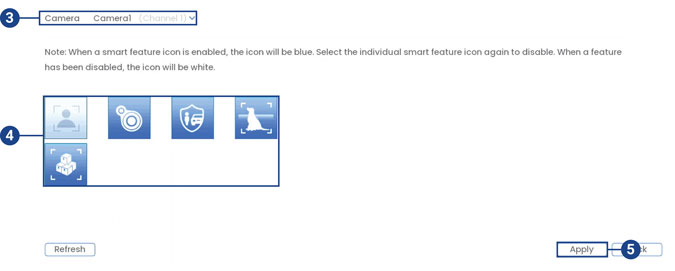
3.Select the camera you want to configure.
4.Select the icon for a smart feature that you want to enable:
◦ Face Detection

Face Detection will only notify you of motion events when a face has been detected, which prevents motion notifications from people or vehicles simply passing by and not coming towards the camera. Important: The face detection feature cannot be used simultaneously with other smart plans and is disabled by default. To enable the face detection feature, disable all other smart plans.
◦ Heat Map

Heat Map displays the area and frequency of motion detected in the camera’s image using a warm-to-cool color scheme.
◦ * Person & Vehicle Detection, Safeguard, and Active View*

Person & Vehicle Detection, Safeguard, and Active View helps you detection of people and vehicles with compatible IP cameras only. With its features you will only get a push notification whenever a person or vehicle is detected on your property.
◦ Animal Detection, Active View

Animal Detection, Active View helps you detect the animals on your camera even when you are not at home. It is especially helpful if you have a large space to monitor so you can get alerts whenever your pet roams around.
◦ Package and Envelope Detection

Package and Envelope Detection is used to detect and record mail, boxes, a courier, or a mail truck.
Important: When a smart feature icon is enabled, the icon will be blue. Select the individual smart feature icon again to disable. When a feature has been disabled, the icon will be white.
5.Click Apply to save changes.
N910 Series – 4K+ Ultra HD 12MP 16 Camera Capable NVR: Color Search and Number Search
The following article provides instructions for using Color Search to identify a person by what colors they are wearing. This article also gives you information about Number Search to help you filter, search, and browse for numbers on vehicle detection recordings.
For a complete understanding of detection of people and vehicles see Person & Vehicle Detection.
Searching for Colors (Smart Search)
The system can search for certain colors to provide an additional layer of data when you need to locate or identify a person by what colors they are wearing, or it can help you keep tabs on vehicles driving on your premises.
Important: In order to use Smart Search, you must configure at least one camera’s smart detection settings. See the procedure above for full instructions.
To perform a Smart Search: 1. From the Live View display, right-click to open the Quick Menu, then click Smart Search. 2. Click the Color Search tab from the side panel.
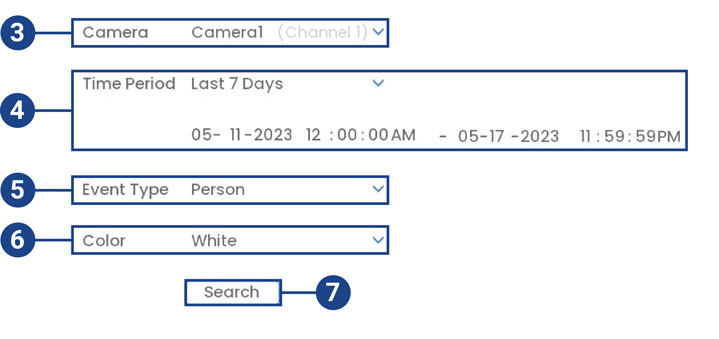
3.Select a camera to search for detection events from, or select All.
4.Select the time period for your search, then enter the start and end time.
5.Select the type of smart motion detection for your search, or select All.
6.Select the color you want to search for.
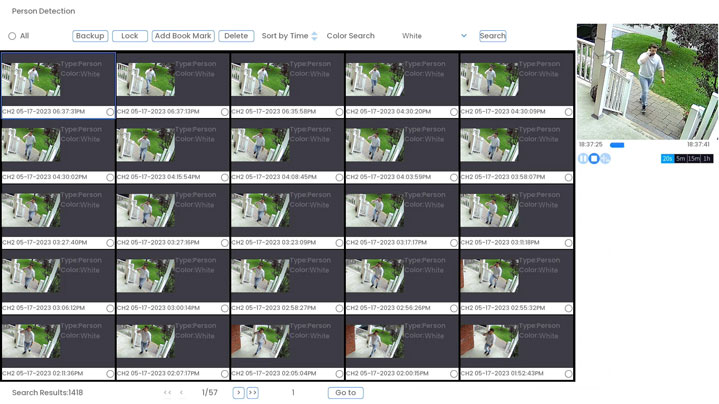
8.Events that match your search criteria are displayed. You now have the following options:
• Click a thumbnail to preview the event. Double-click the preview window to view in full screen.
• Check thumbnails to perform other actions:
◦ Backup: Back up events.
◦ Add Book Mark: Bookmark events.
.
Searching for Numbers on Vehicle License Plates (Smart Search)
The system can filter, search, and browse for numbers on vehicle detection recordings. Each result has the snapshot, the plate number, and a video recording showing the capture.
Important: * Number Search is not an LPR (License Plate Recognition) feature. * In order to use Number Search, you must configure at least one camera’s person & vehicle detection settings and have vehicle detection enabled. See the procedure above for full instructions.
To perform a Smart Search: 1. From the Live View display, right-click to open the Quick Menu, then click Smart Search. 2. Click the Number Search tab from the side panel.
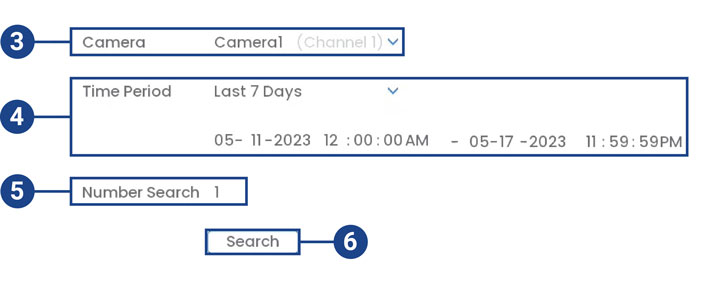
3.Select a camera to search for detection events from, or select All.
4.Select the time period for your search, then enter the start and end time.
5.Select the number for your search. You can search a maximum of 5 numbers.
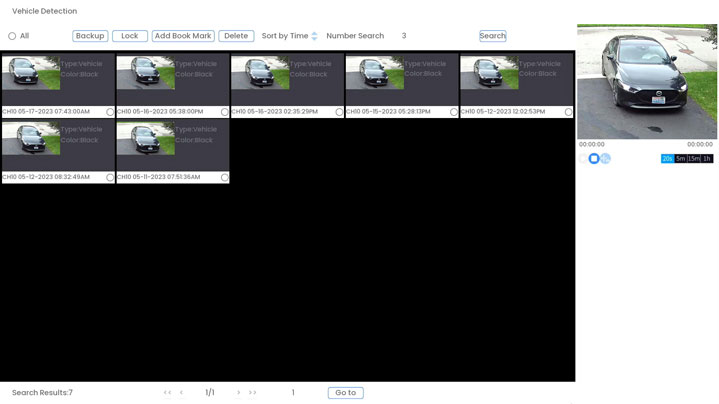
7.Events that match your search criteria are displayed. You now have the following options:
• Click a thumbnail to preview the event. Double-click the preview window to view in full screen.
• Check thumbnails to perform other actions:
◦ Backup: Back up events.
◦ Add Book Mark: Bookmark events.