How To View Hikvision Camera On Smart TV, Navigating the world of home security cameras can be complex, but integrating them into your home network for easy viewing doesn’t have to be.
In this blog post, we’ll explore a step-by-step guide on how to view HikVision camera on a smart TV using the TinyCam Monitor Pro app. Whether you’re a seasoned tech enthusiast or a beginner, this guide will help you seamlessly integrate your security system with your smart TV.
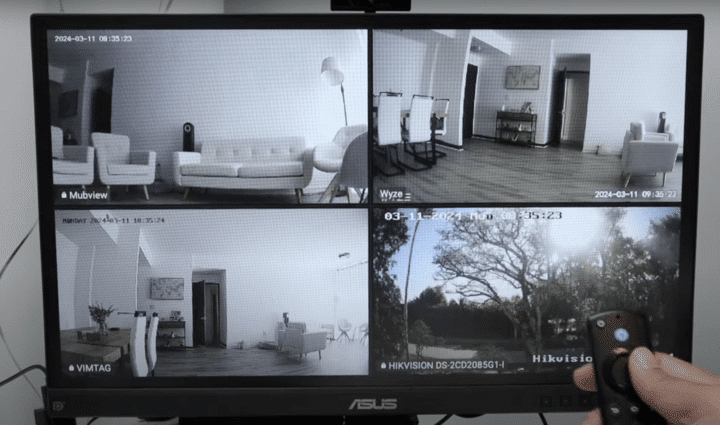
Setting Up Your Equipment
Before diving into the application setup, ensure your HikVision camera is operational. Check the camera’s functionality through the HikVision app on your smartphone and confirm its connection via your computer by logging in with the camera’s IP address. It’s essential to ensure that the camera is properly connected to your network and fully functional before proceeding to the next steps.
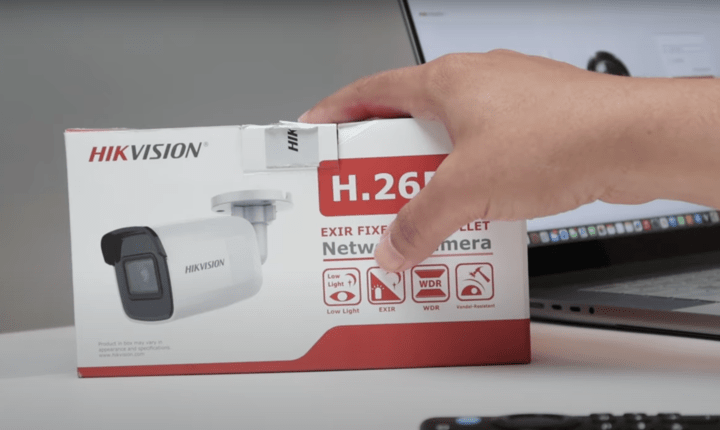
Choosing the Right Application
For displaying the camera feed on a smart TV, the TinyCam Monitor Pro app is a reliable choice.
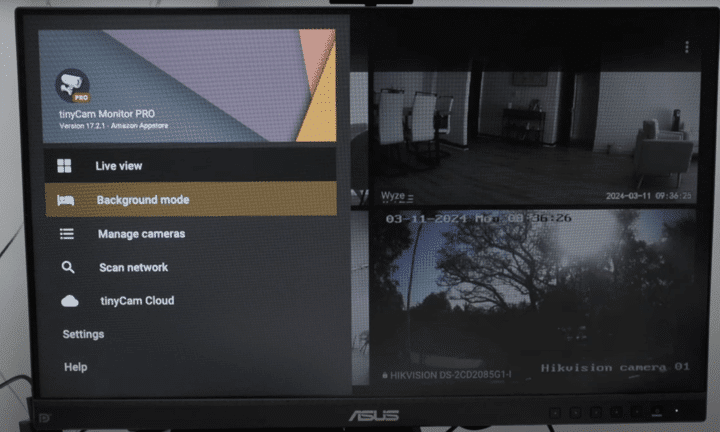
Available on the Amazon App Store, version 17.2.1 of this app supports various camera brands and integrates them into one dashboard for easy monitoring. This app is especially useful for managing multiple cameras of different brands, including Mubview, Wyze, Vimtag, and Arlo, alongside HikVision.
Configuring the TinyCam Monitor Pro
After confirming the camera’s operational status, proceed to add your HikVision camera to the TinyCam Monitor Pro app. Start by deleting any pre-existing settings to configure from scratch.
The quickest way to connect is by using the network scanning feature of the app, which will detect your HikVision camera and prompt you to select the appropriate protocol.
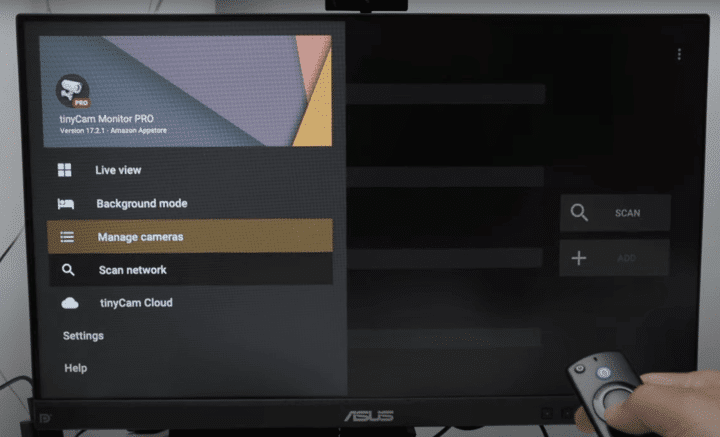
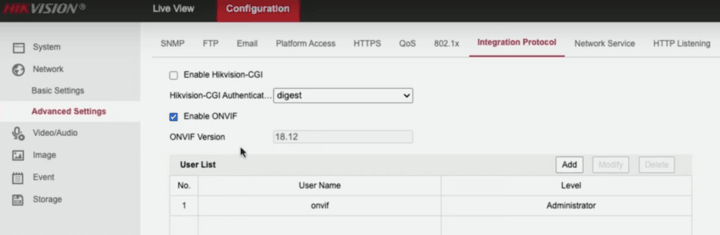
HikVision cameras support their proprietary protocol and the universal ONVIF protocol. While the HikVision protocol is preferable for its simplicity and reliability, ONVIF is a good fallback option if you encounter issues.
Troubleshooting Connection Issues
If you face any connection problems, such as a ‘404 not found’ error, it might be related to resolution settings or other configuration details. Should the standard protocol fail, it’s advisable to enable the ONVIF protocol on your camera via the camera’s web interface, adding a specific ONVIF user for heightened security.
Finalizing the Setup
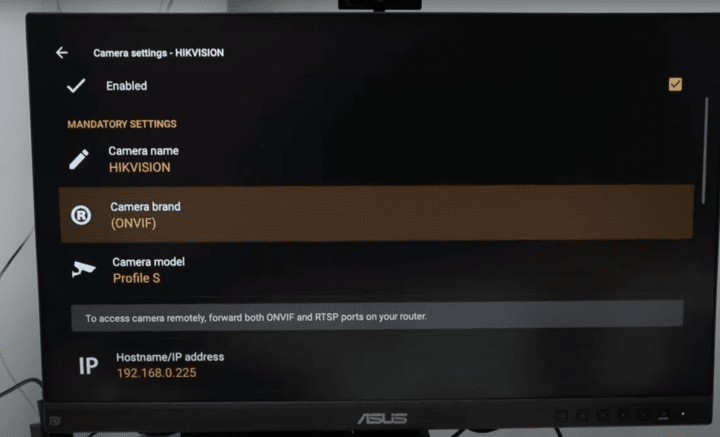
Once the camera is added to the app using the selected protocol, finalize the setup by entering the username and password. This step is crucial to enable your smart TV’s firestick to access the camera feed. Verify the camera’s status within the app to ensure everything is set correctly.
Enjoying Your Smart Home Integration
With everything configured, you should be able to view your HikVision camera on your smart TV. This integration not only enhances your home security but also brings convenience by allowing you to monitor your premises directly from your living room.
Whether you are setting up a new home security system or integrating existing cameras with newer technology, this guide provides a comprehensive approach to achieving a seamless smart home experience.
Video: How To View Hikvision Camera On Smart TV
Here’s a detailed video that show how to watch a Hikvision camera on a Smart TV using the TinyCam App. Please watch it to better understand the process and subscribe to the YouTube Channel.
We hope this tutorial was helpful! For more tips on smart home technology and security setups, don’t forget to subscribe to our channel, give us a thumbs up, and leave your comments below. Stay tuned for more tech insights in our upcoming posts!
.
TinyCam App Frequently asked questions
1. How to add my IP camera?
The easiest way is automatically add all your cameras via “Scan Network” feature available in the app. After the cameras added, you need to specify cameras username and password.
To add camera manually go to “Manage Cameras”, and press “Add IP camera, NVR/DVR”. In “Camera Settings” you have to specify your camera vendor, model, hostname, port number, username, and password.
For advanced users we have an option to add any camera model by specifying camera requests manually.
2. My camera is not supported. Can you add support for it?
Please provide us a temporary access to your camera (see contacts). We will try to add it.
3. I cannot access my cams from mobile network, but they work with local WiFi connection. What are the required steps to enable broadcasting?
You need to setup port forwarding on your router. Port forwarding forwards all traffic from your private camera to external network, e.g. from 192.168.0.3:8080 to your_external_ip:8080. Read the router manual for how to do that or contact your system network administrator. Enter your external IP address and port number in tinyCam Monitor when you’ve done.
You can also use a free step-by-step tutorial from portforward.com. Use canyouseeme.org to check if port forwarding done properly.
Usually DSL connections renew their IP addresses after 24 hours. Use DDNS service to get fixed domain name, e.g. free noip.com.
4. How can I connect to my webcam/USB camera?
You need to install on your PC either Netcam Studio (recommended), AbelCam or Yawcam software which support USB cams broadcasting. For the vendor name select Windows in tinyCam Monitor’s Camera Settings.
For Mac computers we support AirBeam, EvoCam, RemoteSight (recommended, see video), SecuritySpy software.
For Linux we support Motion, MJPG-streamer, ZoneMinder.
For Android – IP Webcam (recommended), Cam’ON – Cloud IP Camera (recommended), FRITZ!App Cam, Camera WiFi LiveStream, Ocular IP Camera.
For iOS – AirBeam, IP Cam Pro, iPCamera – High-End Network Camera (recommended), Live-Reporter.
For Windows Phone – IP Camera (ShenYao China)
5. How can I view live video from another Android device camera?
For Android device we highly recommend to install any free apps IP Webcam or Cam’ON – Cloud IP Camera. These apps allow using your Android device as an IP camera. Then you can use tinyCam Monitor on another Android device for monitoring video. Check this video.
P.S. You can also use tinyCam Monitor as an IP camera if you have Android 5.0 or later. Select “Add Android camera” in Manage Cameras and start internal web server in app drawer.
6. How can I monitor any webcam?
If you know the full stream request, create a new camera in tinyCam Monitor using vendor name “(Generic)”. In the text field “JPEG/MJPEG/RTSP request” enter http://myweb.com/image.jpg or rtsp://myweb.com:554/request.sdp. You should be able to see live video on your Android device.
7. How to add more webcams?
To get more webcams please install free WorldScope Webcams for Android – official Webcams.travel app for accessing thousands cams database. Start WorldScope app and search for cameras which have Streaming video capability. tinyCam Monitor will be automatically used for live view, record and import webcams. See this video.
8. Does the app support push notification from cameras?
No, there is no easy way for 3d party apps (like tinyCam Monitor) to get push notifications from cameras. However you can use “Background Mode” to be notified when motion occured. Check this video.
9. What about privacy policy?
We respect your right to online privacy. tinyCam Monitor does not collect or send us or 3d parties any personal information.
The apps may collect anonymous usage statistics. That can be disabled in app settings.
.
Android camera settings
Front/rear Android camera support for use as a spy camera or dashcam. Check https://goo.gl/5z60mC for more info. Android 5.0+ only. Camera permissions should be accepted to get video from Android camera.
Camera status
Press to check video stream and video statistics.
Enabled
Check to enable the camera. Disabled camera will not be shown in live view.
Camera name
Unique name to be used for the camera in the app. Camera name is used for recording as a directory name.
Encoder
JPEG or H.264 (recommended).
Device
Back or front camera.
Resolution
Camera resolution. Low resolution usually produces smoother video stream (more FPS).
.
Camera settings
Camera status
Press to check video stream and video statistics.
Enabled
Check to enable the camera. Disabled camera will not be shown in live view.
Camera name
Unique name to be used for the camera in the app. Camera name is used for recording as a directory name.
Camera vendor
Manufacturer of the camera.
Camera model
Make of the camera.
Hostname/IP address
Hostname or IP address of the camera, e.g. 192.168.1.5 or myhost.no-ip.org.
Web/ONVIF port number
Default 80.
Protocol
Protocol to be used for connecting to camera. The app can support multiple protocols. Try to change protocols for better frame rate or stable video stream.
It is recommended to use Proprietary protocol if the app supports it.
RTSP/media port number
Port to be used for connecting via RTSP protocol. Default 554.
Use HTTPS
Fully encrypted connection. App supports self-signed certificates.
By default the app tries to encrypt credentials if camera supports that (digest authentication). However it is still possible to intercept video/audio stream by network providers. We encourage you to use HTTPS connection or VPN (even better) for fully secured connection.
Username
Username for camera access.
Password
Password for camera access.
.
Theme
Change color theme.
Status bar in live view
Show status bar in live view. If unchecked status bar will be hidden. By default, off.
Auto hide bars in single layout
Automatically hide bars in single camera layout after a couple seconds of inactivity. By default, off.
Zoom on double tap in single layout
Zoom in/out on double tap in single camera layout. If unchecked double tap brings multiple camera layout screen. By default, on.
Rec & audio in multiple layout
Show recording and audio listen buttons in multiple layout. Enable it if you want to allow listening to audio from multiple cameras at the same time in foreground or background. By default, off.
Hide rec & audio in single layout
Hide recording and audio listen/talk buttons in single layout when bars are hidden. By default, on.
Auto start live view on boot
Automatically start live view after the device booted. By default, off.
Auto start background mode on boot
Automatically start background mode after the device booted. Useful when you make 24/7 recording via background mode and want to be sure that recording continues after the device unexpectedly rebooted. By default, off.
Auto start web server on boot
Automatically start web server mode after the device booted. Useful for 24/7 recording via background mode. By default, off.
Keep screen on
Do not allow switch off the screen on inactivity while in live view. By default, on.
Bright screen
Show live view at maximum brightness. By default, off.
Dim screen on idle
Dim live view screen after a couple seconds of inactivity. By default, off. Works only when bright screen is on.
Sequence mode timeout
Timeout in seconds when changing cameras or cameras pages sequentially (sequence mode).
Allowed network
Prevent app uses cellular data network if WiFi only selected. By default, All networks used.
Autodetect home/away network
If on (by default) the app tries to guess which local or remote hostname/port should be used if both specified in Camera Settings for the camera.
If the switch is off, the app shows additional Home network menu item in live view left slide menu (drawer). Enabled Home network forces to use local hostname/port, disabled – remote ones.
Autodetection will be disabled for the camera if home WiFi network specified in Camera Settings – Advanced.
App passcode
4 digit passcode to be used to block unauthorized app access. It is also possible unlock the app by fingerprint if the device has fingerprint scanner.
Send statistics
Allow the app developer to collect usage statistics anonymously to improve the app.
Cloud account
Cloud account to be used for cloud recording (JPEGs only) and backup/restore camera settings.
Cloud service
Press to choose which cloud provider should be used in the app. The choices are Amazon Drive, Dropbox, Google Drive (if Google Play Services installed), Microsoft OneDrive.
Link cloud
Press Link to link the app against the chosen cloud provider
Delete archive
Press to delete all cloud recordings done by the app.
.
Recording
The app supports two types of recording: H.264/AAC (MP4 container) and JPEG. H.264 recording is available only for Android 4.3+ devices. In background mode only video is recorded. In live view both video and audio can be recorded in MP4 container.
H.264 recording works for local storage recording only. For cloud and FTP recording JPEGs are used (will be fixed in future app updates).
Recording directory
Local storage recording directory. If you have SD card available or any other additional storage connected to your Android device, pressing DEFAULT button should allow selecting that storage for recording.
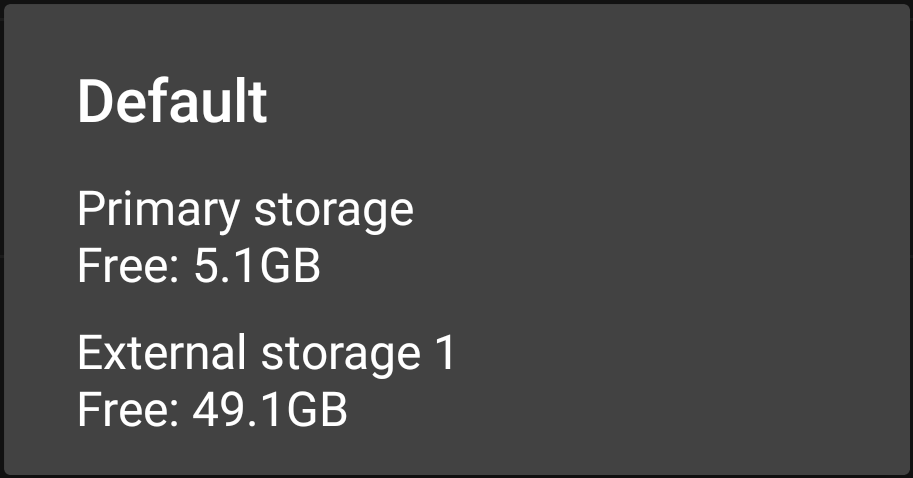
NOTE: It is recommended to install free ES File Explorer app https://play.google.com/store/apps/details?id=com.estrongs.android.pop for folder selection. New SELECT button should appear.
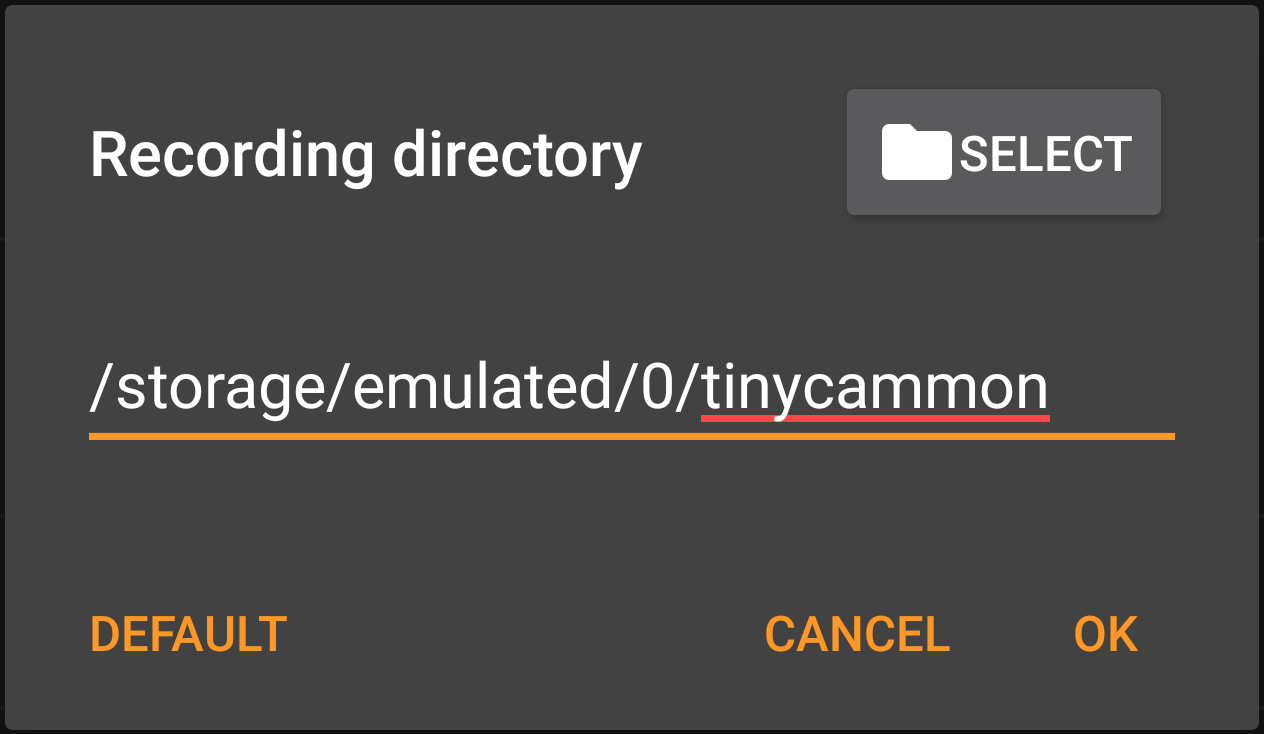
Encoder
Encoder to be used for local storage recording.
Cut by duration (min)
H.264 only. Make a new video file segment if time reached. By default, 15 min.
Cut by size (MB)
H.264 only. Make a new video file segment if file size reached. By default, 100 MB.
Draw timestamp
Draw timestamp in the lower bottom corner.
WARNING: Enabling timestamp will force the app to reencode the video which can cause more battery drain.
Delete archive
Delete all recordings done by the app on local storage.
Events
Record before motion detected (background mode only)
Number of seconds to record before motion detected. Pre-recorded buffer will remain in memory and will be flushed when motion detected.
WARNING: This parameter can cause the app to crash if the device does not have enough memory.
Record after motion detected
Number of seconds to record after motion detected.
.
Motion detection
The app supports two types of motion detection: on-camera and in-app.
On-camera motion detection
On-camera motion detection is done solely on camera. All settings like motion detection area or motion sensitivity should be changed via camera web interface.
It does not use Android device CPU for detecting motion (no battery consumption), but it may consume additional traffic.
If on-camera motion detection is disabled in Camera Settings, then your camera does not support motion detection or it does not provide access for 3d party apps like tinyCam Monitor for motion data.
In-app motion detection
In-app motion detection is done in the app and is available for all cameras. It efficiently uses Android device CPU for detecting if motion occurred.
In-app motion detection is sensitive to image quality and video compression artifacts. Using higher video stream quality is recommended.
Press in-app motion sensitivity to change additional motion settings.

Face detection
The app triggers alarm when any face detected in video. The app uses Google Play Services improved face detector if available.
Press face detection sensitivity to change additional face settings.
Sound on motion
Play sound on Android device when motion detected.
Vibration on motion
Vibrate Android device when motion detected.
System notification on motion
Show system notification with image (if possible) when motion detected.
Email on motion
Send email when motion detected. Email to be sent to should be specified in “App Settings” – “Email Account”.
Zoom and track on motion (live view)
Digital zoom on moving object and tracking. See https://goo.gl/LnAFZ6 for more info.
Wake up on motion (background mode)
Switch on device screen temporarily and show camera live view when motion detected.
Record to local storage on motion
Record to local storage within several seconds when motion detected.
Record to cloud on motion
Record to cloud within several seconds when motion detected. Your cloud service should be linked against the app in “App Settings” – “Cloud Account”.
Record to FTP on motion
Record to FTP server within several seconds when motion detected. FTP account should be set in “App Settings” – “FTP Account”.
.
Local storage recording
Recording to internal device flash storage or to external storage, e.g. SD card or USB drive. Local storage destination (drive and directory) can be specified in Settings – Recording Settings.
Recording frame rate
Frame rate for recording when timestamp enabled or JPEG/H.265 codec is used. If video stream is H.264, it will be saved in original format at max frame rate without any re-encoding (recording frame rate parameter not used).
Time-lapse recording
Make recorded video played at 10x speed. See more at https://goo.gl/FMCPUL
Recording quota
The oldest recordings will be deleted from local storage if quota exceeded. By default, 500MB. Designed for 24/7 recording.
Delete archive
Empty all local storage recordings for the current camera.
Cloud recording
Record video to the cloud. To use this feature you need to link the app against your cloud provider in App Settings – Cloud Account. Supported Amazon Drive, Dropbox, Google Drive, and Microsoft OneDrive clouds.
At the moment only JPEGs recorded to the cloud. MP4 cloud recording will be available later.
WARNING: If you use a free cloud account and the app produces a lot of traffic to the cloud, cloud provider can limit bandwidth or even block uploading for some time causing recorded video lost in the app. We encourage you to use premium cloud account if you use this feature for 24/7 cloud recording.
Cloud recording
Enable cloud recording. By default, off.
Recording frame rate
Frame rate to be used for recording. By default, 0.2 FPS (1 frame per 5 seconds).
Recording quota
The oldest recordings will be deleted from the cloud if quota exceeded. By default, 500MB. Designed for 24/7 recording.
Delete archive
Empty all cloud recordings for the current camera.
FTP Server Recording
Recording JPEGs to FTP server. To use this feature FTP server parameters should be specified in App Settings – FTP Account.
FTP server recording
Enable recording to FTP server. By default, off.
Recording frame rate
Frame rate to be used for recording. By default, 0.2 FPS (1 frame per 5 seconds).
.